Summary: ◀▼
Analyst copilot memories save your analysis steps, definitions, business logic, field mappings, and feedback so you can reuse consistent reporting logic. View and manage memories in graph or conversational views, then refine, refresh, rate, combine, or narrate them to explore insights. You can also create new reports from existing memories, saving time and preserving context.
Memories are persistent records of information that analyst copilot saves automatically or explicitly while you work. This includes every step you take, definitions you use, business logic applied, field mappings, and your feedback and corrections.
This article contains the following topics:
- About memories
- Viewing memories
- Navigating memories
- Best practices for memories
- Managing memories
- Creating a new report from a memory
Related articles:
About memories
Memories can be:
- Steps and filters applied during a specific analysis
- Definitions of key terms (for example, “VIP customer” or “churn”)
- Synonyms, preferred breakdowns, or KPI logic
- User or team preferences that influence results
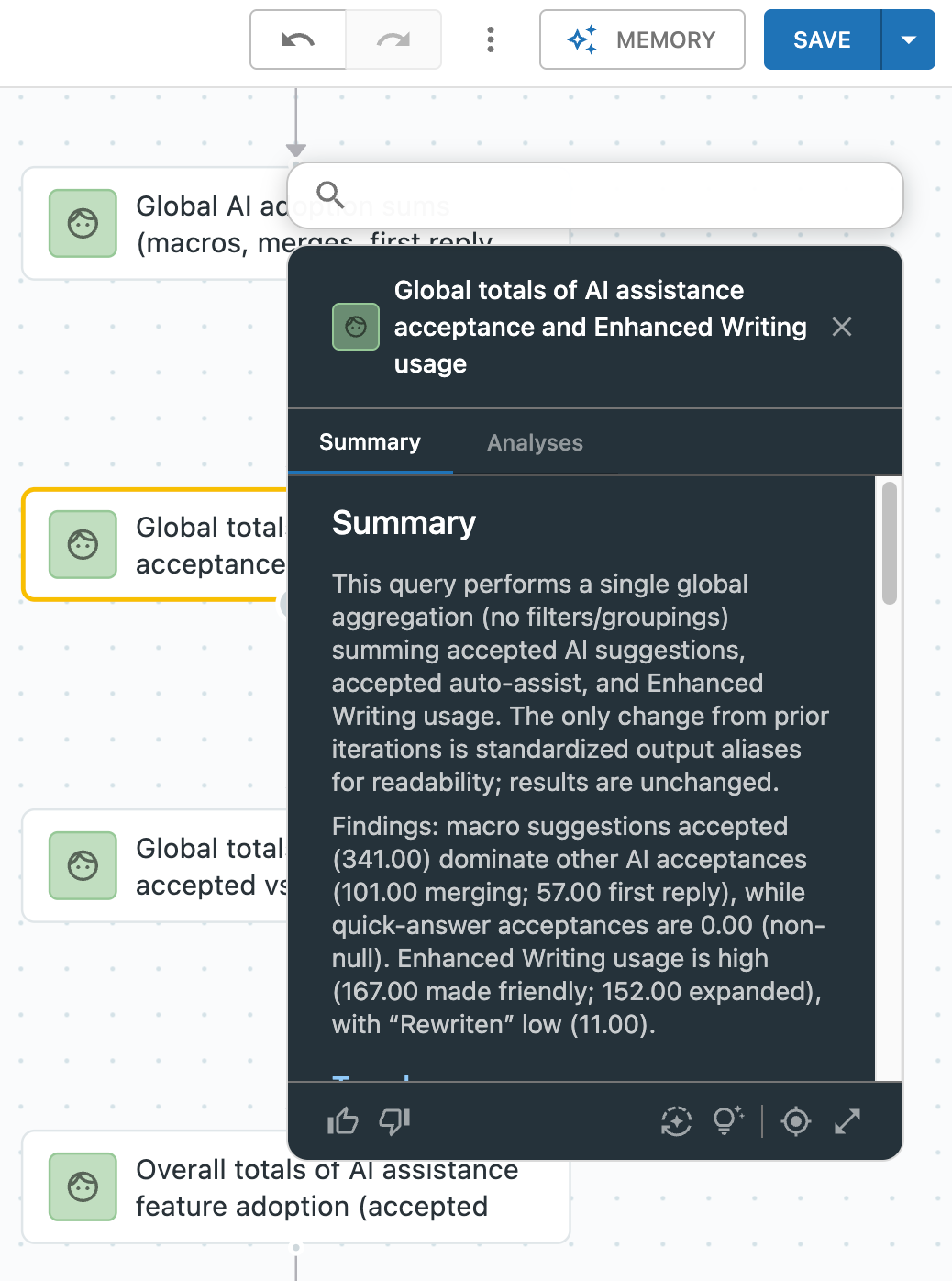
The benefits of memories include:
- Definitions, metrics, and analytical logic are applied the same way in every analysis. This consistency improves trust because everyone gets the same answer to critical business questions.
- Report creation starts from stored memories making reporting faster and easier to repeat. Common queries and business terms don’t need to be constantly redefined.
- Every analytical path is stored, viewable, and auditable in the context graph, meaning you track how insights were generated, helping to answer questions.
- Because your business context, steps, and preferences are saved, Analyst copilot can offer relevant suggestions and narratives tailored to how your team works.
- Teams can curate, promote, and share memories ensuring everyone uses agreed-upon terms and logic, even as new people join or processes evolve.
Viewing memories
You can view your memories as a graph displaying their relationships or as a more familiar chat-style view. Both views contain the What changes do you want to make? field that you can use to supply follow-up prompts to refine your report. See Creating reports in analyst copilot.
Viewing memories in the conversational view
In addition to the graph view, you can also display your memories in a familiar chat-style view.
To view memories as a conversation
- Open a report, then click the memories
icon (
 ).
- Click the conversational view icon (
 ).
The report's conversational view opens, displaying the memories associated with it.
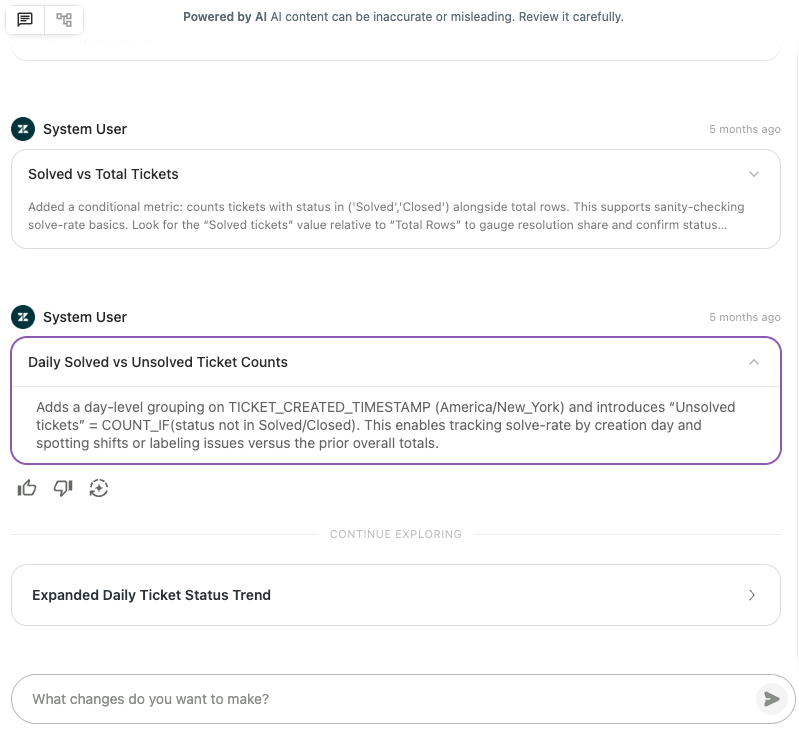
In this view, you can continue to provide prompts to refine your report.
Viewing memories in the graph view
Memories are displayed in the context graph section of report builder.
To view memories in a graph
- Open a report, then click the memories
icon ().
- Click the graph view icon (
 ).
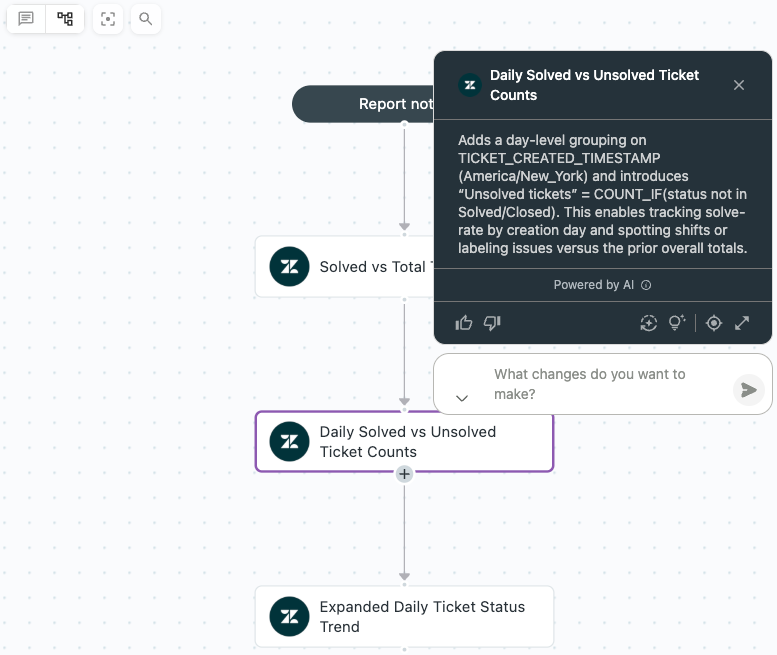
The report's context graph opens, displaying the memories associated with it.
- Click any memory to view more details.
Navigating memories
You can view, navigate, and manage a reports memories.
To navigate memories in the graph view
-
Open a report, then click the memories
icon ().
- Click the graph view icon ().
The report's context graph opens, displaying the memories associated with it.
- Use drag-and-drop to move around the context graph and use your mouse wheel to zoom in or out to find the memory you want.
- Click a memory to see its details.
- Take any of the following actions:
- Click a memory to update the report visualization to match the
memory.
Each memory has a card with a summary and analysis describing what is being shown in the report.
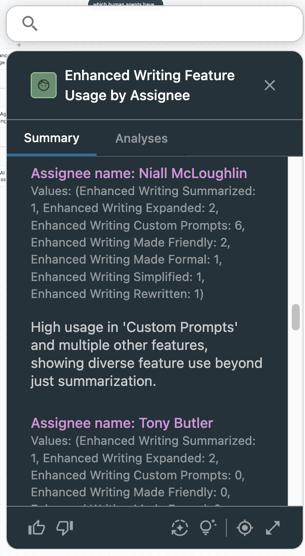
- Click the thumbs up or down icons to indicate to Analyst copilot if the memory was useful. This helps memories become more accurate over time.
- The Refresh and analyze button (
 ) refreshes the memory summary
with the latest information from the dataset.
- The Find inspiration button (
 ) gives you suggestions on other
reports you might find useful.
- Click a memory to update the report visualization to match the
memory.
- Click the memories icon () to close the graph view.
To navigate memories in the conversational view
- Open a report, then click the memories icon
().
- Click the conversational view icon ().
The report's conversational view opens, displaying the memories associated with it.
- Click a memory to update the report visualization to match the memory.
- (Optional) In the What changes do you want to make? field, provide any follow up prompts to refine your report.
- Click the Refresh and summarize icon () to refresh the memory summary with the
latest information from the dataset.
- Click the thumbs up or down icons to indicate to analyst copilot if the memory was useful. This helps memories become more accurate over time.
- Click the memories icon () to close the conversational view.
Best practices for memories
Consider the following best practices to get the most from memories.
- Before building a new analysis from scratch, search existing memories and reuse them if possible to save time and help ensure company-wide consistency.
- Rate memories to improve future results.
- Combine and narrate memories for deeper insights.
- Use memories for training and onboarding. Memories can serve as living documentation, making it easier to onboard new analysts or business users by learning from past logic and rationale.
- Periodically audit project memories for redundancy, outdated logic, or inconsistent definitions.
Managing memories
You can manage memories in the following ways:
Pausing automatic memories
By default, memories are automatically recorded while you work in analyst copilot. However, if you're exploring or packaging reports, you might not want every intermediate step you take being turned into a finished memory. To accomplish this, you can pause automatic memories in both graph and conversational views. When you pause memories:
- Your changes are collected into a new, unfinished memory instead of being
finalized after each change. If you don't like the generated memory, click
the thumbs down icon. Analyst copilot uses ratings to learn and improve over
time.

- You can keep making changes to that memory. Click the checkmark icon (
 ) when you’re ready to finalize
it.
- If you edit a different, already-finalized memory, analyst copilot starts another new memory because finalized memories are locked.
To pause and resume automatic memories
- Open a report, then click the memories
icon ().
- In the report context graph, click the pause button (
 ) to pause automatic memories.
- Click the resume button (
 ) to resume automatic memories.
Generating report suggestions
In a memories summary or analyses, you can generate suggestions as to how you could enhance your report.
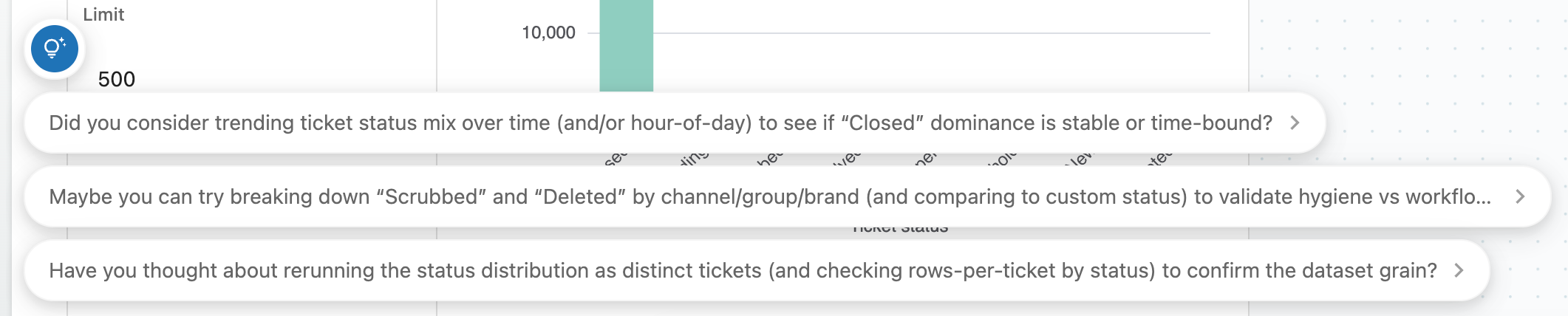
To generate suggestions
- In a memory in the graph view, click the find inspiration button ().
Suggestions are generated and displayed at the bottom of the Analyst copilot window.
- Click a suggestion to see more details including the memories that were used to create it.
- Click Apply suggestion to apply it to the existing report.
- Click Try this in a new report to create a new report using the suggestion.

Combining memories
In the graph view, you can combine multiple memories or narrate them as a story to explain trends or causes.
Combining memories creates a new memory. This lets you use metrics and attributes from different memories. For example, one of your memories includes a metric of your solved tickets. The other contains an attribute of the ticket requester's region. You can combine these into a new memory for solved tickets by region.
To combine memories
-
Open a report, then click the
memories icon ().
- Click the graph view icon ().
The report's context graph opens, displaying the memories associated with it.
- Select one or more memories, then click Combine. Press and hold
Shift to select multiple memories.
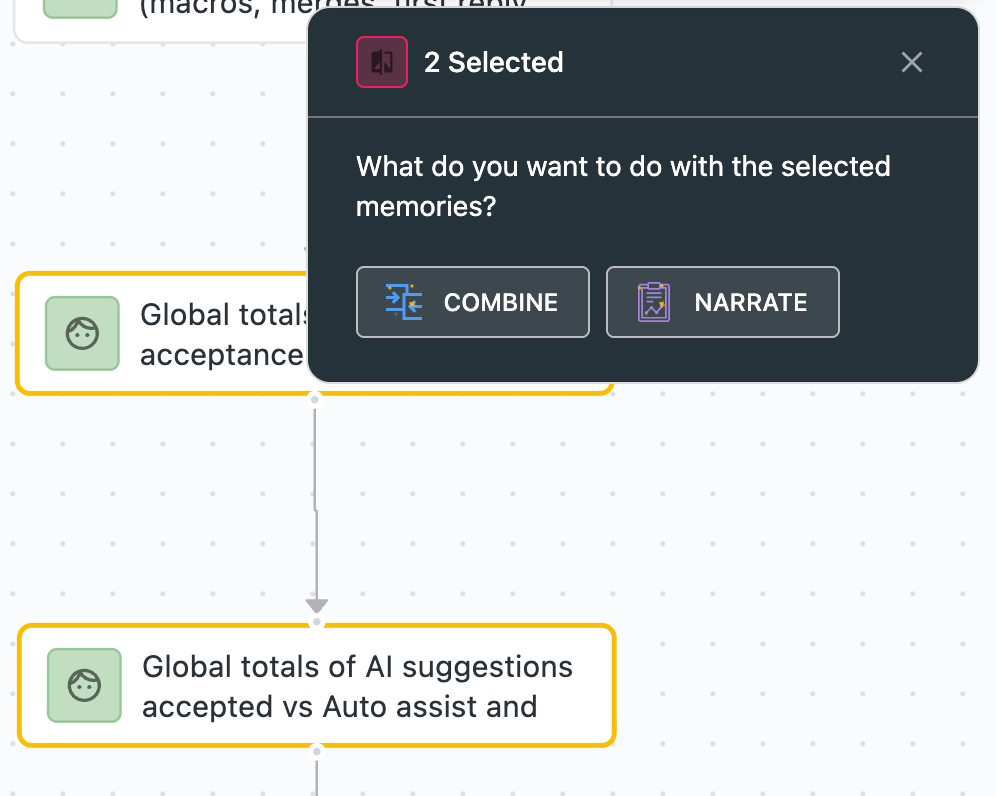
- Enter a description of the report you're trying to create. For
example, "Who had the largest workload in each region?"
A new report and memory is created based on the memories you selected and the description you entered.
Narrating memories
You can use multiple memories to create a story. For example, narrating two memories and using the prompt, "My department is very busy. Why is that?", Analyst copilot creates a report you can use to help you understand reasons why your department is busy.
To narrate memories
-
Open a report, then click the
memories icon ().
- Click the graph view icon ().
The report's context graph opens, displaying the memories associated with it.
- Press and hold Shift while you select at least two memories, then click Narrate.
- Enter the story you want to tell. For example, "When are my busiest periods? When is it quiet?"
- Click Narrate.
A report is created with insights, reasons, and potential actions based on your prompt.
Rating memories
You can rate the quality of generated memories. Analyst copilot uses these ratings to learn and improve over time.
To rate a memory
-
Open a report, then click the
memories icon ().
- In the graph view or conversational view, click thumbs-up or thumbs-down to
rate any memory.
Analyst copilot remembers your rating and uses it to improve future memories.
Refreshing memories
You can refresh memories to show the latest data and summary.
To refresh a memory
-
Open a report, then click the
memories icon ().
- In the graph view or conversational view, click one of your memories to see its details.
- To refresh the memory, click refresh and summarize (
 ).
The memory and its summary are updated with the latest data.
Creating a new report from a memory
You can use any memory to fork a report , allowing you to start new explorations from validated, existing logic (preserving context and reducing errors).
Forked reports maintain links in the context graph, boosting the relevance of frequently used logic and definitions for future questions.
To create a new report from a memory
-
Open a report, then click the memories
icon ().
- In the graph view or conversational view, click one of your memories to see its details.
- Click Save > Fork.
A new report is created and opened from the selected memory.
Article Q&A
Click to view
What information does Analyst copilot save in memories, and what should I avoid including?
Memories can include analysis steps and filters, definitions, business logic, field mappings, preferences, and your feedback or corrections. Avoid analyzing PII or confidential data, and avoid sensitive information in memories where possible.
How can I view and navigate memories for a report?
Open the report and click the memories icon, then choose graph or conversational view. In the graph, drag to navigate and use the mouse wheel to zoom; click a memory to see its details. In either view, you can click a memory to update the report visualization, and use the follow-up prompt field to refine the report.
How can I combine memories or use them to create a report narrative?
In graph view, select memories and click Combine, then describe the report you want; this creates a new report and memory using the selected memories. To narrate, select at least two memories while holding Shift, click Narrate, enter your story prompt, and click Narrate to create a report with insights, reasons, and potential actions.
How do I rate or refresh a memory?
Open the memory in graph or conversational view. Click thumbs up or down to rate it; Analyst copilot uses ratings to improve future memories. To update it with the latest dataset information, click Refresh and analyze in graph view or Refresh and summarize in conversational view.
How can I create a new report from an existing memory?
Open a report, click the memories icon, and select a memory in graph or conversational view to see its details. Click Save > Fork to create and open a new report from that memory; the fork preserves its context graph links.