Summary: ◀▼
Use prebuilt analyst copilot datasets to explore ticket, agent, IT asset, AI agent, and real-time data. Create custom datasets to combine data from multiple sources, select columns, and join related objects for tailored reports. Add descriptions to dataset fields so report builders can understand measures and dimensions, and help improve copilot memories and suggestions. Dataset content updates daily.
A dataset is an organized collection of information that analyst copilot uses to create reports. Several prebuilt datasets are included, organized by business process that you can use to ask questions of your business information. However, you can also combine information from multiple datasets into a new, custom dataset using dataset builder.
Watch the following video to see dataset builder in action:
Using dataset builder (2:27)
This article contains the following topics:
Understanding the prebuilt datasets
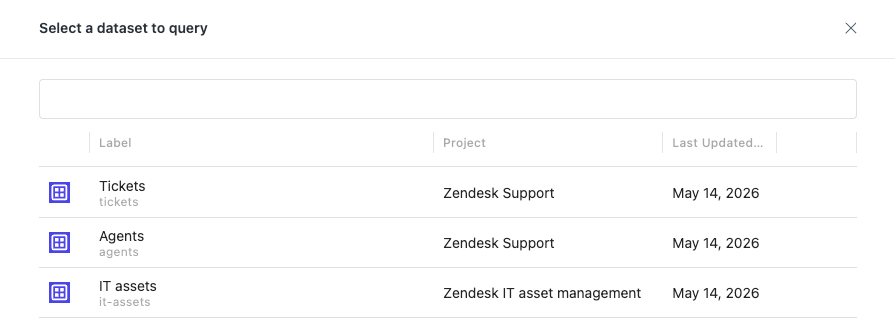
The agentic analytics EAP includes the following prebuilt datasets:
- Tickets: Gain insights into ticket volume and activity. Things like ticket status, groups, resolutions, reply times, satisfaction score, as well as AI suggestions, enhanced writing and intelligent triage Copilot features. Data is captured at the ticket level in the current state.
- Agents: Get insights into your support team members, including profile details, role, skills, and group and brand memberships. Data is captured at the user level in the current state.
- IT assets: Get insights into your IT asset inventory, including asset details, ownership, lifecycle status, and assignment history. Data is captured at the asset level in the current state.
-
AI agents: Gain insights into your AI agent performance. AI agents
consists of three datasets:
- AI agent conversations
- AI agent conversation knowledge
- AI agent conversation use cases
-
Real time datasets: Dates, dimensions, and measures you can use to build
real time reports about your tickets and agents. There are two real time
datasets:
- Real time tickets
- Real time agents
- Real time ticket status updates
- Real time engagements dataset
- Real time agent capacity updates dataset
- Real time agent replies dataset
- Real-time standard queue updates
- Real-time custom queue updates
- Real-time agent unified status updates
- Real-time agent channel status updates
- Real-time anomaly tickets dataset
- Real-time anomaly detection events dataset
- Real-time WFM adherence dataset
- Real-time AI agent conversation events dataset
When you create a report, you can select the dataset you want to use or you can create your own.
Follow the Agentic Analytics EAP page to discover when new datasets are released.
Creating custom datasets
While you can't use multiple datasets in your report, you can combine information from multiple datasets into a new dataset known as a custom dataset. The dataset builder uses a graphical interface, so minimal knowledge of databases is necessary.
To create a custom dataset
- In Analytics, click the Home (
 ) icon
in the sidebar.
- Click the create icon (+), then select Dataset.
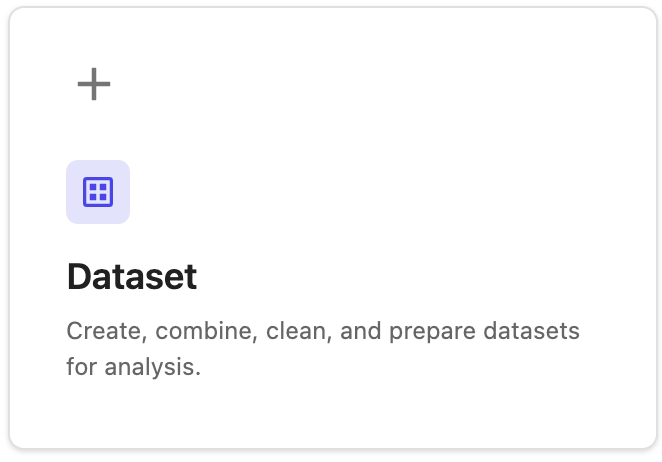
Dataset builder opens.
- Click Add data source.

Dataset builder adds a standard object. This doesn't contain any information until you configure it.
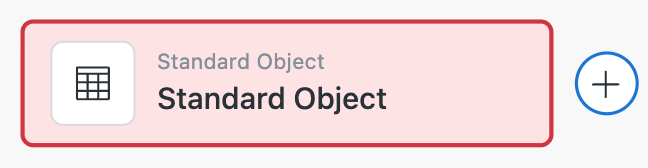
- Click the standard object you added to open its options.
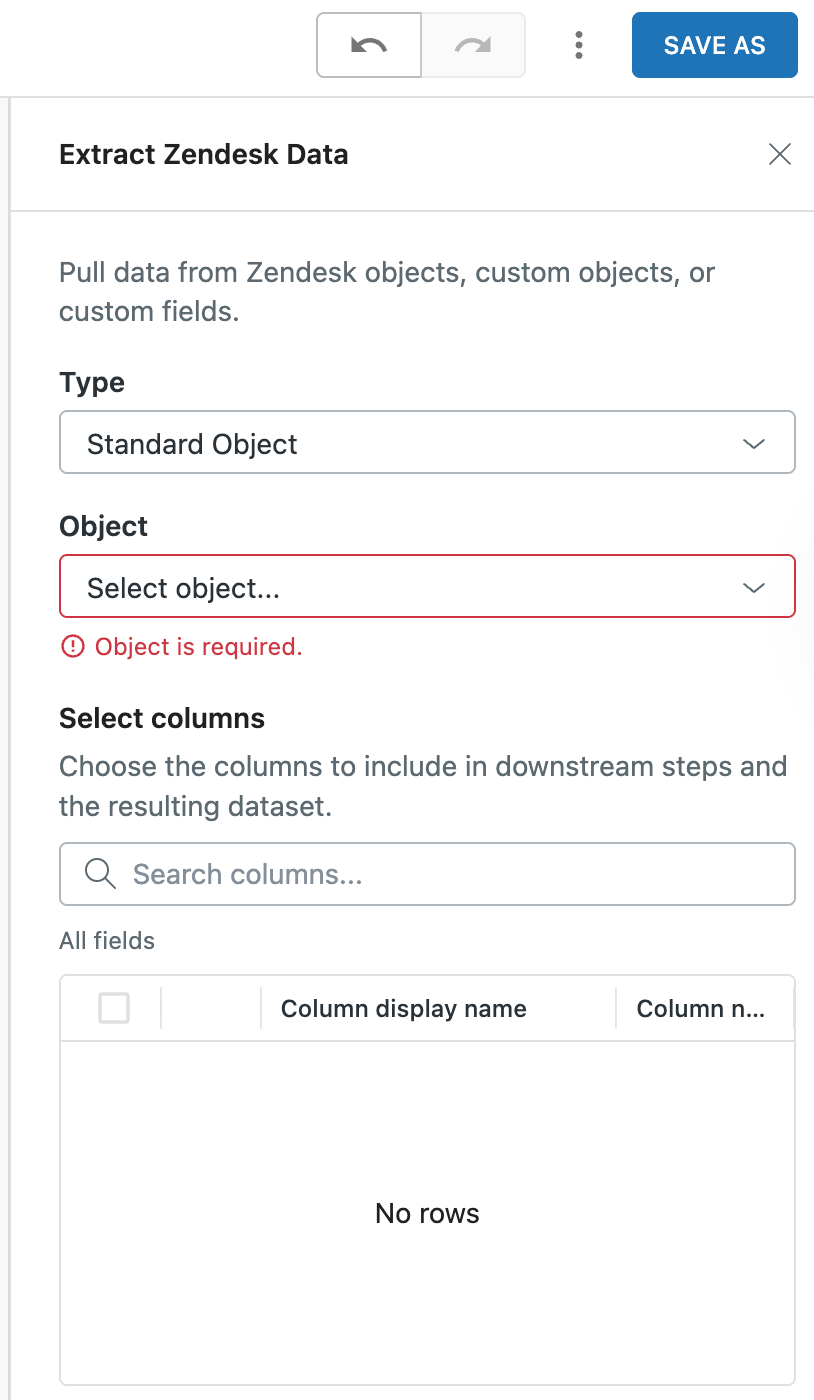
- In the object options, configure the following as needed:
- Type: Change the object type from the default of standard. Choose from standard, custom, and prebuilt objects, or custom fields.
- Object: Choose the object from which you want to choose data; ticket, user, or organization.
- Select columns: After you select the type and object, the extracted columns will be displayed. Select the columns you want to include in your custom dataset.
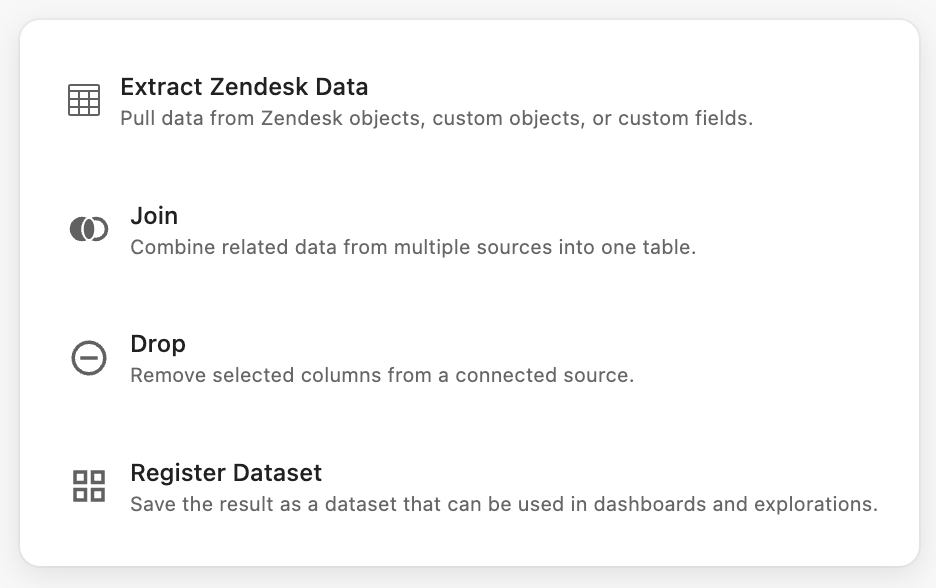
- If you want to add data from other sources, double-click in a blank
area of dataset builder to display the dataset menu.
 Tip: To delete an object, click to select it, then press Delete.
- From the dataset menu, choose one of the following options:
-
Extract Zendesk data: Adds a new object to the dataset builder.
You can configure this in the same way you configured the initial
object. The available object types are:
- Standard object: Includes tickets, users, and organizations.
- Custom object: User-defined data to track business-specific information (such as assets, contracts, or inventory) beyond standard objects such as tickets or users.
-
Prebuilt object: Prebuilt Objects (Tickets, Agents Daily
Snapshot, Agents) - these are curated for you by Zendesk
- Tickets: Gain insights into ticket volume and activity including ticket status, groups, resolutions, reply times, satisfaction score, as well as AI suggestions, enhanced writing, and intelligent triage copilot features. Data is captured at the ticket level in the current state.
- Agents daily snapshot: Analyze agent activity at the end of any given date. Examples include Copilot features usage, assigned tickets, and solved tickets. Data is recorded at the agent level and captured daily.
- Agents: Get insights into your support team members, including profile details, role, skills, and group and brand memberships. Data is captured at the user level in the current state.
- Custom fields: Includes tickets, users, and organizations.
-
Join: While you can add multiple data sources to your custom
dataset, they will have no relationship to each other unless you
join them. To create a join, drag from the L or R nodes in
the join to the objects you want to join. The following joint types are
available:
- Left join: Returns all data from the first object and matches from the second object.
- Right join: Returns all data from the second object and matches from the first object.
- Inner join: Returns only data that exists in both objects.
- Outer join: Returns all data from both objects.
- Prefix: Required to make sure that if you join two data sources together that have a column with the same name such as "ID", then the joined column will have a prefix such as "claims_ID" if joining to a claims custom object.
- Drop: Add a Drop object if you want to remove columns from a connected object.
- Register dataset: Adds a Register dataset object. Connect this to your data source object. Then
-
Extract Zendesk data: Adds a new object to the dataset builder.
You can configure this in the same way you configured the initial
object. The available object types are:
- Click the Save as panel, enter a Name, Description, and
Project for the new dataset, then click Save.
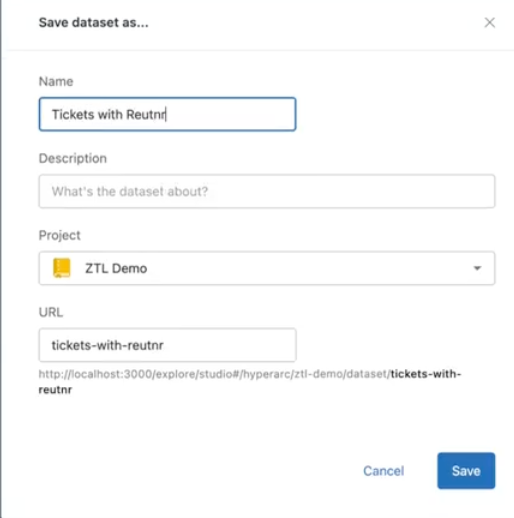
Your new dataset is scheduled to run. After it's complete, you can use it to create reports.
Adding descriptions to your custom datasets
When you add information to a report using report builder, you can hover over any dimension or measure to see a description of it.

When you create a custom dataset, you can specify the description that will be displayed in report builder. You can specify descriptors manually, or analyst copilot can generate them for you. Adding descriptors makes it easier for report builders to understand your dataset and also improves the performance of memories and suggestions.
To specify custom dataset descriptions
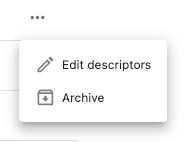
- On the analyst copilot home page, hover over your custom dataset, click the
options menu, then select **Edit descriptors**.
- On the dataset descriptors page, perform one of the following actions for each
of your dataset columns:
- Enter a new description for the column.
- Enter a few keywords, then click Prep. Analyst copilot automatically generates the description based on your keywords.
- Leave the custom description blank and click Prep. Analyst copilot automatically generates the description.
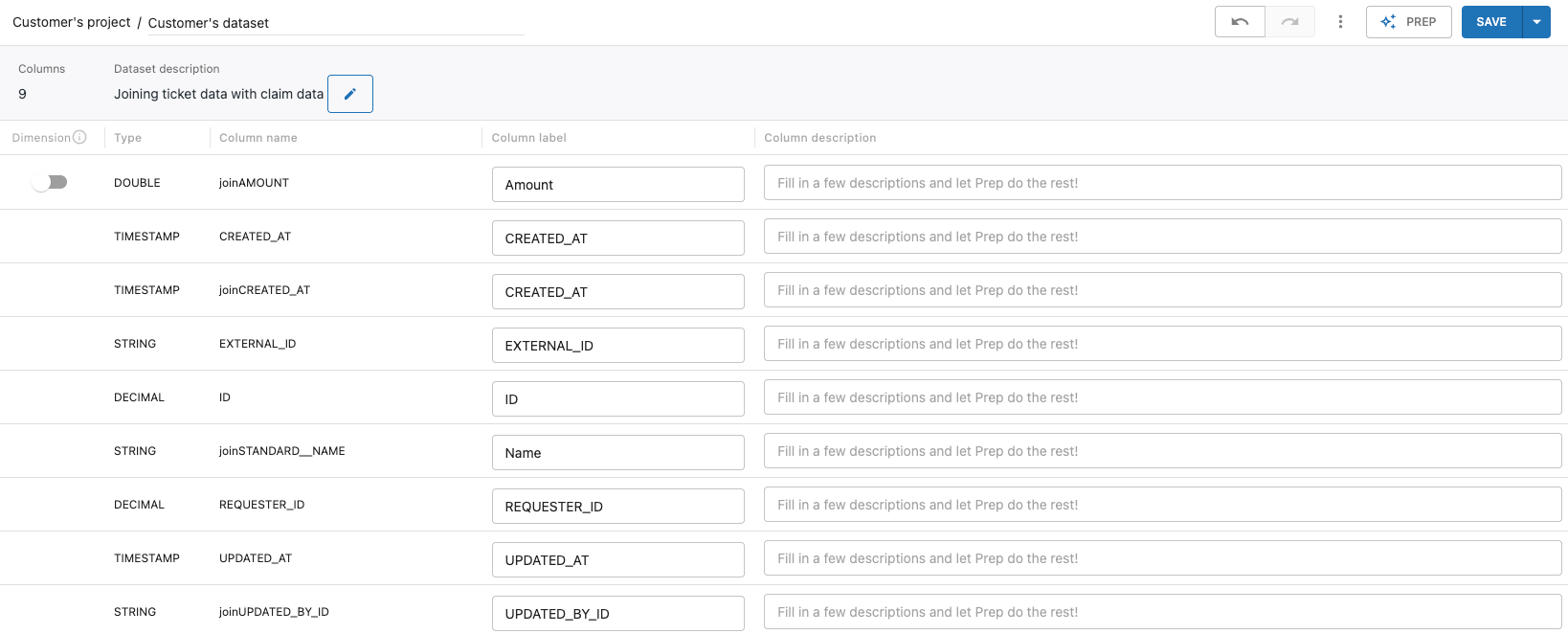
- When you've finished specifying descriptors, click Save.
When you build a report using your custom dataset, your new descriptors will be displayed whenever you hover over a dimension or measure.
Article Q&A
Click to view
What prebuilt datasets can I use, and what information does each cover?
The EAP includes Tickets (ticket activity and Copilot features), Agents (team profiles, roles, skills, and memberships), IT assets (inventory, ownership, lifecycle, and assignment history), AI agent datasets (conversations, conversation knowledge, and use cases), and real-time tickets and agents datasets for real-time reports. Tickets and Agents capture current-state data at the ticket and user levels, respectively; IT assets capture data at the asset level.
Can I combine datasets in one report, and how do I connect data from multiple sources?
You can't use multiple datasets directly in one report, but you can combine their information in a custom dataset using the graphical dataset builder. Add data sources, then create a join to relate them; available join types are left, right, inner, and outer. Without a join, the sources have no relationship to each other.
How do I create and save a custom dataset, and how often does it update?
In Analytics, click Home, select the create (+) icon, and choose Dataset. Add a data source, configure its type, object, and columns, and add any additional sources or dataset-builder options you need. Use Save as to enter a name, description, and project, then click Save. The dataset is scheduled to run, and its content updates once a day at midnight in your account's timezone.
How can I add descriptions to my custom dataset's columns?
On the analyst copilot home page, open the options menu for your custom dataset and select Edit descriptors. For each column, enter a description, enter keywords and click Prep to generate one, or leave the description blank and click Prep to generate one automatically. Click Save. The descriptions appear when you hover over dimensions or measures in report builder, and they help report builders understand the dataset and improve memories and suggestions.