Summary: ◀▼
Create analyst copilot projects to organize and secure datasets, reports, dashboards, and memories. Choose private access or give everyone in your organization read-only access, then grant groups Viewer, Writer, or Admin permissions as needed. Prebuilt projects with ready-to-use analytics help you get started with common business scenarios.
A project is a space to organize, share, and secure your business information (such as datasets, reports, dashboards, and memories). You can keep projects private or share them within your organization. All analyst copilot assets are stored in a project.
Project permissions can be either private or Zendesk-only:
- Private projects: The project owner or account admin controls access permissions.
- Private (internal) projects: Access works like private projects, but all Zendesk users in your account automatically have viewer access.
This article contains the following topics:
Understanding prebuilt projects
Analyst copilot is supplied with prebuilt projects (or analytical apps) for common business scenarios. These projects contain datasets, reports and dashboards that help you get up and running quickly. Watch the following video for an overview of analytical apps:
Understanding analytical apps (1:37)
Creating projects
You create a project from the Analyst copilot tab bar.
To create a project
- In Analytics, click the Home
(
 ) icon
in the sidebar.
- In the analyst copilot tab bar, click the create icon (+), then select Project.
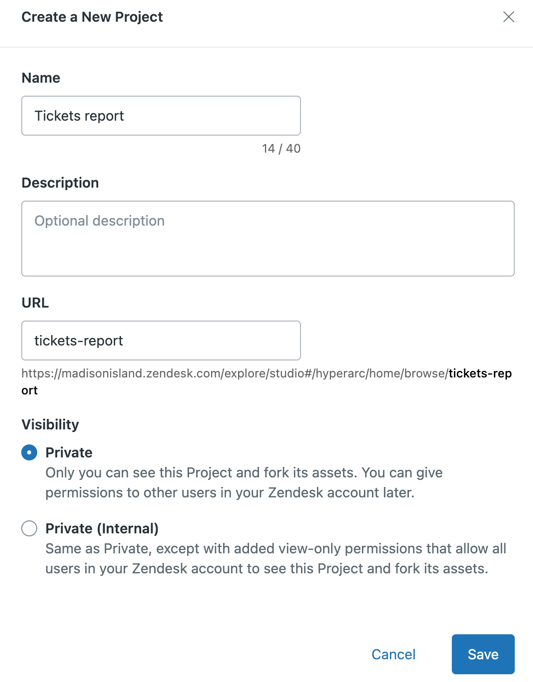
- Configure the following:
- Name: Enter a descriptive name for the project.
- Description: Optionally, enter a description for the project to help viewers understand what it contains.
- URL: The URL of the project lets viewers jump directly to it instead of having to navigate to find it. The URL is automatically populated based on the project name, but you can change it.
-
Visibility: Choose one of the following:
- Private: By default, only you can see the project and its assets. At any time, you can grant others access.
- Private (internal): Gives read-only permissions to view your project to everyone in your organization.
- Click Save.
The project is created and Analyst copilot opens the project page.
Managing project access
To give others permissions to access your project, use the Manage access page.
To manage project access permissions
- In Analytics, click the Home () icon in the
sidebar.
- On the analyst copilot home page, scroll down to the Projects section.
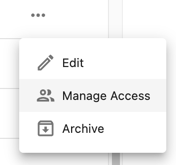
- Hover over the project you want to configure, click the options menu (
 ), then select Manage
access. The options menu is only displayed if you have permissions to
change the project access level.
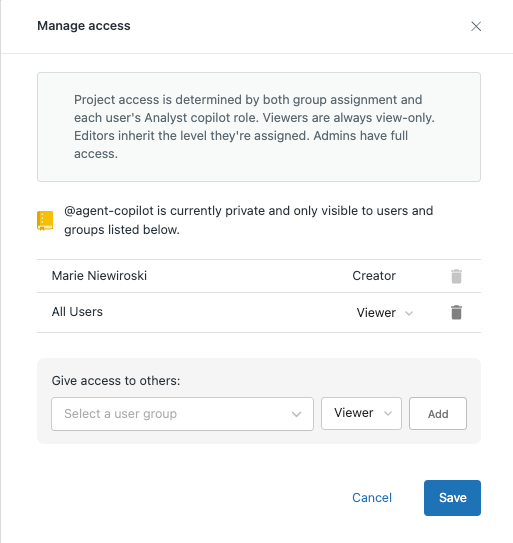
- Select the group who you want to give access to, then
select the level of access they need, either Viewer, Writer,
or Admin.
- Click Save.
Article Q&A
Click to view
How do I create an Analyst copilot project?
In Analytics, click Home, then click the + icon in the Analyst copilot tab bar and select Project. Enter a name, optionally add a description, customize the automatically populated URL if needed, choose Private or Private (internal), and click Save. Analyst copilot opens the new project page.
What is the difference between Private and Private (internal) project visibility?
For a Private project, only you can see the project and its assets by default, and you can grant others access. For a Private (internal) project, everyone in your organization automatically has read-only viewer access.
How do I give a group access to my project, and what permission levels can I choose?
On the Analyst copilot home page, find the project under Projects, open its options menu, and select Manage access. Choose a group and assign Viewer, Writer, or Admin access, then click Save. The options menu appears only if you have permission to change the project's access level.
What are the prebuilt Analyst copilot projects for?
Prebuilt projects, also called analytical apps, support common business scenarios. They include datasets, reports, and dashboards to help you get started quickly.
Can I use Analyst copilot projects now, and how do I join the program?
Analyst copilot projects are currently in an Early Access Program (EAP). You can sign up through the EAP signup link in the article.