Summary: ◀▼
Manage analyst copilot reports by reviewing and restoring earlier versions, or forking a report to explore new questions while preserving the original analysis and context. Archive reports you no longer need, and export or share them as CSV, JPEG, or a URL.
You can manage the reports you create in analyst copilot, including viewing versions, forking, archiving, and exporting analyst copilot reports.
Viewing report versions
Every time you change or save a report, a new version is created. However, all previous versions of the report and its context graph are retained. You can go back to an earlier report version, fork a report, and save it as a new report.
To view a report's versions
- Open a report, then click Save >
Versions.
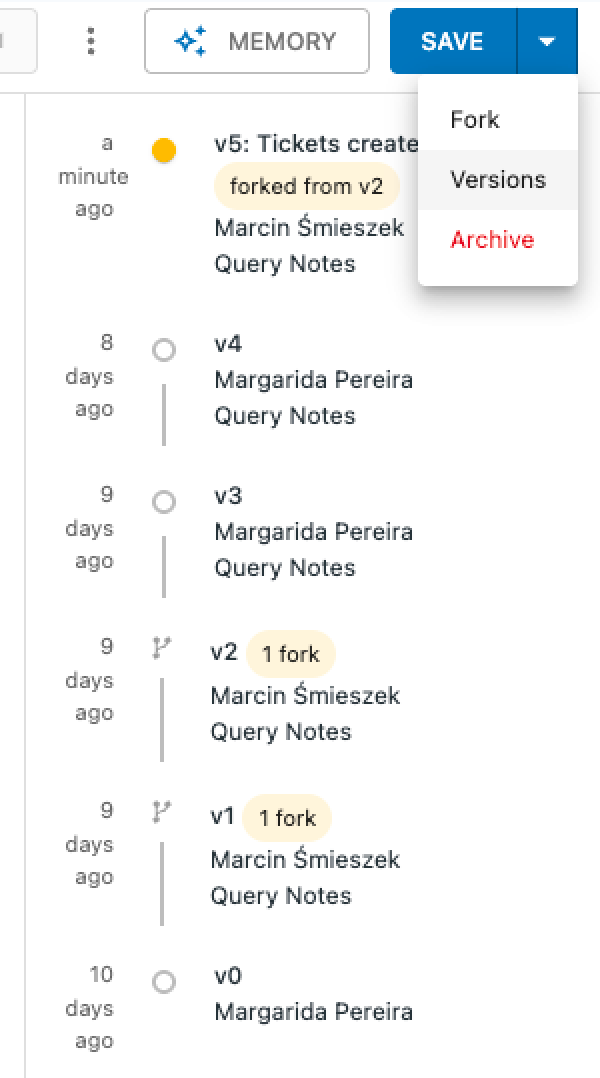
The versions panel opens displaying a history of changes to your report. Each version includes the date of the change and the user who made the change. The version also indicates whether the report was forked.
- Click a version in the list to preview it.
- Click Save while viewing a version to restore it.
This version is saved as the most recent one. The previous version is retained so you can restore it, if necessary.
Forking reports
Forking creates a new report from the original report in a new tab that you can name and edit as needed.
Advantages of forking reports include:
- Retain context: When you fork a report, the new report retains a memory of the original analysis, including the previous steps, context, intuitions, and references used to generate the initial result.
- Customize and dig deeper: Analysts can take a current data visualization or analysis and use it as a starting point for further customization and deeper investigation, without altering the original report.
- Build an Analytics "page rank": Analyst copilot uses the relationships between these forked reports (or memories) to build a knowledge graph. This boosts the most relevant memories to the top for future, related questions, meaning analyst copilot gets smarter over time.
To fork a report
- In a report, click Save > Fork.
A copy of the report is created and opened.
Archiving reports
When you archive a report, it's deleted from the project and the assets list. You'll no longer be able to access it.
To archive a report
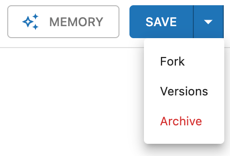
- Open a report, then click Save >
Archive.
- On the confirmation page, click Archive report.
Exporting reports
You can share your reports with other people as comma-separated-values (CSV), image (JPEG) files, or as a URL.
To export a report
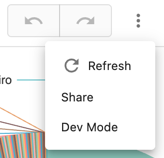
- Open a report, click the options icon (
 ), then select Share.
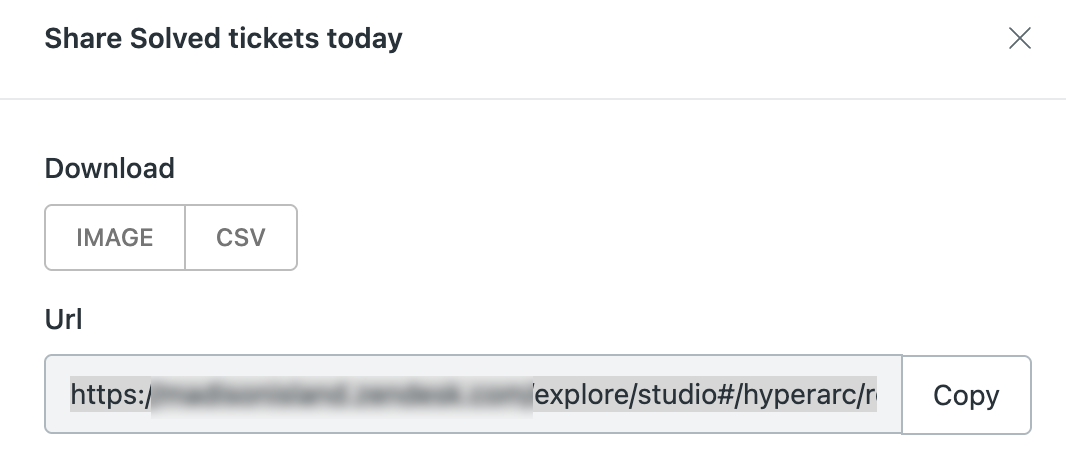
- In the export options, select from the following options:
- Download: Select IMG or CSV format for your report export.
- URL: View the URL to this dashboard and Copy it to your clipboard.
Your report is exported. You’ll find the exported report in your Downloads folder.
Article Q&A
Click to view
How do I view or restore an earlier version of my analyst copilot report?
Open the report and select **Save** > **Versions**. Choose a version to preview it, then click **Save** to restore it as the most recent version. Previous versions remain available, and the history shows when each change was made, who made it, and whether the report was forked.
How can I fork my report without changing the original?
In the report, select **Save** > **Fork**. A copy opens in a new tab that you can name and edit. The fork retains the original analysis context, and you can use it to customize or investigate further without altering the original report.
What happens when I archive a report?
Archiving deletes the report from the project and assets list, and you can no longer access it. To archive, open the report, select **Save** > **Archive**, then confirm by clicking **Archive report**.
How can I export or share my analyst copilot report?
Open the report, click the options icon, and select **Share**. Choose **Download** to export it as an image (IMG) or CSV, or choose **URL** and copy the dashboard link. Downloaded exports are in your Downloads folder.