Summary: ◀▼
Connect an AI agent to messaging, email, or voice channels to make it live for customers, and change its connected channels as needed. Only one AI agent can be active on a channel at a time, and agents created for messaging can’t later be activated on email or voice, or vice versa. For messaging, channel selection also creates routing rules.
After you create an AI agent, you need to connect it to at least one messaging, email, or voice channel before it can begin interacting with customers. At any time, you can manage the channels it's connected to.
This article contains the following topics:
Related articles:
About managing an AI agent's connected channels
Connecting an AI agent to a channel makes it live for customers on that channel. You might have already connected an AI agent to one or more channels during the creation process, or you might have saved its configuration without activating it yet.
At any time, you can manage the channels that your AI agent is live on. Only one AI agent can be active on a channel at a time.
If you initially created an AI agent for messaging channels, you can’t later activate it on email (including API or web form) or voice channels, and vice versa.
To deactivate an AI agent, deselect the channel you no longer want it to work on.
For messaging AI agents only: When you select channels for an AI agent, routing rules are automatically created. Routing rules determine which AI agent should respond on a given channel, and apply only to messaging channels, not email.
Managing an AI agent's connected channels
Admins can manage an AI agent's connected channels from either the dashboard or the Manage channels page.
To manage an AI agent’s channels
- Access an AI agent's channel configuration in either of the following
ways:
- From the dashboard:
- In the AI agents workspace, click
 Dashboard in the sidebar.
- In the list of AI agents, click the options menu (
 ) for the AI agent you want to
manage channels for and select Manage channels.
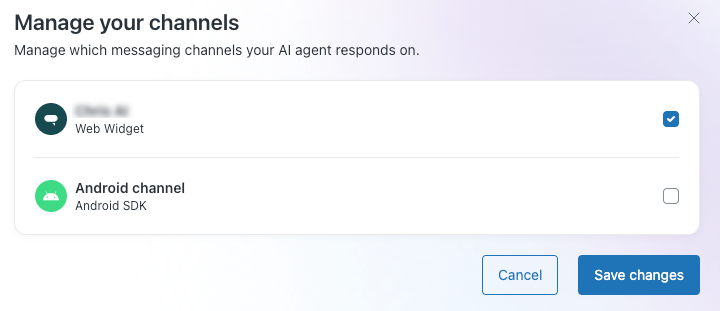
The Manage your channels dialog opens.
- In the AI agents workspace, click
- From the Manage channels page:
- In the AI agents workspace, select the AI agent you want to work with.
-
Click
 Launch in the sidebar, then select Channels > Manage
channels.
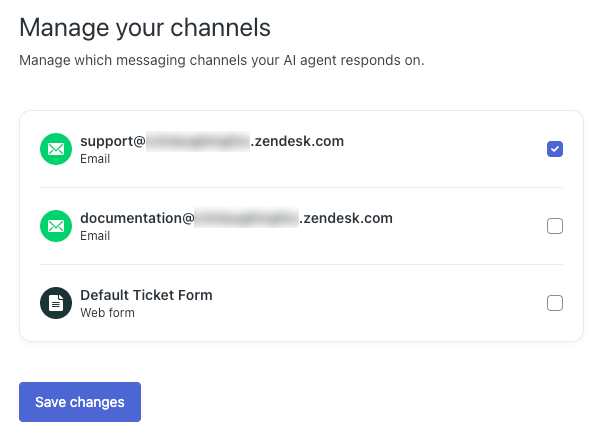
The Manage your channels page opens.
- From the dashboard:
- Select or deselect the channels as needed.
- If a channel is already selected, it means the AI agent is already live on that channel.
- If a channel is deselected, it means the AI agent isn’t currently live on that channel, but it’s available to be added.
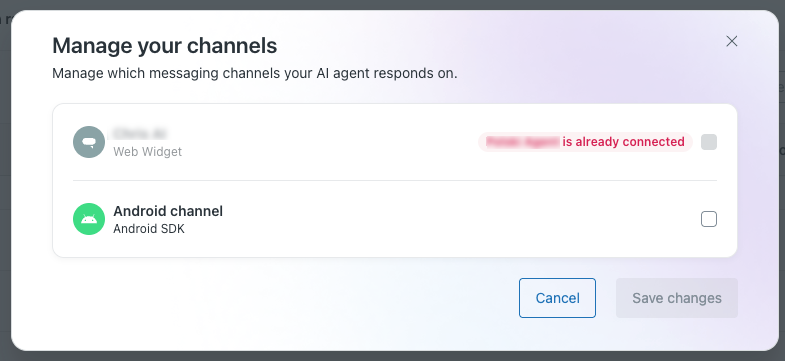
- If a channel already has an active AI agent, you can’t add
another one. You must first deactivate the active AI agent by
managing its channels before you can activate another.
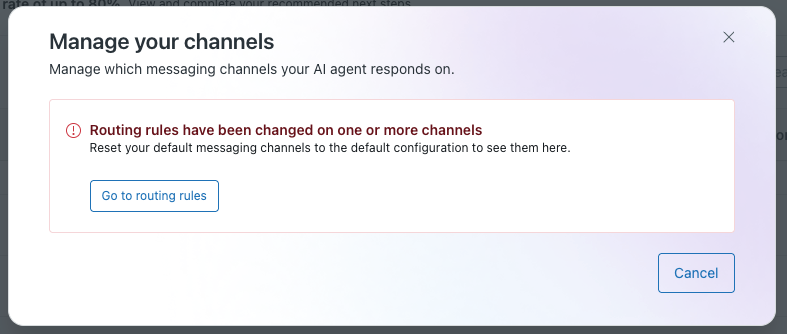
- (Messaging AI agents only) If you modified the AI agent’s
routing rules, you can no longer manage the AI
agent’s channels through this menu.
- (Email AI agents only) If you edited the AI agent’s email automation trigger, you can no longer manage the AI agent’s channels through this menu.
- Click Save changes.
Your AI agent is now live on your selected channels.
Article Q&A
Click to view
How do I connect my AI agent to customer channels or change the channels it handles?
As an admin, open the agent’s channel configuration from the AI agents workspace dashboard by selecting its options menu and choosing **Manage channels**, or select the agent and go to **Launch > Channels > Manage channels**. Select or deselect channels, then click **Save changes**. The agent must be connected to at least one messaging, email, or voice channel to interact with customers.
Why can’t I activate another AI agent on a channel that I want to use?
Only one AI agent can be active on a channel at a time. First deactivate the agent that is currently active there by deselecting that channel in its channel settings; then you can activate another agent on the channel.
Can I move an AI agent from messaging to email or voice after I create it?
No. An AI agent created for messaging channels can’t later be activated on email (including API or web form) or voice channels, and vice versa.
Why can’t I manage my AI agent’s channels through the channel menu?
For messaging AI agents, modifying the routing rules prevents channel management through this menu. For email AI agents, editing the email automation trigger has the same effect.
How is AI agent usage measured, and what allowance do I get?
AI agent usage is measured through automated resolutions. Each account has an automated-resolution allowance based on its plan.