Summary: ◀▼
You can create custom AI agents using simple procedures, approved articles, and actions to automate specific support tasks. Define clear step-by-step instructions, inputs, and outputs to guide the agent's workflow. Manage agents by editing, activating, deactivating, or deleting them as needed. Custom agents help streamline complex customer issue resolution by combining AI with your tailored processes and resources.
Admins can create custom agents that use a combination of AI, user-defined procedures, and approved articles, tools, and custom actions to automate complex tasks and resolve customer issues. The procedures are simple step-by-step instructions that tell the custom agent what to do and how to perform the necessary tasks.
Planning your custom agents
- Custom agents should be task-oriented and focused rather than generic. If
there are multiple things you want custom agents to handle, create separate
agents for each unit of work. A good way to start breaking down work into
separate custom agents is to identify the jobs you want custom agents to do
and what needs to come out of that job being completed. Does the custom
agent need to perform one or more actions while running, return outputs
after it finishes running, or both?
Perhaps there are multiple workflows that could benefit from a custom agent that gathers information and adds it to a ticket or makes it available as an output for use by other custom agents or action flows. This could be one custom agent, and separate custom agents could be created that use the first custom agent's output to perform actions.
When a custom agent returns outputs, make sure they are small, focused, and typed correctly for use by subsequent steps in an action flow or by another AI agent.
If a custom agent performs actions, determine which actions and what information is necessary to complete those actions. Make sure the agent has access to that information, without exposing unnecessary information.
- Determine what sources of information and tools each custom agent should have access to. Be mindful to provide access to all necessary information and tools, while also limiting access to only what is necessary for the custom agent's specific job. See Granting a custom agent access to resources and tools.
- Admins must provide procedures for each custom agent. These are plain-language instructions and include references to the relevant sources of information and tools where they apply. See Best practices for writing procedures for custom agents.
Creating custom agents
Admins use the agent builder to create custom agents with user-defined procedures and access to specific articles, tools, and custom actions.
Admins can create a maximum of 100 custom agents per account. The procedures for each agent shouldn't exceed 10,000 characters.
- In Admin Center, click
 AI in the sidebar, then select Agent builder > Custom agents.
- Enter a unique and identifiable Name for the custom agent.
- Enter a Description of the specific task the custom agent will perform.
- (Optional) Under Trigger, select an action flow trigger that should
cause the custom agent to run.
If an action flow trigger is selected, an action flow consisting of this trigger and a hand off action to this custom agent is automatically created when the custom agent is activated for the first time. The action flow can be edited or deleted as needed after it is created.
Note: If the action flow you want to run the custom agent already exists in your account, don't select an action flow trigger here. Instead, edit the action flow to add a Handoff to custom agent action configured for the custom agent. - Using simple, everyday language, enter Procedures that describe what the custom agent should do and how it should do those things.
- Insert relevant articles, inputs, outputs, actions, action flows, and other custom agents as needed. See Granting a custom agent access to resources and tools.
- Click Save.
- When you're ready to use the custom agent, click Activate.
At any point, if you no longer need the custom agent or want to update it, you can deactivate it.
Granting a custom agent access to resources and tools
Granting custom agents access to articles
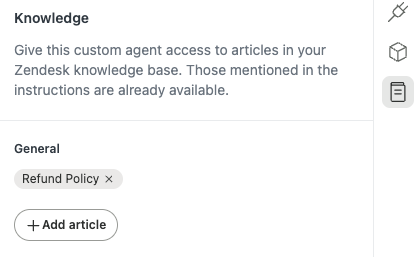
The articles you add are referred to as approved articles. The Knowledge sidebar lists the approved articles, organized by their help center category.
- Within the Procedures editor, click the insert icon (
 ) or enter a forward slash
(/) and select Article.
- In the Knowledge sidebar, click Add article and enter the Article ID.
- Click Save.
Configuring inputs and outputs for a custom agent
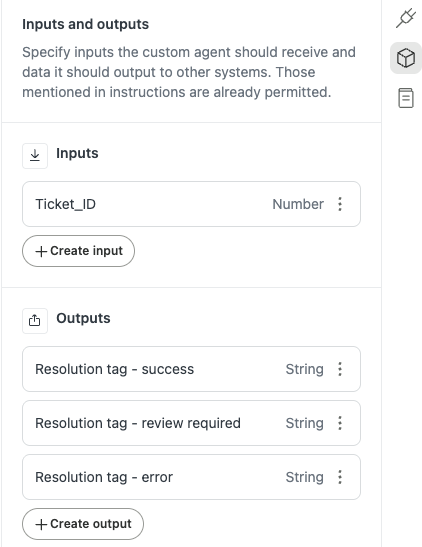
Data passed from one of the actions, action flows, articles, or other custom
agents can be used as inputs to the custom agent. At a minimum, a
custom agent must receive a Ticket ID as an input. Input
only what your agent needs, and nothing extra.
Data that your custom agent can pass to other custom agents or action flows are outputs.
- Within the Procedures editor, click the insert icon () or enter a forward slash
(/) and select Inputs or Outputs.
- For each of the inputs or outputs, specify the following:
- Name: A clear, identifying name for the input or output. It helps if these are consistent across agents.
- Description: A brief description.
- Type: The data type for the input or output. Make sure this is the actual data type, not just what it appears to be.
- Click Save.
Granting a custom agent access to actions, action flows, and other custom agents
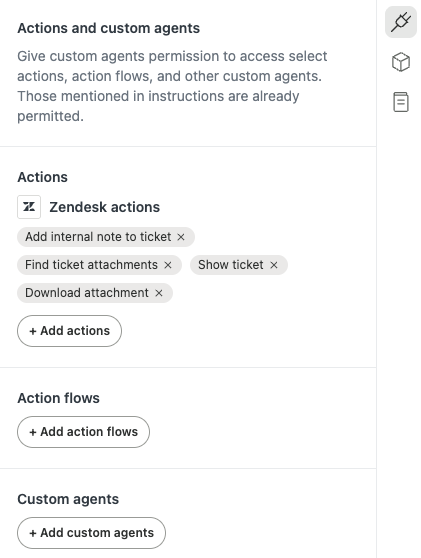
Add actions (including the Zendesk actions and external actions from action builder, as well as custom actions), action flows, or other custom agents you want the custom agent to have permission to access, perform, or initiate.
If an action, action flow, or other custom agent should be invoked or
performed at a specific point in the procedures, insert it directly into the
procedures at that point using the insert icon () or enter a forward slash (/),
naming it explicitly and clearly stating how it should be used.
Alternatively, if it varies when an action, action flow, or custom agent should be used, you can add these resources to the custom agent through the sidebar and use plain language in the procedures to describe what needs to be done. In this case, it would be up to the custom agent to determine when and how to use the available actions, action flows, and custom agents.
Understanding procedures
Procedures should be written as though you're telling a human agent how to perform an internal process. Format your procedures as a simple step-by-step breakdown of how to perform the task or solve the customer's request. Be specific and use consistent terminology throughout your procedure.
Keep in mind that procedures define what a custom agent should do. If you want to define how a custom agent should sound, you can include communication guidelines that are specific to your use case.
Procedures can be written in all Zendesk Support languages.
Best practices for writing effective procedures for custom agents
- Make custom agents specialists. Each custom agent should be specialized to perform a specific task or job. You can give custom agents access to each other to pass information and collaborate on a shared goal while each handles a specific scope of work.
-
Think in actions. Your custom agent uses actions to do things in
Zendesk and external systems. Be explicit about naming which action it
should perform at each step. For example,
Use the Update ticket action to set the priority. - Write step-by-step and ensure each step is short and easy to follow. Specify each step individually in the order the agent should perform them, and phrase your steps as straightforward commands, as if training a new employee on the process.
- Address the agent perspective. Procedures should be written as if you’re talking to a human agent. If you copy existing content from customer-facing help center articles, update them to reflect agent-focused considerations and actions.
- Define your agent's outputs before writing procedures. Knowing the outputs from an agent can shape the way you tell it to perform its task. Outputs should be small and structured, and explicitly named in your procedures.
-
Specify where to find the information the custom agent needs.
-
Add inputs and outputs. Inputs provide specific data the
custom agent needs. At a minimum, a custom agent must have a
Ticket IDinput. Outputs are data the custom agent provides to other custom agents and action flows when it can't complete a task itself. Use consistent naming for inputs and outputs to aid in chaining together custom agents and action flows. - Add help center articles that address policy and processes directly related to the custom agent's procedures. The custom agent prioritizes these over general reasoning, so keep the list of articles small.
-
Add Zendesk actions, external actions, and custom actions
that provide information to the custom agent and can be used by
the agent to perform tasks. Give the agent access to individual
actions rather than an action flow if the sequence and
combination in which they are used varies. Make sure to give the
agent access to all the actions it needs to finish the job
rather than handing it off whenever possible.Note: The availability of external actions depends on which external services are connected to the action builder.
- Add action flows that can be used by the custom agent. For consistency, use an action flow rather than individual actions if the steps must be performed in the same sequence every time.
- Create custom agents that can be called on by the agent. Custom agents are highly specialized for specific tasks. Connect to another custom agent to handle genuinely distinct jobs rather than creating giant, multi-purpose custom agents.
-
Add inputs and outputs. Inputs provide specific data the
custom agent needs. At a minimum, a custom agent must have a
- Include what to do with the information. Ensure the custom agent knows what to do with the information provided by articles, actions, action flows, inputs, and outputs.
- Provide context. When the agent has a decision to make, give it enough background information to understand why the decision matters and how to make it.
- Include examples. Demonstrate what "good" looks like for a step and be very clear about what not to do. Examples are especially important in situations where the right path is ambiguous.
- Be consistent with terminology. Always use the same terms for your products and services. That is, avoid using different words to refer to a single product or service.
- Include conditions if necessary. If you have different procedures based on some condition (for example, subscribers vs. non-subscribers), include that information in the procedure.
-
Include the end response and outcome. Tell the custom agent how
to know when it has completed the tasks, such as an end response or
state.
If outputting data, the procedures should specify the data type and valid values for each output. For example, an object output must be returned as a valid JSON object and when using an output to update a dropdown field, the agent must output the field's tag value rather than it's name. Also note that values used in branch conditions are case-sensitive.
- Specify what to do if it can't complete the task. Tell the agent what to do if it can't complete the task, such as handing a task off to a human, raising an escalation, or flagging something for review.
- Test and learn. If the custom agent isn’t doing what you want, update the procedure to be clearer and more concrete.
Running custom agents
- Create or edit an action flow.
- Configure the action flow Trigger to be the event and conditions that should cause the custom agent to run.
- Click the Add step icon (
 ).
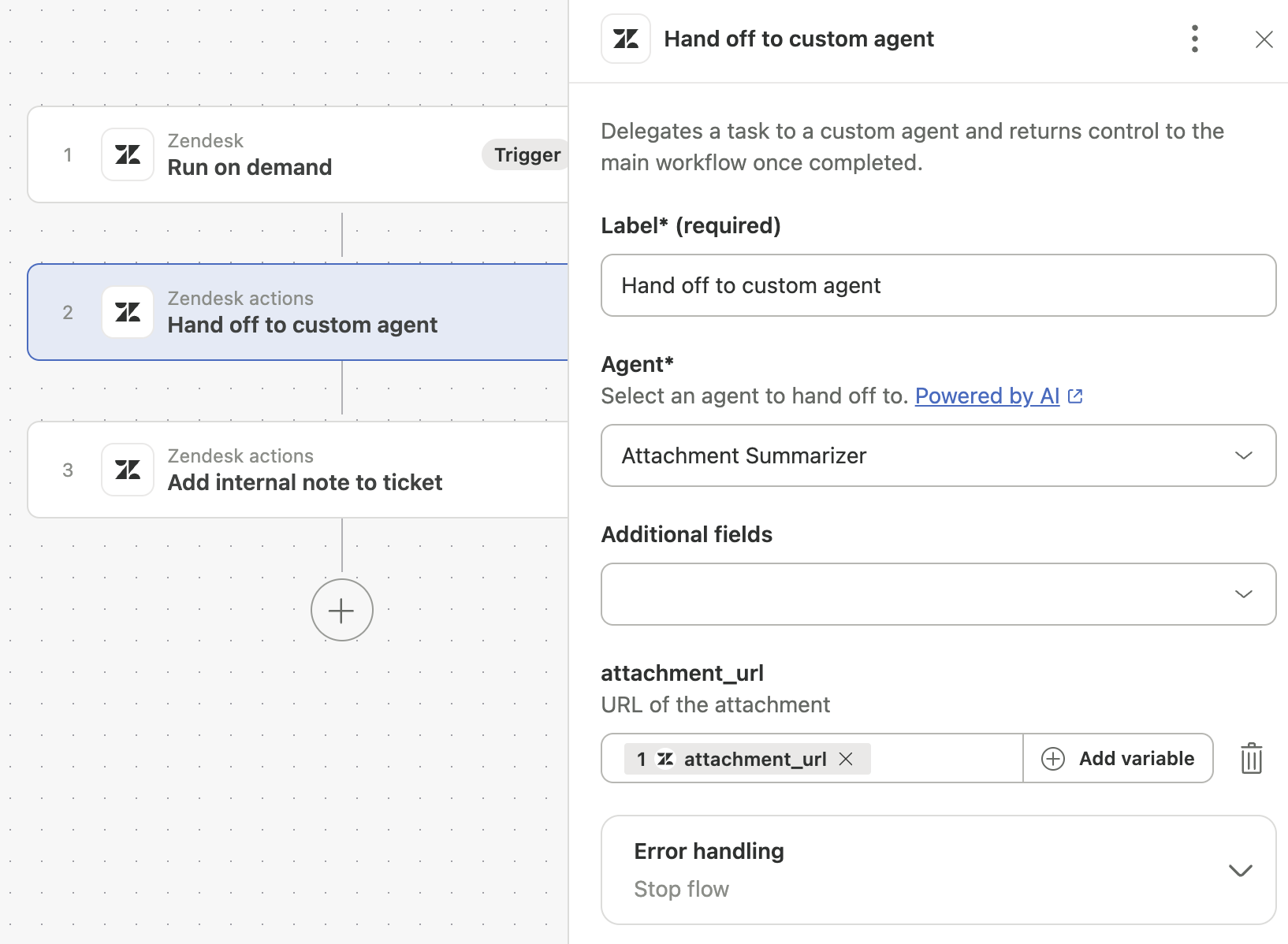
- In the step sidebar, under Zendesk actions, select Hand off to
custom agent, and configure the step:
- Label: A name for the step that is visible in the action flow.
-
Inputs: The data the custom agent expects as inputs that
changes between runs. For example, the Ticket_ID from the
action flow trigger.Note: Specify fixed, repeated policies and allowed values in the custom agent's procedures.
- Error handling: Specify what the action flow should do if the custom agent fails: stop the action flow, continue, or branch.
- (Optional) Add any steps that should occur before or after the custom agent runs.
- (Optional) Configure subsequent steps in the action flow to use the custom agent's outputs.
- Click Save.
After creating or configuring an action flow to run a custom agent, you should test the action flow with safe, test data to ensure the handoff to the custom agent and downstream steps work as intended.
- When ready to start using the action flow and custom agent, click Activate.
Article Q&A
Click to view
How do I create a custom agent, and what limits apply?
In Admin Center, go to AI > Agent builder > Custom agents. Give the agent a unique name and task description, write its procedures, add the resources it needs, then save and activate it. An account can have up to 100 custom agents, and each agent’s procedures must be no longer than 10,000 characters.
What information and resources should I give my custom agent?
Give it access to the approved articles, inputs, outputs, actions, action flows, and other custom agents needed for its specific task, while limiting access to what it needs. A custom agent must receive a Ticket ID input at minimum. Define each input and output with a name, description, and actual data type; outputs can pass data to other agents or action flows.
How should I write procedures for my custom agent?
Write clear, specific, step-by-step instructions as if training a human agent to perform an internal process. Keep the agent focused on a specialized task, name actions explicitly, and state what to do with the information and when the task is complete. Include relevant conditions, examples, valid output formats, and instructions for what to do if the agent cannot complete the task. Procedures can be written in any Zendesk Support language.
How do I run a custom agent from an action flow?
Custom agents can only be invoked by action flows. You can select a trigger when configuring the agent; an action flow with that trigger and a handoff to the agent is created the first time you activate it. Otherwise, add a “Hand off to custom agent” step to an existing or new flow, configure its inputs and error handling, save, and test with safe test data before activating the flow and agent.
Until when are custom agents free to use?
Custom agents are free to use until January 31, 2027. Usage will be charged after that date, and you’ll be notified before charges begin.