Summary: ◀▼
Use weekly AI-generated knowledge insights and recommendations to identify content gaps, outdated or conflicting articles, readability issues, and translation needs based on recent ticket data. Review supporting evidence, suggested changes, and potential impact, then create, update, translate, or dismiss recommendations. With the Copilot add-on, you can also create and update procedures.
Admin copilot is a proactive AI assistant that helps Zendesk admins improve their service operation. It provides insights, recommendations, and conversational assistance. You can access admin copilot in Admin Center and Knowledge admin.
Admin copilot proactively monitors your account to help you understand the health of your knowledge content and identify opportunities to improve it. It analyzes your help center content, procedures, and recent ticket data to surface weekly insights about coverage, freshness, and AI readability, and recommends content to create or update.
This article describes knowledge insights and recommendations and how to act on them.
This article includes these sections:
- Understanding your latest knowledge insights
- Understanding admin copilot knowledge recommendations
- Reviewing and implementing knowledge recommendations
- Managing your recommendations
Related articles:
Understanding your latest knowledge insights
Admin copilot provides weekly insights to help you assess your knowledge content and identify areas that need attention. You can access your latest insights from Knowledge admin Home. Insights are personalized to your account and based on your current operational performance. You may not see insights every week because they’re generated only as needed.
Admin copilot monitors the following metrics:
- Coverage: The percentage of common issues covered by articles in your knowledge base. Admin copilot compares your articles with recent ticket data to identify gaps. A gap may lead to a recommendation to create an article.
- Freshness: The percentage of articles that have been updated recently. Older articles can lower your freshness score. If an existing article partly addresses an issue in recent tickets, admin copilot may recommend updating it.
- AI readability: The percentage of articles with formatting and structure that make them easier for AI to process. Long, unstructured, or media-heavy articles can be more difficult for AI to use as a content source.
You can access your latest insights from Knowledge admin Home.
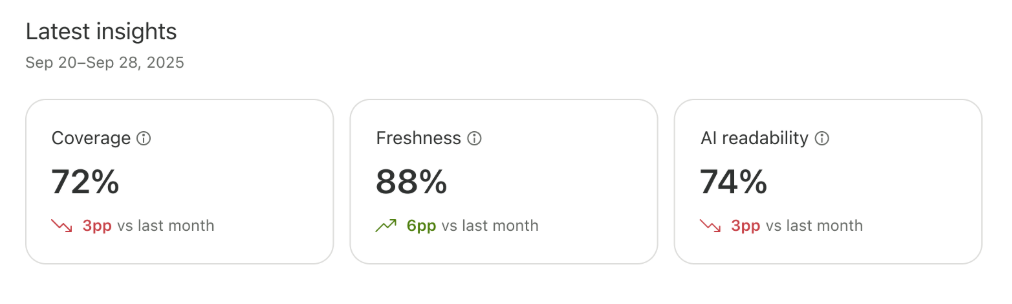
By surfacing this data automatically, the tool helps you address knowledge health issues before they escalate.
Understanding admin copilot knowledge recommendations
Admin copilot knowledge recommendations identify opportunities to create, update, and translate knowledge content. These personalized suggestions use recent ticket data and existing content to help you focus on improvements that address customer needs.
You can access recommendations from Knowledge admin Home, contextually on relevant Knowledge admin pages, or ask admin copilot for recommendations.
Recommendations are categorized by the type of optimization they provide to your knowledge content:
-
Create article: Suggestions to create articles based on common issues in
recent tickets that aren't covered by existing content. Admin copilot compares ticket data
with your articles to identify these content gaps.
Before generating an article, admin copilot checks for similar existing content. If it finds a close match, you can review or update the existing article, or create a distinct article.
-
Update article: Suggestions to improve existing articles based on gaps
between article content and recent ticket data, indications that information is outdated,
or conflicting information across articles.
These recommendations can help you expand articles that only partially address customer issues, update content that no longer reflects current guidance, and resolve contradictions between articles.
-
Translate article: Suggestions to translate articles based on high ticket
volume in languages where those articles aren't available. Admin copilot identifies this
demand as a translation gap.
You can translate an article from a recommendation. Admin copilot can also suggest translations after you create or update an article if it identifies demand in other languages.
- Create procedure (Copilot add-on): Suggestions to create procedures for auto assist based on customer issues identified in ticket data and existing knowledge content.
- Update procedure (Copilot add-on): Suggestions to update existing procedures based on low acceptance rates, frequent agent edits, and related ticket data that reveals missing guidance. Admin copilot uses recent tickets as sources to prepare an updated procedure draft for review.
Supporting insights and actions
Before implementing a recommendation, you can review why admin copilot suggested it and the information supporting the proposed change.
- Rationale: An explanation of the content issue or opportunity identified and why addressing it could help.
- Supporting insights: Data supporting the recommendation, such as related tickets, affected articles, conflicting information, or demand for additional languages.
- Suggested changes: Proposed content or edits for you to review, when available.
- Potential impact: Metrics the recommendation could improve, such as content coverage, freshness, resolution time, or procedure acceptance rates. Quantitative estimates are included when available.
- Available actions: Options to act on the recommendation, such as creating, updating, translating, or reviewing content. You can also decline the recommendation.
Some recommendations include links to related content or tickets and information about the ticket sample size and date range used.
You can use conversational assistance to ask follow-up questions, explore supporting insights, and review suggested changes.
Reviewing and implementing knowledge recommendations
You can review recommendations from Knowledge admin Home and use admin copilot to help you act on them.
To review and implement recommendations
-
In Knowledge admin, click
 Home in the sidebar.
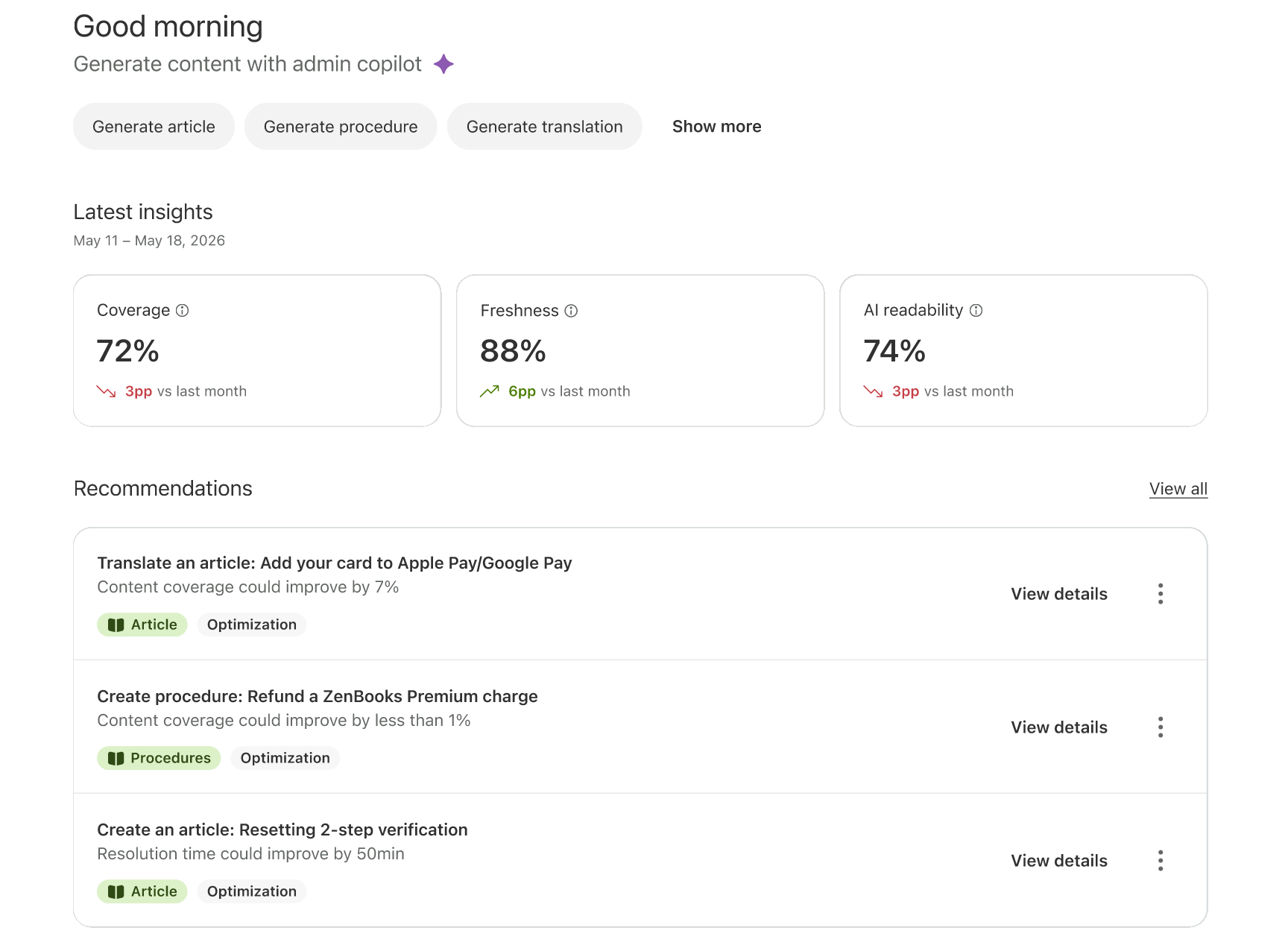
- Click a recommendation to expand it and review its details with conversational
assistance.
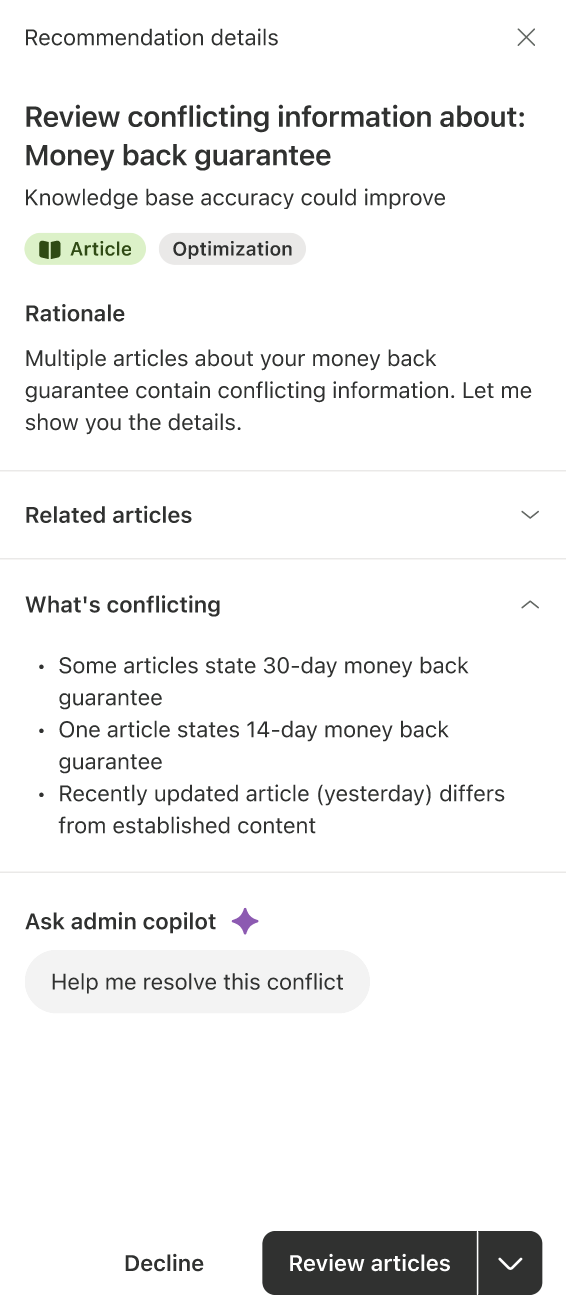
- (Optional) To review the recommendation with admin copilot, click Help me.
A new conversation with admin copilot opens with additional details. You can instruct admin copilot to implement the recommendation or dismiss it.
- Click the recommendation's available action button to open the related configuration
page.Depending on the type of recommendation you clicked, you can do the following with admin copilot's assistance:
- Create an article: Click Create article in the conversation panel, then follow the prompts to create an article. See Creating articles in the knowledge base.
- Update an article: Click Update article in the conversation panel to open an inline editor, where you can accept or decline individual or all recommendations for the article. Accepting or declining all recommendations removes the recommendation from the list. See Editing articles in the knowledge base.
- Translate an article: Click Translate article in the conversation panel, then follow the prompts to generate article translations. See Translating articles in your help center.
- Create a procedure: Click Create a procedure in the conversation panel, then follow the prompts to generate a procedure. See Creating procedures for auto assist.
- When you're done, return to the recommendation and mark it as done.
Managing your recommendations
You can manage recommendations by saving them for later, marking them as done, or dismissing them.
To manage your recommendations
- In Admin Center, click
 AI in the sidebar, then select Admin copilot > Recommendations.
- To manage a recommendation, open the Actions menu at the bottom of the
recommendation. Depending on what action you take, you can:
- Save for later to move the recommendation to the Saved list.
- Mark as done if you've implemented the recommendation.
-
Dismiss if you don’t plan to implement the recommendation. You
can optionally provide feedback about why you dismissed
it.
Recommendations you mark as done or dismiss are moved to your archive.
- To access saved recommendations, click the Saved tab. Recommendations are
updated weekly, so saved recommendations may be removed if they no longer
apply.
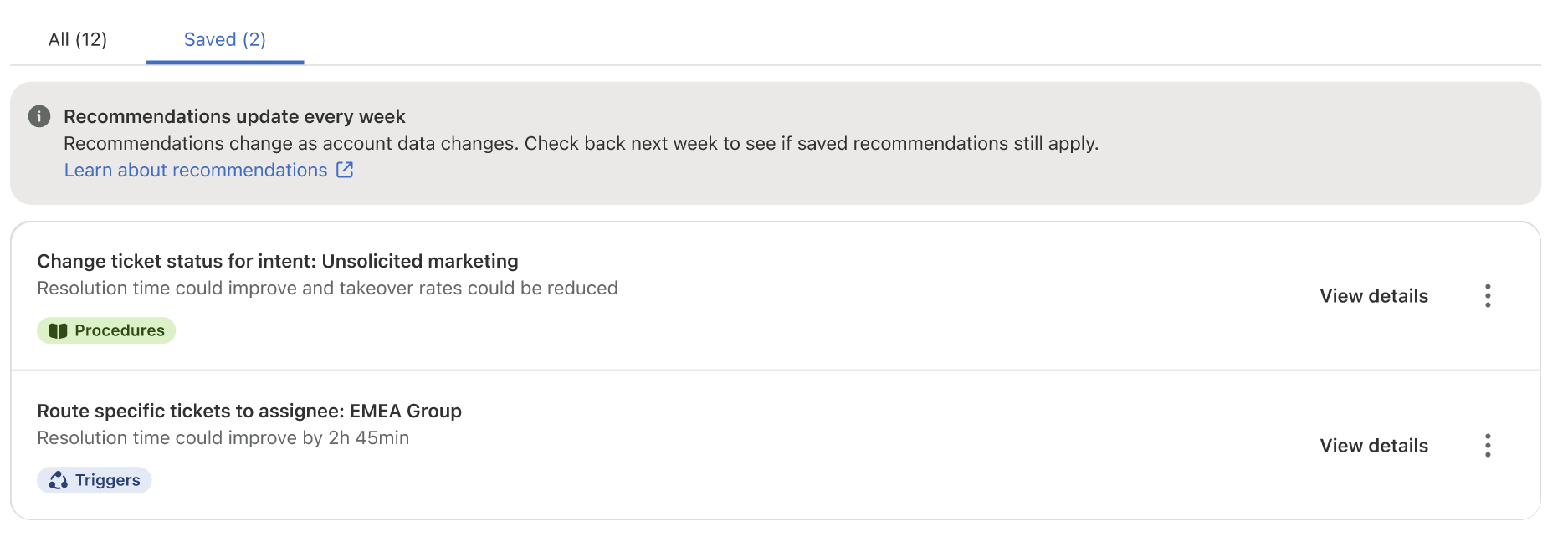
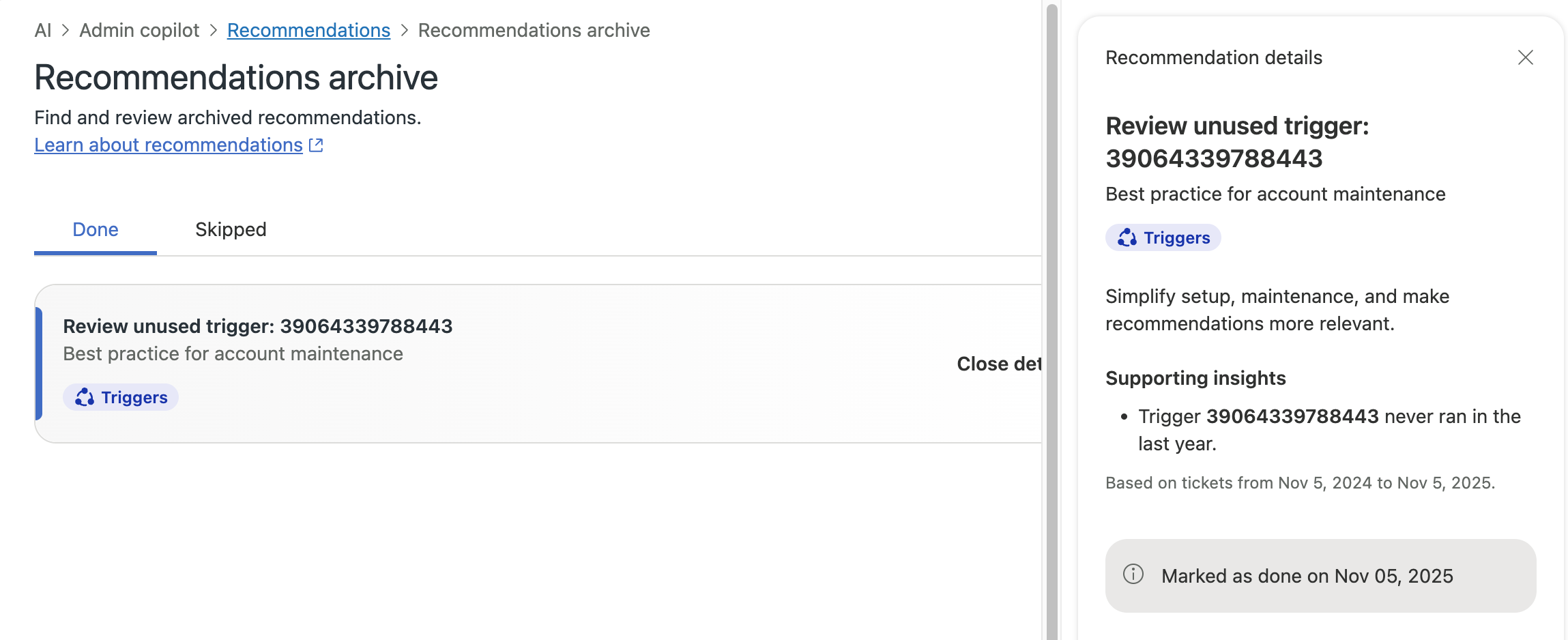
- To access recommendations you marked as done or dismissed, click View
archive. Click an archived recommendation to view its details.
Article Q&A
Click to view
What knowledge health insights can I see in admin copilot, and where do I find them?
In Knowledge admin Home, you can view personalized insights about coverage (how many common issues your articles address), freshness (how recently articles were updated), and AI readability (how well articles are structured for AI). Insights are generated weekly when needed, so they may not appear every week.
What types of knowledge recommendations can I get, and do I need an add-on for procedure recommendations?
Admin copilot can recommend creating, updating, or translating articles. It can also recommend creating or updating procedures for auto assist, but you must have the Copilot add-on to see procedure recommendations. Recommendations are based on recent ticket data and existing content.
How do I review and implement a knowledge recommendation?
In Knowledge admin, go to Home and expand a recommendation to review its details. Select Help me to open a conversation with admin copilot if you want to explore it or ask for help. Use the available action to create, update, or translate an article, or create a procedure, following the prompts. For article updates, you can accept or decline individual or all suggested changes. When finished, return to the recommendation and mark it as done.
What information can I review before acting on a recommendation?
A recommendation may include its rationale, supporting insights such as related tickets or affected articles, suggested changes, and potential impact on metrics like coverage, freshness, resolution time, or procedure acceptance rates. Some also include related links and ticket sample details. You can use conversational assistance to ask follow-up questions and review the suggestions.
How can I save, dismiss, or find completed knowledge recommendations?
In Admin Center, select AI > Admin copilot > Recommendations, then open a recommendation's Actions menu. Choose Save for later to move it to Saved, Mark as done after implementation, or Dismiss if you won't implement it; you can optionally provide dismissal feedback. Saved recommendations are updated weekly and may be removed if they no longer apply. Done and dismissed recommendations are available under View archive.