Summary: ◀▼
Use Amazon Connect contact attributes to add call context to tickets and incoming call notifications. Map flow attributes to ticket fields to capture details such as IVR selections, or display caller information as badges, hero attributes, or call details so agents can prepare for conversations. You can also use contact center-specific attributes to link calls with tickets and identify call or agent information.
Admins can use Amazon Connect contact attributes to give agents context about a call. You can add call information to ticket fields and to the incoming call notification.
This article contains the following topics:
Understanding contact attributes
Amazon Connect contact attributes are key and value pairs that store information about a customer interaction. They carry data throughout the lifecycle of a call, chat, or task within your contact center. For example, you can record the department a caller selects in an interactive voice response (IVR) menu on the ticket, or show a customer's service tier in the incoming call notification. For a step-by-step example, see Recording an IVR selection on a ticket.
As an admin, you can create user-defined contact attributes in Amazon Connect flows. These can be populated by querying an external database, pulling data from unified customer profiles, or capturing direct customer input. For an external-system example, see Store a value from a Lambda function as a contact attribute.
You can also use the Zendesk-specific contact attributes. For example, to determine if the customer is calling about an existing ticket before handing the call to an agent.
Using Zendesk-specific contact attributes
The following are Zendesk-specific contact attributes that you can use in your flows:
| Contact attribute | Description |
| zendesk_ticket_id | If this attribute is set in the contact flow, it's used to attach the call to the corresponding ticket with that ID or to create a new ticket with that ID. |
| conversation_title | This attribute populates the ticket title and the first call comment title. If the agent answers before the ticket is created, the ticket title defaults to "Call answered by <agent>"; otherwise, it defaults to the caller’s phone number. The first call comment title always defaults to the caller’s phone number. |
| zendesk_user_id |
This attribute is set based on matching the user and phone number.
Note: Using the value of this attribute from the contact flow isn't
currently supported.
|
| zendesk_agent_id | The ID of the Zendesk user that answers the call. |
| zendesk_call_id | The ID of the call object that Contact Center creates when an agent accepts a call. |
Adding call information to tickets
You can add call information to tickets by mapping Amazon Connect attributes from a Contact flow to a Zendesk ticket field. This involves the following tasks:
- Adding Connect attributes to contact flows
- Selecting or adding a ticket field
- Mapping Connect attributes to ticket fields
For more details on sourcing information, see Understanding contact attributes.
Adding Connect attributes to contact flows
To add a Connect attribute to a contact flow
-
In Amazon Connect, select Routing > Flows.
-
Select the contact flow to edit.
-
Add a Set contact attributes block to the flow, to capture the attribute.
For more information about contact attribute types and values, see Amazon's How contact attributes work in Connect Customer.
-
Under Set attributes on, select Current contact.
-
Add a User defined key and value.
-
Click Confirm, to confirm the block's configuration.
- Connect the block into the flow.
-
Click Save, to save the flow.
- Click Publish.
When a call reaches this block, the flow sets the contact attribute.
Selecting or adding a ticket field
You can use an existing ticket field or create a custom field for the contact attribute. Choose a field type that accepts the value sent by Amazon Connect. Depending on the field and form settings, the information from Connect can appear as a ticket field, a tag, or both.
To select or add a ticket field
- In Admin Center, click
 Objects and rules in the sidebar, then select Tickets > Fields.
- Choose an existing field that can hold the contact attribute value, or create a custom ticket field.
If you want the field to add a tag to the ticket, use a dropdown, multi-select, or checkbox custom field. The contact attribute values must match the associated ticket field tags.
- (Optional) Check that the field is on the ticket form used for the call so agents can see it. If needed, add the field to the ticket form.
Mapping Connect attributes to ticket fields
To map a Connect attribute to a ticket field
-
In Contact Center, under General, click Contact attributes.
-
Click Add new attribute.
-
Enter the Contact attribute key and select the corresponding Ticket field.
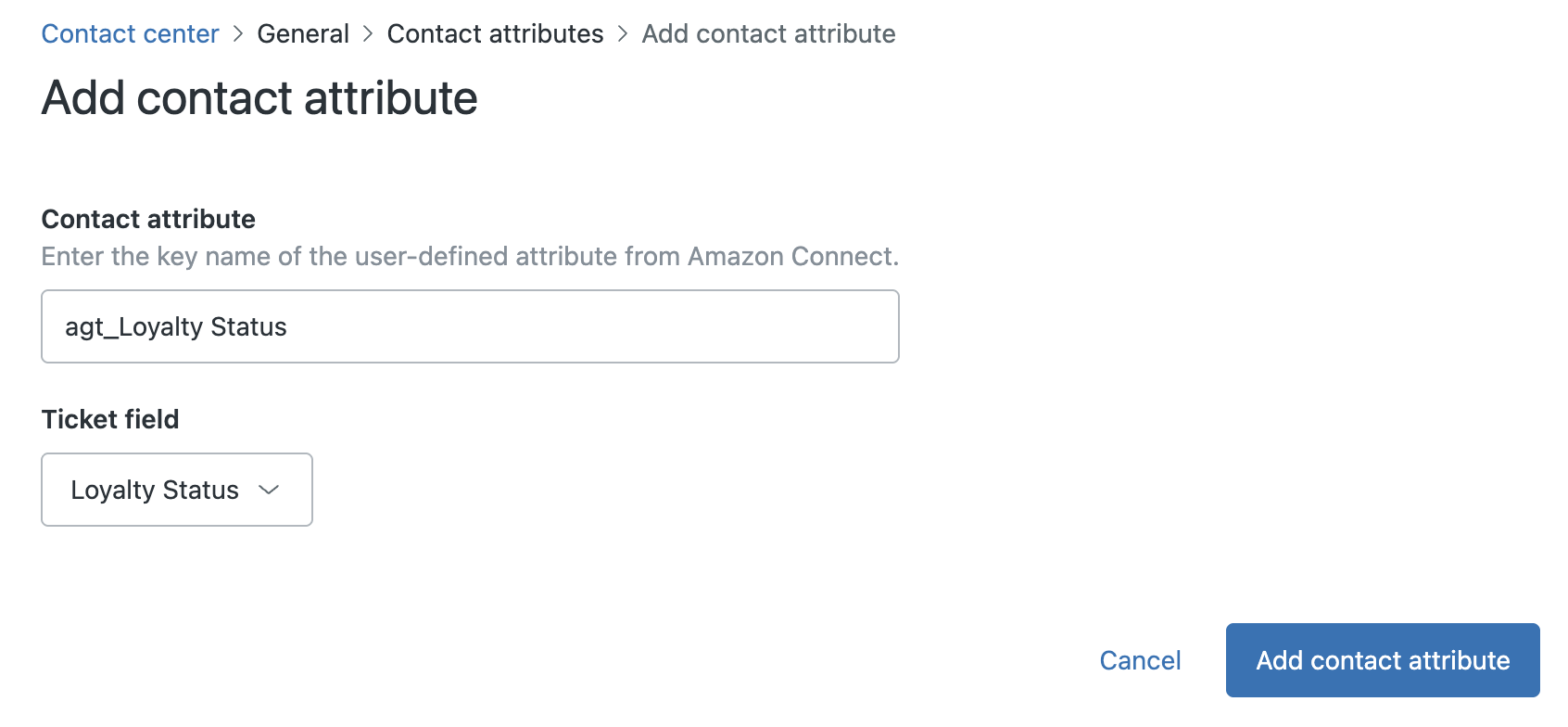
The contact attribute key must match the key in the Amazon Connect flow. The ticket field can have a different name.
-
Click Add contact attribute.
The attribute mapping between Amazon Connect and Zendesk is now in place. After refreshing your Zendesk workspace, you can perform a test call to confirm that the Contact attribute is captured in a ticket field. To control how the field appears in the ticket, see Editing ticket forms.
Adding call information to call notifications
You can give agents context about a call in the call notification. For example, show the caller's membership tier, the department they selected, or a payment status. Agents can use this information to prepare for the call.
If you're looking to configure the summary shown in the call notification, see Configuring summaries in Contact Center call notifications.
To add call information to call notifications
- Determine the information to add to call notifications.
For more details on sourcing information, see Understanding contact attributes.
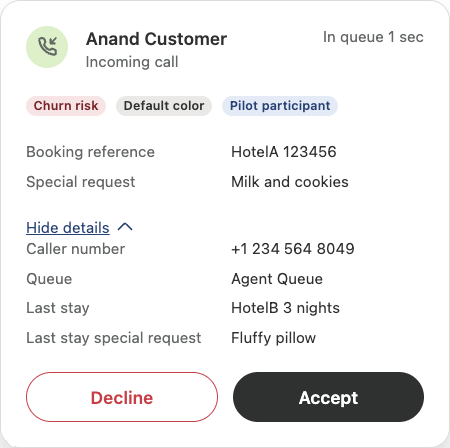
- Define the contact attribute key and value based on where you want the
information to appear in the notification:
-
Badge: badges are text labels with a highlight color that appear
at the top of the call notification, above the summary when available.
Badges are ordered alphabetically by key. Up to nine are shown
initially; agents can expand additional badges. Badges with empty values
aren't displayed.
To add a badge, enter the following:
-
Attribute key in the form
zendesk_badge_<color>_<name>.Add a highlight color as
blue,green,yellow, orredin lowercase. If you don't specify a color or it's not recognized, the badge uses the default gray color. Add an underscore and then an attribute name to identify the attribute in the flow. - Attribute value with the text label you want to display.
For example,
zendesk_badge_blue_pilotpartwith the valuePilot participantdisplays a blue Pilot participant badge. -
Attribute key in the form
-
Hero attribute: hero attributes show a label and its value below
the summary and above Show details. They're listed
alphabetically. Up to nine are displayed; additional attributes aren't
shown.
To add a hero attribute, enter the following:
-
Attribute key in the form
hero_<name>. Contact Center uses this name to create the displayed label. - Attribute value with the information you want to display.
For example, the key
hero_Booking referencewith the valueHotelA 123456displays Booking reference and HotelA 123456. -
Attribute key in the form
-
Details: call details show additional information when an agent
clicks Show details.
To add an attribute to the details list, enter the following:
-
Attribute key in the form
agt_<name>. Contact Center uses this name to create the displayed label. - Attribute value with the information you want to display.
For example,
agt_Last staywith the valueHotelB 3 nightsdisplays Last stay and HotelB 3 nights. -
Attribute key in the form
The caller number and queue are standard call details, you cannot change them.
-
Badge: badges are text labels with a highlight color that appear
at the top of the call notification, above the summary when available.
Badges are ordered alphabetically by key. Up to nine are shown
initially; agents can expand additional badges. Badges with empty values
aren't displayed.
- Add the contact attributes to the flow.
For the steps, see Adding Connect attributes to contact flows.
Let your agents know what to expect and refer them to Reviewing incoming call information.
Article Q&A
Click to view
How do I map an Amazon Connect contact attribute to a Zendesk ticket field?
In Amazon Connect, add a Set contact attributes block to the contact flow, set it on the Current contact, add the user-defined key and value, then connect the block, save, and publish the flow. In Admin Center, select or create a ticket field that accepts the value. In Contact Center, go to General > Contact attributes, click Add new attribute, enter the same key used in the flow, select the ticket field, and add the mapping. Refresh your Zendesk workspace and make a test call to confirm the value appears.
How can I show a badge in an incoming call notification?
Add a contact attribute with a key in the format zendesk_badge_
How do I display extra call information below the notification summary or under Show details?
For a label and value below the summary and above Show details, use a key in the form hero_
What do Zendesk-specific contact attributes do, and can I set zendesk_user_id in my contact flow?
zendesk_ticket_id can attach a call to a ticket with that ID or create a new ticket with that ID. conversation_title sets the ticket and first call-comment titles; default titles depend on whether the agent answers before ticket creation, while the first call-comment title defaults to the caller's phone number. zendesk_agent_id identifies the Zendesk user who answers, and zendesk_call_id identifies the call object created when an agent accepts. zendesk_user_id is based on matching the user and phone number, but using its value from a contact flow isn't currently supported.