Summary: ◀▼
Focus mode lets you keep agents online for voice, live chat, and messaging while routing work from only one Contact Center channel at a time. As an admin, you can turn it on to control assignment by channel, set the agent status used during voice calls, and use standard or custom statuses to limit new work or email tickets.
Focus mode allows agents to be online for voice, live chat, and messaging but serves the agent work from only one Contact Center channel at a time. This article describes how admins activate focus mode for Contact Center agents. Focus mode allows admins to set conditional routing based on agent activity by channel for Contact Center.
For Zendesk Voice and chat, see Activating focus mode for voice and chat in the Zendesk Agent Workspace.
This article contains the following topics:
Related links:
Understanding focus mode
What happens when focus mode is on:
- Agents can be online for voice, live chat, and messaging.
- Contact Center assigns work from only one channel at a time.
- Agents don’t receive work from other Contact Center channels until they finish or leave the channel by concluding the associated work items.
What happens when focus mode is off:
- Agents can receive work from multiple channels at the same time.
- Channel assignment is not limited to one channel at a time.
Activating focus mode
Admins can activate or deactivate agent focus mode for Contact Center channels.
To activate focus mode
- In Contact Center, click Routing > Focus mode.
-
Select Focus mode for Contact Center channels.
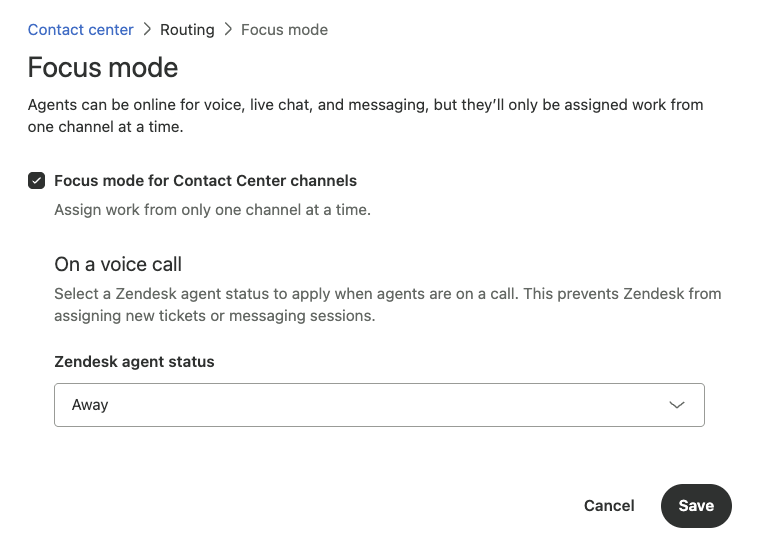
- Under On a voice call, select the Zendesk agent status to apply while
agents are on a call.
This status determines assignment behavior during Contact Center calls:
- Offline: Zendesk won't assign new work.
- Away: Zendesk will only assign new email tickets.
Besides these standard statuses, you can also use equivalent custom statuses to achieve the same goals.
- Click Save.