Summary: ◀▼
Customize email AI agent opening and closing lines with fixed templates for each supported language, and personalize them with a customer’s name. Templates are sent exactly as written and aren’t translated or adjusted by AI settings. Leave lines blank or disable customizations to use AI-generated greetings and sign-offs; the email footer remains unchanged.
You can customize opening and closing lines for your AI agent's email responses. The customized text is sent exactly as written. It isn't generated, translated, or modified by the AI agent, and it isn't affected by the AI agent's instructions or other personalization settings, including tone of voice or pronoun formality.
If you don’t customize specific opening and closing lines, the AI agent uses AI-generated text for its openings and closings.
This article contains the following topics:
Customizing an AI agent’s opening and closing lines
You can customize the opening and closing lines of email responses by creating templates for each language you support.
Keep the following limitations in mind:
- The email footer remains static and can't be edited.
- Templates aren't translated automatically. You provide your own version of each template for every language you support.
- Templates are fixed strings. The AI agent doesn't adjust their grammar, so languages with gender- or case-sensitive forms (such as the vocative case in Polish) may need wording that avoids inflected names.
To customize an AI agent's email opening and closing lines
- In the AI agents workspace, select the AI agent you want to work with.
- Click
 Build in the sidebar, then select Personalization > Email
content.
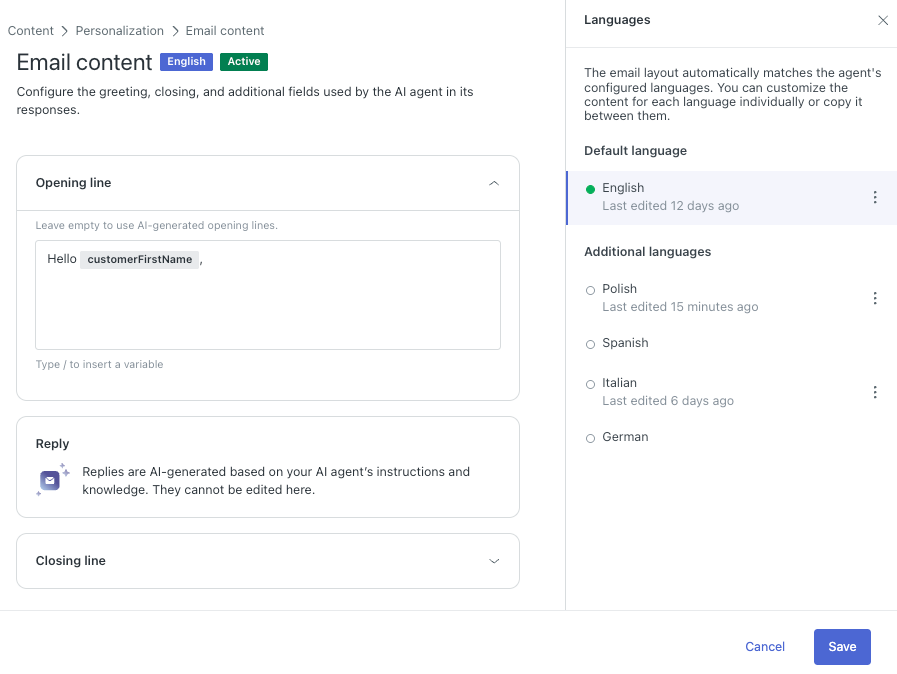
- Click Manage languages in the upper-right to select one of the supported languages you’ve added.
- Click Opening line and enter the text the AI agent should use at the
beginning of each email response.
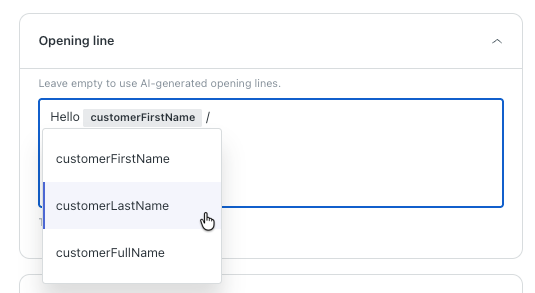
Optionally, you can personalize the text with the customer’s name. Place the cursor where you want to insert the name, type a forward slash (/), and select one of the following options:
Alternatively, leave the field empty to use an AI-generated opening line.- customerFirstName
- customerLastName
- customerFullName
Note: If your AI agent was created before July 30, 2026, see Populating the customer name variables for an additional step required to use the customer name variables listed above. - Click Closing line and enter the text the AI agent should use at the
end of each email response.
Optionally, you can personalize the text with the customer’s name, as described above.
Alternatively, leave the field empty to use an AI-generated opening line. - Click Save.
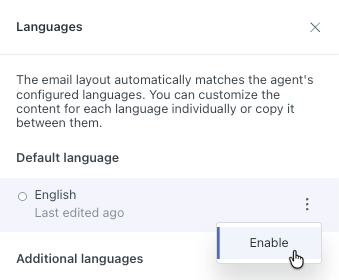
- In the Languages panel, click the options menu (
 ) for the language you’re customizing and select
Enable.
Using AI-generated opening and closing lines
You can configure your AI agent to use AI-generated opening and closing lines, instead of specifically customized ones.
You can do this by leaving the fields blank when you customize the opening and closing lines, or by disabling opening and closing line customizations for a language altogether.
You can disable customizations for a language only if you’ve previously enabled them.
To disable opening and closing customizations
- In the AI agents workspace, select the AI agent you want to work with.
- Click
Build in the sidebar, then select Personalization > Email
content.
- Click Manage languages in the upper-right to select one of the supported languages you’ve added.
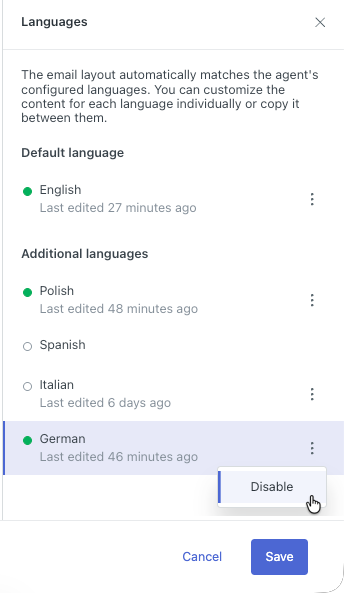
- Click the options menu () for the language you want to disable opening
and closing customizations for, then select Disable.
Article Q&A
Click to view
How do I customize the opening and closing lines for my email AI agent?
In the AI agents workspace, select the agent, then go to Build > Personalization > Email content. Under Manage languages, select a supported language, enter the Opening line and Closing line, click Save, then use that language’s options menu to select Enable. Create a separate template for each language you support.
Can I add a customer’s name to my AI agent’s opening or closing line?
Yes. In either line field, place the cursor where you want the name, type a forward slash (/), and select customerFirstName, customerLastName, or customerFullName. If your AI agent was created before July 30, 2026, an additional step is required; see the article’s guidance on populating customer name variables.
Will my customized email lines be translated or adjusted by the AI agent?
No. Customized text is sent exactly as written and is not generated, translated, modified, or affected by the agent’s instructions or personalization settings. Templates are fixed strings, so provide a version for each supported language and account for grammar that may depend on gender or case. The email footer is static and can’t be edited.
How can I use AI-generated opening and closing lines instead of my custom text?
Leave the opening or closing line field blank to use AI-generated text for that line. You can also disable customizations for a language from its options menu in the Languages panel, but only if you previously enabled them.