Summary: ◀▼
You can test a voice AI agent in a live call or with a browser testing widget to check speech recognition, responses, configured actions, language switching, and escalation behavior. The call console tests the full voice experience, including ticket creation and recordings, while the widget lets you review transcripts, actions, and detected language without creating a ticket or incurring call charges.
You can test a voice AI agent in production or sandbox environments in two ways:
- Use the call console in Agent Workspace to place a test call to the voice line connected to the AI agent. This method tests the complete voice experience, including ticket creation, call recording, and escalation to a human agent. A test call incurs charges, see About voice AI agents.
- Use the browser-based testing widget in the AI agents workspace to have a voice conversation directly with the AI agent. The testing widget doesn’t create a ticket or call recording, doesn’t support escalation to a human agent, and can’t test an individual procedure. Testing with the widget doesn’t incur charges.
During testing, verify that the AI agent recognizes expected customer requests, follows the correct procedures, performs configured actions, and responds naturally. When testing a configured language or speaking speed, also verify the accent, pace, transcription accuracy, and language switching. When testing with the call console, also verify that the AI agent escalates calls appropriately.
This article contains the following topics:
Testing a voice AI agent using the call console
Use the call console to place a live test call and verify the complete voice AI agent experience.
To test a voice AI agent using the call console
- Use the call console in Agent Workspace to call the line connected to the voice AI agent.
- Interact with the AI agent as a customer would.
- To test your escalation flow, use a second device or an incognito browser to receive handoffs.
- After the call, review the resulting ticket to verify the transcript, summary, call recording if call recording is enabled, and any ticket field updates made by the AI agent.
- Open Conversation logs and review the call recording, transcript, actions, events, active language, and detected language.
If you use Zendesk QA, evaluate representative test calls to assess the AI agent consistently against your quality criteria and identify improvements before deployment. See Evaluating the performance of AI agents using Zendesk QA.
Testing a voice AI agent using the testing widget
Use the testing widget to test a voice conversation with your AI agent without placing a live call.
To test a voice AI agent using the testing widget
-
In the AI agents workspace, select the AI agent you want to work
with.
Use the case-insensitive literal search to narrow the list of AI agents by name.
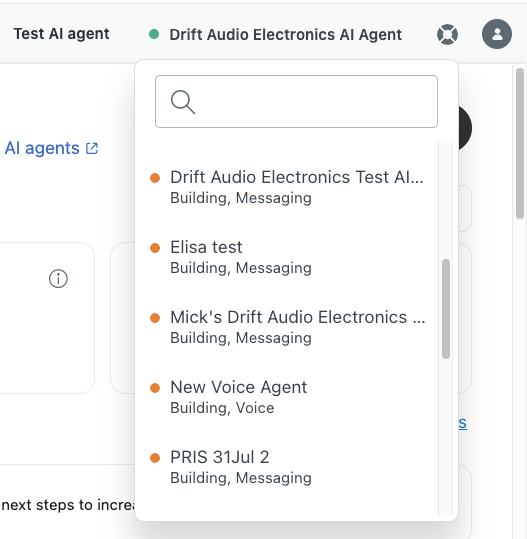
- Click Test AI agent in the top bar.
Test your AI agent opens.
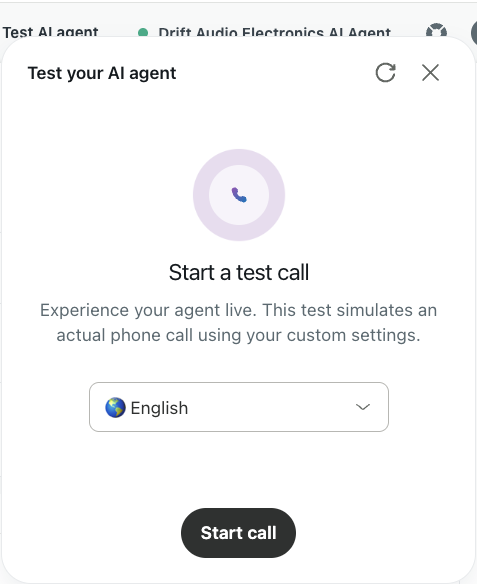
- (Optional) Select the language for the test from the language menu, if available.
- Click Start call.
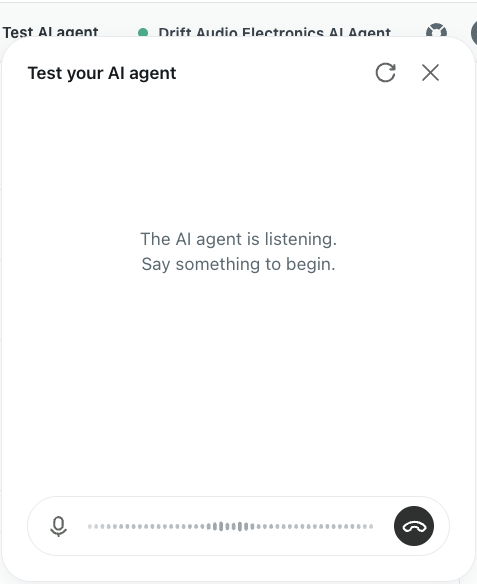
- Have a conversation with the agent by speaking into your microphone.
- (Optional) Click the Mute microphone icon (
 ) to stop the AI
agent from hearing you.
- (Optional) Click the Restart conversation icon (
 ) or the End call
icon (
 ) to end the call.
You can start a new call for another test.
- Click the Close icon (
 ) to finish.
- Click Open in conversation logs to review the call transcript, actions, events, active language, and detected language.
Article Q&A
Click to view
What are my options for testing a voice AI agent, and what are the differences?
You can place a test call using the call console in Agent Workspace or use the browser-based testing widget in the AI agents workspace. A call-console test checks the complete voice experience, including ticket creation, recording, and human escalation, and incurs charges. The widget test doesn’t create a ticket or recording, support escalation, or test an individual procedure, but it doesn’t incur charges.
How do I test the full voice AI experience and check the call results?
In Agent Workspace, use the call console to call the line connected to the AI agent and interact with it as a customer would. To test handoffs, use a second device or an incognito browser to receive them. Afterward, review the ticket for its transcript, summary, any enabled recording, and ticket-field updates. In Conversation logs, review the recording, transcript, actions, events, active language, and detected language.
How do I start and manage a test conversation in the browser-based widget?
In the AI agents workspace, select an AI agent (you can narrow the list with a case-insensitive name search), click Test AI agent, optionally select a language, and click Start call. Speak into your microphone to converse. You can mute the microphone, restart the conversation, or end the call; you can start another test call. Close the widget when finished, or open Conversation logs to review the transcript, actions, events, active language, and detected language.
What should I verify when testing my voice AI agent?
Check that it recognizes expected customer requests, follows the correct procedures, performs configured actions, and responds naturally. For a configured language or speaking speed, also check accent, pace, transcription accuracy, and language switching. With the call console, verify appropriate escalation. If you use Zendesk QA, you can evaluate representative test calls against your quality criteria and identify improvements before deployment.