Summary: ◀▼
This guide helps you set up Contact Center on a Zendesk-managed AWS account, from AWS account provisioning to telephony testing. You’ll confirm federated access, create a test user, claim a test phone number, validate inbound and outbound calling, and check that call recordings and transcripts appear on tickets. It also covers optional cleanup of test resources.
Use this guide when setting up Zendesk Contact Center for a customer where Zendesk provisions and manages the AWS account. In this deployment model, Zendesk and Zendesk partners complete the customer-specific Amazon Connect and Zendesk configuration described below. Some steps require access that only Zendesk employees have; those steps are marked clearly.
Before you begin, make sure you have:
- Administrator access to the Zendesk account and its valid subdomain, such as
example.zendesk.com - The customer technical contact and the required AWS Region, telephony, and SSO details
- A Zendesk contact who can provision the AWS account and perform internal Monitor or Contact Center Admin actions
- An active Contact Center license
This article contains the following topics:
- Step 1: Zendesk provisions the AWS account
- Step 2: Configure Connect access and validate settings
- Step 3: Test telephony capabilities
- Step 4: Clean up (Optional)
Related articles:
Step 1: Zendesk provisions the AWS account
Start by providing the following information to your Zendesk contact:
- Zendesk account name, ID, and valid subdomain, such as
example.zendesk.com - Customer technical contact details
- Intended Amazon Connect Region
- Required telephony and SSO configuration details
- Preferred Amazon Connect instance name
Your Zendesk contact will provision or associate the AWS account, create or identify the Amazon Connect instance, complete the required internal account and SKU-linking steps, and confirm when the account is ready.
Step 2: Configure Connect access and validate settings
In this section, you'll configure a test user, claim a test phone number, and optionally enable outbound dialing in your Amazon Connect instance.
2.1 Configure test user
After Zendesk confirms that the AWS account and Amazon Connect instance are ready, create a test user so you can validate agent access.
To configure a test user
-
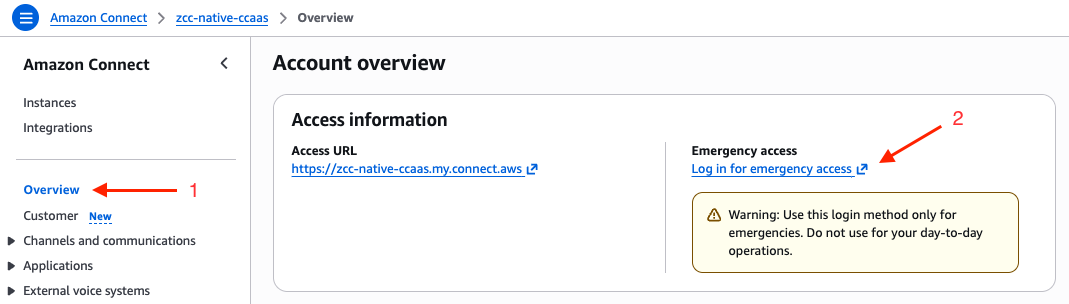
Navigate to the Overview page and click the Log in for emergency access link:
-
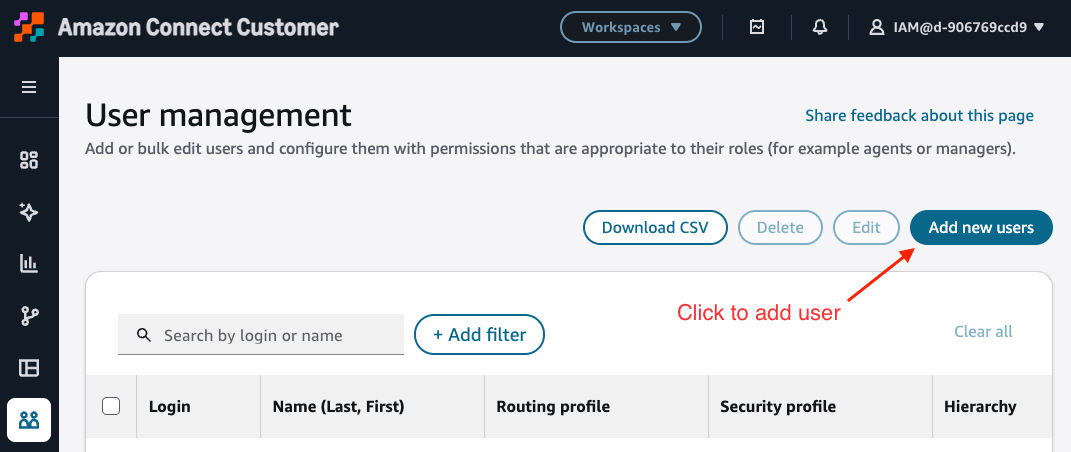
From the Amazon Connect Dashboard, navigate to User Management and click Add new users:
-
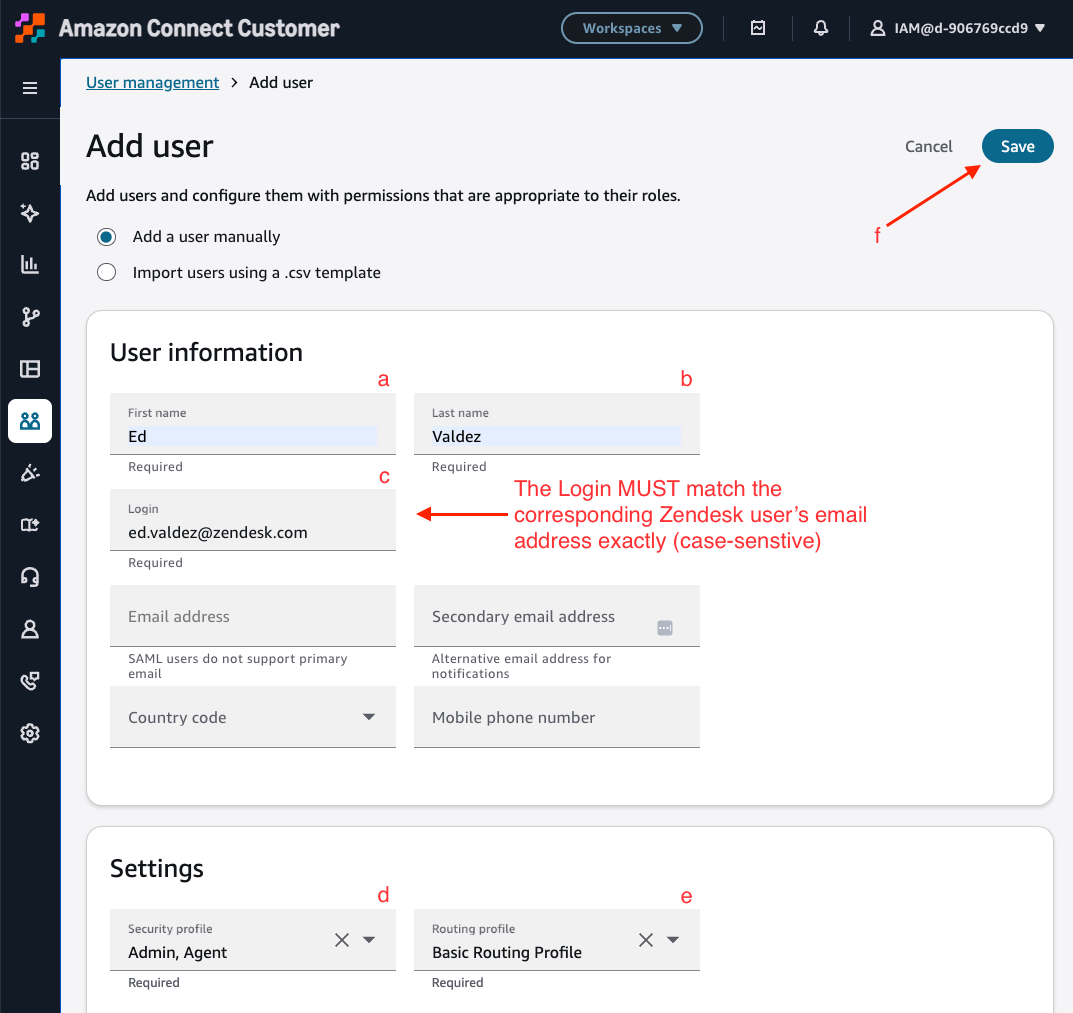
From the Add user page:
-
Enter the First name.
-
Enter the Last name.
-
Enter the Login. This must match the corresponding Zendesk user's primary email address exactly, including capitalization.
-
Select the Security profile permissions, such as Admin or Agent.
-
Select a Routing profile, such as Basic Routing Profile.
-
Click Save.
-
2.2 Claim test phone number
Next, claim a temporary phone number and associate it with the sample inbound flow for testing.
To claim a test phone number
-
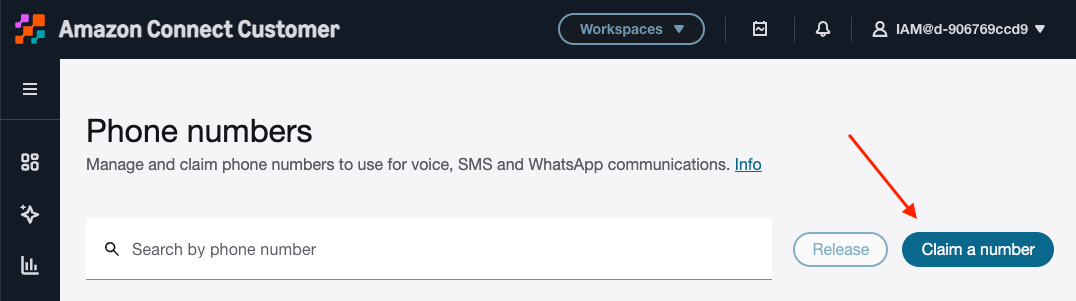
Navigate to the Phone numbers page and click Claim a number:
-
On the Claim Phone number page:
-
Select Voice as the channel if it isn't already selected by default.
-
Click the DID tab. Toll-free is also supported, but DIDs are cheaper for testing.
-
Select the country.
-
Select an available phone number from the list.
-
Select the Sample inbound flow (first contact experience) contact flow supplied by Amazon Connect.
-
Click Save.
-
2.3 Enable outbound dialing (Optional)
If outbound calling is part of your validation plan, assign the test number as the caller ID for the basic queue.
To enable outbound dialing
-
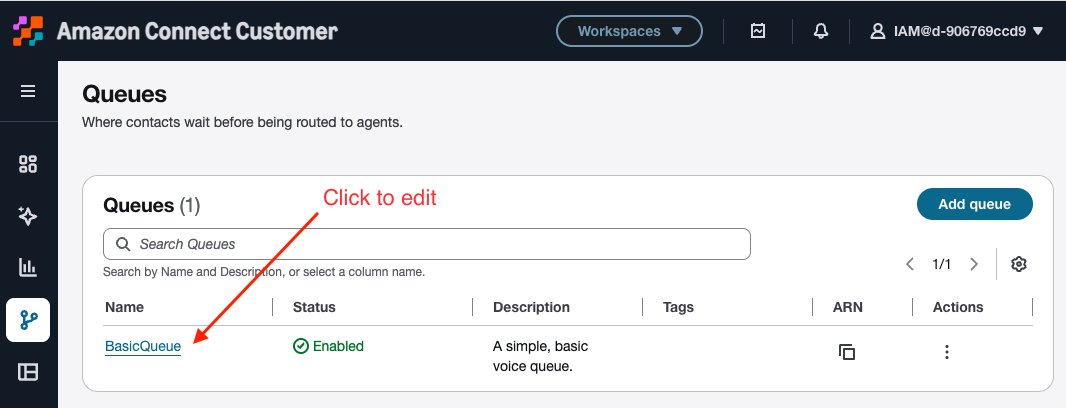
To test outbound calling, navigate to the Queues page and click BasicQueue:
-
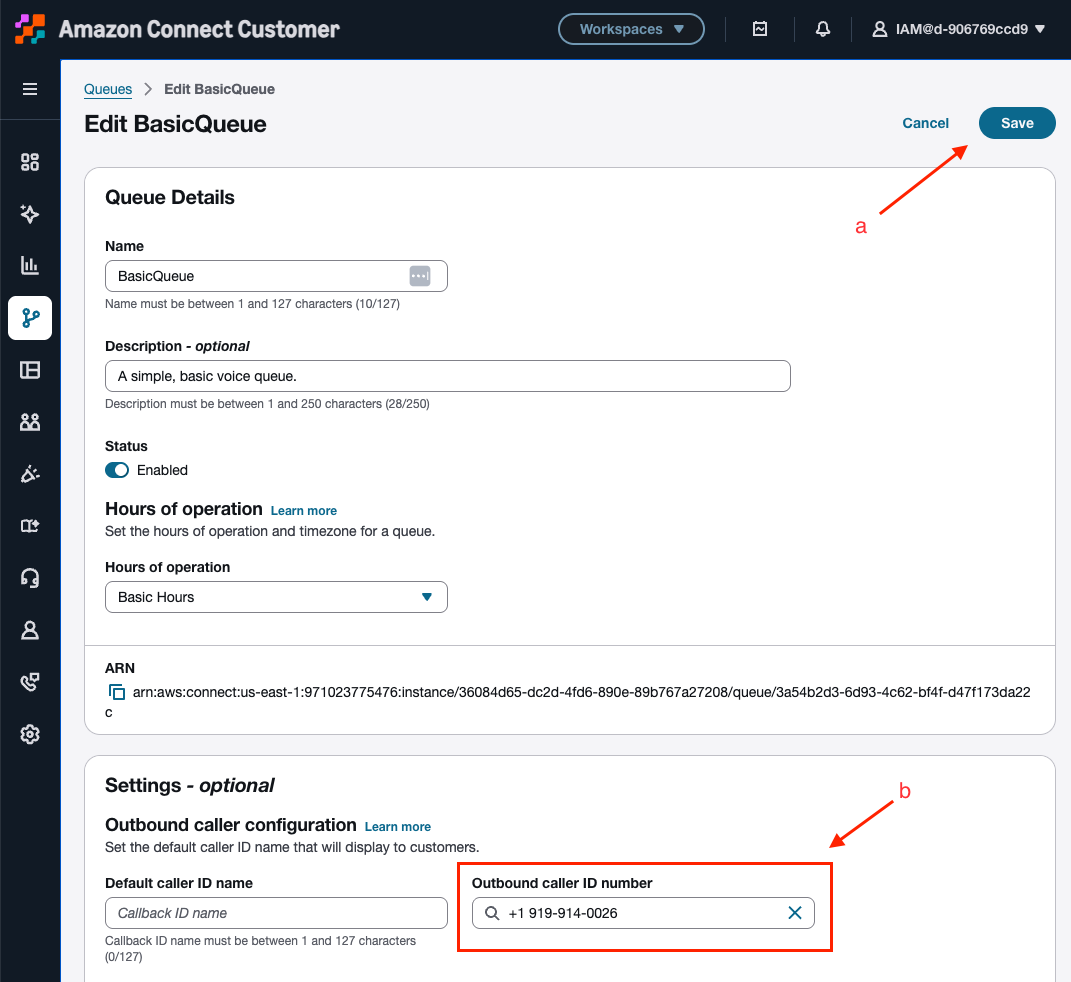
On the Edit BasicQueue page, scroll down to Settings - optional.
-
Search for and select the phone number you claimed in Step 2.2, then click Save.
Step 3: Test telephony capabilities
In this section, you'll verify federated access, then test inbound and outbound calling.
3.1 Test federated access to Amazon Connect and AWS
Verify that the Zendesk account provides the expected federated access to both Amazon Connect and the AWS Management Console.
To test federated access to Amazon Connect and AWS
-
Log out of the AWS Management Console unless you're using an incognito browser tab.
-
Log out of and back into your Zendesk account.
-
Navigate to the Contact Center configuration console.
-
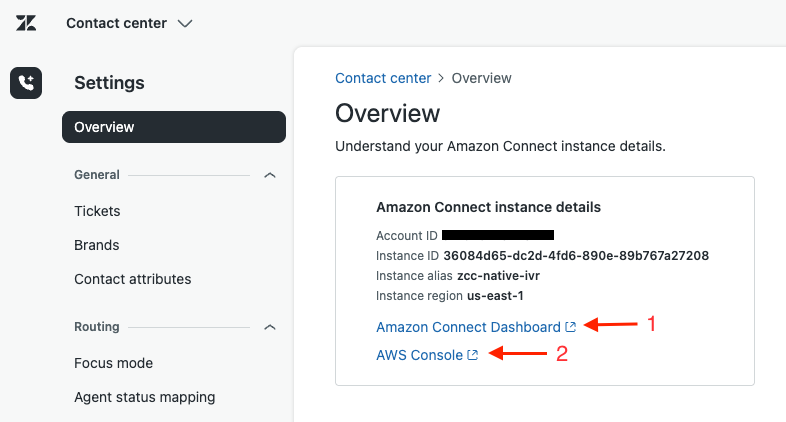
From the Overview page:
-
Click the Amazon Connect Dashboard link to validate federated access to the Amazon Connect Dashboard.
-
Click the AWS Console link to verify access to the AWS Management Console.
-
For example:
3.2 Test inbound calling
Use the test number to place an inbound call, confirm that it reaches an available agent, and verify the resulting ticket data.
To test inbound calling
-
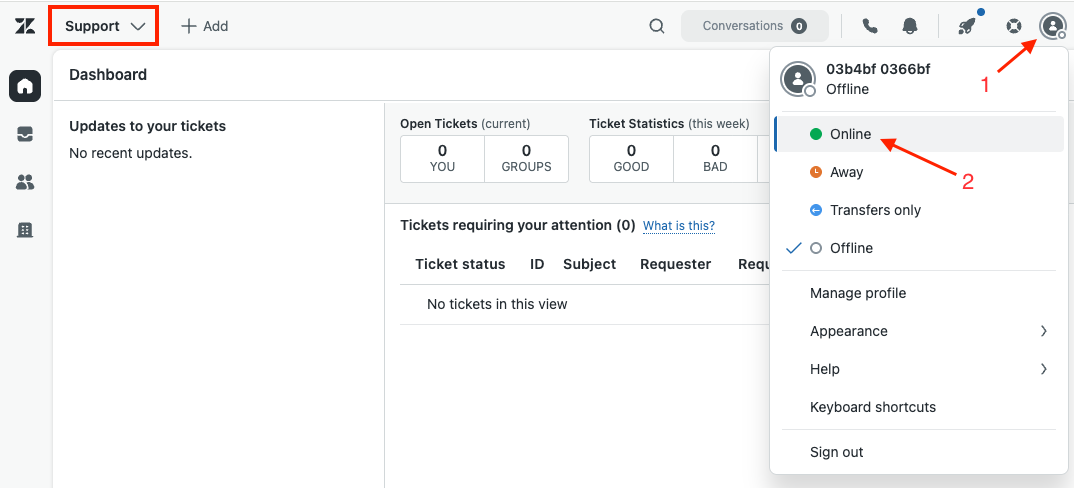
From the Support page in Zendesk, click the user icon in the top-right corner and select Online to make the agent available:
-
Call the phone number claimed in Step 2.2. Follow the menu options offered by Amazon Connect to be placed in a queue and transferred to an agent.
-
Accept the incoming call and close the notification:
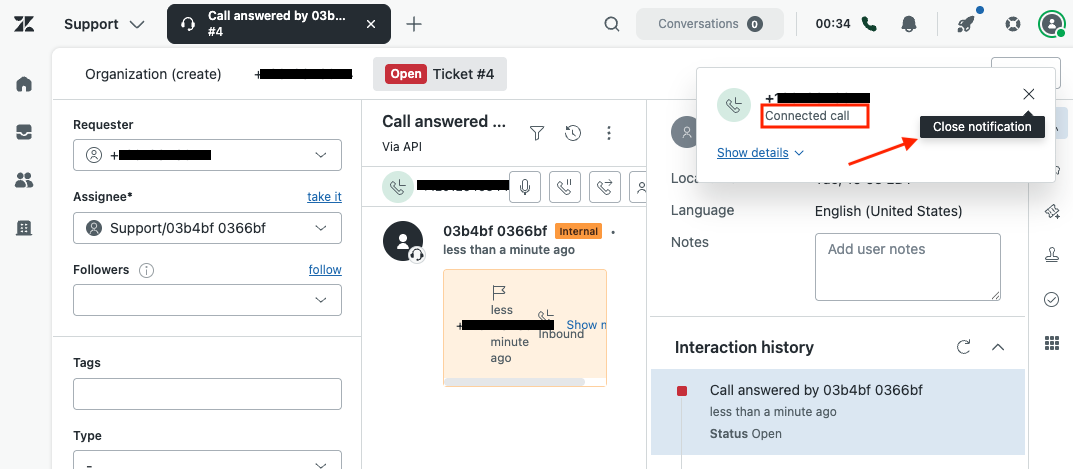
-
Speak a few words to validate the recording and call transcription, then end the call.
-
Click Finish wrap-up to close the Amazon Connect contact:
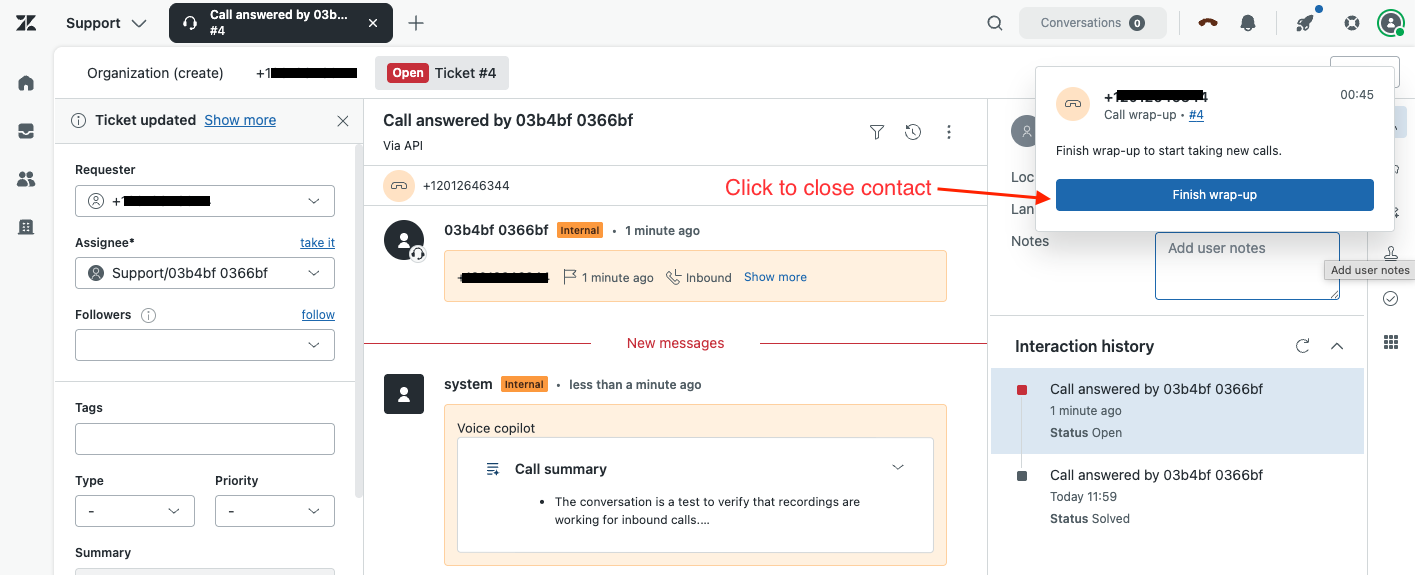
-
Wait a few minutes to verify that the call recording and transcription are appended to the ticket. This may take up to four to five minutes:
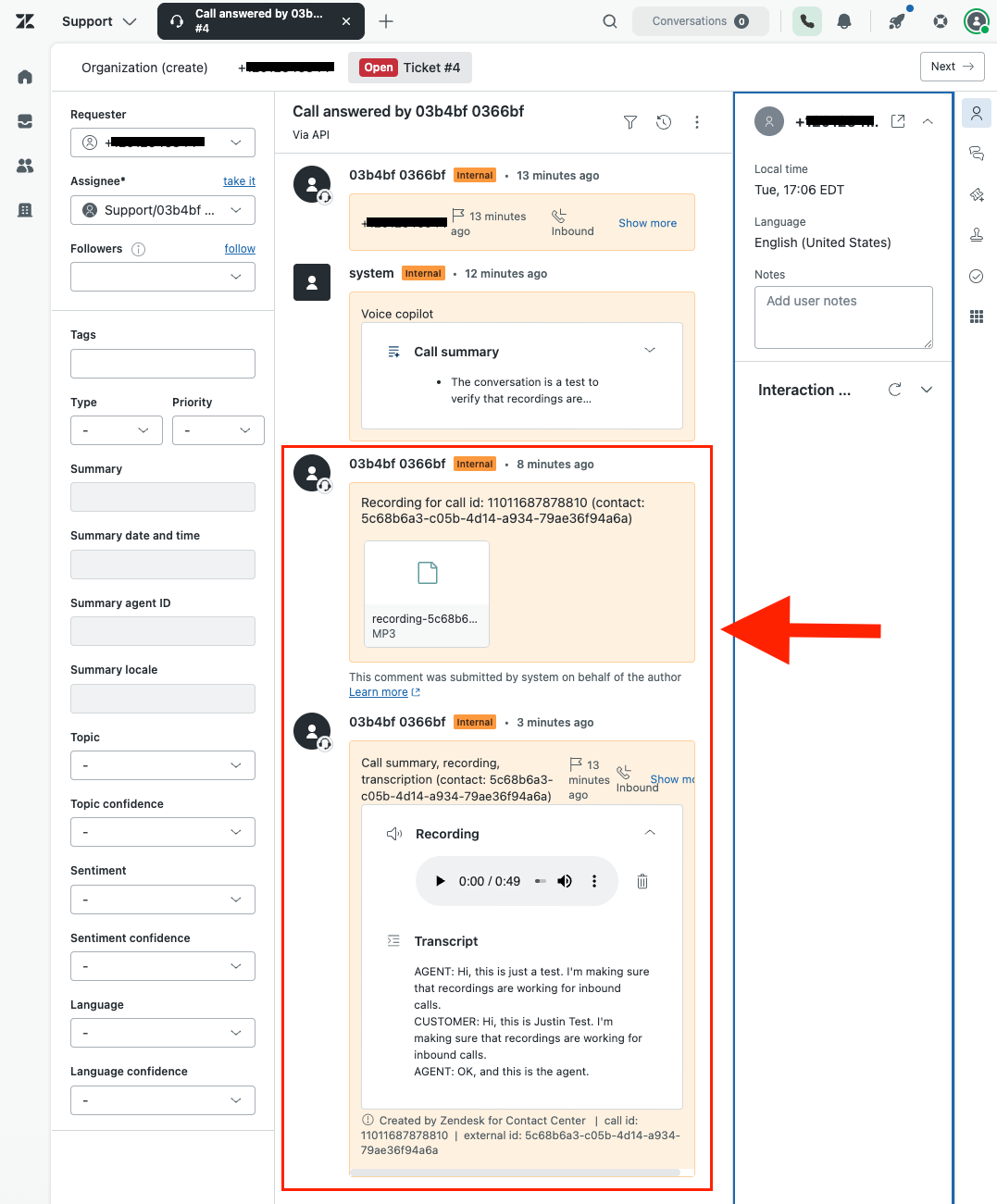
3.3 Test outbound calling
After inbound calling is validated, place an outbound call to confirm that the agent calling workflow is configured correctly.
To test outbound calling
-
From the Support page in Zendesk, click the phone icon. Enter a phone number and click Call:
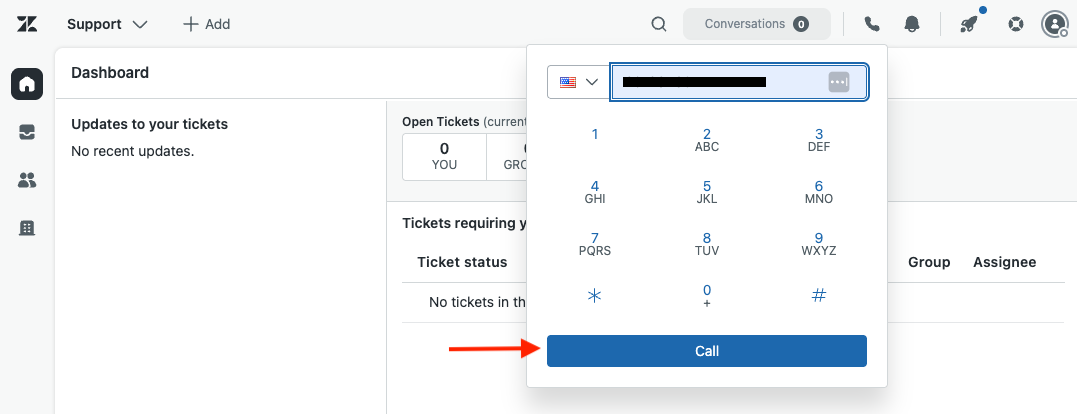
-
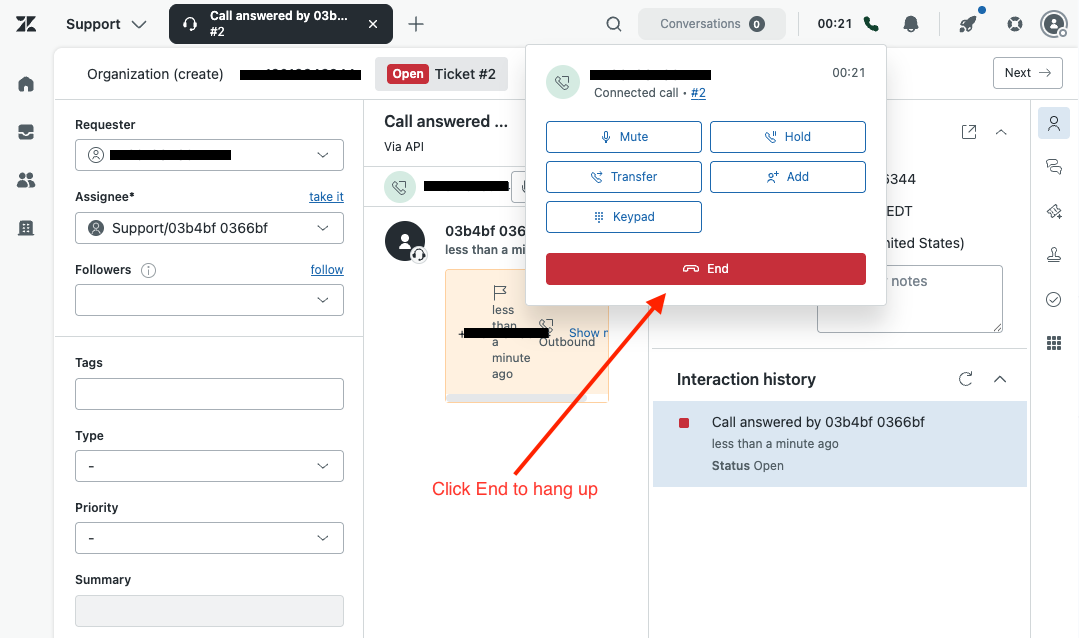
When the call is connected and your phone rings, click End to hang up.
-
Click Finish wrap-up in the pop-up window to close the contact.
Step 4: Clean up (Optional)
When testing is complete, remove the temporary resources and test data that are no longer needed.
To clean up the test resources
-
Clear the Outbound caller ID number from the BasicProfile routing profile in Amazon Connect.
-
Release the phone number claimed in Step 2.2 because it was intended only for testing.
-
Delete any tickets created in Zendesk during testing and validation.