Summary: ◀▼
Real-time voice translation is an early access feature that lets you and your customers speak in different languages during live voice calls, with AI translating both sides in real time. It can help you widen language support, reduce language-specific queues, and use your current agents for more calls. Supported languages, call limits, recording behavior, and EAP eligibility apply.
Real-time voice translation allows Contact Center agents and customers to communicate in different languages during a live voice call. Each participant speaks in their preferred language and hears the other participant's speech translated by artificial intelligence (AI).
The feature can help businesses expand language coverage, make better use of their existing agents, and reduce their reliance on language-specific queues, multilingual staffing, and interpreters.
This article contains the following topics:
About real-time voice translation
Real-time voice translation is designed for contact centers that support customers in different languages or have unpredictable demand for multilingual service. Agents can handle calls in supported languages without speaking the customer's language, so calls can be routed based on the customer's needs and the agent's expertise rather than language fluency.
Real-time voice translation is built into the Contact Center experience, so agents can manage translated calls alongside their existing call controls and workflows.
Understanding how real-time voice translation works
When a contact flow or another pre-agent workflow sets the customer's language, translation starts when the agent accepts the call. Agents can also start or stop translation during a call or change the customer's language. The agent's language comes from their Zendesk profile. Translation has a brief delay, so pause briefly between sentences to give it time to catch up.
These topics explain when translation starts and how agents manage it during a call:
Starting translation before a call reaches an agent
Admins can configure translation in a contact flow. The customer's language can be determined by the contact flow, a voice AI agent, or another pre-agent workflow.
When translation is configured before the call is connected:
- The customer's language is set before the call is connected to an agent.
- The incoming call notification displays the customer's language at the top,
and translation starts when the agent accepts the call.
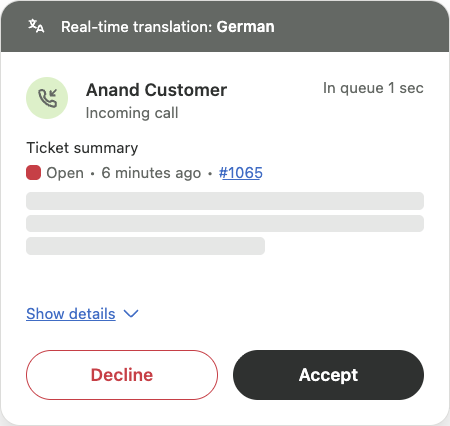
- The agent and customer speak in their preferred languages.
Turning on translation during a call
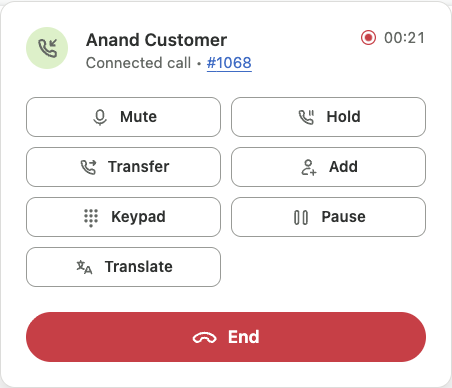
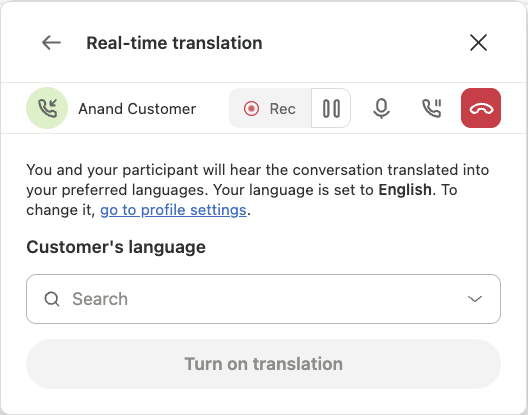
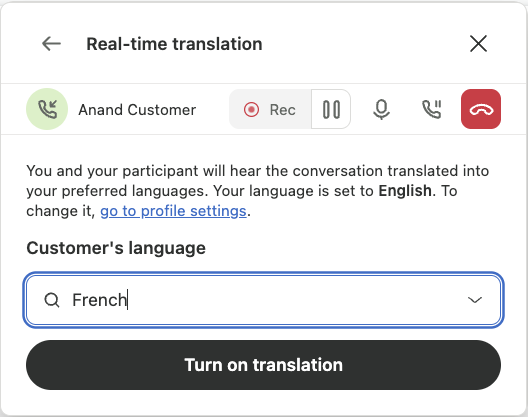
If the customer's language wasn't set before the agent accepts the call, the agent can turn on translation during the call and select the customer's language.
Agents select their language in their profile. For more information, see Viewing and editing your user profile in Zendesk Support.
To turn on translation during a call
 ) in the call bar or
Translate in the call console.

Turning off call translation
- Click Stop in the call console.
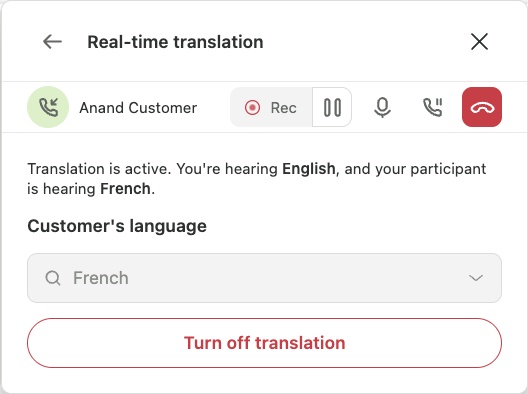
Alternatively, click the translation icon (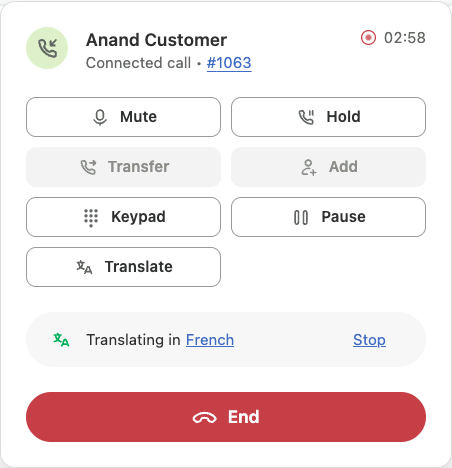
 ) in the call
bar or click the language in the call console.
Then click Turn off translation.
Changing the customer's language
Agents can change the customer's language when on a call with translation.
- Click the translation icon () in the call
bar or click the language in the call console.
- Click Turn off translation.
- Select the Customer's language.
- Click Turn on translation.
Understanding requirements and limitations
The following requirements and limitations apply during the EAP:
- Real-time voice translation is available only for native Contact Center accounts.
- Agents must have permission to make voice calls in Contact Center.
- Supported languages are Arabic, Chinese, Dutch, English, French, German, Hindi, Italian, Japanese, Korean, Polish, Portuguese, Spanish, Swedish, and Turkish.
- Multi-party calls, transferred calls, monitor or barge scenarios, and video calls aren't supported while real-time voice translation is on.
- Hold, mute, and wrap-up work as normal, but call transfer is unavailable while translation is on.
- Translation can end after a call of about one hour. If this happens, turn translation on again manually.
- Translation can stop when network conditions are poor. Try turning translation on again after your connection improves.
- Translation quality and latency can vary depending on the language, audio quality, accents, and network conditions. Names, addresses, and industry-specific terms can be translated inaccurately.
- Usage is subject to EAP limits.
- Add a Play prompt block to each Amazon Connect flow that can route calls to real-time voice translation. The prompt must inform callers that the call is recorded and uses artificial intelligence (AI) for real-time voice translation. For example: "This call is being recorded and uses artificial intelligence (AI) for transcription and real-time voice translation." For steps, see Play prompt text-to-speech.
Real-time voice translation produces AI-generated translations. Use your judgment and follow your organization's policies when handling translated conversations.
Understanding transcription and recording
If you use Contact Center call recording or transcription, the recording and transcript reflect the audio heard by the customer. They don't include the agent's original speech alongside its translated version. Real-time voice translation doesn't create a separate bilingual or dual-language transcript.
If you need an auditable record that shows both the original speech and its translation, test your recording and transcription configuration as part of the EAP before using translation with customers.
Deciding whether this EAP is right for your organization
Real-time voice translation might be a good fit for your organization if you:
- Receive voice calls from customers who speak different languages.
- Have difficulty recruiting or scheduling multilingual agents.
- Use language-specific queues or rely on interpreters.
- Want to expand language coverage without building specialist teams for every language.
- Have fluctuating or unpredictable multilingual demand.
The EAP might not be suitable if your organization requires translation for multi-party, transferred, monitored, barged, or video calls.
Joining the EAP
To join the EAP, contact your Zendesk account executive or customer success manager. They can help you confirm eligibility and coordinate your participation.
After Zendesk confirms that your account is eligible, one of your account admins can turn the feature on in Admin Center.
- In Admin
Center, click
 Account in the sidebar, then select Early Access Programs >
Experiments.
- Click Real Time Translations.
- Review the terms and
conditions.
Alternatively, click Actions, then click Early Access Terms.
- Click Actions.
- Click Turn on.
As an EAP participant, you must provide structured feedback and join regular feedback sessions. After turning on real-time translation for your account, configure the relevant contact flows and language settings, train your agents, and test calls before using translation with customers.