Summary: ◀▼
Create custom AI summaries for tickets and calls to give your team the conversation details they need for follow-up or handoffs. Set instructions for content, tone, format, and length, then use ticket tags to apply summaries to specific teams or conversation types. You can also choose whether ticket summaries include internal notes through a separate setting.
AI-generated summaries recap the public comments added to a ticket so far. Internal notes can also be included in ticket summaries when configured, giving agents critical internal context.
Custom summary instructions let you define what information ticket and call summaries should include or exclude and how that information is presented. You can create custom summary instructions for different teams so agents can quickly find the conversation details they need when reviewing calls or taking over tickets.
This article contains the following topics:
- Understanding custom summaries
- Creating and activating a custom summary
- Writing effective summary instructions
Related articles:
Understanding custom summaries
A custom summary defines how AI summarizes conversations, including which details to include or exclude and how those details are presented. You can customize the summary’s tone, format, and length. Custom summary instructions control which details appear in the summary, but they don’t control which sources AI uses. Sources can include public comments or internal notes. See Including internal notes in ticket summaries to configure whether internal notes are included in ticket summaries.
You can apply different custom summaries to different types of tickets and calls by using ticket tags. For example, you might create separate summaries for billing, sales, and technical support conversations.
Before creating a custom summary, identify the tickets or calls that should use it
and the tags that identify them. For example, tickets and calls for a billing team
might include the billing tag.
If a ticket doesn't match an active tag-based custom summary, Zendesk uses the default custom summary, if configured. Otherwise, Zendesk generates a standard summary that highlights the main issue, actions taken, outcome, current status, and explicitly stated next steps.
Understanding tag matching
Zendesk matches custom summaries to tickets based on ticket tags. For a custom summary to apply, it must be active and the ticket must contain every tag configured for that summary.
For example, a custom summary with the billing and
vip tags applies only to a ticket that has both tags. A
ticket with only the billing tag doesn't match the custom
summary.
If more than one custom summary matches a ticket, Zendesk uses the following order:
- The matching custom summary with the most configured tags.
- The custom summary that appears higher on the Custom summaries page when matching summaries have the same number of tags.
You can adjust the order of custom summaries by dragging them in the Order column. See Reordering custom summaries.
Tickets can receive tags in several ways, depending on your workflow. For example, tags can come from ticket fields, triggers, calls, or AI agents. For calls, you can apply ticket tags based on a caller's IVR selection. This can help apply a custom summary to calls in a particular call flow. For Zendesk Contact Center, see Recording a Contact Center IVR selection on a ticket. For Zendesk Voice, see Routing incoming calls with IVR.
Creating and activating a custom summary
Create and activate a custom summary to use it for conversations that match its tags.
The ticket summarization feature must be turned on for custom summaries to apply to your tickets.
To create a custom summary
- In Admin Center, click
 AI in the sidebar, then select Custom summaries > Custom summaries.
- Click Create custom summary.
- Select Activate custom summary.
Alternatively, you can save the custom summary as a draft and activate it later. See Activating and deactivating a custom summary.
- Enter a descriptive Name, such as Billing summary or Technical support
summary.
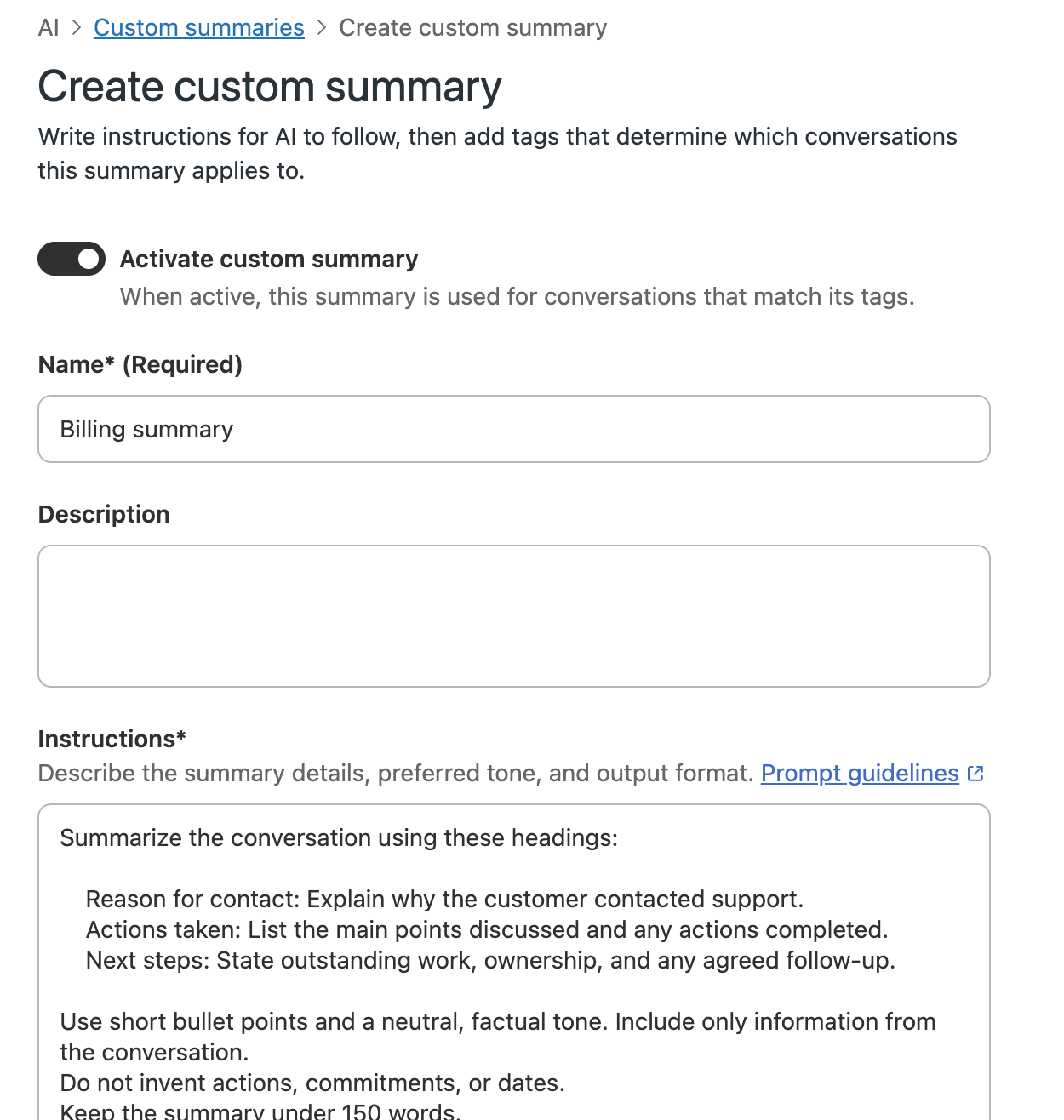
- (Optional) Enter a Description that explains the summary's purpose.
- Enter the Instructions that AI must follow when generating the summary. See Writing effective summary instructions.
- Select the Tags that determine which tickets use the custom
summary.
Each selected tag is required for a ticket to match the custom summary. Tags are optional only when you configure a custom summary as the default summary.
To create ticket tags, see Working with ticket tags.
- Click Save.
Writing effective summary instructions
Clear, specific instructions help AI generate consistent summaries that meet your team's needs. Describe the information to include and how the summary should be presented.
Include the following information in your instructions:
- Purpose: Explain what the summary is for, such as billing follow-up or technical support.
- Content: Specify the sections, headings, and information to include in each section. Include instructions to exclude personally identifiable information (PII), if needed.
- Tone: Describe the preferred tone, such as factual, neutral, concise, or customer-focused.
- Length and format: Specify formatting or length requirements when they are important.
- Missing information: Explain how AI should handle incomplete information, uncertainty, or missing next steps.
- Terminology: Use consistent names for your products, teams, and processes.
Avoid vague instructions, such as “Write a good summary,” and requirements that conflict with one another.
For example, you could use the following instructions:
Summarize the conversation using these headings:

    Reason for contact: Explain why the customer contacted support.
    Actions taken: List the main points discussed and any actions completed.
    Next steps: State outstanding work, ownership, and any agreed follow-up.

Use short bullet points and a neutral, factual tone. Include only information from the conversation.
Do not invent actions, commitments, or dates.
Keep the summary under 150 words.
Test a custom summary with representative calls and tickets that have the appropriate tags. If a summary omits important information or includes unnecessary detail, update the instructions to be more specific.
Article Q&A
Click to view
How do I create and activate a custom summary for my tickets or calls?
Turn on ticket summarization first if you want custom summaries to apply to tickets. In Admin Center, go to AI > Custom summaries > Custom summaries, select Create custom summary, and choose Activate custom summary (or save it as a draft to activate later). Add a name, instructions, and the tags that determine which tickets use it, then click Save. A description is optional. Tags are optional only for a default summary.
How can I make different custom summaries apply to different conversations, and what happens if more than one matches?
Use ticket tags to target conversations, such as billing or technical support. A custom summary must be active, and a ticket must have every tag configured for that summary. If multiple summaries match, Zendesk uses the one with the most tags; if they have the same number, it uses the one higher on the Custom summaries page. If no active tag-based summary matches, Zendesk uses the default custom summary if configured; otherwise, it generates a standard summary.
Can I control whether internal notes appear in my custom summaries?
Custom summary instructions control which details appear and how they are presented, but they do not control which conversation sources AI uses. Public comments or internal notes may be sources. Configure whether internal notes are included in ticket summaries separately.
What should I include in my custom summary instructions?
Specify the summary’s purpose, the content and sections to include, preferred tone, length and format, how to handle missing or uncertain information, and consistent terminology. You can also instruct AI to exclude personally identifiable information. Avoid vague or conflicting requirements. Custom summaries are for recapping conversations, not evaluating agent performance.
How can I check whether my custom summary instructions are working?
Test the summary with representative calls and tickets that have the appropriate tags. If it leaves out important information or includes unnecessary detail, make the instructions more specific.