Summary: ◀▼
Configure ticket forms to control whether agents can see and update AI-generated topic, sentiment, language, and entity fields. Agents can correct classifications when needed, and you can report on manual changes to identify where triage may be inaccurate. Fields don’t need to appear on forms if you use their values only for reporting or API access.
Intelligent triage uses AI to automatically classify new customer support tickets by topic, sentiment, language, and entities, such as product names. When intelligent triage is turned on, the system automatically fills out the topic, sentiment, and language fields, but admins can control whether the fields are displayed and editable for agents.
This article describes how to control agent access to auto-filled intelligent triage fields within ticket forms, allowing for manual updates if needed. To configure which intelligent triage classifications are shown to agents in the ticket header, see Configuring intelligent triage settings.
Whether the fields appear by default depends on your ticket forms. Specifically:
- If you have a single ticket form, the intelligent triage fields are
automatically visible in tickets.
Edit your ticket form to remove the new fields if you don’t want agents to be able to see and change these fields in tickets.
- If you have multiple ticket forms, the intelligent triage fields are not
automatically visible in tickets. You can edit your forms by adding the fields so
that agents can see and update them in tickets.
Any entities you created must also have their custom fields added to your forms.
When the topic, sentiment, and language fields are displayed to agents, they can update the values in the fields if they feel they're not correct. You can report on agents' manual updates to the intelligent triage classification fields, which helps you discover trends in the types of tickets where intelligent triage isn't correctly classifying the topic, sentiment, or language.
- In Admin Center, click
 Objects and rules in the sidebar, then select Tickets > Forms.
- Follow one of the options below:
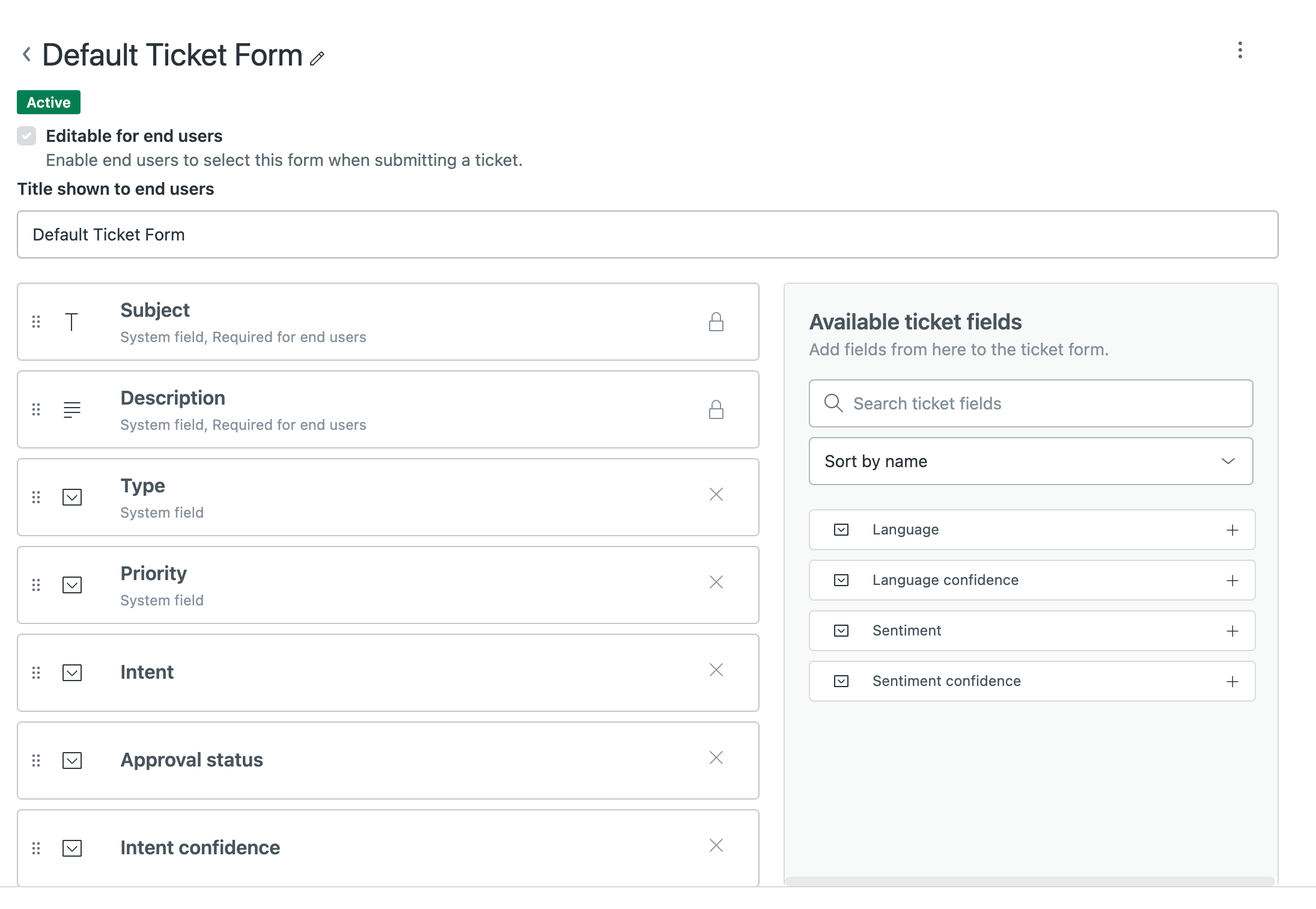
- For a single ticket form, open the ticket form for
editing, then click the x on the field you want to remove. You
can drag a field onto the ticket form if you want to add it
back.
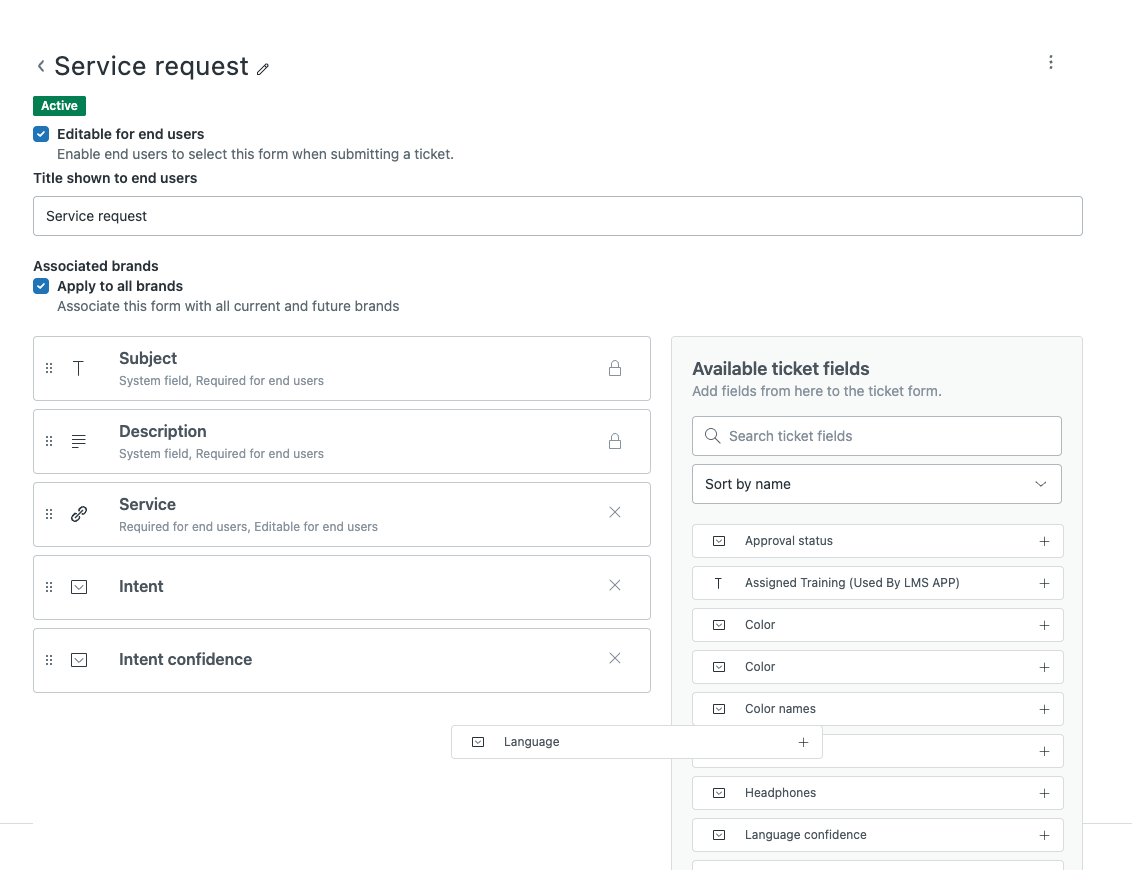
- For multiple ticket forms, open the ticket form, then
drag the intelligent triage fields you want to add onto your form. You
can click the x on the field if you want to remove it from the form.
- For a single ticket form, open the ticket form for
editing, then click the x on the field you want to remove. You
can drag a field onto the ticket form if you want to add it
back.
- Click Save.
Article Q&A
Click to view
How does the number of ticket forms affect whether agents see intelligent triage fields?
With a single ticket form, topic, sentiment, and language fields are automatically visible. With multiple forms, they are not visible by default; add the fields to each form where agents should see and update them. Add custom fields for any entities you created as well.
How do I add or remove intelligent triage fields from ticket forms?
In Admin Center, go to Objects and rules > Tickets > Forms and edit the form. For a single form, click the x on a field to remove it, or drag it onto the form to add it back. For multiple forms, drag the fields you want onto a form; click the x to remove a field. Click Save.
Can I use intelligent triage field values for reporting or API use without showing them on ticket forms?
Yes. If you use the values only for reporting or API use, you don’t need to add the fields to any ticket forms.
Can agents correct an intelligent triage classification, and can I review their changes?
When the topic, sentiment, and language fields are displayed to agents, they can update values they believe are incorrect. You can report on agents’ manual updates to identify trends in tickets that intelligent triage classifies incorrectly.
What plan do I need for intelligent triage classifications and workflows?
Intelligent triage classifications are available on Suite and Support Professional plans and above. Using them in workflows requires the Copilot add-on.