Summary: ◀▼
You can create, edit, and delete time off reasons to categorize planned or unplanned absences like personal or sick leave. Assign these reasons to specific teams to control access in agents' schedules. Bulk editing lets you update categories or teams for multiple reasons at once. Deleting a reason removes it permanently from agents' request options, helping you manage agent availability effectively.
Time off reasons are part of your Workforce Management (WFM) organization’s structure and define the types of time agents can take off. This includes both planned and unplanned time off, such as personal time or sick time.
By default, two time off reasons are already created:
- Paid leave: Planned absences for personal time off.
- Sick leave: Unplanned absences due to personal illness or health-related issues.
However, admins and team member with permission can create new time off reasons and edit or delete existing ones.
The article contains the following sections:
Related articles
Creating time off reasons
You can create additional time off reasons for your organization.
To create a time off reason
- In Workforce management, click
 Settings in the sidebar, then select Time off reasons.
 - Click Create time off reason.
- Enter a name for the time off reason.
- From the Category menu, select Planned or Unplanned.
- Under Teams, select the teams that can access this time-off reason in their agents’ schedules.
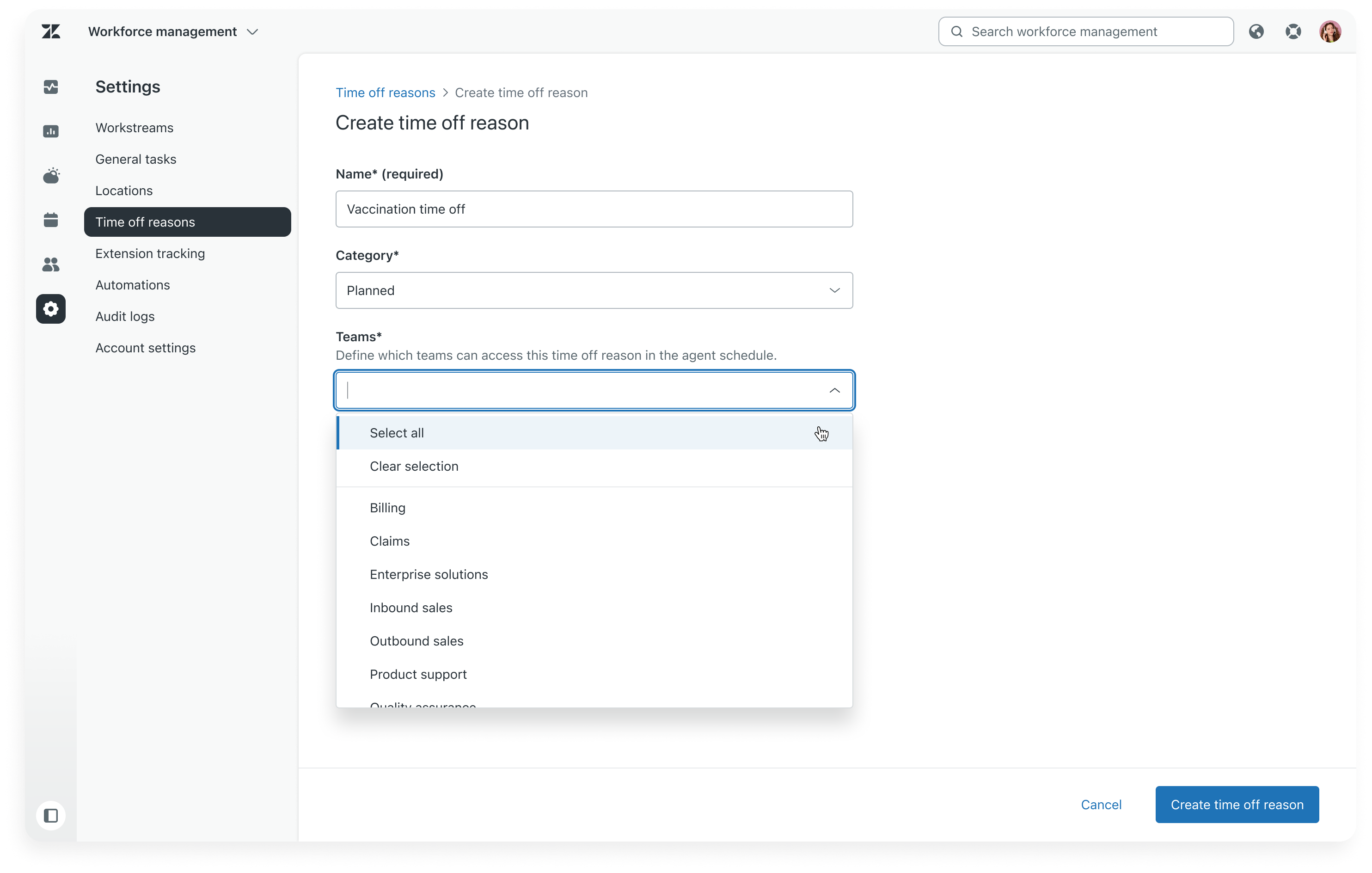
- Enter a description.
This is the text that agents see when they request this time off reason.
- Click Create time off reason.
Managing time off reasons
Teams are scoped, so your access might differ from the users you manage, and you may not be able to add or remove users from all teams. This also means that changes you make to time off reasons may affect teams outside your scope. See Understanding WFM roles and permissions.
Hovering over or selecting a time-off reason displays a list of all associated teams, including those outside your management scope.
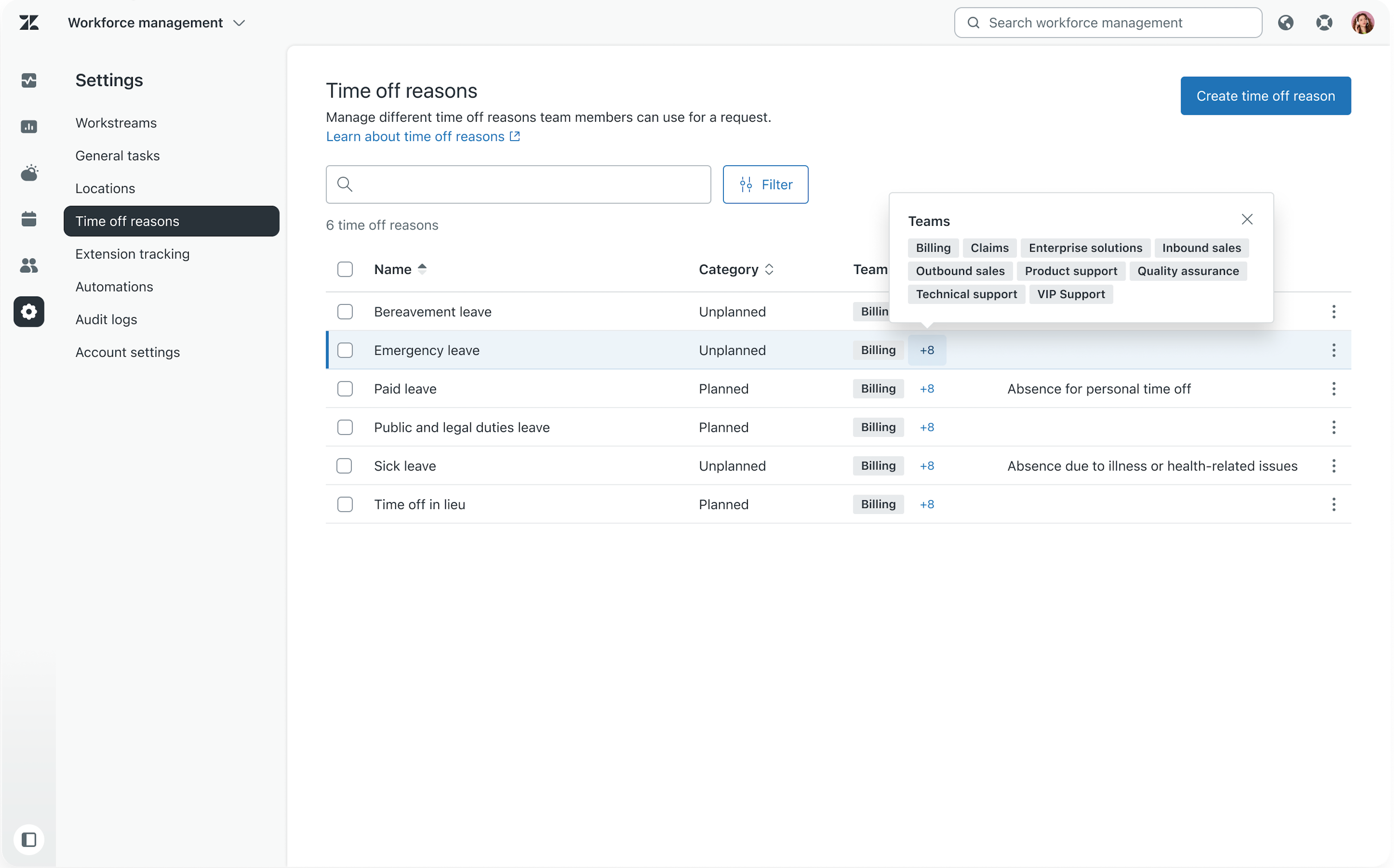
On the Time off reasons page, you can:
Editing time off reasons
You can change a time off reason’s name, description, category, or teams.
To edit a time off reason
- In Workforce management, click
Settings in the sidebar, then select Time off reasons.
- Next to the time off reason you want to edit, click the options menu (
 ) and select Edit.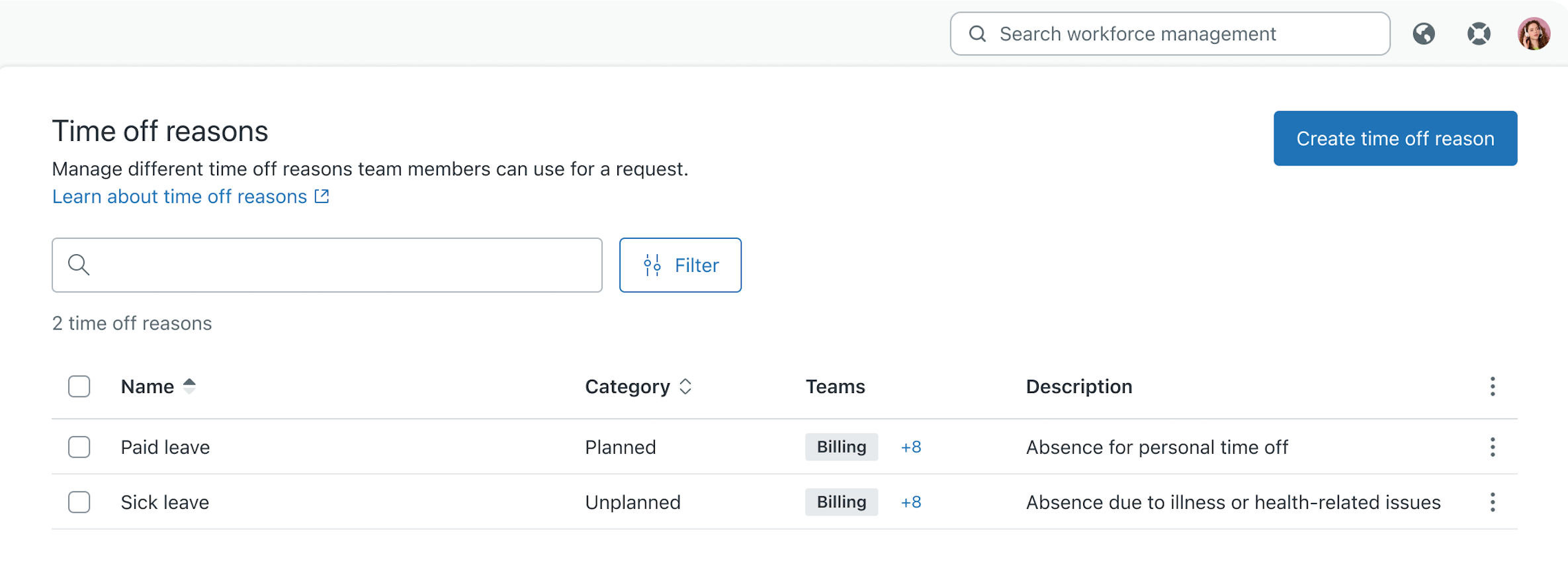
- Edit the time off reason name or description, or change its category or teams.
- Click Save.
Changing the teams for time off reasons
You can add or remove teams for time off reasons individually or in bulk.
To change time off teams
- In Workforce management, click
Settings in the sidebar, then select Time off reasons.
- Select the time off reasons you want to change the teams for.
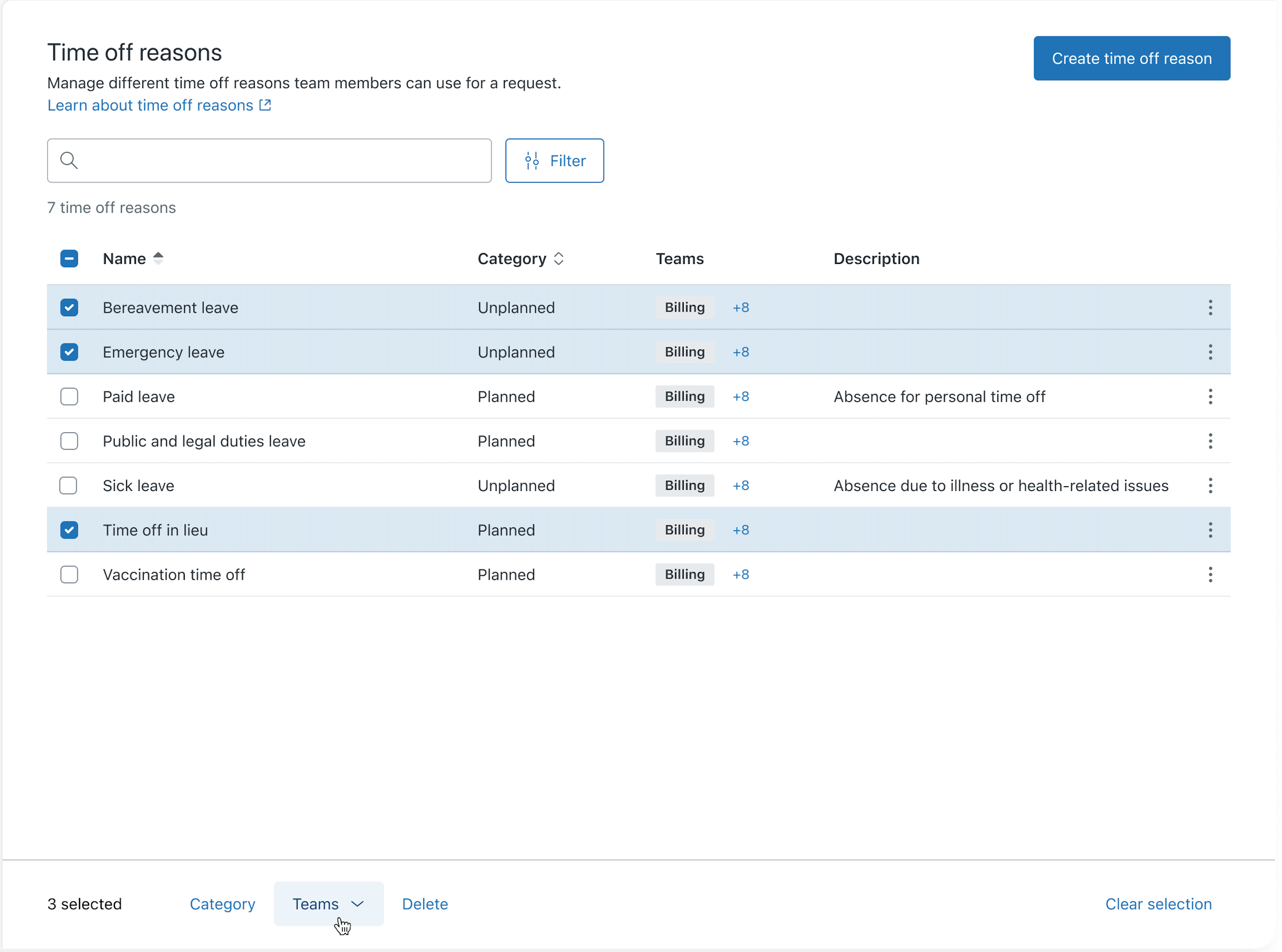
- In the toolbar that appears at the bottom of the page, click Teams.
- Click Add team or Remove team.
- Use the dropdown menu to select the teams you want to add to or remove from your
selected time off reasons.
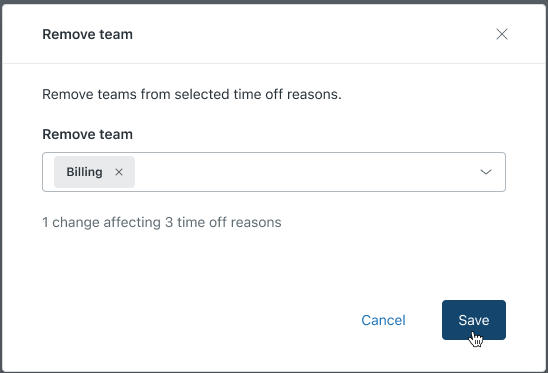
- Click Save.
Changing the categories for time off reasons
You can change the category (planned or unplanned) for your selected time off reasons in bulk.
To change time off categories in bulk
- In Workforce management, click
Settings in the sidebar, then select Time off reasons.
- Select the time off reasons you want to change the categories for.
- In the toolbar that appears at the bottom of the page, click Category.
- Select the new category for your selected time off reasons.
- Click Save.
Deleting time off reasons
Deleting a time off reason is permanent. Agents will no longer be able to see or select this time off reason when creating requests.
To delete time off reasons
- In Workforce management, click
Settings in the sidebar, then select Time off reasons.
- Select the time off reasons you want to delete.
- In the toolbar that appears at the bottom of the page, click Delete.
- Confirm you want to delete the time off reasons by clicking Delete time off reason.