Verified AI summary ◀▼
Enhance agent support by using Contact Lens rules to update contact attributes during calls and chats. Create a Contact Lens rule, a Lambda function, and an EventBridge rule to automate responses to customer issues. Customize attributes like labels and panels to provide real-time updates, improving the context agents have when assisting customers. This setup empowers agents to address customer concerns more effectively.
Add-on | Zendesk for Contact Center
You can provide automated assistance to agents during calls and chats by using Connect Contact Lens to process voice and chat transcripts in real-time and respond to predefined scenarios. For example, if a customer expresses dissatisfaction about a delivery delay, the system can swiftly detect this issue and provide agents with instructions to reassure the customer that the matter is being addressed.
Contact Center supports standard contact attributes, as well as label, panel, and button attributes.
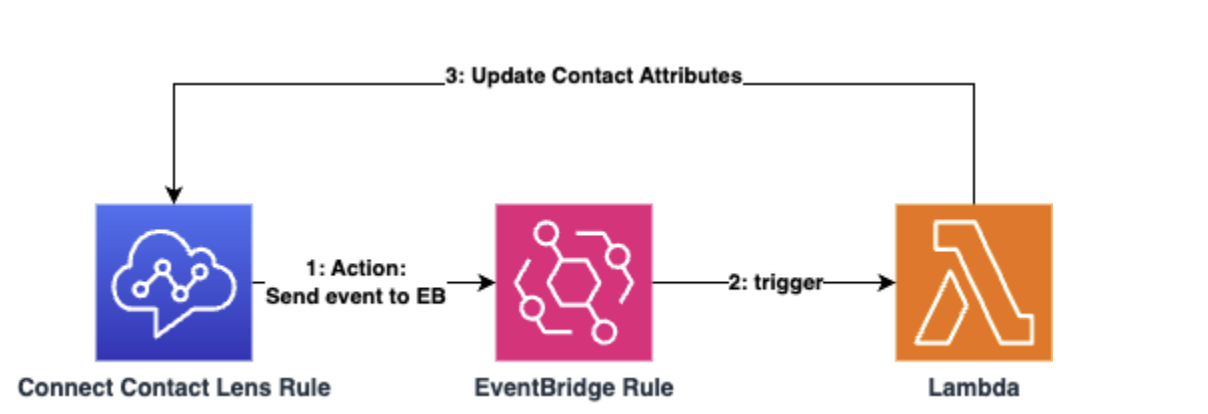
To react to events published by Connect Contact Lens rules to automatically assist and notify agents, you need to create a Contact Lens rule, create a Lambda function, and then create an EventBridge rule.
About standard contact attributes
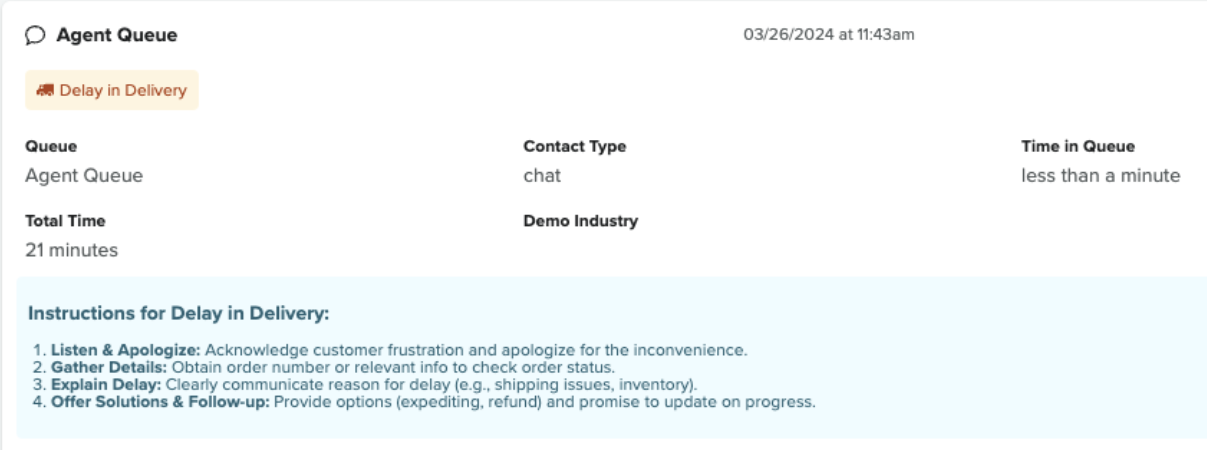
Standard attributes can provide agents with context about the contact they are managing. The standard contact attributes include the Label and Panel attributes.
You can customize these attributes to use a variety of colour themes and icons. Label attributes are used for concise information, such as status updates. Panel attributes are used for longer information, with multiple lines and extra formatting requirements.
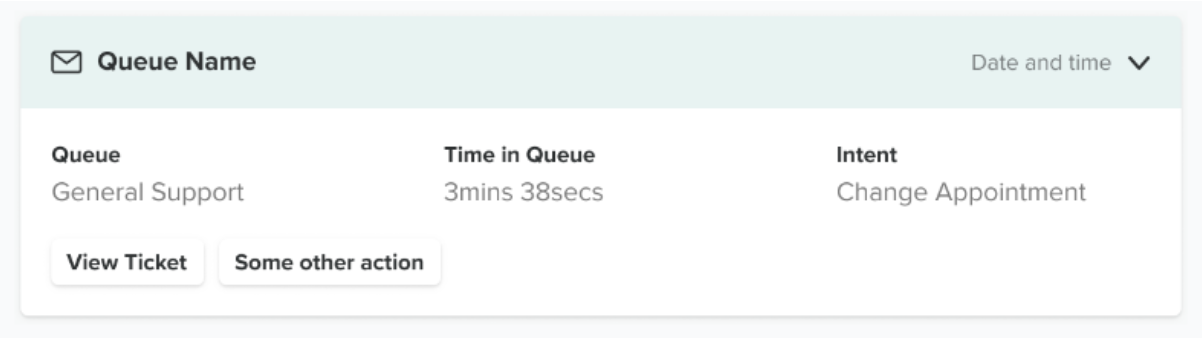
You can also create buttons that link to external URLs. Keep in mind the following:
-
You can create as many buttons as needed.
-
These buttons appear in Active contacts and Historical.
-
URLs are not validated by Contact Center.
-
Links open in a new tab.
Creating a Connect Contact Lens rule
The first step is to create a Connect Contact Lens rule with an action type of publishing an EventBridge event. This rule is designed for real-time call and chat conditions, ensuring that contact attributes are promptly updated in near real-time after the rule is triggered by Connect Contact Lens.
To create a Connect Contact Lends rule
- In Contact Lens, under the Analytics and Optimization Menu, navigate to the Rules sections.
- Click Create a rule.
- Select Conversational analytics.
- For When, select A contact lens real-time call (or chat) analysis is available
- Click Add Condition, then select the condition you want to
apply to contacts.
You can select whether these phrases can be from the customer, agent, or both.
- Click Add Action, then select Generate an EventBridge Event.
Provide a name for this action. This name is visible in the EventBridge event received in Lambda later.
- Review the rule and publish it.
For more information on setting up Contact Lens Rules in Connect, see Create Contact Lens rules using the Amazon Connect admin website in the AWS documentation.
Create the Lambda function
After you create your Connect Contact Lens rule, you need to create a Lambda function to handle the actions, specifically updating the contact's standard, label, and panel attributes. This ensures that agents see updates in real-time in Contact Center.
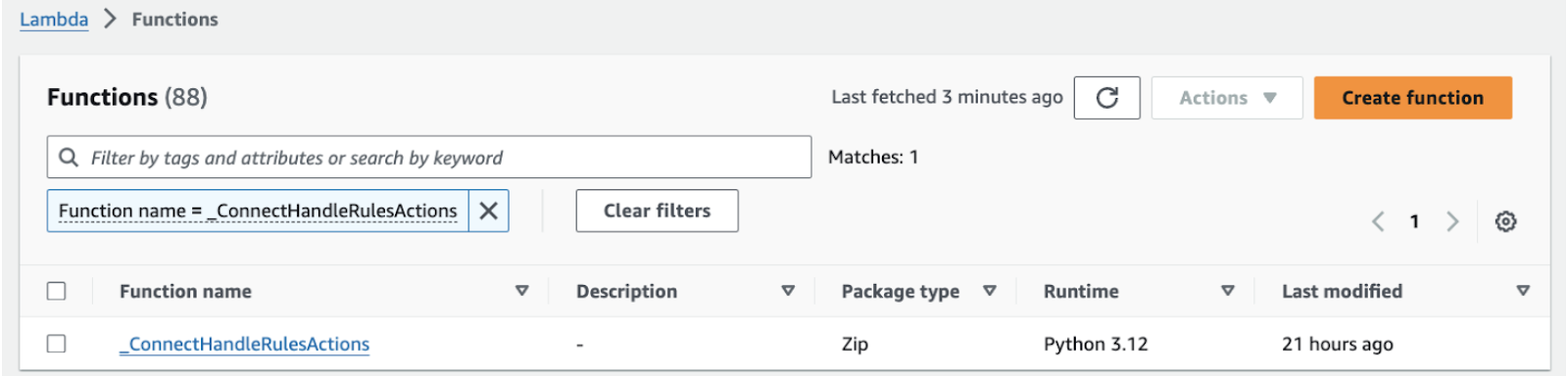
In this instance, we name the function "_ConnectHandleRulesActions" and use Python 3.12. Incorporate the provided sample code into the Lambda function. You can modify the code as needed, such as adding new conditions or adjusting the text for custom attributes. Be sure to replace all the placeholders with your Amazon Connect and account information.
To create a lambda function to manage the events, use the following code
import json
import boto3
import os
def lambda_handler(event, context):
# Check for Contact ID
 if 'contactArn' in event['detail']:
contact_arn = event['detail']['contactArn']
contact_id = contact_arn.split('/')[-1]
else:
 print("INFO: Contact ID was not found. Skip.")
return
# Get Connect instance Id from Lambda env. variables
ConnectInstanceId = os.environ['ConnectInstanceId']
 # Create a client for the Amazon Connect
connect_client = boto3.client('connect')
 # Get values for rule and action
ruleName = event['detail']['ruleName']
actionName = event['detail']['actionName']
# Handle rules and actions
try:
if ruleName == 'DelayInDelivery':
 if actionName == 'ConnectDelayInDeliveryAction':
# Update the contact with the new contact attribute
 response = connect_client.update_contact_attributes(
InitialContactId=contact_id,
InstanceId=ConnectInstanceId,
Attributes={
'label_DelayInDelivery': '{"text":"Delay in
Delivery","theme":"warning","icon":"delivery"}',
'panel_DelayInDelivery': '{"text":"## Instructions for Delay in
Delivery: \\n\\n1. **Listen & Apologize:** Acknowledge customer frustration
and apologize for the inconvenience.\\n1. **Gather Details:** Obtain order
number or relevant info to check order status.\\n1. **Explain Delay:**
Clearly communicate reason for delay (e.g., shipping issues,
inventory).\\n1. **Offer Solutions & Follow-up:** Provide options
(expediting, refund) and promise to update on progress.","theme":"info"}'
}
)
# ...
# Extend the rules and actions to cover different scenarios.
# ...
except Exception as e:
print(f"An error occurred: {str(e)}")
return
Ensure that the Lambda function has the necessary "connect:UpdateContactAttributes" permission. Refer to the sample policy below for guidance.
Unset
{
"Version": "2012-10-17",
"Statement": [
{
"Sid": "VisualEditor0",
"Effect": "Allow",
"Action": "connect:UpdateContactAttributes",
"Resource": "arn:aws:connect:{AWS region}:{AWS account
number}:instance/{Connect instance ID}/contact/*"
}
]
}
Create EventBridge rule
After you create the Lambda function, you need to create an EventBridge rule with a target of the Lambda function.
- In the Amazon EventBridge service, click Rules.
- Click Create rule.
- Select Rule with an event pattern, then proceed.
- Select Use pattern form, then configure the AWS service to Amazon Connect with the Event type set to Realtime Rules Matched.
- Enter the name of the action set in the Connect Contact Lens rule or select Any action type.
- For the Target, select the Lambda function you created.
- Review the details, then click Create rule.