Summary: ◀▼
You can map Amazon Connect contact attributes to ticket fields to provide agents with relevant call context. Create user-defined attributes in contact flows, then link them to custom or existing ticket fields. This setup helps capture key customer interaction details, like order numbers or ticket IDs, directly in tickets, improving support efficiency and personalized service.
Admins can configure attributes captured on calls to customize and optimize contact center operations. For example, to provide agents with context about the call or user. You configure these attributes by mapping Amazon Connect contact attributes to ticket fields in Zendesk Support through Contact Center.
This article contains the following topics:
Understanding Contact attributes
Amazon Connect contact attributes are key and value pairs that store information about a customer interaction. Think of them as labels or tags that carry data throughout the lifecycle of a call, chat, or task within your contact center. For example, admins might configure a contact attribute to provide agents with a caller’s most recent order number, and then add that to the ticket using a mapping to a ticket field.
As an admin, you can create user-defined contact attributes in Amazon Connect flows. These can be populated by querying an external database, pulling data from unified customer profiles, or capturing direct customer input. You can also use the Zendesk-specific contact attributes. For example, to determine if the customer is calling about an existing ticket before handing the call to an agent.
The following are Zendesk-specific contact attributes that you can use in your flows:
| Contact attribute | Description |
| zendesk_ticket_id | If this attribute is set in the contact flow, it's used to attach the call to the corresponding ticket with that ID or to create a new ticket with that ID. |
| conversation_title | This attribute is used for the ticket and voice comment title, otherwise it uses the default. |
| zendesk_user_id |
This attribute is set based on matching the user and phone number.
Note: Using the value of this attribute from the contact flow isn't
currently supported.
|
| zendesk_agent_id | The ID of the Zendesk user that answers the call. |
| zendesk_call_id | The ID of the call object that Contact Center creates when an agent accepts a call. |
Mapping Connect attributes through Contact Center
You can map Amazon Connect attributes from a Contact flow to a Zendesk ticket field through Contact Center. Mapping a Connect attribute to a Zendesk ticket field involves the following tasks:
Adding Connect attributes to contact flows
To add a Connect attribute to a contact flow
-
In Amazon Connect, select Routing > Contact flows.
-
Select the contact flow to edit.
-
Add a Set contact attributes block to the flow, to capture the attribute.
For more information, see How contact attributes work in Connect Customer.
-
Add a User defined key and value.
-
Click Confirm, to confirm the block's configuration.
-
Click Save, to save the flow.
A contact attribute is now captured and assigned to calls through the flow. For more details, see the Amazon Connect contact attributes guide.
Adding custom ticket fields
You can add custom ticket fields or use existing ticket fields to map to an attribute. For more information on custom ticket fields including example use cases, see Adding custom ticket fields to your tickets and forms.
Mapping Connect attributes to ticket fields
To map a Connect attribute to a ticket field
-
Click the Zendesk product menu in the top bar, then select Contact center.
-
Under General, click Contact attributes.
-
Click Add new attribute.
-
Enter the Contact attribute key and select the corresponding Ticket field.
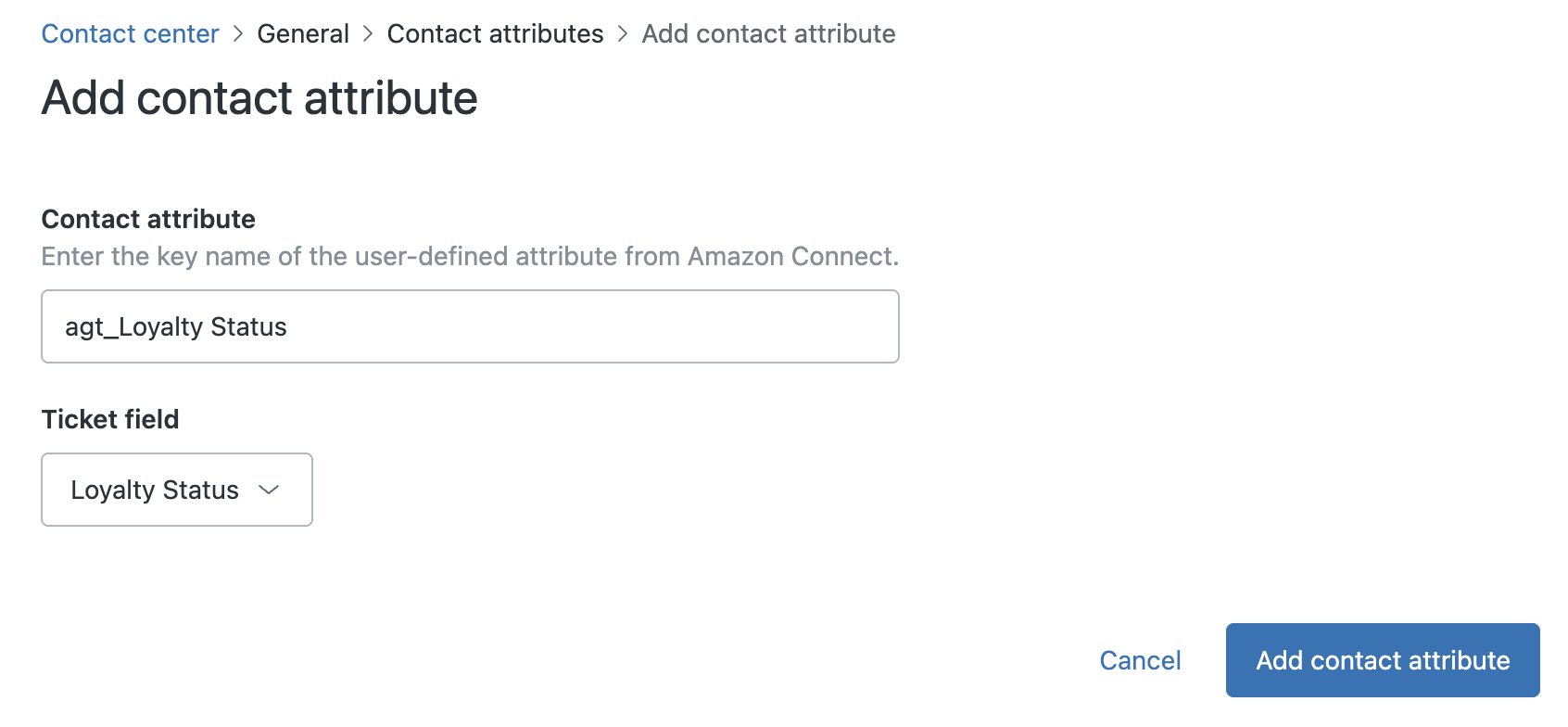 Tip: The name of a contact attribute and the ticket fields that’s mapped to it are independent of one another.
 -
Click Add contact attribute.
The attribute mapping between Amazon Connect and Zendesk is now in place. After refreshing your Zendesk workspace, you can perform a test call to confirm that the Contact attribute is captured in tickets.