Verified AI summary ◀▼
With agent recording controls, you can pause and resume call recordings to manage privacy and data security. If the caller opts out or doesn't opt in or if admins don't turn on controls for agents, the pause and resume buttons won't appear.
If your admin turns on agent recording controls, you can pause and resume call recordings using the following procedure. This functionality helps you to remain legally compliant by preventing sensitive and personal end-user data from being stored in call recordings. Additionally, it gives more flexibility and control over how you manage privacy and data security for your voice channel.
If you pause and resume a call recording, the first part of the call recording is available immediately when you finish the call. The rest of the recording will be processed and added to the recording shortly afterwards.
To set up call recording, see Managing call recording options.
To pause or resume a call recording
- During a call, click the pause recording button (
 ) in the ticket call bar or the call console to pause call recording.
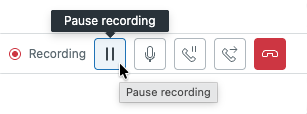
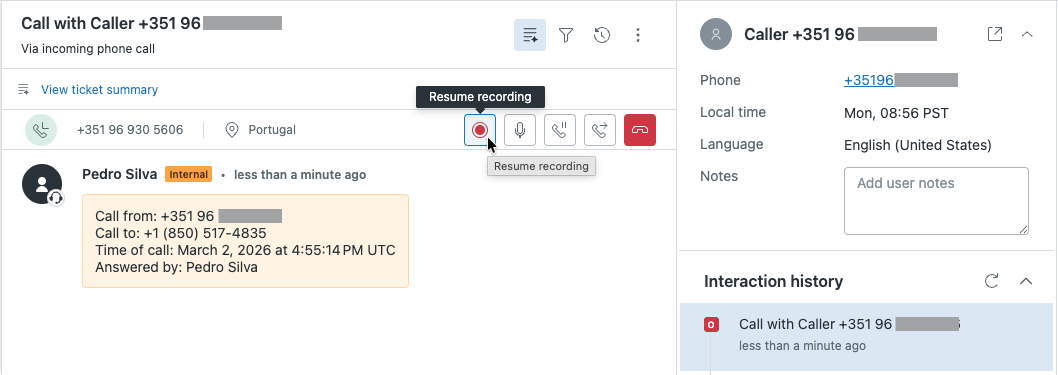
- To resume recording, click the resume recording button (
 ).
).
The agent and the caller hear a beep to confirm that call recording has been paused or resumed.
If the Caller must opt-out setting is configured on the same number as agent recording controls and the caller has pressed 3 to opt-out, then the agent won't see the pause and resume button (not applicable for digital lines).
If the Caller must opt-in setting is configured on the same number as agent recording controls and the caller hasn't pressed 3 to opt-in, then the agent won't see the pause and resume button (not applicable for digital lines).