Summary: ◀▼
To use call recording and transcription, you need to set up Amazon Connect and AWS Lambda triggers so recordings and transcripts can be sent into Contact Center. The setup includes enabling speech analytics, choosing real-time and post-call analytics, and configuring redaction for sensitive data. Once the required triggers are active, you can view call recordings and transcripts in Contact Center.
This article contains the following topics:
Setting up Amazon Connect
Before you start capturing call transcripts, you must configure your Amazon Connect contact flow.
To configure Amazon Connect
- In your Amazon Connect contact flow, include the Set recording and analytics
behavior block in the flow.
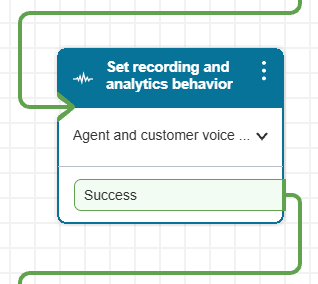
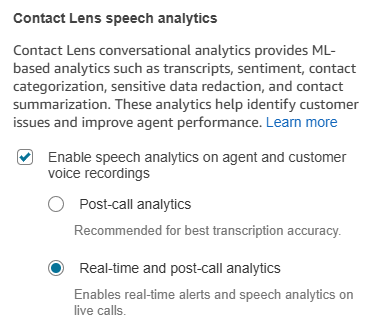
- In the Set recording and analytics behavior block, in Contact Lens speech
analytics, enable speech analytics, then select Real-time and post-call
analytics.
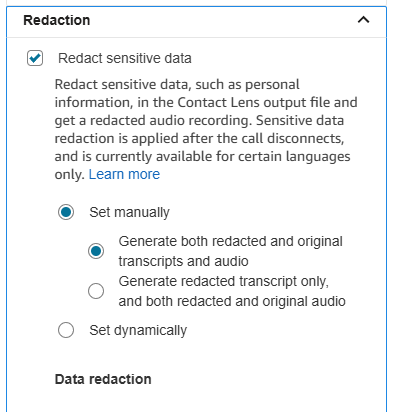
- Under Redaction, select Redact sensitive data, then customize the
redaction settings to fit your requirements.Note: The data redaction is strict and might redact non-sensitive data. Only select critical sensitive data to be redacted.
Turning on the AWS triggers
Once you’ve configured Amazon Connect, you can configure the triggers for your Lambda functions in the AWS console.
To configure your triggers
- In your AWS console, access the Lambda page.
- In the Functions section, search for and select each Lambda
function.
The following are the required functions:
-
ZendeskVoicePostCall
-
ContactLensEventsLambda
-
CTRIngestLambda
-
RecordingIngestLambda
-
TranscriptIngestLambda
-
- Open each function, then on the Function overview page, select
Configuration > Triggers.
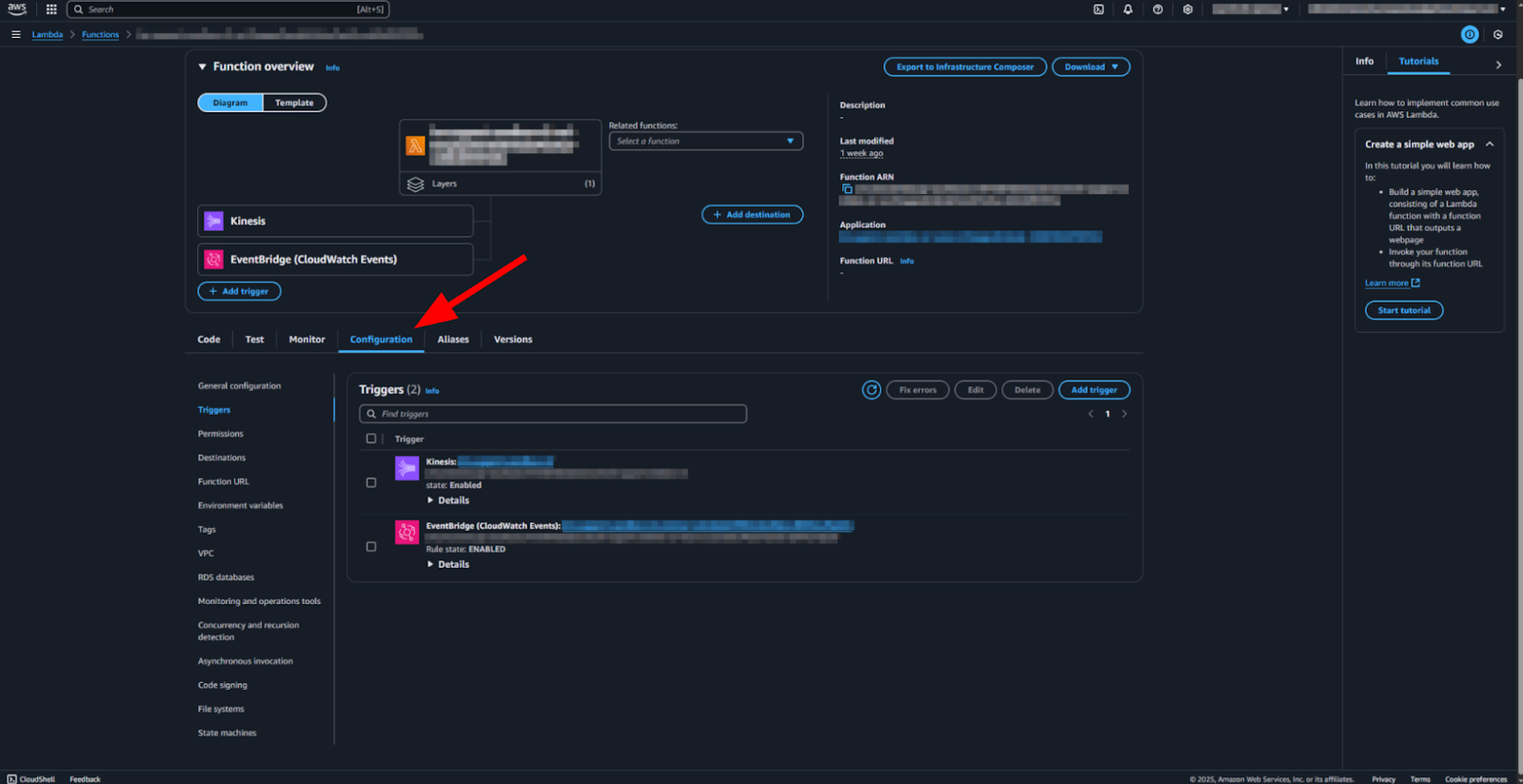
- If the trigger is Kinesis, select it and then click
Edit.

- On the Edit trigger page, click Activate trigger.
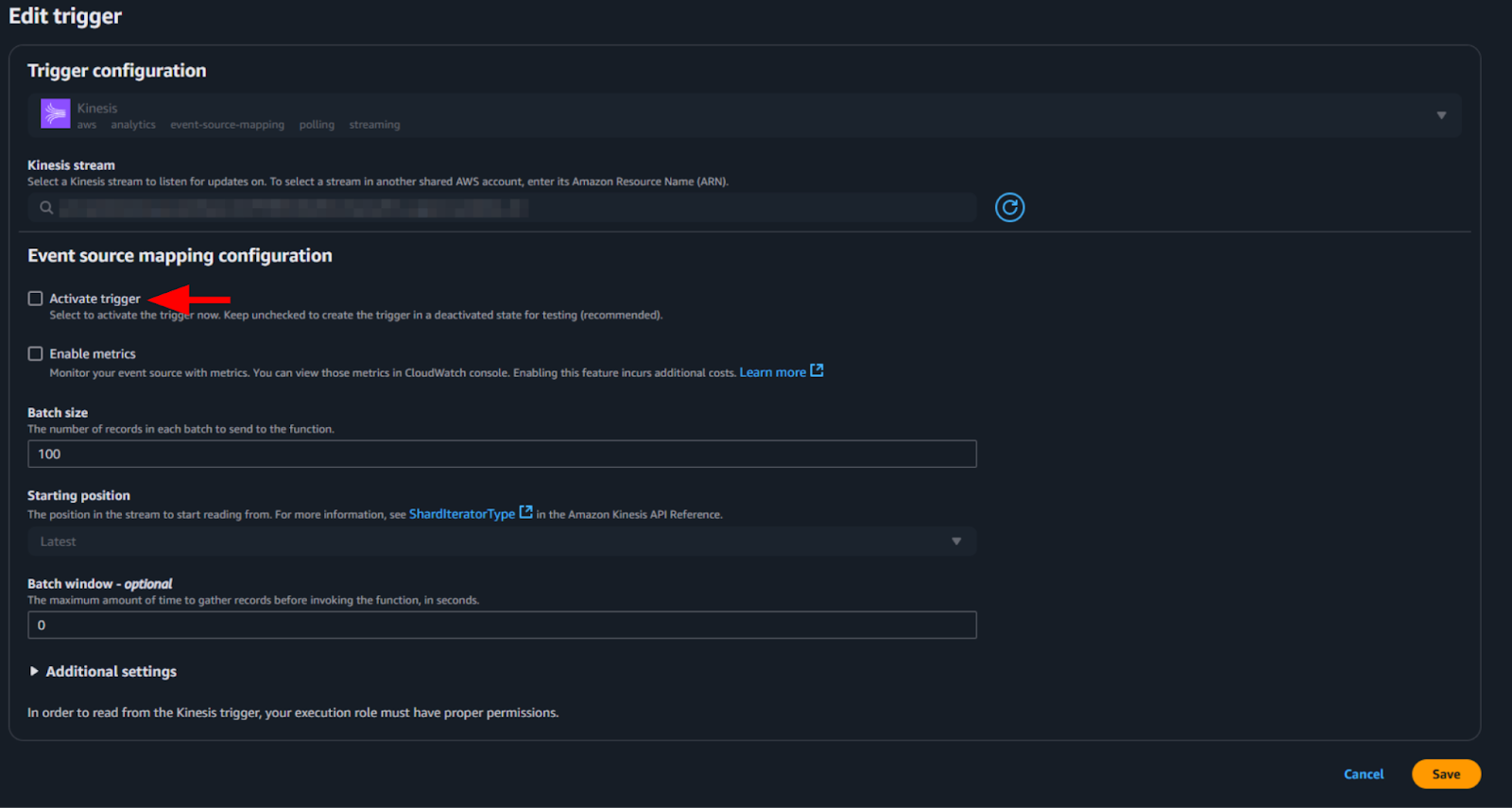
- Click Save.
- If the trigger is EventBridge, select it and then click the link next to
the EventBridge trigger.

- On the EventBridge rule details page, click Enable.
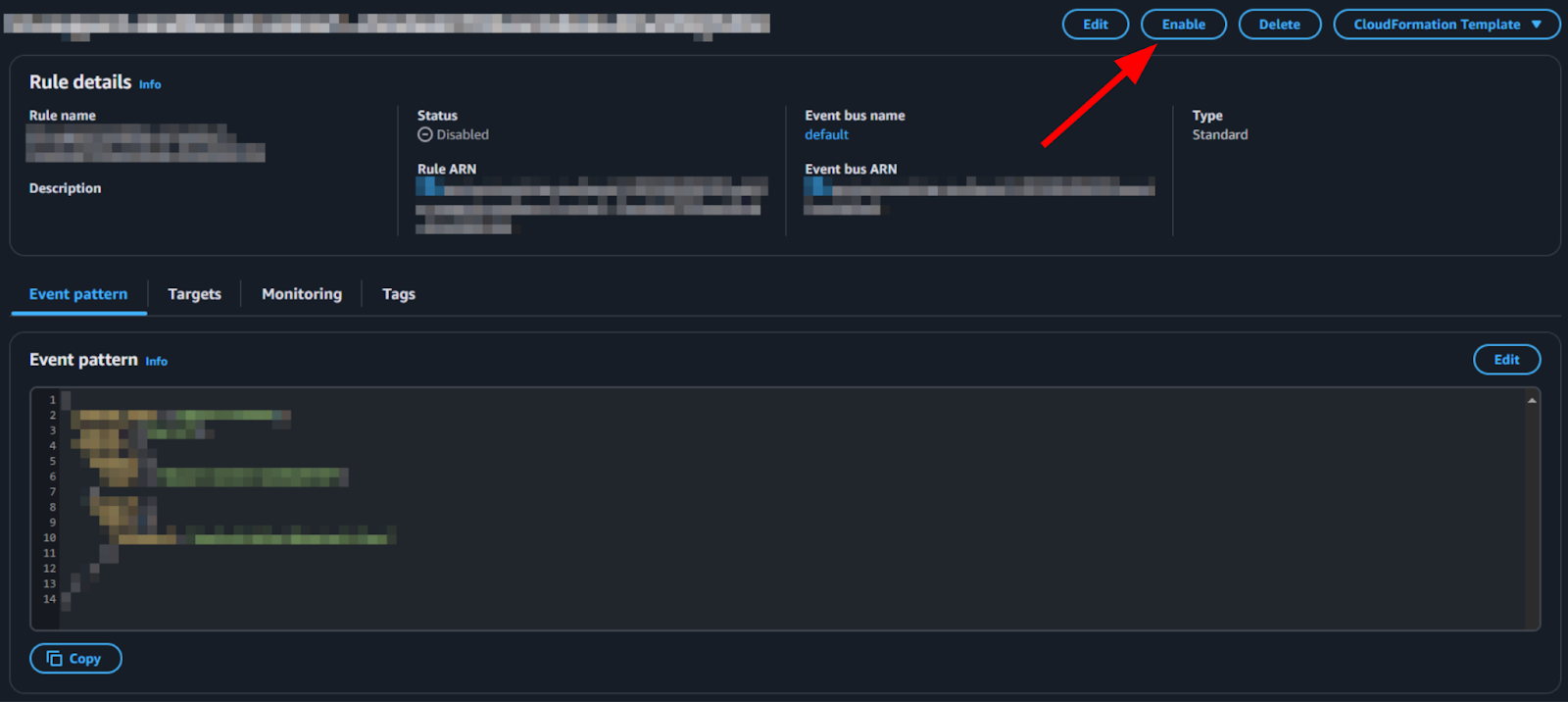
-
Repeat the steps for each function in the list above.
Note: If a dual stack upgrade is performed, then these triggers must be disabled on the old lambda before you enable them on the new lambda.
Now, your call recordings and transcripts will be shown in Contact Center.