Verified AI summary ◀▼
Learn how to install and configure the Contact Center app to manage calls and chats. Install the app from the Marketplace, configure settings, and link it to Amazon Connect using an API token. Set up ticket creation rules and test the integration by making a call. This setup helps streamline communication and improve customer interactions through a unified interface.
The Zendesk for Contact Center app is the interface your agents use to make, receive, and manage Contact Center calls and chats. In this article, you'll learn how to install and configure the app.
This article contains the following topics:
Installing the Contact Center app
In this section, you'll learn how to install the Contact Center app where your agents will do most of their work.
To install the Contact Center app
- In Zendesk Admin Center, click Apps and integrations > Zendesk Support apps.
- Click Marketplace.
- In the Zendesk Marketplace, search for "Zendesk for Contact Center", and install the app.
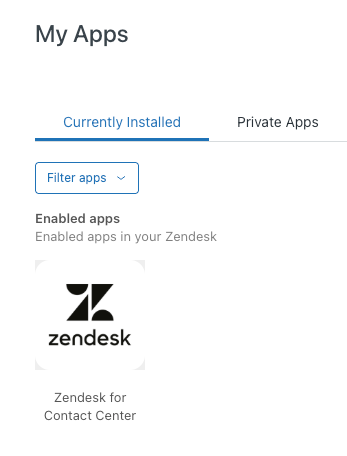
- After the Contact Center app is installed, navigate to Admin Center >
Apps and integrations > Apps > Zendesk Support apps >
Zendesk for Contact Center.
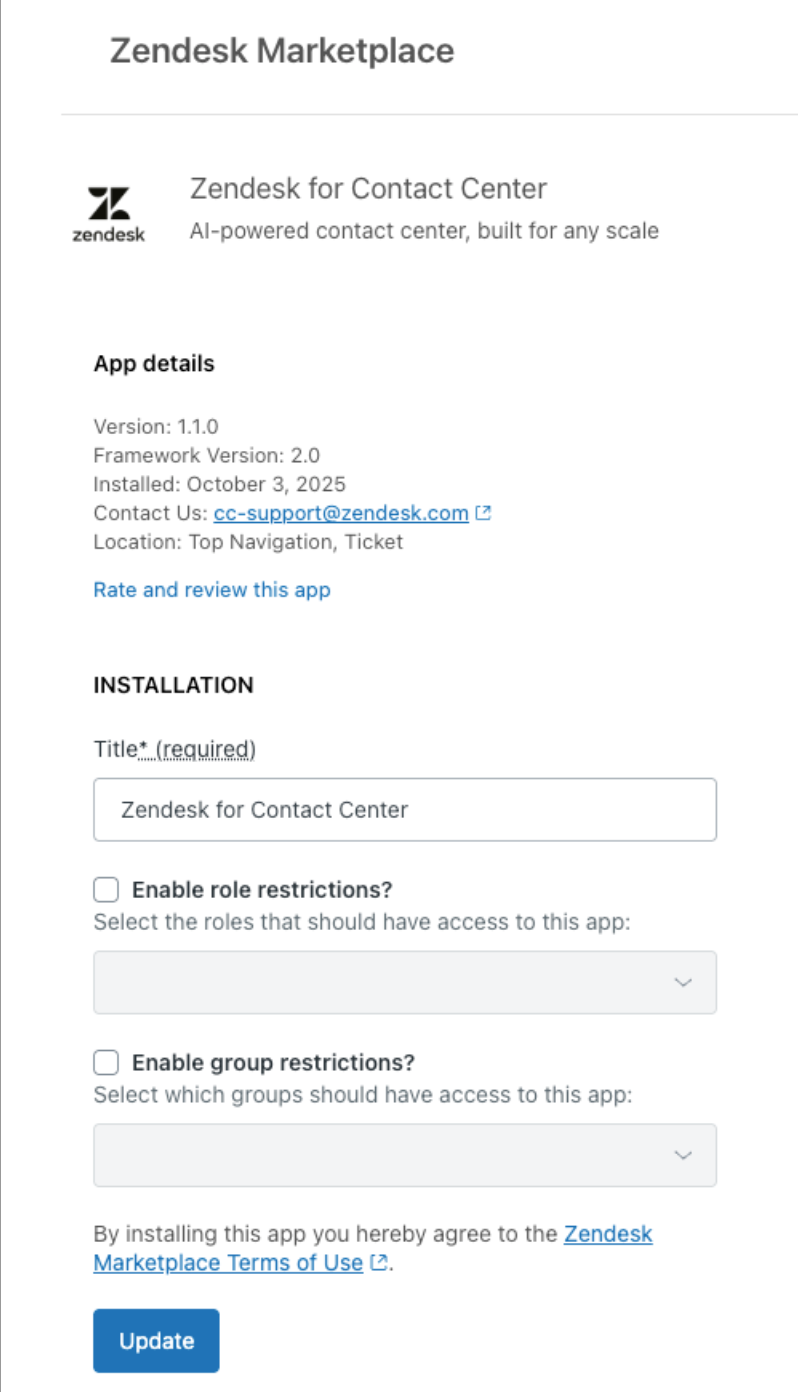
- Update the following settings using your existing Contact Center instance
URL:
- Title: We recoomend leaving this name as the default.
- Enable role restrictions: With this optional setting you can limit specific roles to have access to the Contact Center app.
- Enable group restrictions: With this optional setting you can limit specific groups to have access to the Contact Center app.
- Click Update.
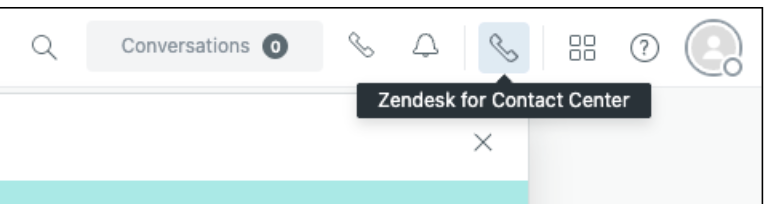
The Contact Center app will now appear in the top right corner of your Zendesk instance.
To test functionality
- Click Login.
- Try signing in with SSO or the user credentials you set up in Cognito.
- After successful sign in, you'll enter the Contact Center interface.
Contact Center will connect to Amazon Connect in the background using the
allowed origin you set and the integration configuration you deployed. If your
Connect instance is new, there won't be much to see yet. However, you can verify
connectivity by seeing if the Connect softphone and agent status controls load
within Contact Center.
For example, you might see your Amazon Connect agent status (Online/Offline) indicator in Contact Center and be able to change status or make a test outbound call if numbers are claimed. This indicates that the integration is working.
Configuring the Contact Center app
After the Contact Center app has been installed in your Zendesk instance, you need to link it to Amazon Connect using the Zendesk API.
To configure and link the Contact Center app
- In Zendesk Admin Center, click Apps and Integrations > API Tokens.
- Click Add API token.
- On the Add API token page, enter a name for the token which will be used to
connect the Contact Center app to your Zendesk account.

- Save the new token, copy the token string, and keep it handy for the next steps.
- Go back to the Contact Center app and click Admin Settings page from the
Agent Status menu.

- From the Admin settings page, navigate to the General settings page, open the Zendesk connections section, and click Edit.
- Navigate to your Contact Center app page and open the Standard settings page
(Indicated by the Zendesk symbol on the left-side navigation bar).
Tip: On this page, you can click Get started to read a helpful guide for connecting Contact Center app to your Zendesk account. - On the Connection details page, your Zendesk subdomain will already be filled.
Add the API key you previously copied, and your Zendesk admin email
address..

- Scroll down and click Connect account.
- On the next page, set up your preferred ticket creation rules for Zendesk, as
well as how transcripts and recordings should be handled. If you are unsure of
what these settings should be set as at this point, you can leave them and come
back to update them at a later time.

- Click Complete.
The Contact Center app and your Zendesk account are now linked.
- In Zendesk, refresh your browser, then click the Phone icon in the top-right
corner of the page to open the Contact Center app.

- Run through the login and authentication process you set up for your account.
- Perform a test call by setting up a new number in the Connect dashboard, linking it to a new or preconfigured contact flow, and confirm whether the call reaches your agent in Zendesk through the app.
You have now finished setting up Contact Center.