Verified AI summary ◀▼
Learn to manage calls effectively with features like outbound calling, hold, mute, and call transfers. Use warm or cold transfers, add internal notes, and conduct conference calls. End calls with After Call Work to wrap up tasks, and set your next status to manage availability. These tools help streamline your call handling process and improve customer interactions.
In this article, you'll learn how to make outbound calls in Contact Center, including basic functions, such as hold and mute, and advanced functions, such as warm transfers and conference calls.
This article contains the following topics:
Making outbound calls
You can make outbound calls. If you are calling a customer who has had previous interactions within the system or if you are using your internal CRM tool, the customer information is displayed in the customer profile section on the right-hand side of the page when the call is connected. A timer displays elapsed on the call next to the contact.
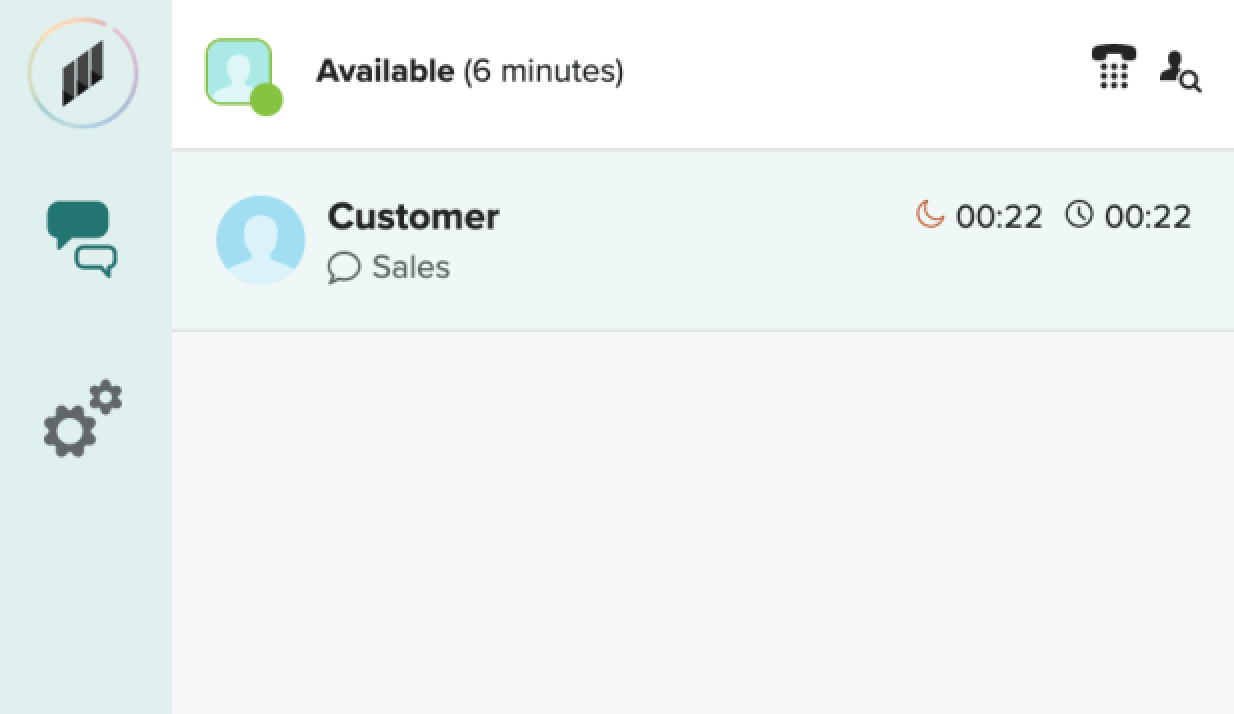
You can also initiate an outbound call while a chat interaction is in progress. This functionality works only when you are in a chat conversation and not when you are on an active call. This helps agents assist customers faster, as they can talk to other departments for help while still chatting with the customer.
To make an outbound call
- In Contact Center, click Outbound call.
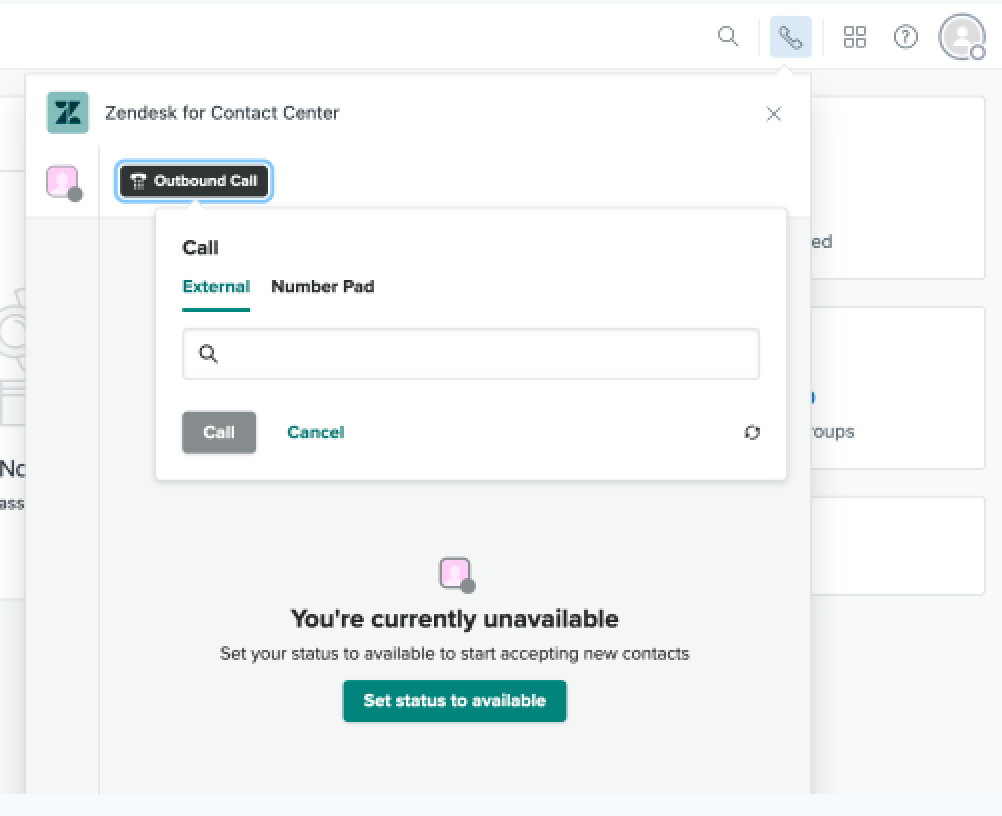
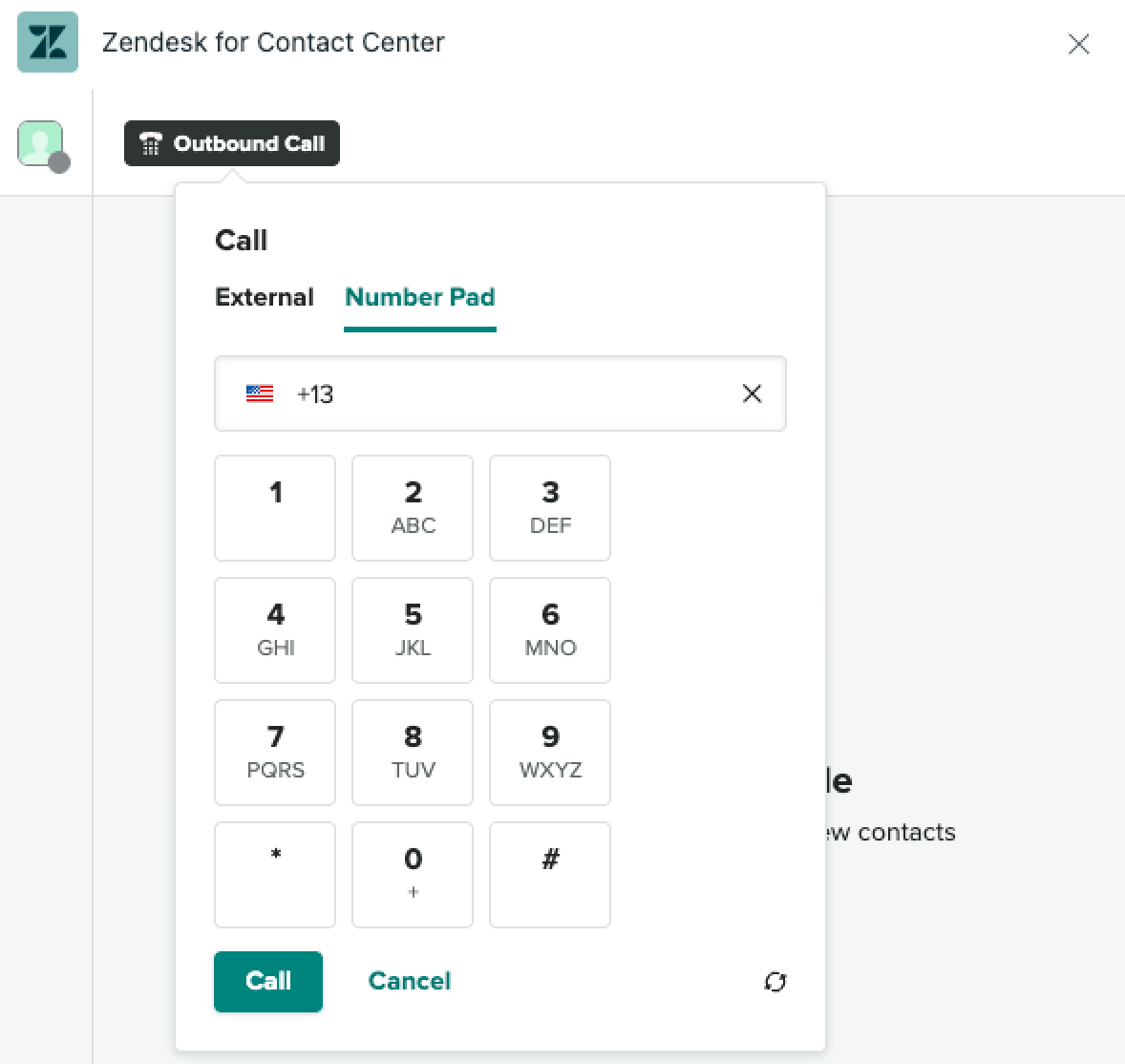
- Enter the number on the Number pad.
To make an outbound call while in a live chat
- In a chat conversation, select the telephone icon next to your agent status.
- Make a call to an external number by using the Quick connect that has
been set up or by clicking the Number pad to dial a number
yourself.
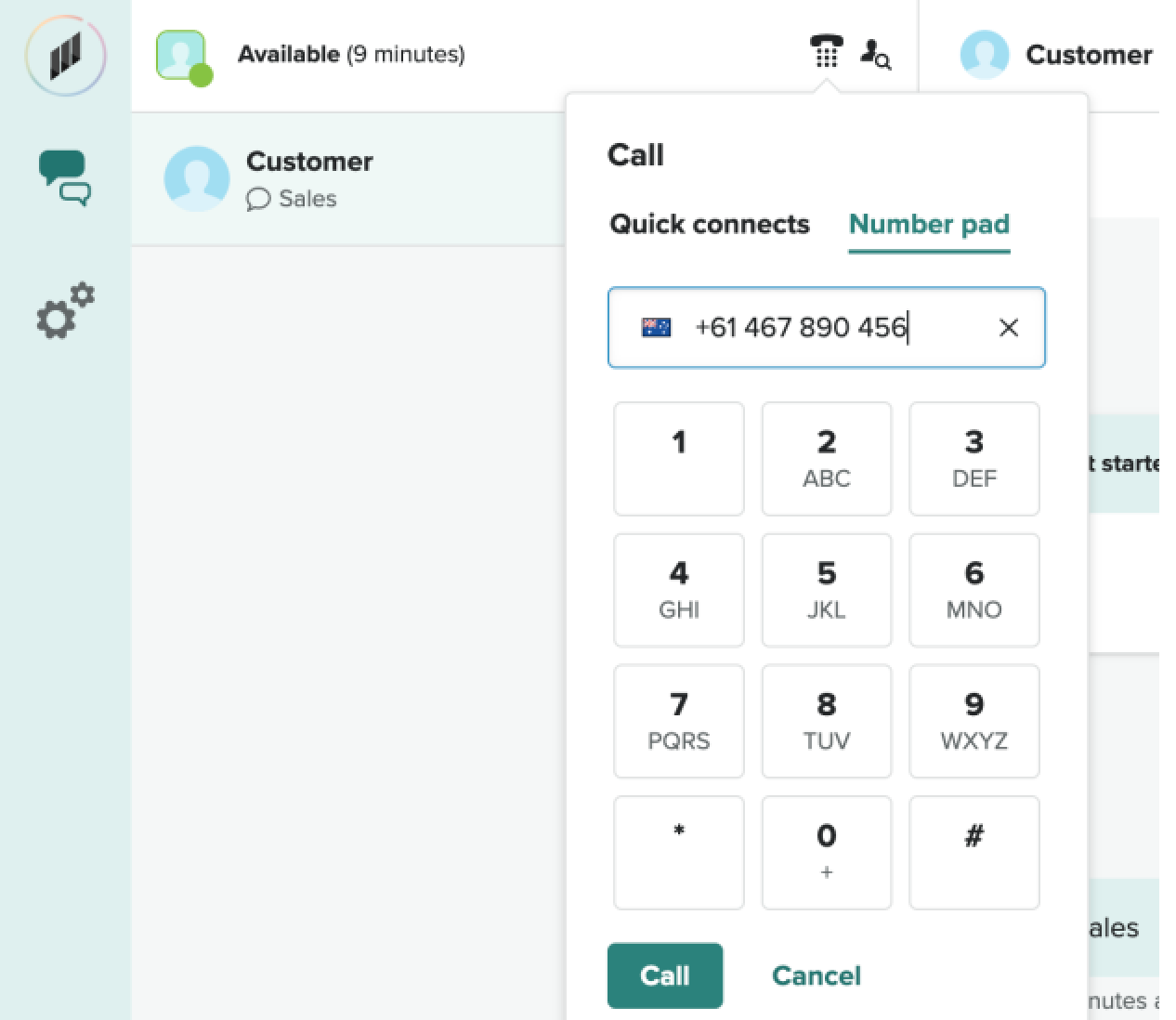
- Click Call.
Placing calls on hold or mute
During a call, you might want to put a customer on hold or mute yourself.
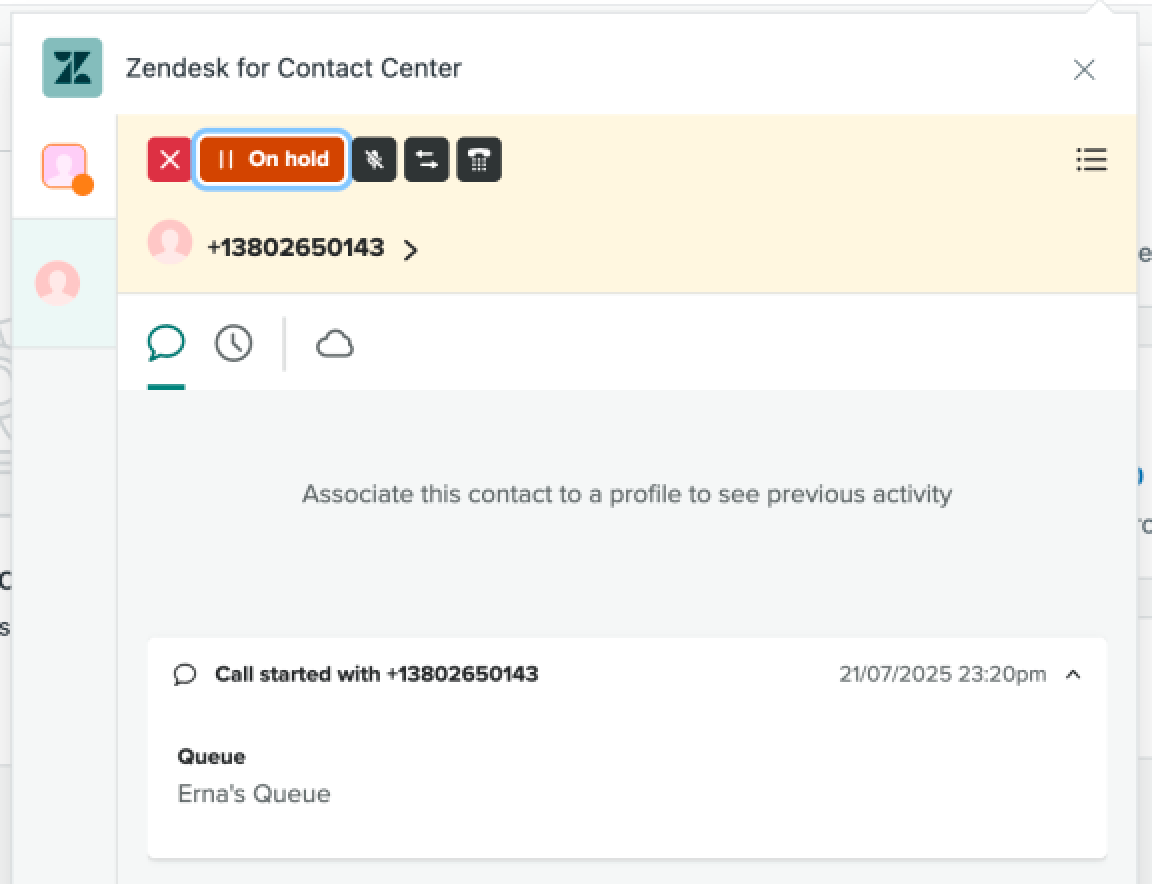
- Click Hold ⏸️ above the conversation tab.
You'll receive a verbal notification that the customer is on hold, and the button will change color. To resume the call, click Resume.
To mute yourself
- Click the Mute button above the conversation tab.
To unmute, click Unmute.
Transferring calls
You can transfer to an individual person listed in quick connects or to another number.
- Select the person or dial a number on the number pad.
- Click the Transfer (
 ) button at the top of the
screen.
) button at the top of the
screen.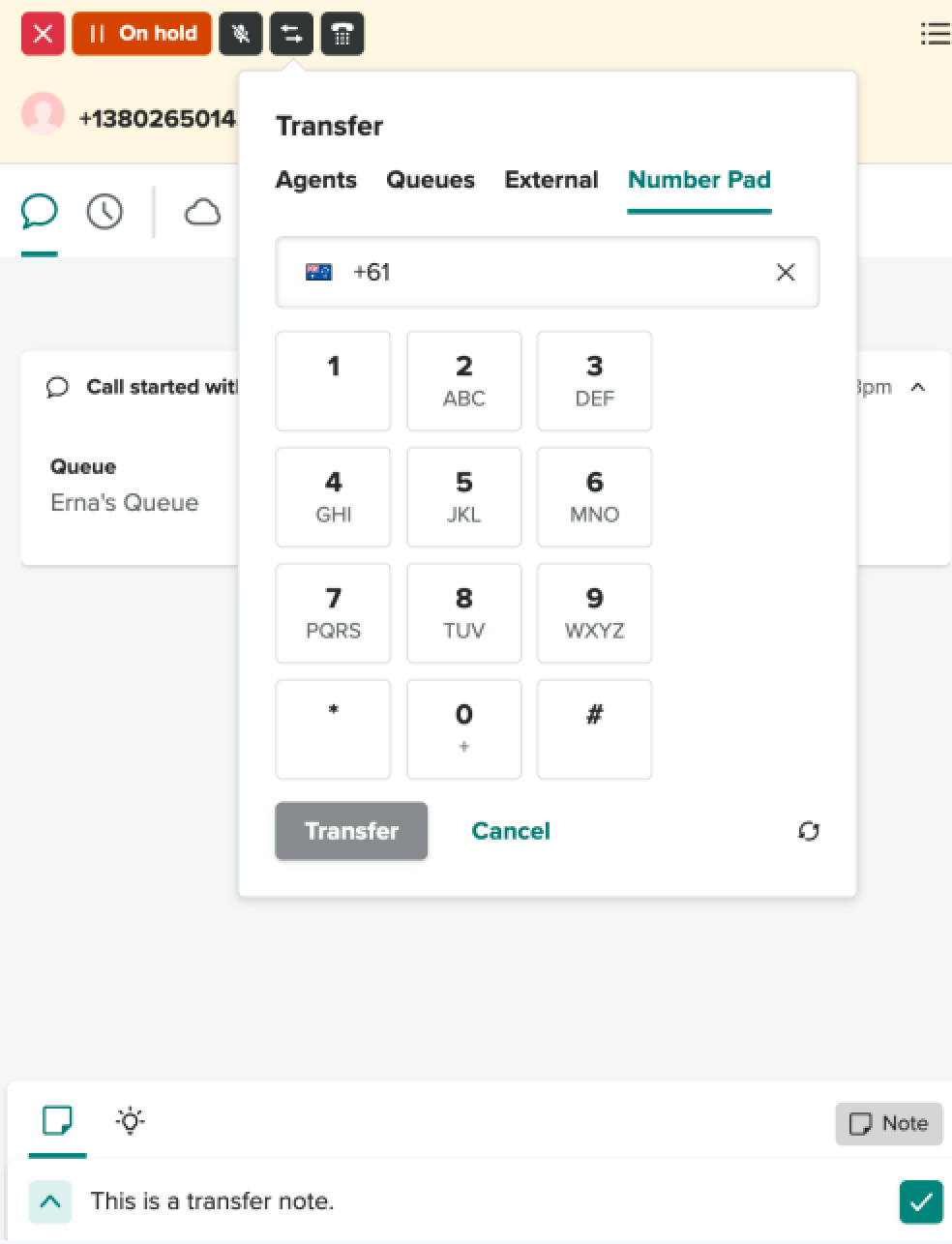
- To add an internal transfer note before transferring a caller, click the
note button, type your note, then click the tick (
 ) button to save your note to the
customer’s profile.
) button to save your note to the
customer’s profile.Alternatively, you can type your note during the transfer process. If you add a note after transferring the call, the person or team that you transferred the call to won't see the note.
- When the third-party answers, you have two options:
-
Cold transfer: Click the X button next to the
customer's number to transfer the customer to the
third-party.
This places you in After Call Work (ACW) mode and the customer is placed in the queue with the third-party.
- Warm transfer: Click the X button next to the third-party's number or name to return to the customer after speaking with the third-party. While waiting for the third-party to answer, the customer is placed on hold and cannot hear your conversation with the third-party.
-
Cold transfer: Click the X button next to the
customer's number to transfer the customer to the
third-party.
Making a conference call
You can start a conference call with a third party.
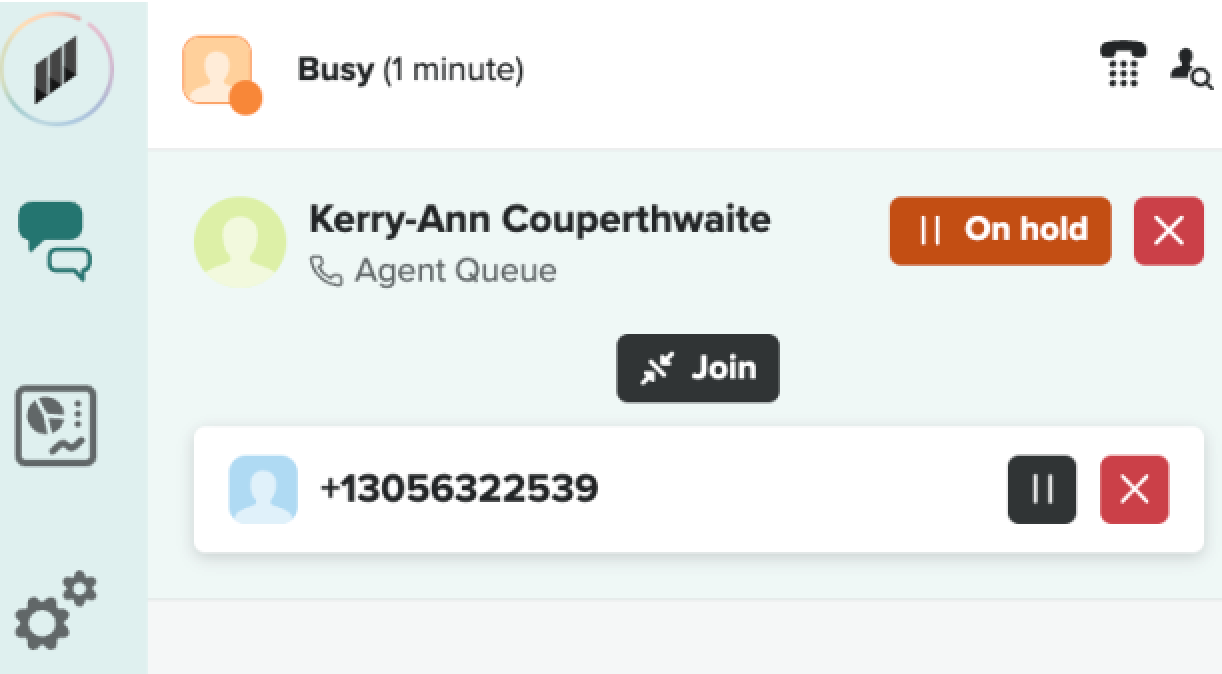
- Initiate the transfer and wait for the third-party person to answer.
- When they accept the call, click Join to connect all parties.
If you click Join before the third party answers the call, you'll get an error.
Ending a call
When you finish a call, you can end it and complete your after call work.
- Click the X at the top of the conversation window.

Your status changes to After Call Work. Use this time to add your notes and complete all after-call work, then close the contact by clicking Save and Close. Remember to select a resolution code to close the contact. When the interaction is closed, your status changes to Available.
Setting agent next status for when a call ends
The agent next status helps an agent to change into the state they want to be by the end of the call. This is useful if they need to take a lunch break or step away from their desk.
- Select agent Next status while you are on a call and speaking to a
customer, then select the status you’d like to set when the call
ends.
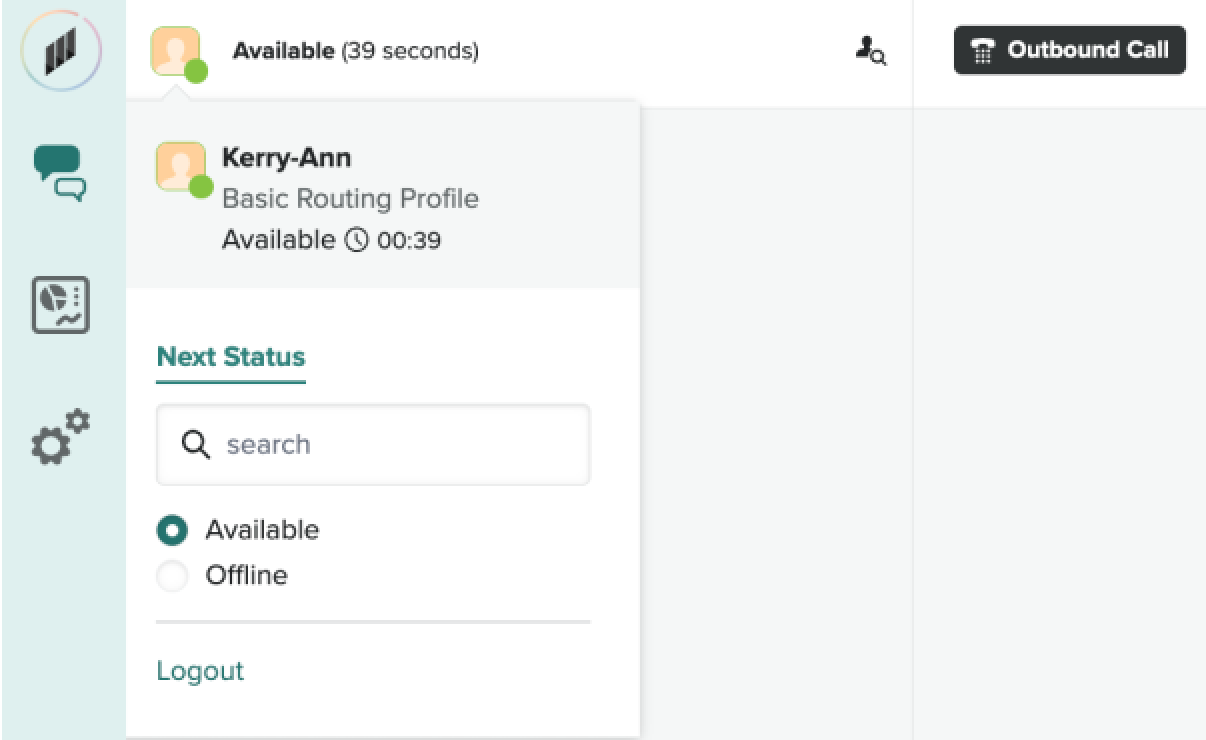
When the call ends, and close your interaction, the system automatically puts you in your selected status.