Verified AI summary ◀▼
The Contact Center Dashboards app provides access to real-time and historical performance metrics within your environment. You can monitor agent and team performance and make informed decisions. To use the app, install it from the Marketplace, configure settings, and access dashboards like Realtime snapshot and Recent performance. This tool helps you keep track of key metrics without leaving your workspace.
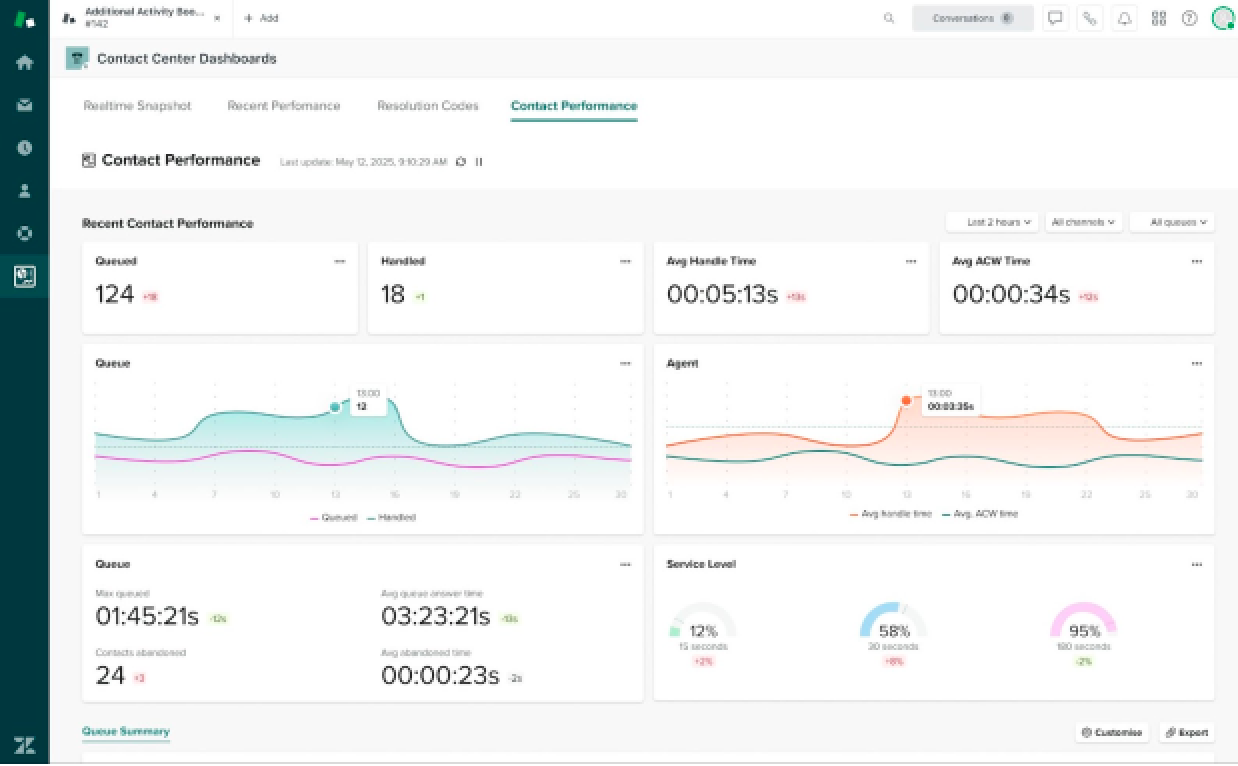
The Contact Center dashboards app gives you seamless access to your Contact Center performance metrics and reporting, all in real time, and within Zendesk. The app is available in the Zendesk Marketplace and is included in your Contact Center licence.
The dashboards app gives you:
- Access to all Contact Center dashboards.
- Immediate visibility into real-time and historical contact center metrics.
- Direct access from Zendesk.
- Performance metrics for agents and teams so that you can make timely, informed decisions.
This article contains the following topics:
Installing the Contact Center dashboards app
Before you can start using the Contact Center dashboards app, you need to install it.
To install the app
- Navigate to the Zendesk for Contact Center Dashboards app listing in the Zendesk Marketplace.
- Click Install.
- Choose your Zendesk subdomain from the list, then click
Install.
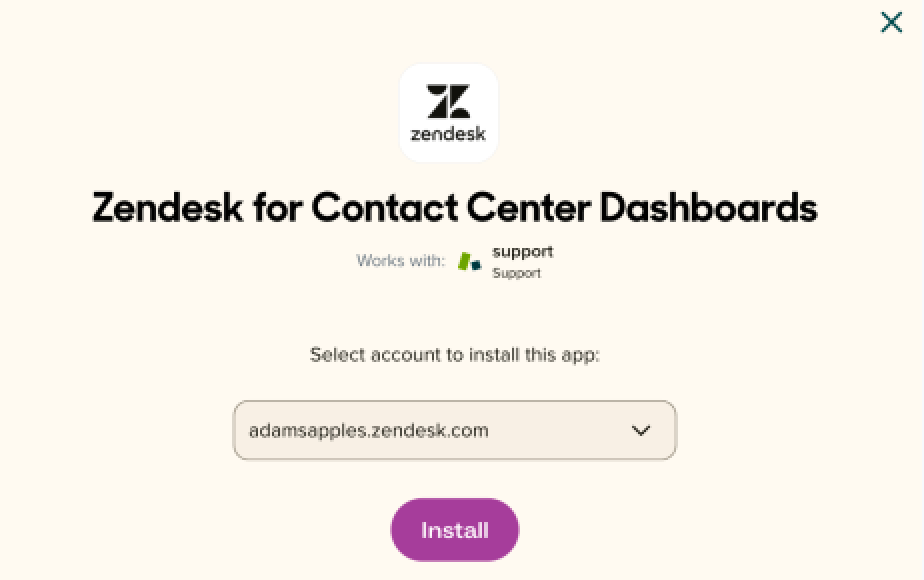
You will be redirected to the My Apps page in your Zendesk account, where you will see the Zendesk for Contact Center Dashboards app.
- Hover over the icon and click the Settings icon.
- Click Change settings.
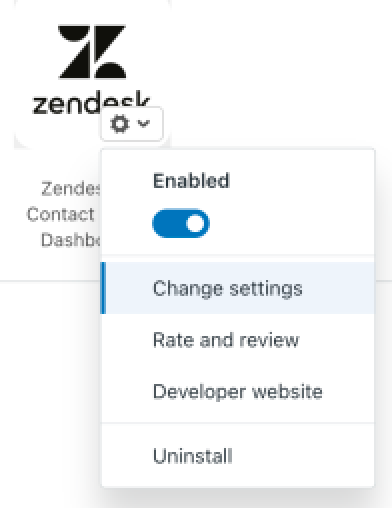
- Enter your Contact Center workspace name.
If you are unsure what this is, open the settings for your Contact Center app and use the same value.
- Enter your Contact Center region.
If you are unsure what this is, open the settings for your Contact Center app and use the same value.
- If you want to restrict who can access the app, select options from either the role or group restrictions dropdown.
- Click Update.
Accessing Contact Center dashboards
After installing the app, you an access the dashboards to monitor agent and team performance.
To access the dashboards
- In Contact Center, click the dashboards icon.
- If you are not already signed into Contact Center, you will need to sign in to the Contact Center Dashboards app.
- Click a tab to view the associated dashboard:
- Realtime snapshot
- Recent performance
- Resolution codes
- Contact performance