Summary: ◀▼
You can monitor another agent’s active voice call for supervision or training, then join or barge in when needed. Monitoring is hidden from the other agent, and up to two agents can monitor one call. When you join, everyone on the call can hear you, and you can’t be muted, held, or disconnected by others.
Agents can monitor another agent’s active voice call and join it when needed. This feature is supported for voice calls only.
To monitor or join a call, agents must have both Amazon Connect and Zendesk Contact Center open. Their user status doesn’t affect whether they can monitor or join a call.
A maximum of two agents can monitor the same call at one time. Those agents can either both monitor the call, or one can monitor while the other joins it. Only one agent can join a call. For more information, see Amazon's contact monitoring in Connect Customer.
This article contains the following topics:
Monitoring active calls
If an agent has access to real-time monitoring, they can monitor another agent's active call. The monitored agent isn’t notified that monitoring has started.
To monitor an active call
- In Amazon Connect, select Analytics and optimization > Real-time metrics > Agents.
- Find the agent you want to monitor.
- Click the Eye icon next to the voice channel for the agent.
The ticket and call console open in Contact Center.
If the call is already being monitored by two other agents, you'll get a service quota exceeded error. For more information, see Amazon's Troubleshoot agent conversation monitoring ability in Connect Customer.
- In Zendesk Contact Center, access the ticket and call console.
To join or barge in the call, see Joining active calls.
Joining active calls
An agent who is in monitoring mode can join, or barge in, the ongoing call. When you join a call, the participants know that you have joined. Agents joining an active call can't be muted, placed on hold, or disconnected by other participants, preserving their authority and preventing disruption.
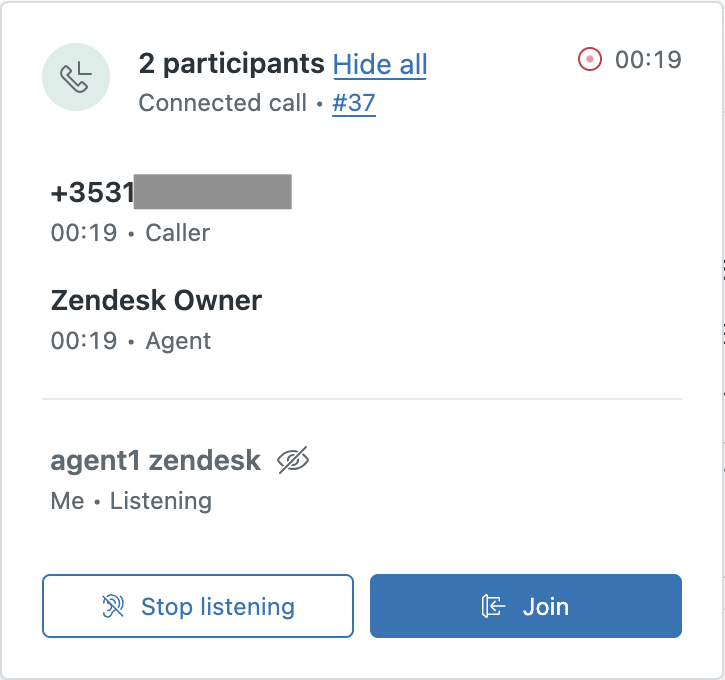
- After monitoring the call,
click Join.
-
In the Contact Center app, after monitoring the call, click Start barge on the top-right.
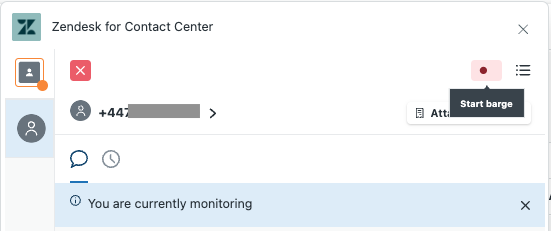
After you join the call, the participants can hear you and you have control over the contact.
Only one monitoring agent can join an active call.