Verified AI summary ◀▼
Enhance your ticket replies by using the spelling and grammar checker, which flags potential errors and offers suggestions. Customize the dictionary, proofread multiple errors at once for more efficient editing, and adjust settings to suit your needs, including language preferences and auto-correction.
When activated by an admin, agents can check the spelling and grammar in their ticket replies before sending them out to customers. This check helps to provide the most accurate and professional conversations possible. This feature does not include any AI functionality.
This article contains these topics:
About spelling and grammar in ticket conversations
When you write a response in the ticket composer, the spelling and grammar checker automatically flags potential errors. Spelling issues are underlined in red and grammar issues are underlined in blue.
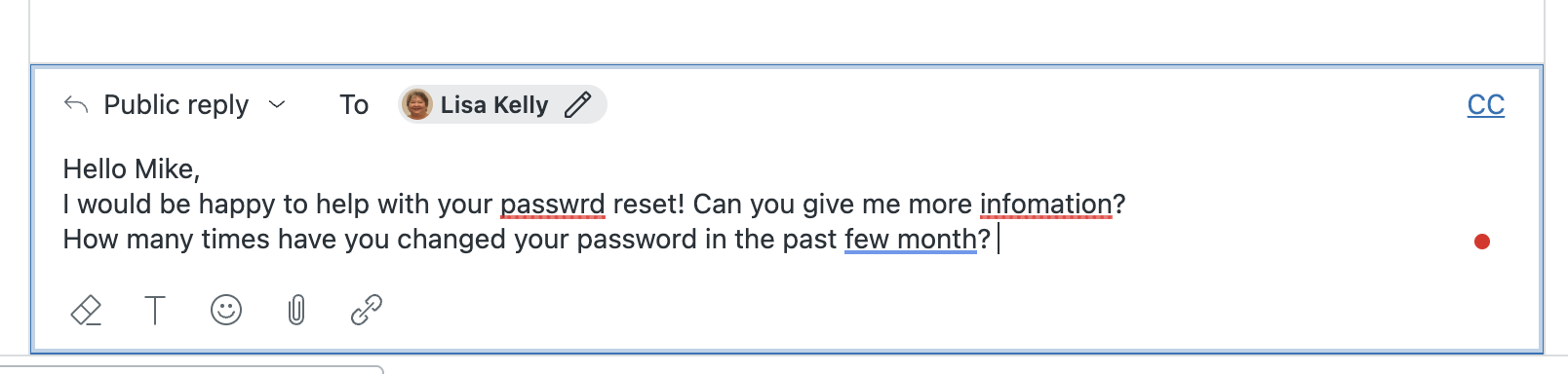
When you click an underlined word or phrase, the checker provides suggestions for updating the text. You can accept or reject the suggestion. See Fixing a spelling error and Fixing a grammar error for more information.
Fixing a spelling error
The spelling checker automatically flags potential spelling errors in the ticket composer.
To fix a spelling error
- In a ticket, click the underlined word in the ticket composer.
A Spelling menu appears with a list of possible corrections.
- Select the correct spelling from the menu.
Your reply is updated with the correct spelling.
- If you don’t agree with the spelling suggestions, you can:
- Click the Ignore all icon (
 ) to prevent the spelling checker from flagging
other instances of this word in your reply.
) to prevent the spelling checker from flagging
other instances of this word in your reply. -
Click the dictionary icon (
 ) to add this word to the dictionary. See Adding and removing words from the
dictionary.
) to add this word to the dictionary. See Adding and removing words from the
dictionary.
- Click the Ignore all icon (
Adding or removing words from the dictionary
You can customize the spelling checker by adding words to the dictionary. When you add a word to the dictionary, the spelling checker will not flag the word as an error in any of your replies. Each agent maintains their own personal dictionary.
To add a word to the dictionary
- In the ticket composer, click an underlined word you want to keep.
The Spelling menu appears.
- Click the dictionary icon () to add this word to the dictionary.
After you add a word to the dictionary, the spelling checker no longer flags this word as an error in your replies.
To remove a word from the dictionary
- Click the red dot in the ticket composer.
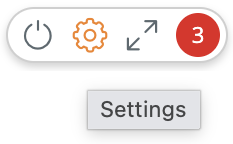
- Click the settings icon (
 ).
).
A list of settings for the spelling and grammar checker appears.
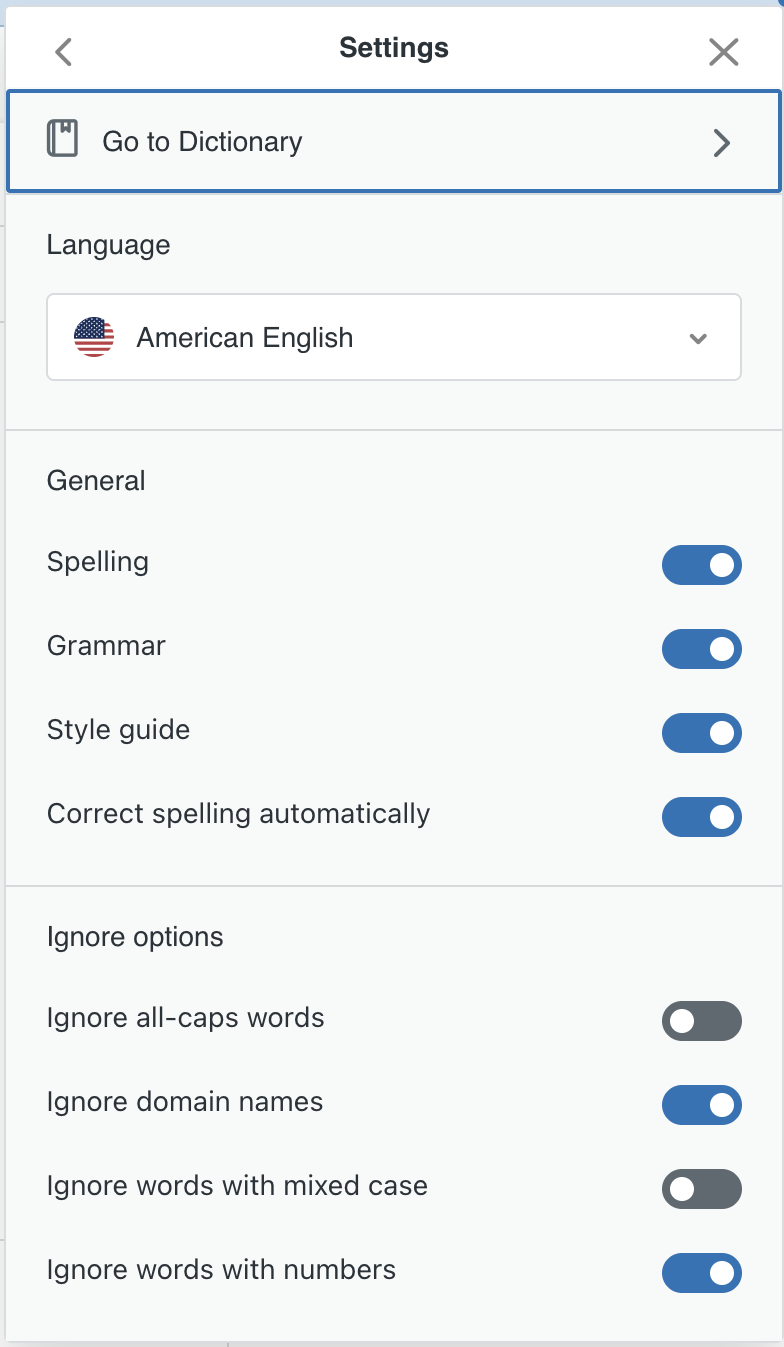
- Click Go to Dictionary.
The dictionary opens. It includes a list of words you’ve added.
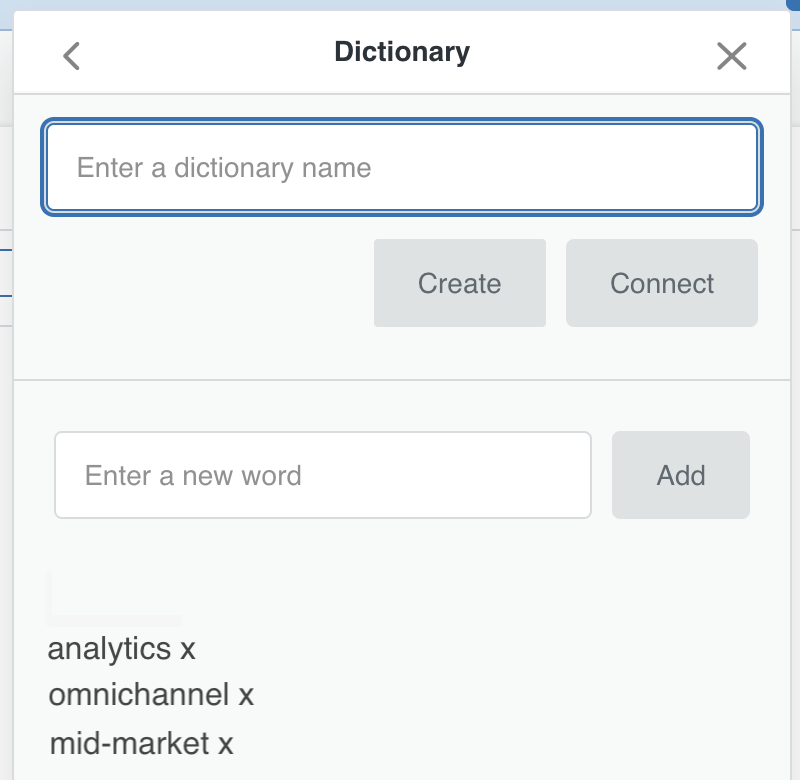
- Click the x next to the word you want to delete from the dictionary.
Fixing a grammar error
The grammar checker automatically flags potential grammar errors in the ticket composer. Potential errors are underlined in blue.
To fix a grammar error
- In a ticket, click the underlined word or phrase in the ticket composer.
A Grammar menu appears with a description of the error and suggestions to fix it.
- Select the correct update from the menu.
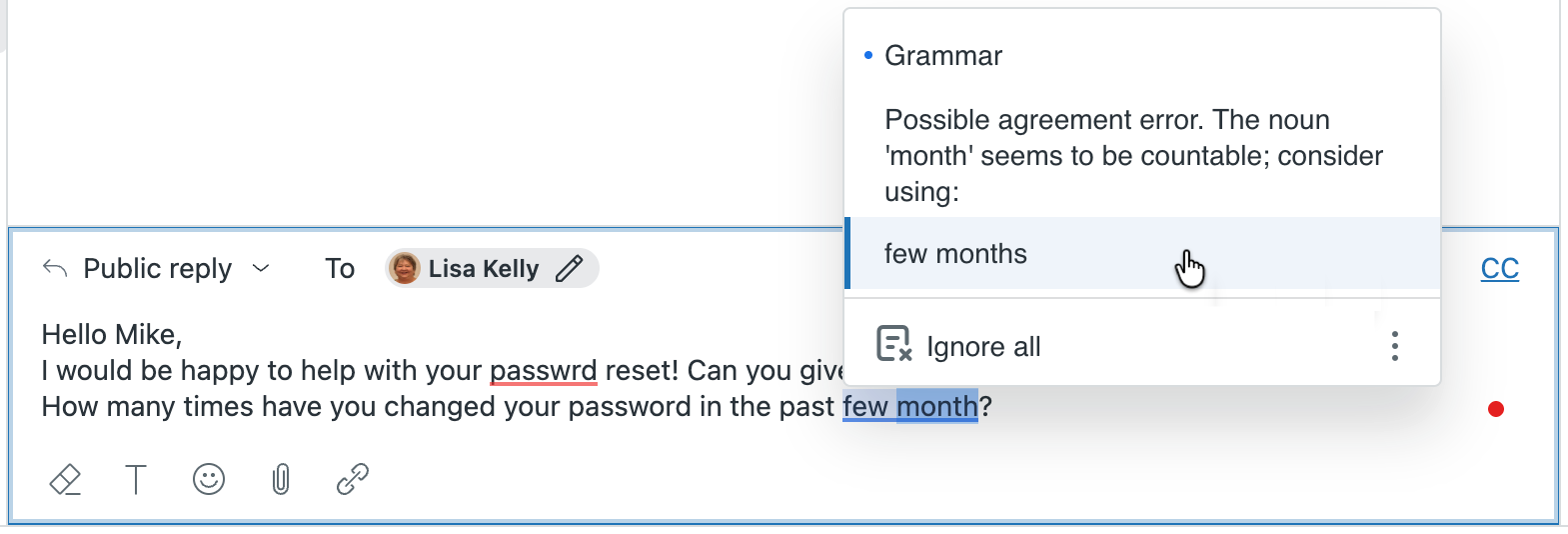
Your reply is updated with the correct grammar.
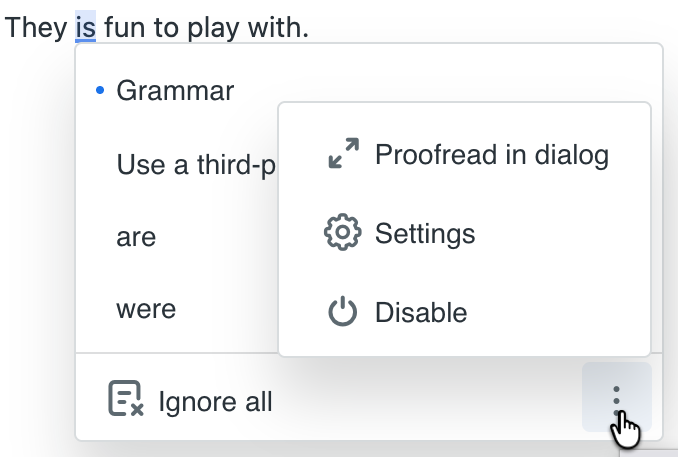
- If you don’t agree with the grammar suggestions, click Ignore all to prevent the grammar checker from flagging other instances of the word or phrase in your reply.
Proofreading for multiple errors at once
In addition to searching for errors one at a time and fixing them, you can proofread your reply by quickly paging through multiple errors. Proofreading is especially helpful when you have a long list of suggestions to check.
To proofread multiple errors
- In a ticket, click the red dot in the ticket composer.
A context menu appears showing the total number of possible errors in your reply.
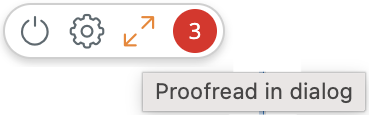
- Click the Proofread in dialog icon (
 ) .
) . A proofreading dialog appears showing the first suggestion.
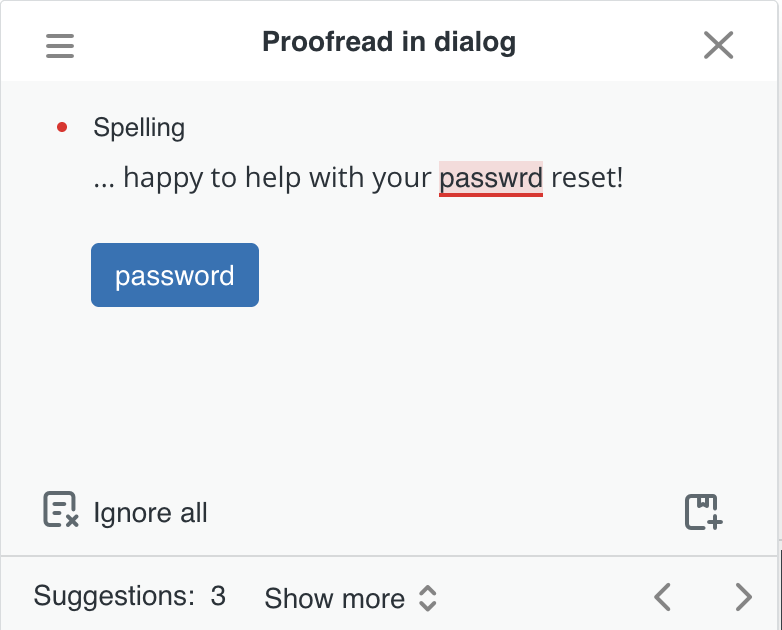
- Click the forward (>) and back (<) arrows at the bottom of the dialog to quickly page through the suggestions and fix the errors.
- To see more than one suggestion at a time, click Show more.
A list of suggestions appears.
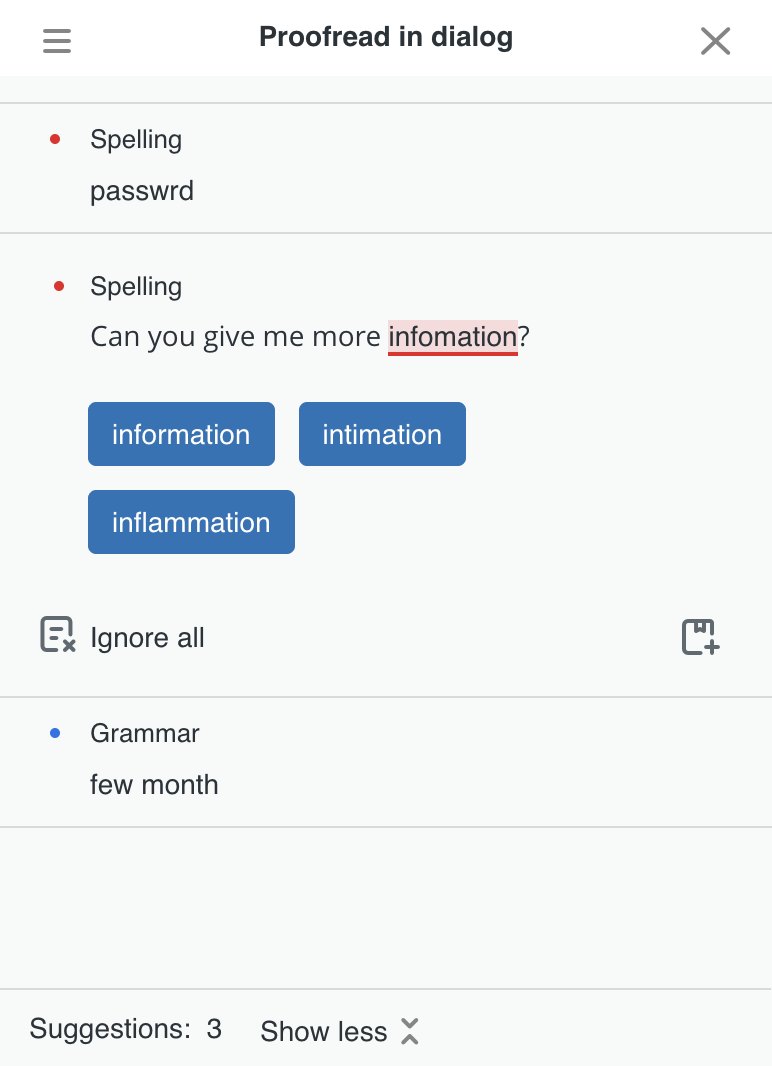
- Click each suggestion to expand it and fix the error.
- When you're done making changes, close the dialog.
Changing spelling and grammar settings
You can adjust the settings for the spelling and grammar checker to personalize your experience. Settings include these options:
General settings
- Select the language you want to check. The checker supports all available languages for an agent except Thai and Traditional Chinese.
- Turn the spelling check on or off.
- Turn the grammar check on or off
- Turn the style guide on or off.
The style guide flags issues with inappropriate language such as non-inclusive phrases and profanity. For example:
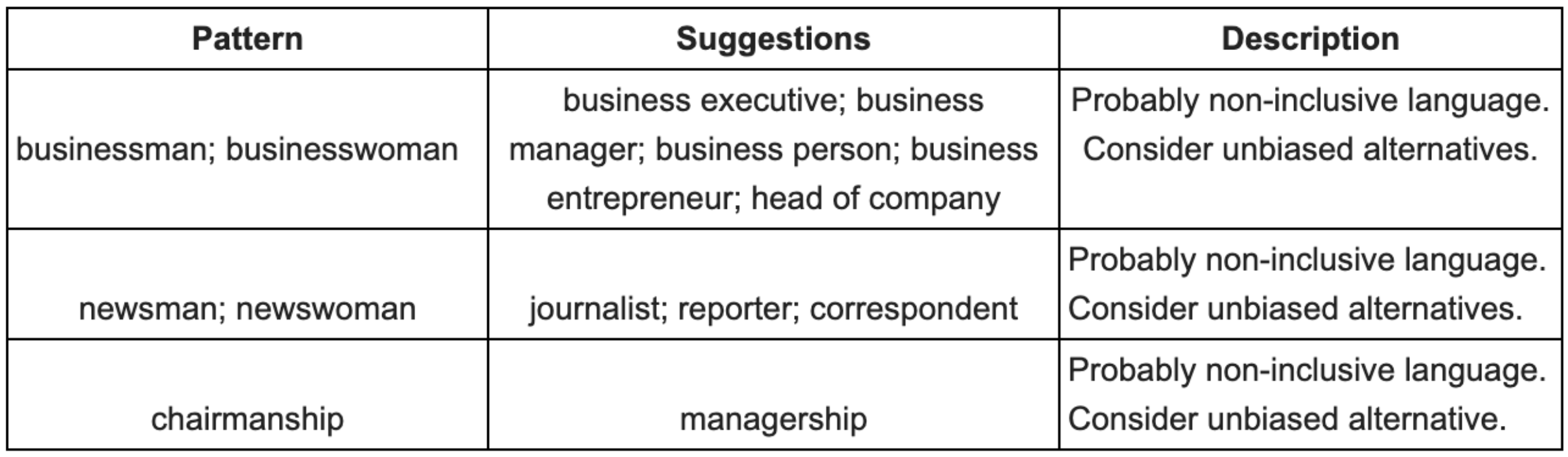
- Allow the spelling checker to automatically correct your spelling as you type.
Ignore options: These are items you can configure the checker to overlook.
- Words in all caps
- Domain names
- Words with mixed-case
- Words with numbers
To change spelling and grammar settings
- Hold your mouse over the red dot in the ticket composer, then click the settings icon
().
A list of settings for the spelling and grammar checker appears.
- Click the selector next to a setting to turn it on or off.
Setting is on Setting is off 

- When you’ve finished changing settings, click x to close the Settings.
Turning on and off spelling and grammar checking
Spelling and grammar checking are on by default in the ticket composer. Agents can control spelling and grammar checking for their own conversions. Admins also have an account-wide setting to activate or deactivate this feature.
When spelling and grammar checking is turned on, you’ll see a small red dot in the ticket composer. When checking is turned off, the red dot turns to gray.
To turn off the spelling and grammar checker
- Hold your mouse over the red dot in the ticket composer to see a context menu with tooltips.
- Click the Disable icon (
 ) to turn off the spelling and grammar checker.
- To turn the spelling and grammar checker back on, click the Enable icon ().
 ) at the bottom of the Spelling and Grammar menus.