The Voice of Customer (VOC) Patterns app by Zendesk Labs leverages Zendesk AI to identify and explain patterns in your support tickets, helping you uncover pain points, celebrate successes, and reveal opportunities for improvement.
This article will guide you through setting up and effectively using the VOC Patterns app to uncover customer trends, common issues, and areas for growth.
This article includes the following topics:
- About the VOC Patterns app
- Important data security and access requirements
- Installing the VOC Patterns app
- Using VOC Patterns
- Best practices
- Frequently asked questions
- Need more help?
About the VOC Patterns app
Designed for accessibility, this VOC Patterns app requires no analytics expertise, enabling support leaders and executives to transform ticket data into clear, actionable insights without complex reporting. Within 24 hours of installation, you'll begin seeing results, which automatically update every 12 hours as new tickets are processed.
Benefits of using the VOC Patterns app include:
- Save hours of manual analysis and find actionable patterns with root causes and suggested actions.
- Understand the "Why" behind your customer inquiries. The app finds the patterns that help you understand why something is happening and what customers are actually experiencing.
- Discover what you are doing right. Find out what your customers love and what works well for them.
- Connect the dots across tickets and channels. Related issues appear in different forms; our AI finds patterns for you.
- Works with your existing workflow, no configuration or knowledge needed.
Important data security and access requirements
- Eligibility: VOC Patterns is available in the Zendesk Marketplace for all users with access to ZAF apps.
- Ticket threshold: VOC Patterns recommends at least ~50 solved or closed tickets matching a given category's filters and time period to generate patterns for that category. This applies both to the account overall and to each individual category you create. If a category's filters narrow the results below this threshold (e.g., a niche combination of conditions), no patterns will be generated for that category even if your account overall has sufficient ticket volume.
- Data security: The app operates in alignment with Zendesk’s data security standards.
- Language: At this time, this app is only available in English.
Installing the VOC Patterns app
Considerations before you install:
- You must be a Zendesk admin to install and use VOC Patterns.
- At least 50 tickets must be solved or completed in your environment before patterns are generated.
- Once installed, you can expect to see your first patterns in several hours or less.
To install the VOC Patterns app
- Go to the VOC Patterns app page in Zendesk Marketplace.
- Click Install.
- Select your Zendesk account, then click Install.
Once installation is complete, the system will begin analyzing your ticket history in the background. Initial patterns will appear within 24 hours. You can then view the latest or pinned patterns.
Using VOC Patterns
Creating and managing categories
Categories let you filter patterns to particular business areas, ticket types, support processes, and more. You can create up to 5 categories per account.
To create a new category
-
Name your category
- Enter a meaningful name to help your team easily identify the focus area.
-
Add relevant filters
- You can add filters relevant to your industry or specific needs to generate the right patterns.
- For new category creation, tickets in the set filter must belong to the Solved or Closed status.
- Good to know: filters on the same field (like two Satisfaction conditions) work as "OR," while filters across different fields (like Satisfaction + Ticket Form) work as "AND." There's no separate meet all/meet any toggle; this happens automatically.
- Tip: Adding more filter conditions narrows your results. If a category isn't generating patterns, try removing a condition or widening the time period to get above the 50-ticket minimum.
-
Choose a Time Period
- Select from available preset periods (for example, 3 days, 7 days, 15 days, 30 days) or set a custom range.
-
Refine using a prompt
- For more tailored results, add refinement instructions. Mention specific metrics (such as “high CSAT”), behaviors, or sentiment trends to highlight.
- Click Add a Category to complete the process.
-
Successful category creation
- After you save the category, the system starts working right away. It reviews your tickets, groups similar themes, and then turns them into insights. You’ll start to see patterns appear shortly after you save.
-
Updating a category
- When you update a category, the system may re-run the analysis if your change is significant.
- Significant changes include:
- Updating filters
- Changing the time period
- Changing start or end dates
- Changing the default-category setting
- Renaming a category by itself does not trigger new analysis.
- To keep things running smoothly:
- You can run each category change only once every 15 minutes.
- Each account is limited to 50 runs triggered by category changes per day.
You can filter patterns at any time using any available category. To delete a category, make sure there are no pinned patterns attached. If pinned patterns are present, the system will display a warning. If you proceed, both the category and its pinned patterns will be deleted.
Understanding and working with patterns
The VOC Patterns app summarizes common customer issues or opportunities identified automatically by Zendesk AI. Each pattern is crafted to describe the real customer problem, process trend, or success story with context for action.
Example: What is a pattern?
A pattern brings together the following information in a unified, clear view:
- Title and Summary: A concise description of the situation or trend.
- Root Causes: The main driver(s) behind the issue or positive pattern, plus contributing factors and triggering events.
- Suggested Actions: Concrete next steps for your team, with direct links to relevant Zendesk tools, including the LMS (Learning Management System), where appropriate.
- Customer Feedback: Actual comments or complaints collected from tickets.
- Relevant Tickets: Shows which tickets contributed to the pattern so you can drill into specifics.
- Generated Date and Confidence: When the pattern surfaced, and how confident the system is in its analysis.
Note: Patterns will be deleted when they fall outside the category's timeframe unless they are pinned.
Pattern actions
- Sort Patterns: Filter and sort patterns by confidence score to find the most reliable ones.
- Pin a Pattern: Move it to a pinned tab for easy reference.
- Copy a Pattern: For sharing patterns or for action planning.
- Analyze with AI Assistant: Open an AI-powered chat assistant to dive deeper into specific patterns by asking in-depth questions about the tickets or related subjects.
- Explore related tickets: Clicking a ticket opens the ticket details in Zendesk.
Patterns automatically refresh every 12 hours to keep your data up to date.
Building and managing action plans
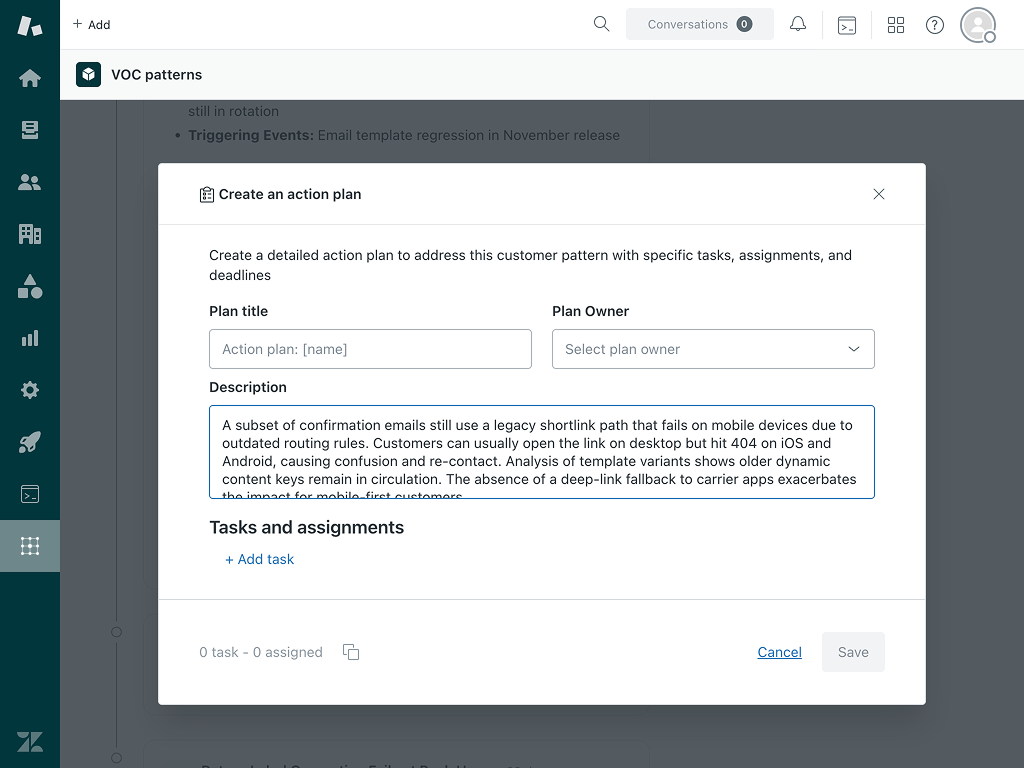
For each pattern, you can create an action plan directly from within the app. Action plans help drive improvements and accountability.
To create an action plan
- Click the pattern you want to address.
- Click Create Action Plan.
- Enter the Plan Title, Plan Owner (person responsible), and a Description of the overall goal.
-
Add one or more tasks:
-
For each task, specify:
- Task Name
- Assignee (the team member who will be responsible for the task)
- Task Description
- Priority (low, medium, high)
- Due Date
- You can create multiple tasks under a single plan to address different facets of the pattern.
-
For each task, specify:
- After you save the action plan, Zendesk automatically generates and assigns tickets to the respective assignees you specified. Each ticket tracks progress and contains the details you provided.
- To review all your existing action plans, use the link labeled View Plans at the top of the VOC Patterns page, which summarizes active and completed plans for your team.
Best practices
Note: Patterns are generated by AI by analyzing tickets. Since mistakes can occur, please validate these patterns before acting on them.
- Regularly check the app to spot new patterns as they emerge.
- Pin the most critical patterns to keep them front and center for your team.
- Use the category filters to focus on the segments that matter most to your objectives.
- Where relevant, suggested actions link to Admin Copilot, macros, triggers, Relay, omnichannel routing, or LMS; use those tools to build process improvements or targeted training.
- Always check customer feedback excerpts for context before creating action plans.
- Use action plans not just for issue resolution, but also to promote successful behaviors.
Frequently asked questions
-
Who can access the app?
Any Zendesk user with access to ZAF apps can use the VOC Patterns app. Admins can install the app and manage permissions in Admin Center as needed.
-
Is there a cost?
The app is free for all Zendesk users.
-
How is my data kept secure?
All data is handled in accordance with Zendesk’s data security standards.
-
How long does it take to see my first patterns?
First results usually appear 24 hours after installation, depending on your ticket volume.
-
How many categories can I create?
You can create up to 5 categories per account, regardless of your Zendesk plan. To add another after reaching the limit, delete an existing category first.
-
How long does it take to see patterns after creating or editing a category?
Patterns usually appear soon after you save a new category or make a change to one. Changes that trigger new patterns include updates to filters, time period, start or end dates, or the default category setting. Each category update can trigger a processing run once every 15 minutes, and each account can have up to 50 change runs per day.
-
What are Default patterns?
Default patterns are generated from your account activity over the last 7 days.
-
What tickets are included in a default category?
A default category includes tickets created in the last 7 days that are:
- Solved or Closed
- Not from voice channels
- Not AI agent conversations
-
What channels are supported for pattern generation?
- Supported: Email, Web form, Chat, and Messaging.
- Not supported: Phone/Voice, Social media, and Help Center article comments.
-
What tickets are included in custom categories?
Custom categories use your selected Zendesk view conditions plus a time period you choose. Supported time periods are:
- Last 3 days
- Last 7 days
- Last 15 days
- Last 30 days
- Custom date range
-
The app also always applies these filters:
- Only Solved or Closed tickets
- No voice channel tickets
- No AI agent conversations
- Only tickets solved/closed in the last 90 days
-
Why does my category only show Solved and Closed tickets even though my view includes Open tickets?
Categories automatically filter to Solved and Closed tickets only, regardless of your view settings. This helps keep the analysis accurate. -
Why does my category say there aren't enough tickets to generate a pattern?
Each category recommends at least ~50 solved/closed tickets matching its filters within the selected time period. If your filter combination is very specific (e.g., a niche category + sentiment condition), it may return fewer tickets than this threshold even though your account has plenty of tickets overall. Try broadening your filters or extending the time period.
-
What date ranges can I select for custom categories?
It depends on when the app was activated:
- If activated less than 90 days ago: from your activation date to today
- If activated more than 90 days ago: from 90 days ago to today
-
Why can't I analyze tickets older than 90 days?
The app keeps ticket data for pattern analysis for the last 90 days only. This helps with performance, relevance, and storage.
-
Why are voice channel tickets excluded from categories?
- Voice tickets (phone calls and voicemail) are not currently supported for pattern analysis. The app focuses on text-based channels like email, chat, and web forms.
-
My view uses "Hours since opened" conditions. Will they work in categories?
- No. Time-based conditions using hours since can’t be converted into category filters. The app skips those conditions and uses the compatible ones.
-
What happens if my view has unsupported conditions?
The app automatically skips unsupported conditions and applies the rest of your view conditions. Your category will still work.
-
How does filtering by multiple statuses work?
When a category searches for multiple values, it includes tickets matching any of those values. For example, it can include both Solved and Closed tickets.
-
Why don't I see certain tickets in my category?
Check whether the tickets:
- Were created within the selected time period
- Are Solved or Closed
- Were updated within the last 90 days
- Are not from voice channels
- Are not AI agent conversations
- Match your view conditions
-
Can I use VOC Patterns if my support tickets are not in English?
Yes, ticket analysis is available for any language. However, pattern output is currently available in English only. To improve results and enhance the overall quality of the language and dialect mix, we also recommend creating language-specific categories. -
What is the onboarding timeline?
Our current onboarding timeline is typically 3–6 business days, depending on setup complexity and the completeness of the information provided during kickoff.
-
What if I want to share a pattern?
Patterns can be copied and shared through text, chat, or email, but not exported as files. Action plans can be shared by assigning Zendesk tickets to team members.
Need more help?
Contact your Zendesk admin for setup support. You can also use the in-app help section for troubleshooting and tips.
Empower your support team to make data-driven improvements and deliver a better customer experience with VOC Patterns.