Verified AI summary ◀▼
Configure the Contact Center integration with Support to manage call tickets and recordings. Set ticket creation rules for calls, including outbound and post-call scenarios. Choose how call recordings and transcripts are shared, with options for redacted or original versions. This setup helps streamline call management and ensures sensitive information is handled appropriately.
Add-on | Contact Center
After installing and connecting the Contact Center app to your Zendesk account, admins can configure how Contact Center creates tickets and handles call recordings and transcripts in Zendesk Support.
This article contains the following topics:
Configuring Contact Center
During an initial setup, you might not know how you want the Contact Center and Support integration to work. You can configure these integration details at a later time.
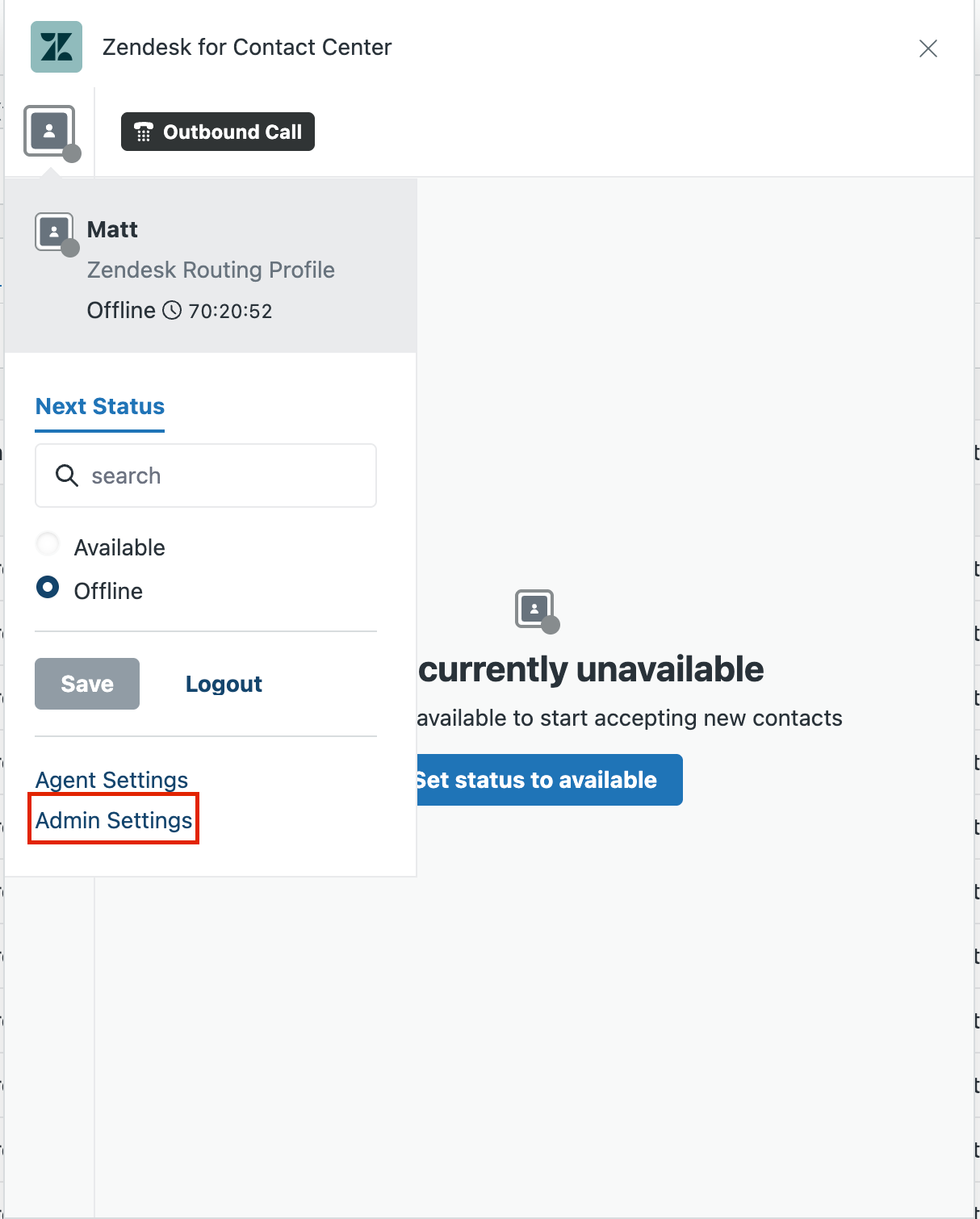
- In Contact Center, click Admin
Settings from the Agent Status menu.
- Click
 Zendesk settings in the sidebar, then access Standard Settings
> Tickets.
Zendesk settings in the sidebar, then access Standard Settings
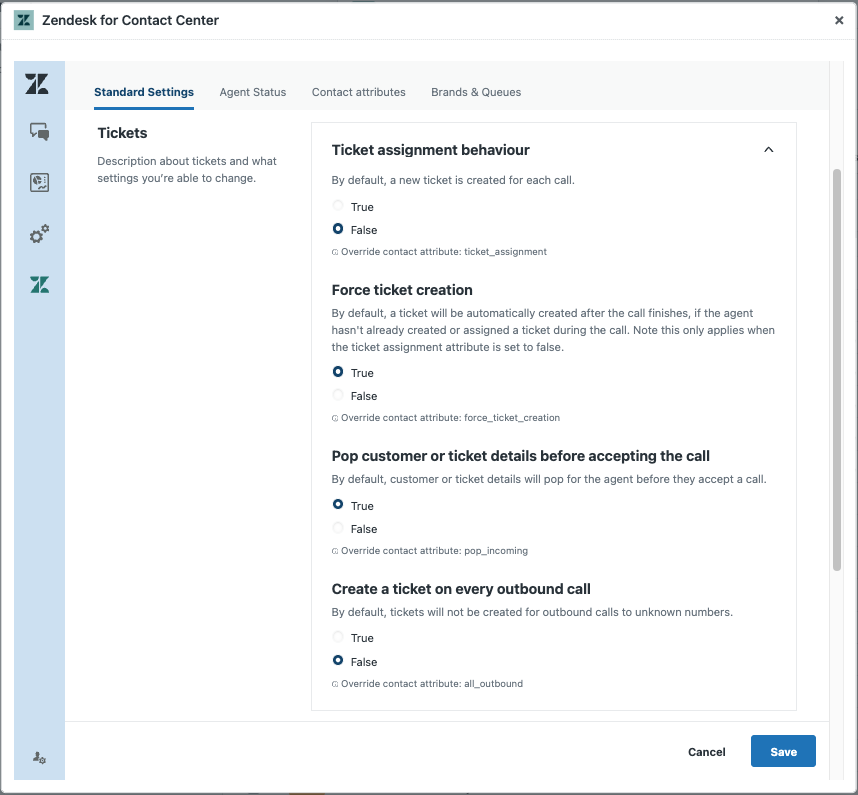
> Tickets. - Under Tickets, configure the following fields:
- Ticket assignment behavior: Creates a ticket for each call.
- Force ticket creation: Creates a ticket after the call finishes only if the agent doesn't create or associate a ticket during the call. This only applies when Ticket assignment behavior is off.
- Pop customer or ticket details before accepting the call: Displays customer and ticket details to agents before they accept the call.
- Create a ticket on every outbound call: Creates a ticket when an agent makes an outbound call.
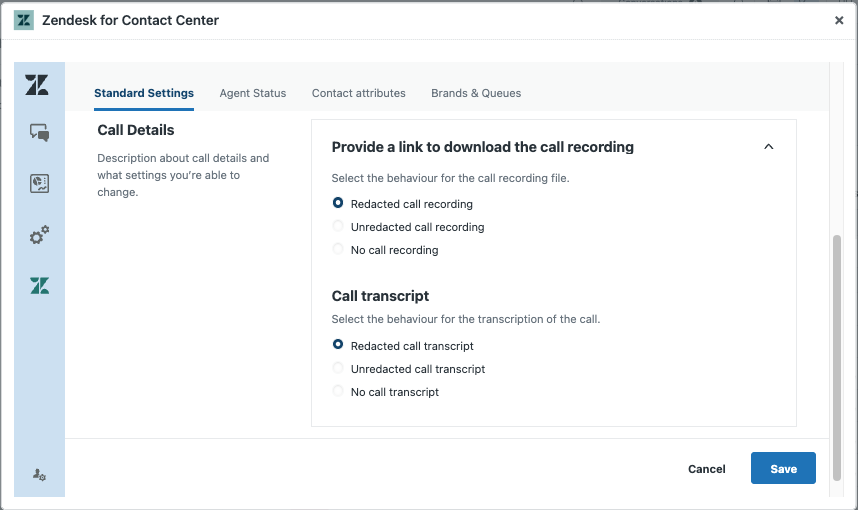
- Under Call Details, set your call recording and transcription
preferences:
-
Provide a link to download the call recording: Determines
which call recording link is shared in the ticket.
- Redacted call recording: Shares the link to the recording without sensitive information. If no redacted recording exists, then no call recording is shared.
- Unredacted call recording: Shares the original call recording.
- No call recording: Doesn't share the call recording in the ticket.
-
Call transcript: Determines which call transcript is shared
in the ticket.
- Redacted call transcript: Shares the transcript without sensitive information. If no redacted transcript exists, then no call transcript is shared.
- Unredacted call transcript: Shares the original call transcript.
- No call transcript: Doesn't share the call transcript in the ticket.
-
Provide a link to download the call recording: Determines
which call recording link is shared in the ticket.
- Click Save.
To test the setup, see Testing Contact Center.