Summary: ◀▼
You can monitor your asset usage and increase your IT asset records by purchasing additional asset packs from the Subscription page in Admin Center. Each pack adds 500 asset records per month. Only account owners or billing admins can make these purchases. After buying, your asset limit updates within about 24 hours, helping you manage hardware and software resources effectively as your IT needs grow.
IT assets are resources, such as hardware and software, that IT teams need to procure, allocate, refresh, and retire over time. Within Zendesk, assets are the records for each asset type. By default your Zendesk account includes 500 asset records per month but you can monitor your asset usage and buy more as needed.
Monitoring IT asset usage
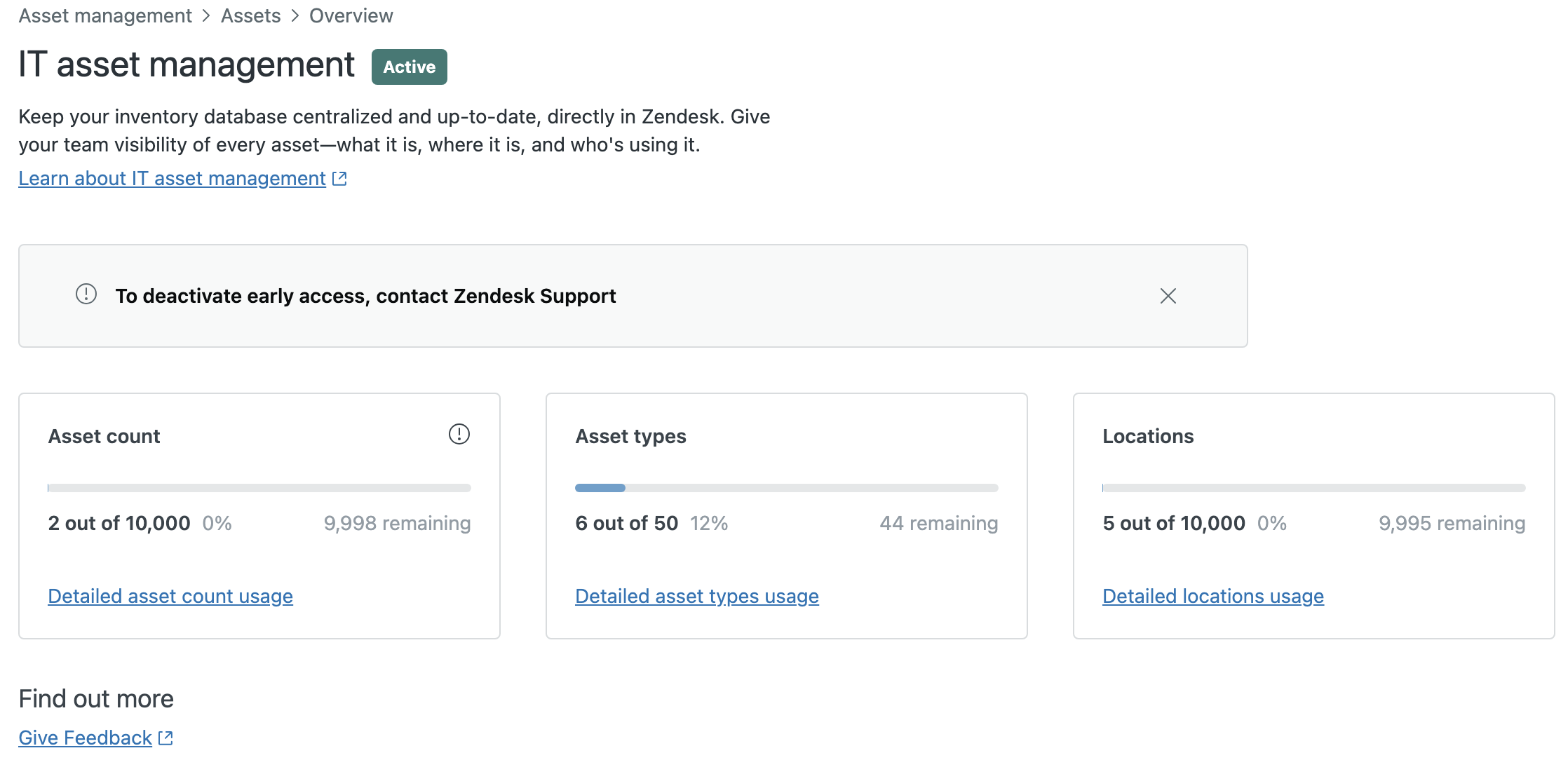
Admins can use the Asset overview page to monitor how many asset types, locations, and fields they have in the account.
To monitor your usage of assets, asset types, and locations
-
In Admin Center, click
 IT assets in the sidebar, then select Assets > Overview.
If you are exceeding the maximum number of asset records, you can delete asset records that are no longer needed or you can buy more.
Buying more IT assets from the Subscription page
If you have an eligible sales-assisted or self-service account, you can buy more IT assets directly from the Subscription page in Admin Center. You must be an account owner or a billing admin to buy more IT assets. If you have a managed account, contact Zendesk Sales to buy more assets.
To buy more assets
-
In Admin Center, click
 Account in the sidebar, then select Billing > Subscription.
A summary of your current subscription appears.
- Click Manage to update your subscription.
If you don't see a Manage button on the Subscription page, then you don't have permission to make changes.
- Click the More products tab on the Subscription page.
A list of products you can add to your account appears, including the Asset Pack add-on. IT assets are sold in packs. Each asset pack includes 500 additional asset records per month.
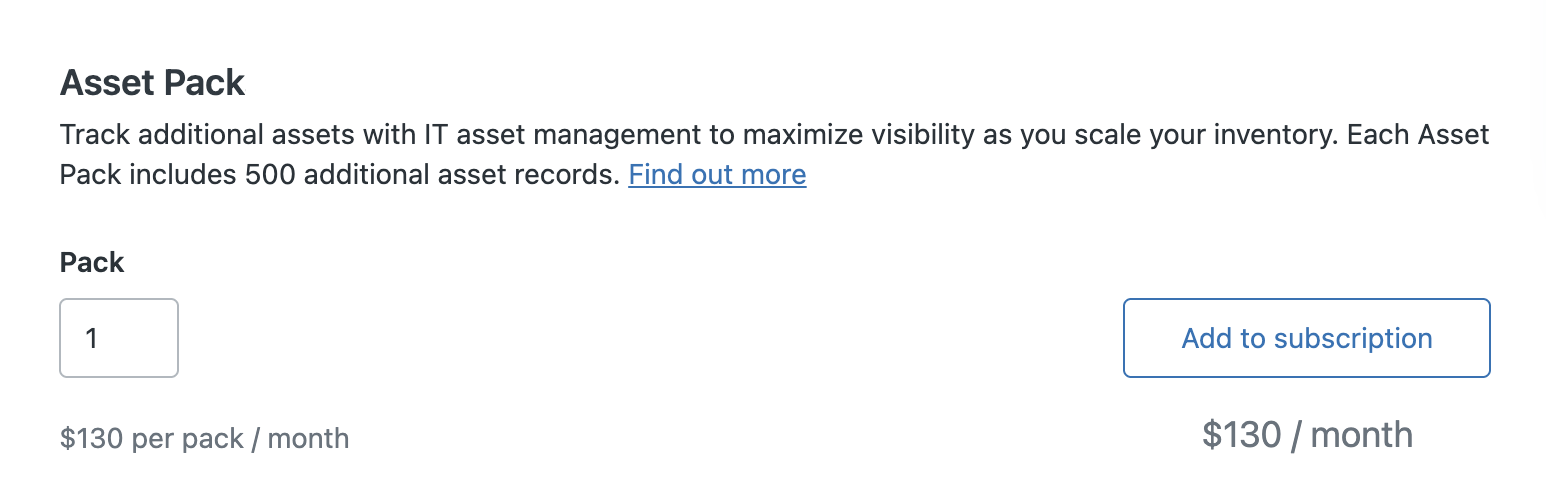
- Enter the number of asset packs you want to add.
To learn more about the add-on, click Find out more.
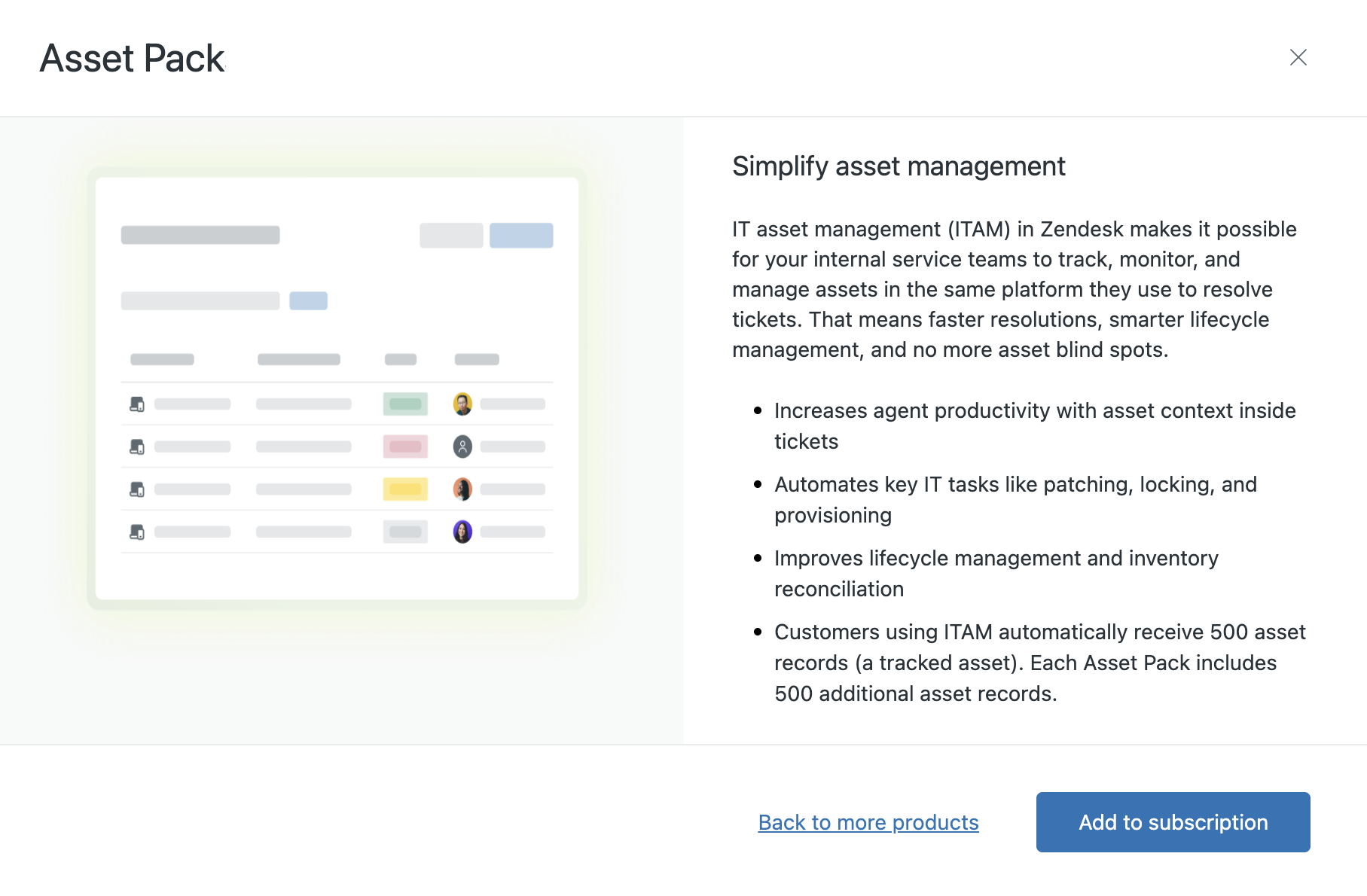
- Click Add to subscription.
Your subscription summary is updated to reflect the purchase price.
- Click Update subscription to purchase the add-on.
- Follow the payment instructions on the Payment page to complete your purchase.
Within a reasonable amount of time (typically 24 hours), your IT assets are updated to show the new limit. You can have up to 100,000 assets in your account.