Summary: ◀▼
Analyst copilot memories save your analysis steps, definitions, business logic, and feedback so you can reuse trusted context, keep reports consistent, and start new reports from validated logic. You can view, rate, refresh, combine, and narrate memories to find patterns, improve report suggestions, and support onboarding. Avoid storing sensitive data in memories.
Memories are persistent records of information that analyst copilot saves automatically or explicitly while you work. This includes every step you take, definitions you use, business logic applied, field mappings, and your feedback and corrections.
This article contains the following topics:
About memories
Memories can be:
- Steps and filters applied during a specific analysis
- Definitions of key terms (for example, “VIP customer” or “churn”)
- Synonyms, preferred breakdowns, or KPI logic
- User or team preferences that influence results
The benefits of memories include:
- Definitions, metrics, and analytical logic are applied the same way in every analysis. This consistency improves trust because everyone gets the same answer to critical business questions.
- Report creation starts from stored memories making reporting faster and easier to repeat. Common queries and business terms don’t need to be constantly redefined.
- Every analytical path is stored, viewable, and auditable in the context graph, meaning you track how insights were generated, helping to answer questions.
- Because your business context, steps, and preferences are saved, Analyst copilot can offer relevant suggestions and narratives tailored to how your team works.
- Teams can curate, promote, and share memories ensuring everyone uses agreed-upon terms and logic, even as new people join or processes evolve.
Viewing memories
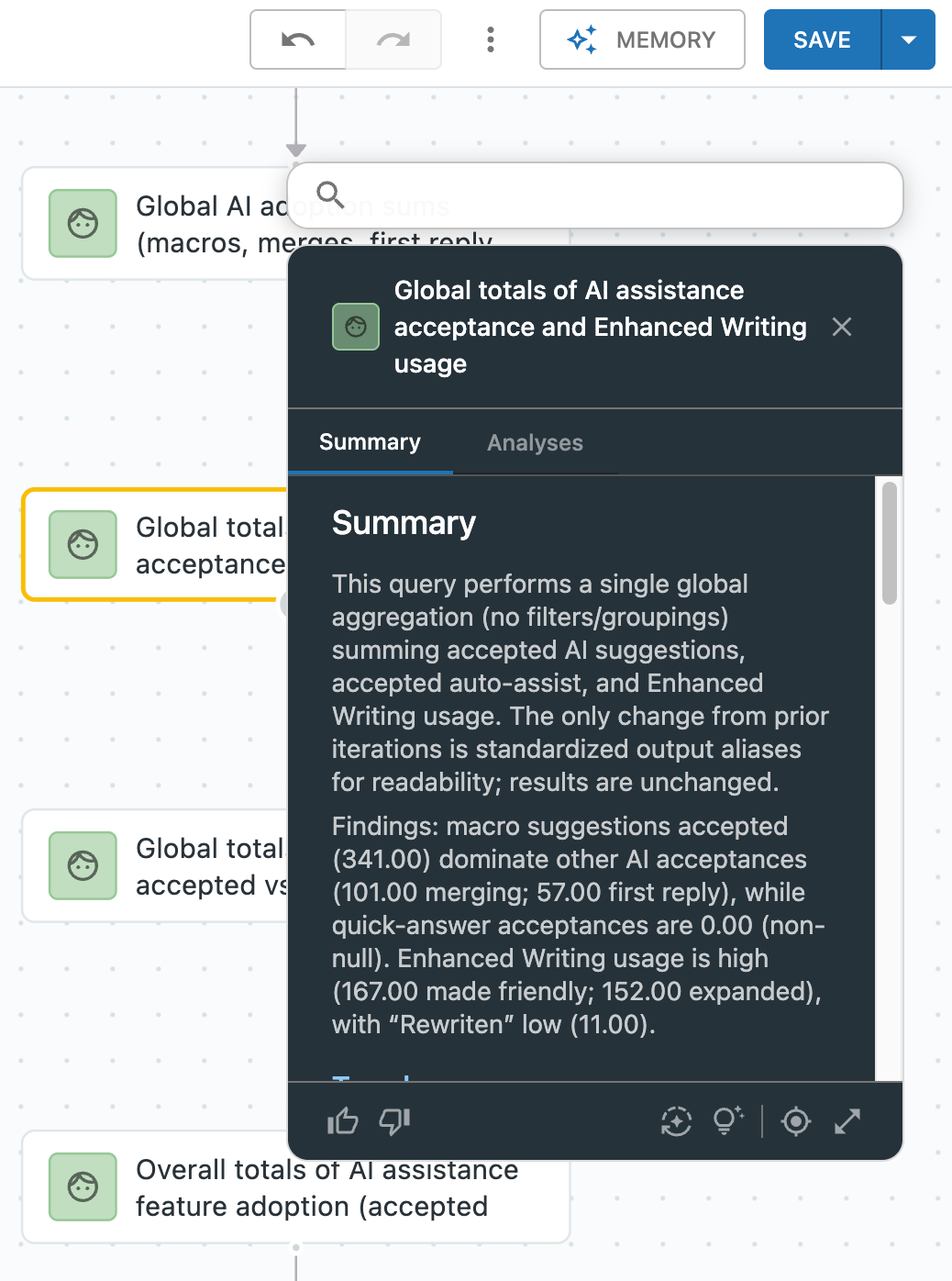
Memories are displayed in the context graph section of report builder.
To view memories
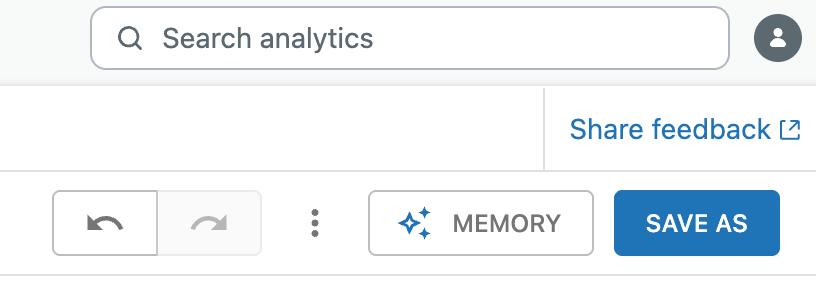
- Open a report, then click
Memory.
The report's context graph opens, displaying memories associated with it.
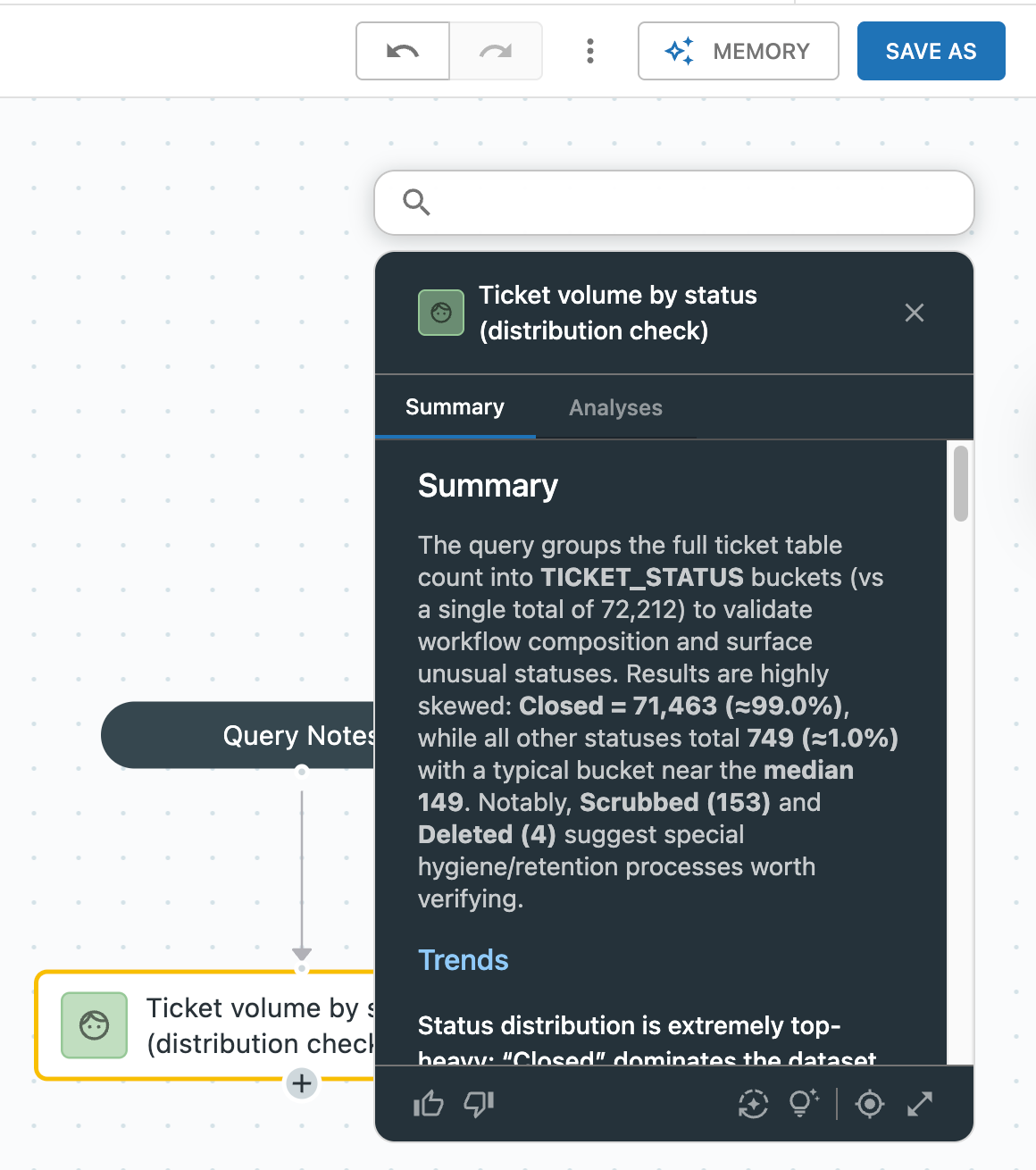
- Click any memory to view more details.
Navigating memories
You can view, navigate, and manage a reports memories.
To navigate memories
- Open a report, then click Memory to open the context graph.
- Use drag-and-drop to move around the context graph and use your mouse wheel to zoom in or out to find the memory you want.
- Click a memory to see its details.
- Take any of the following actions:
- Click a memory to update the report visualization to match the
memory.
Each memory has a card with a summary and analysis describing what is being shown in the report.
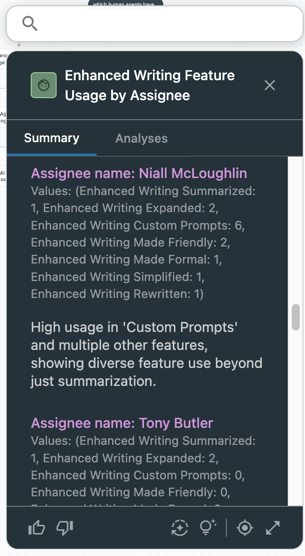
- Click the thumbs up or down icons to indicate to Analyst copilot if the memory was useful. This helps memories become more accurate over time.
- The Refresh and analyze button (
 ) refreshes the memory summary
with the latest information from the dataset.
) refreshes the memory summary
with the latest information from the dataset. - The Find inspiration button (
 ) gives you suggestions on other
reports you might find useful.
) gives you suggestions on other
reports you might find useful.
- Click a memory to update the report visualization to match the
memory.
- Click Memory to close the context graph.
Best practices for memories
Consider the following best practices to get the most from memories.
- Before building a new analysis from scratch, search existing memories and reuse them if possible to save time and help ensure company-wide consistency.
- Rate memories to improve future results.
- Combine and narrate memories for deeper insights.
- Use memories for training and onboarding. Memories can serve as living documentation, making it easier to onboard new analysts or business users by learning from past logic and rationale.
- Periodically audit project memories for redundancy, outdated logic, or inconsistent definitions.
Managing memories
You can manage memories in the following ways:
Generating report suggestions
In a memories summary or analyses, you can generate suggestions as to how you could enhance your report.
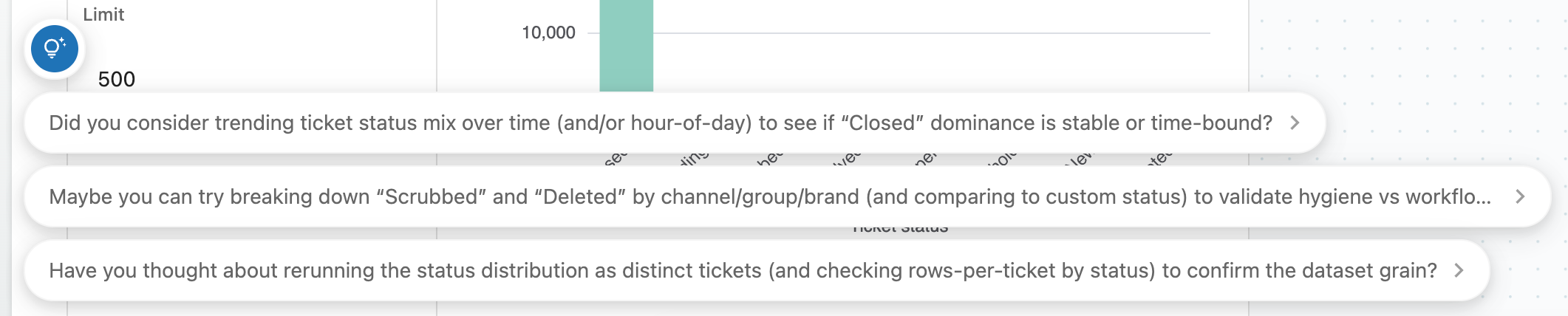
To generate suggestions
- In a memory in the context graph, click the find inspiration button ().
Suggestions are generated and displayed at the bottom of the Analyst copilot window.
- Click a suggestion to see more details including the memories that were used to create it.
- Click Apply suggestion to apply it to the existing report.
- Click Try this in a new report to create a new report using the suggestion.

Combining memories
You can combine multiple memories or narrate them as a story to explain trends or causes.
Combining memories creates a new memory. This lets you use metrics and attributes from different memories. For example, one of your memories includes a metric of your solved tickets. The other contains an attribute of the ticket requester's region. You can combine these into a new memory for solved tickets by region.
To combine memories
- Open a report, then click Memory.
- Select one or more memories, then click Combine.
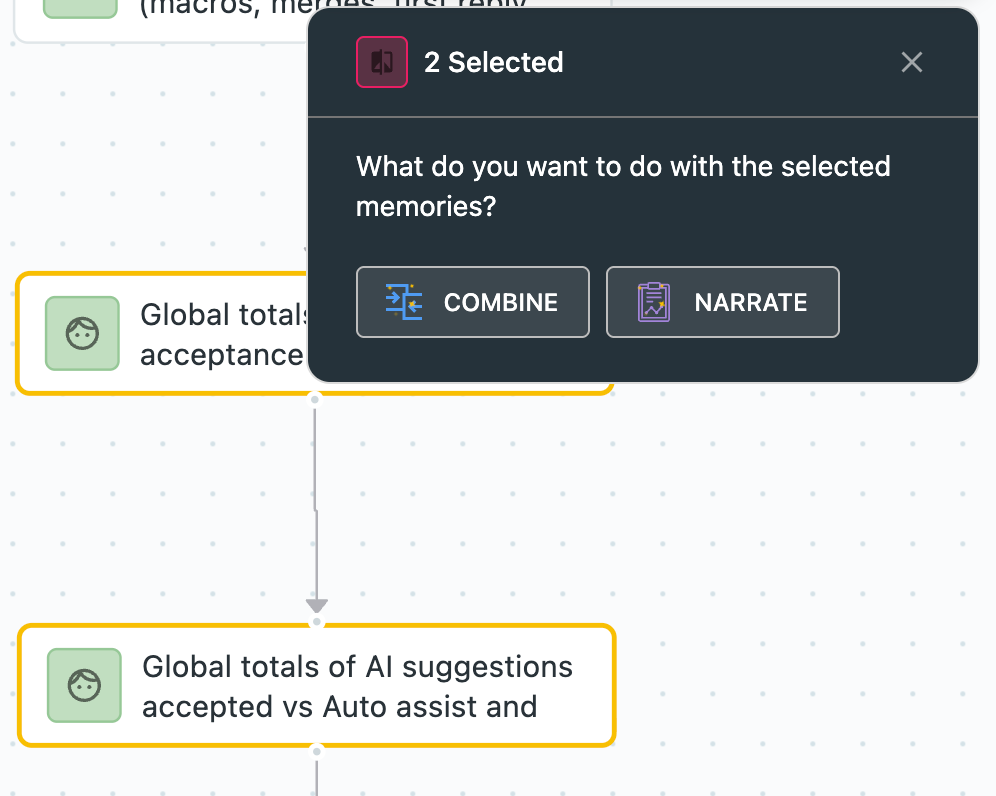
- Enter a description of the report you're trying to create. For
example, "Who had the largest workload in each region?"
A new report and memory is created based on the memories you selected and the description you entered.
Narrating memories
You can use multiple memories to create a story. For example, narrating two memories and using the prompt, "My department is very busy. Why is that?", Analyst copilot creates a report you can use to help you understand reasons why your department is busy.
To narrate memories
- Open a report, then click Memory.
- Select at least two memories, then click Narrate.
- Enter the story you want to tell. For example, "When are my busiest periods? When is it quiet?"
- Click Narrate.
A report is created with insights, reasons, and potential actions based on your prompt.
Rating memories
You can rate the quality of generated memories. Analyst copilot uses these ratings to learn and improve over time.
To rate a memory
- In a report's context graph, click any memory to open it.
- In the memory, click thumbs-up or thumbs-down to rate the memory.

Analyst copilot remembers your rating and uses it to improve future memories.
Refreshing memories
You can refresh memories to show the latest data and summary.
To refresh a memory
- Open a report, then click Memory.
- Click one of your memories to see its details.
- To refresh the memory, click refresh and summarize (
 ).
).
The memory and its summary are updated with the latest data.
Creating a new report from a memory
You can use any memory to fork a report , allowing you to start new explorations from validated, existing logic (preserving context and reducing errors).
Forked reports maintain links in the context graph, boosting the relevance of frequently used logic and definitions for future questions.
To create a new report from a memory
- Open a report, then click Memory.
- Click one of your memories to see its details.
- Click Save > Fork.
A new report is created and opened from the selected memory.