Summary: ◀▼
You can redact personally identifiable information (PII) in ticket comments and PDF attachments to protect confidential data. Redaction can be done for single PII items, entire comments, or whole tickets. You can also unmark incorrect redaction suggestions. Redacted content is replaced with black bars or placeholders, and this action cannot be undone, helping maintain data privacy and compliance.
As described in Turning on and configuring redaction suggestions, admins can turn on redaction suggestions in Zendesk. This feature, part of the Advanced Data Privacy and Protection add-on, automatically highlights certain types of personally identifiable information (PII) within ticket comments for admins and agents who have the Redact ticket content permission. Agents can then click the highlighted PII and quickly redact it, helping to keep confidential information out of Zendesk.
PDF attachments are also highlighted when PII is detected anywhere within the document. However, the entire attachment is marked rather than specific instances of PII within it. You can redact the entire PDF attachment, but individual pieces of content inside the document cannot be redacted separately.
This article contains the following topics:
Redacting PII
When redacting PII, you can delete a single piece of identified PII, all PII within a single ticket comment, or all PII within an entire ticket at the same time.
To redact a single piece of identified PII
- Within a ticket comment, click a redaction suggestion (text highlighted in
orange).

- (Optional) If you need to use the PII before redacting it, click the Copy
icon (
 ) to copy the highlighted information to your
clipboard so that you can quickly paste it into another system or workflow as
needed.
) to copy the highlighted information to your
clipboard so that you can quickly paste it into another system or workflow as
needed. - Click Redact <PII type> to redact the highlighted item immediately,
or click the pencil icon (
 ) to open the redaction editor.
 In the redaction editor, the PII highlighting is preserved, and you can also manually select and redact additional information from the comment. For more information on working with the redaction editor, see Redacting ticket content.
The piece of redacted content is obscured with a black bar.

To redact all identified PII within a single ticket comment
- Find the ticket comment that you want to redact all PII from.
- Click the options menu (
 ) on the right side of the
comment.
) on the right side of the
comment. - Select Redact highlighted text to redact all highlighted items
immediately, or click Mark text for redaction to open the redaction
editor.
In the redaction editor, the PII highlighting is preserved, and you can also manually select and redact additional information from the comment. For more information on working with the redaction editor, see Redacting ticket content.

All identified PII in the ticket comment is obscured with a black bar.

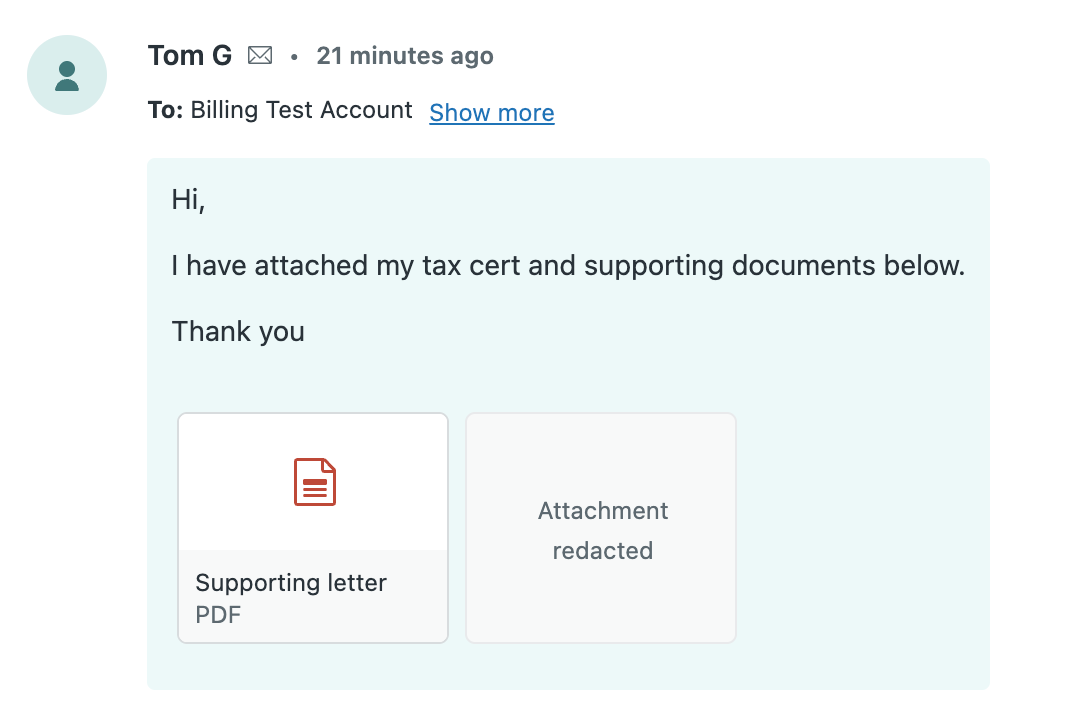
Redacted attachments are replaced with an "Attachment redacted" placeholder.
To redact all identified PII within an entire ticket
- Find the ticket that you want to redact all PII from.
- Click the options menu () on the right side of the
ticket.
- Click Redact all highlights.

- In the confirmation window that appears, click Redact highlights.
After a few moments, all highlighted items are redacted from ticket comments and PDF attachments. This action cannot be undone.
Unmarking information for redaction
If a piece of highlighted information doesn't need to be redacted (for example, if it's not actually PII), you can unmark it for redaction. This removes the highlighting.
To unmark information for redaction in ticket comments
- Within a ticket comment, click a redaction suggestion (text highlighted in orange).
- Click the Ignore (X) icon.

The information is no longer highlighted.