Summary: ◀▼
Use the resolution allowance dashboard to monitor your resolution budget, view allowance details, and track usage. Plan your resolution needs based on your plan and agent seats, and increase your allowance by purchasing add-ons to avoid higher overage costs. Set your overage response to either allow automatic billing for extra usage or pause AI agent functionality to control expenses.
Your resolution allowance is a flexible currency pool used to pay for the cost of automated resolutions. You can consume the balance freely across different resolution tiers without pre-selecting a fixed mix of tiers in advance. To help you monitor resolution usage on your account, Zendesk provides a resolution allowance dashboard. Account owners and billing admins can use this dashboard to monitor resolution costs and manage their resolution budget.
This article contains the following sections:
- Opening the resolution allowance dashboard
- Viewing allowance details
- Planning for resolution usage
- Understanding the default resolution allowance
- Increasing your resolution allowance
- Setting your resolution overage response
Related articles
Opening the resolution allowance dashboard
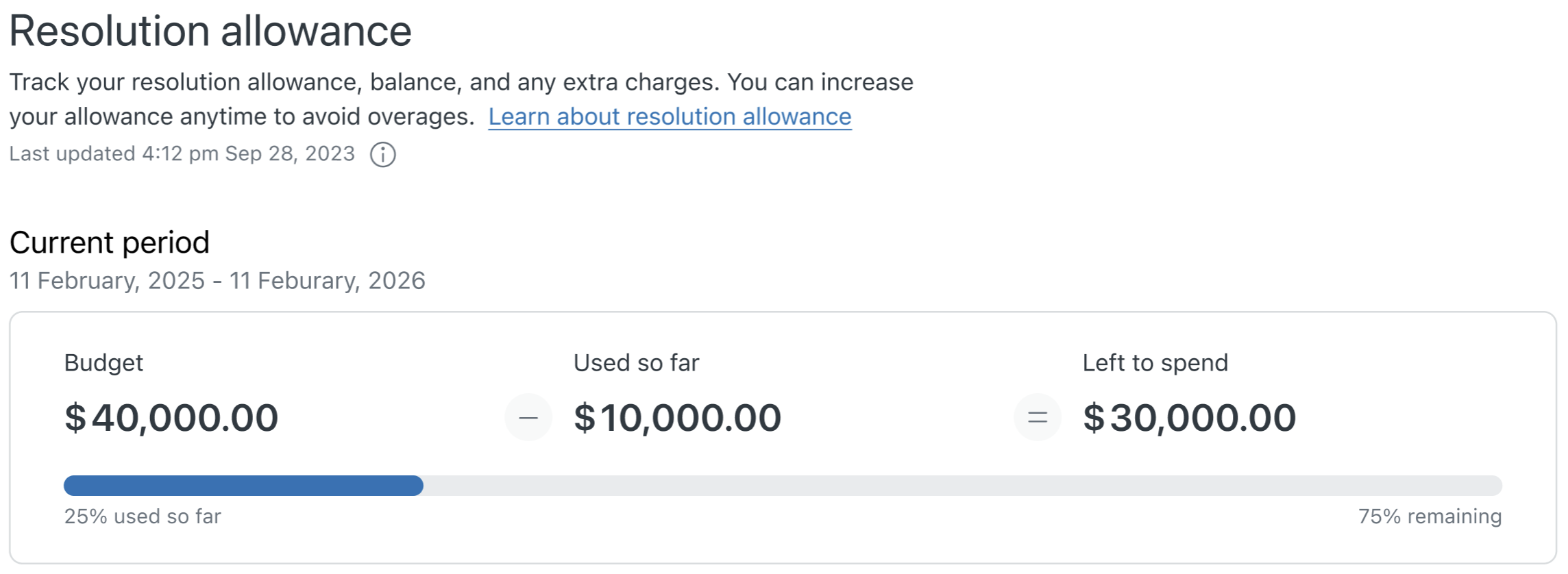
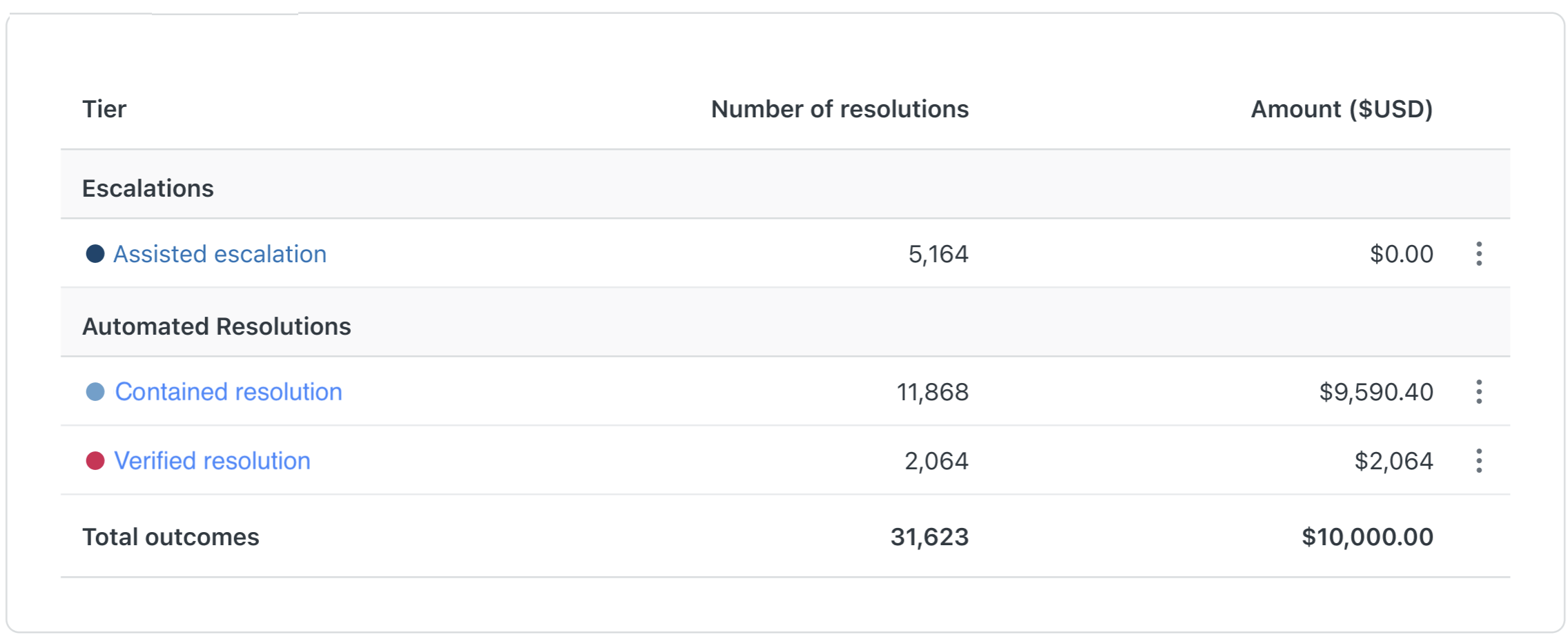
The resolution allowance dashboard includes a summary of your allowance, an expandable section with allowance details, and a chart of usage details. You can view the usage details by date range, resolution tier, brand, or channel. The dashboard also includes links to all the tickets that contributed to the resolution count.
To open the dashboard
-
In Admin Center, click
 Account in the sidebar, then select Billing > Resolution allowance.
The resolutions allowance dashboard appears. The dashboard includes an allowance summary, allowance details, and a chart of resolution usage, expressed in currency.
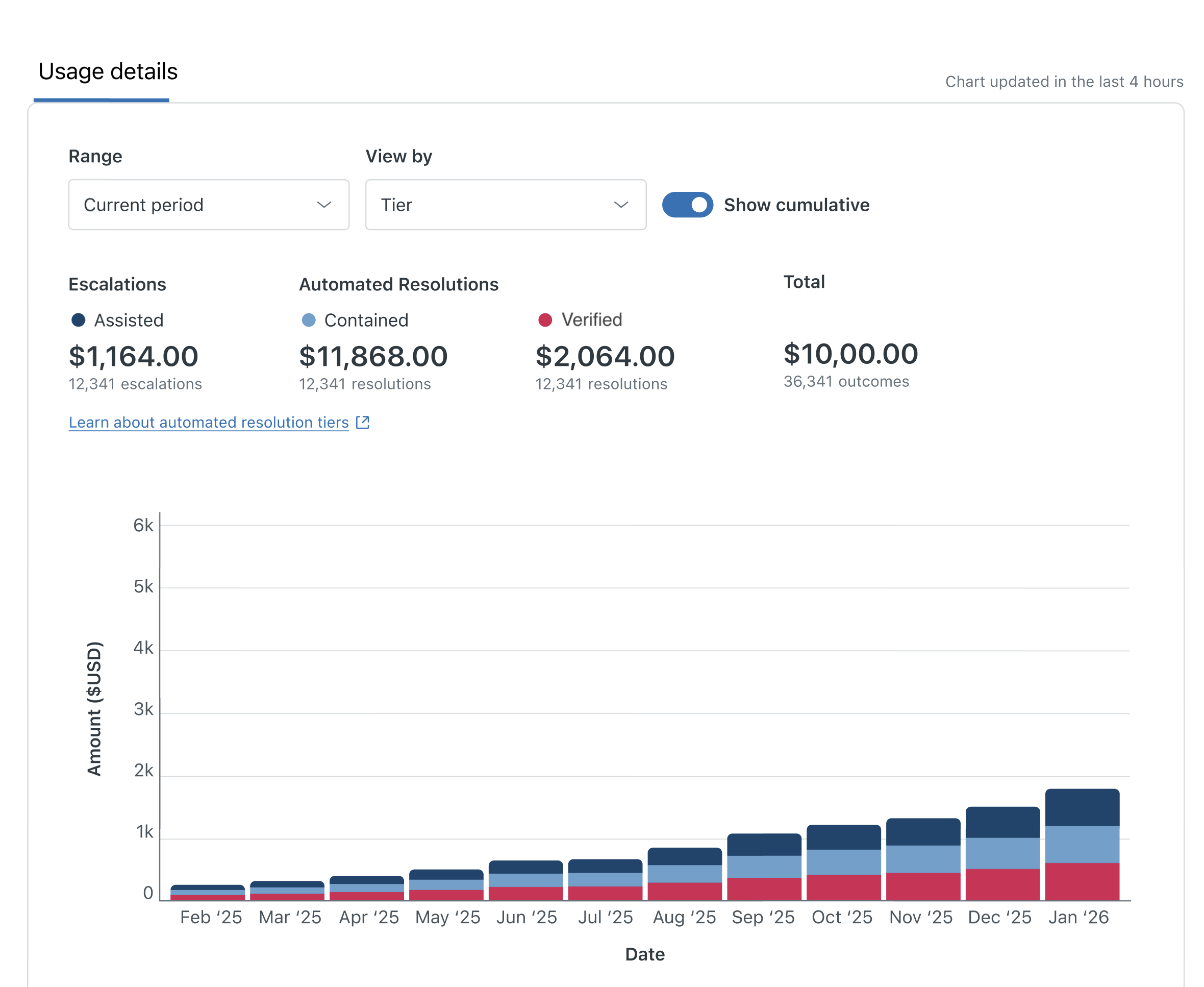
- To filter the allowance by date range, click Range and
select an option from the menu.
You can view usage for:
- Last 7 days
- Last 30 days
- Current period
- Custom range
- To filter the allowance by resolution tier or brand,
click View by and select an option from the menu.
You can filter by:
- Brand. View all brands combined or select a specific brand.
- Tiers. View All tiers or Assisted escalation, Contained resolution, or Verified resolution.
Viewing allowance details
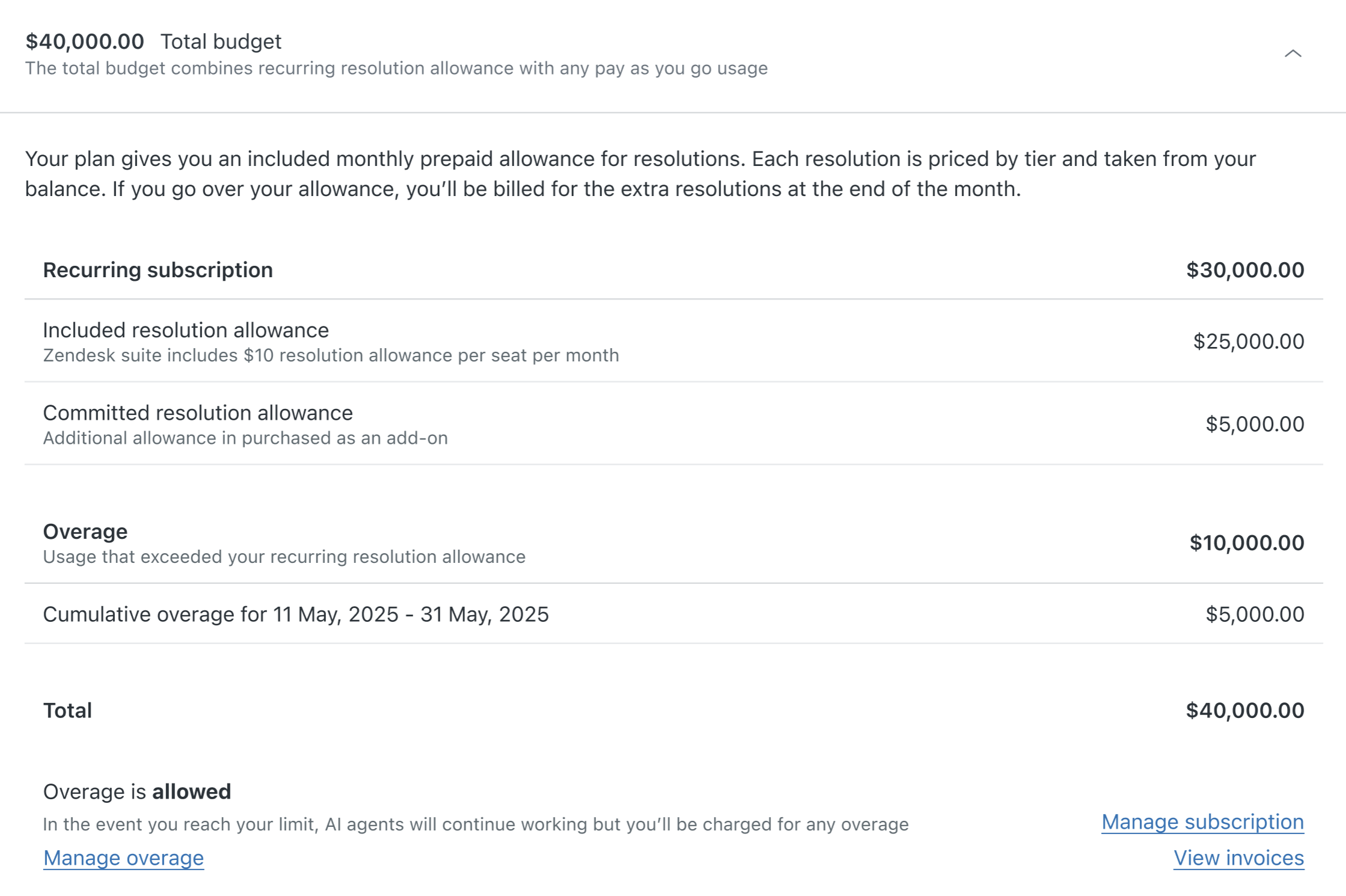
Allowance details show you how your total allowance budget was calculated based on your plan type, number of agent seats in your account, any resolution add-ons you have purchased, and any overage charges.
To view allowance details
-
In Admin Center, click
Account in the sidebar, then select Billing > Resolution allowance.
The resolutions allowance dashboard appears.
- In Allowance details, click the expander icon (
 ).
).
Your account details appear. This information includes:
- Total budget: Your total resolution budget, shown in US dollars.
- Included resolution allowance: The resolution allowance included with your plan type and seat count.
- Committed resolution allowance: The additional allowance purchased as an add-on.
-
Overage: Usage that exceeded
your recurring resolution allowance. You can also
see your current Overage setting:
Allowed or Not allowed.
Planning for resolution usage
Your plan comes with a default resolution allowance based on plan type and the number of agent seats in the account. See Understanding the default resolution allowance. You can see the default resolution allowance for your account on the Subscription page.

If you use more than the default resolution allowance, you have these options:
- You can increase your resolution allowance by buying more resolutions before any overages occur. If you increase your resolution allowance before overages occur, it provides a better per-resolution cost than overage billing. See Increasing your resolution allowance.
- You can also select a resolution overage response. See
Setting your resolution overage response.
The response can be:
- Automatically bill you when overages occur. Overage is billed monthly, regardless of your subscription terms.
- If you don’t want overage charges, you can prevent overage billing by limiting the resolution allowance in your account.
Understanding the default resolution allowance
Zendesk Support and Suite plans include a default resolution allowance that's included in the price of your plan. The allowance is based on your plan type and the number of agent seats you have. You can use this allowance for any automated resolution tier.
| Plan | Zendesk Suite | Zendesk Support |
| Team | $2 per agent seat, per month | $2 per agent seat, per month |
| Growth | $5 per agent seat, per month | Not applicable |
| Professional | $5 per agent seat, per month | $2 per agent seat, per month |
| Enterprise | $10 per agent seat, per month | $2 per agent seat, per month |
| Enterprise Plus | $10 per agent seat, per month | Not applicable |
Forethought AI agents by Zendesk plans don’t include a default resolution allowance. If you have a Forethought plan but no Suite or Support plan, contact Zendesk Sales to purchase a resolution allowance separately.
Light agents are not included in the default allocation calculation. Only agents with seats are included.
The maximum allowance per year for all plans is $5000.
For example, an Suite Enterprise account with 20 agent seats would have a monthly resolution allowance of $200. A Support Enterprise account with 20 agent seats would have a monthly resolution allowance of $40. Monthly allowances do not carry over if they aren't used.
Increasing your resolution allowance
If you need more automated resolutions for your account, you can pay to increase your resolution allowance. Contact Zendesk Sales for more information. You must be the account owner or a billing admin to increase your resolution allowance. The currency you add works as a general funding pool that is applied to any resolution on any ticket as needed, regardless of the ticket’s resolution tier.
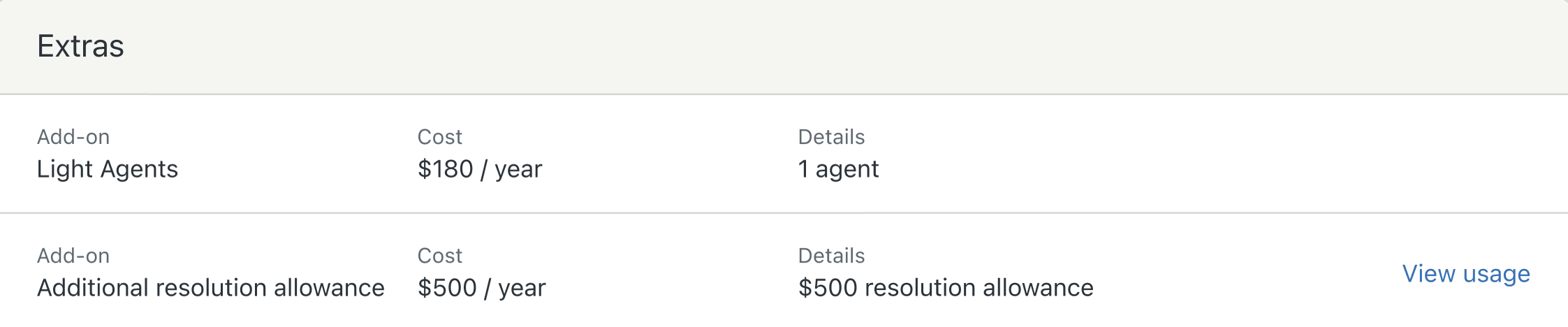
Your increased allowance appears in the Extras section of your Subscription page.
Setting your resolution overage response
On the Overage page in Admin Center, your account owner and billing admins can select how your account responds when you reach your automated resolution limit. The options are:
-
Allow overage (default setting)
This setting allows AI agents to continue to serve customers after you exceed your account’s default or purchased resolutions allowance. When selected, your account is charged for pay-as-you-go resolutions after you reach the limit of your resolution allowance. This setting is recommended for uninterrupted support.
Note: For customers with a Forethought AI agents by Zendesk plan, this option is automatically selected and cannot be changed. -
Don’t allow overage
This setting pauses AI agent functionality when you reach your resolution allowance limit, preventing overage charges. Any capabilities that require paid resolutions won't work until you increase your resolution allowance, causing more support requests to be routed to human agents. This setting is recommended for strict budgets.
-
In Admin Center, click
Account in the sidebar, then select Usage > Overage.
The Overage settings page appears.
- Select an option for your overage response: Allow overage or Don’t allow overage.
- Click Save.