Summary: ◀▼
You can use analyst copilot projects to organize datasets, reports, dashboards, and memories in one place, keep them private or share them across your organization, and control access with viewer, writer, or admin permissions. Prebuilt projects help you get started with common business scenarios, while custom projects let you name, describe, and secure your analytics work.
A project is a space to organize, share, and secure your business information (such as datasets, reports, dashboards, and memories). You can keep projects private or share them within your organization. All analyst copilot assets are stored in a project.
Project permissions can be either private or Zendesk-only:
- Private projects: The project owner or account admin controls access permissions.
- Private (internal) projects: Access works like private projects, but all Zendesk users in your account automatically have viewer access.
This article contains the following topics:
Understanding prebuilt projects
Analyst copilot is supplied with prebuilt projects (or analytical apps) for common business scenarios. These projects contain datasets, reports and dashboards that help you get up and running quickly. Watch the following video for an overview of analytical apps:
Understanding analytical apps (1:37)
Creating projects
You create a project from the Analyst copilot tab bar.
To create a project
- In Analytics, click the Analyst copilot
icon (
 ) in the sidebar.
 - In the analyst copilot tab bar, click the create icon (+), then select Project.
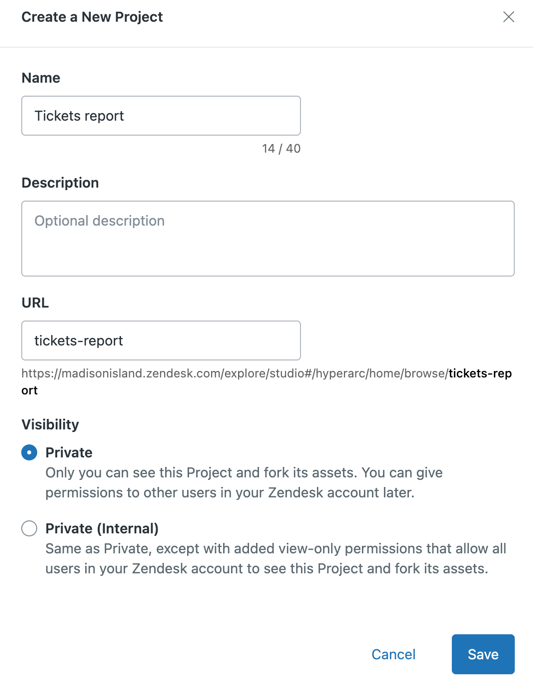
- Configure the following:
- Name: Enter a descriptive name for the project.
- Description: Optionally, enter a description for the project to help viewers understand what it contains.
- URL: The URL of the project lets viewers jump directly to it instead of having to navigate to find it. The URL is automatically populated based on the project name, but you can change it.
-
Visibility: Choose one of the following:
- Private: By default, only you can see the project and its assets. At any time, you can grant others access.
- Private (internal): Gives read-only permissions to view your project to everyone in your organization.
- Click Save.
The project is created and Analyst copilot opens the project page.
Managing project access
To give others permissions to access the project, use the Manage access page.
To manage project access permissions
- In Analytics, click the Analyst copilot
icon () in the sidebar.
- On the analyst copilot home page, scroll down to the All projects section.
- Hover over the project you want to configure, click the options menu (
 ), then select Manage access.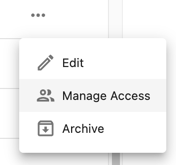
- Select the group who you want to give access to, then
select the level of access they need, either Viewer, Writer,
or Admin.
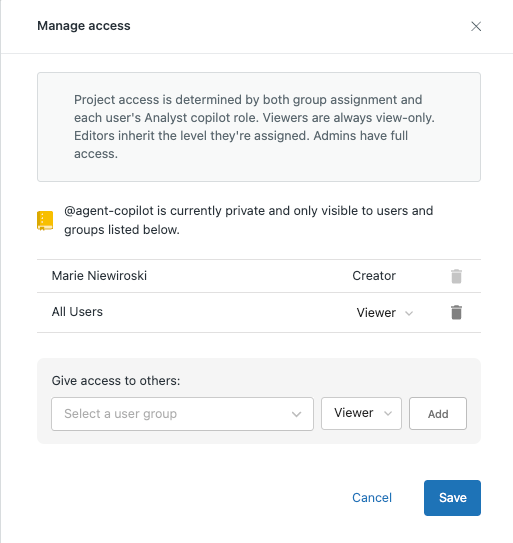
- Click Save.