Summary: ◀▼
You can manage analyst copilot reports by viewing version history, restoring earlier versions, forking a report to build on your analysis without changing the original, archiving reports you no longer need, and exporting reports as CSV, JPEG, or a shareable URL. These report management tools help you track changes, reuse insights, and share analytics with your team.
You can manage the reports you create in analyst copilot, including viewing versions, forking, archiving, and exporting analyst copilot reports.
Viewing report versions
Every time you change or save a report, a new version is created. However, all previous versions of the report and its context graph are retained. You can go back to an earlier report version, fork a report, and save it as a new report. The most recent version of the report is retained.
To view a report's versions
- Open a report, then click Save >
Versions.
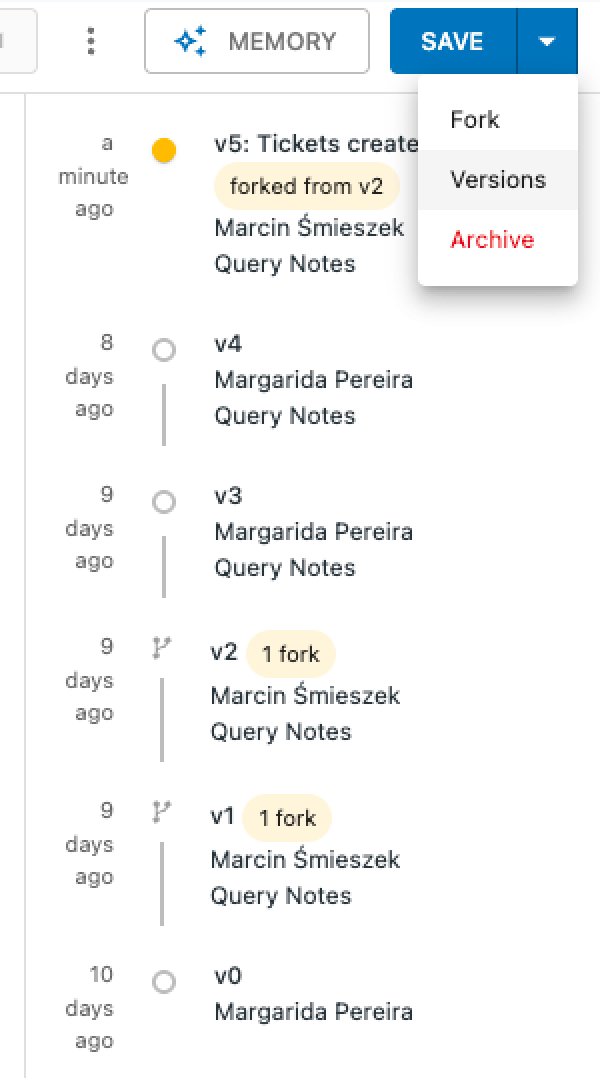
The versions panel opens displaying a history of changes to your report. Each version includes the date of the change and the user who made the change. The version also indicates whether the report was forked.
- Click a version in the list to preview it.
- Click Save while viewing a version to restore it.
This version is saved as the most recent one. The previous version is retained so you can restore it, if necessary.
Forking reports
Forking creates a new report from the original report in a new tab that you can name and edit as needed.
Advantages of forking reports include:
- Retain context: When you fork a report, the new report retains a memory of the original analysis, including the previous steps, context, intuitions, and references used to generate the initial result.
- Customize and dig deeper: Analysts can take a current data visualization or analysis and use it as a starting point for further customization and deeper investigation, without altering the original report.
- Build an Analytics "page rank": Analyst copilot uses the relationships between these forked reports (or memories) to build a knowledge graph. This boosts the most relevant memories to the top for future, related questions, meaning analyst copilot gets smarter over time.
To fork a report
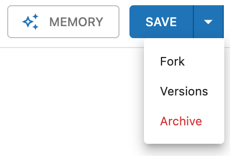
- In a report, click Save > Fork.
A copy of the report is created and opened.
Archiving reports
When you archive a report, it's deleted from the project and the assets list. You'll no longer be able to access it.
To archive a report
- Open a report, then click Save >
Archive.
- On the confirmation page, click Archive report.
Exporting reports
You can share your reports with other people as comma-separated-values (CSV), image (JPEG) files, or as a URL.
To export a report
- Open a report, click the options icon (
 ), then select Share.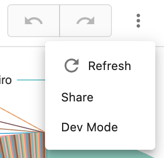
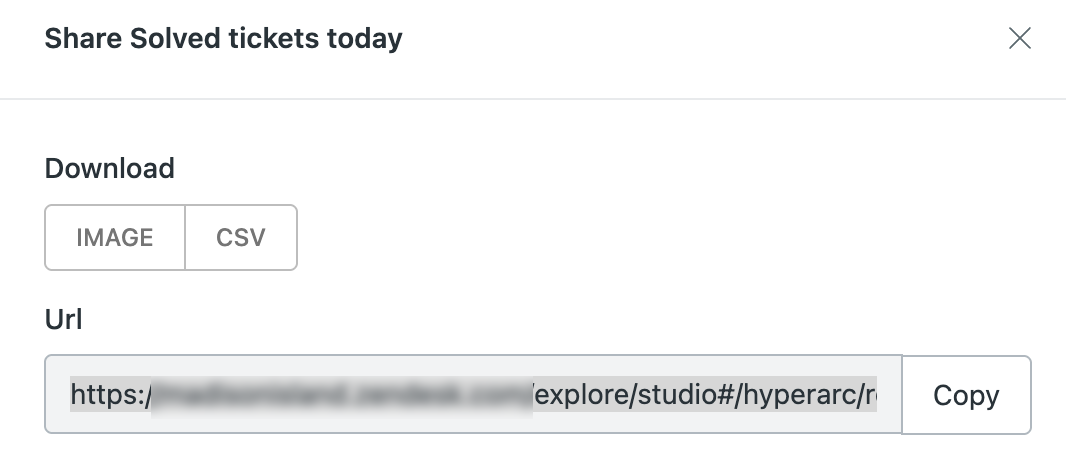
- In the export options, select from the following options:
- Download: Select IMG or CSV format for your report export.
- URL: View the URL to this dashboard and Copy it to your clipboard.
Your report is exported. You’ll find the exported report in your Downloads folder.