| Announced on | Phase 1 rollout | Phase 2 rollout |
| May 5, 2026 | May 5-26, 2026 | Aug 31-Sept 29, 2026 |
To strengthen account security, Zendesk is enforcing a 12-hour maximum session duration limit for team members. This ensures that sessions can’t remain active indefinitely. The impact on your team depends on your current session inactivity settings and whether any team members have active, long-running sessions.
This announcement includes the following sections:
- What's changing?
- Why is Zendesk making this change?
- What do I need to do?
- Frequently asked questions
What's changing?
Phase 1: Accounts with session inactivity settings of 8 hours or less
Starting today, May 5, 2026, accounts with session inactivity timeouts already set to 8 hours or less are subject to the new 12-hour maximum session duration.
- New sessions: Any session created after today will end 12 hours after sign-in, regardless of activity.
- Existing sessions: If you’re currently signed in, your session will expire normally. However, if that session exceeds 12 hours, it will be subject to a forced sign-out during Phase 2.
Phase 2: Accounts with session inactivity settings of 10 hours or more
Between August 31 and September 29, 2026, Zendesk will migrate accounts with session inactivity timeouts of 10 hours or more.
- Settings migration: Higher inactivity timeout options will be deprecated, and these accounts will be moved to an 8-hour inactivity timeout.
- 12-hour session limit: The 12-hour maximum duration will apply to all new sessions.
- Forced sign-out: All existing long-running sessions exceeding 12 hours—including those continuing from Phase 1—will be forcibly expired, requiring a new sign-in.
Why is Zendesk making this change?
This change strengthens security by reducing the risk of unattended or forgotten sign-ins. Phasing the rollout allows teams to adjust to the 12-hour limit while improving protection against unauthorized access. By standardizing session expiration settings and layering a maximum duration on top of inactivity timeouts, Zendesk ensures a consistent and secure policy across all accounts.
What do I need to do?
No immediate action is required, but you can help your team manage the transition by following these steps:
- Encourage manual sign-outs: To avoid a forced logout, ask your team members to sign out and sign back in at their next convenience. They can do this by clicking their profile icon in the top-right corner and selecting Sign out.
- Review settings: Check your session expiration settings in Admin Center. Phase 2 accounts can manually set their inactivity timeout to 8 hours and maximum session duration to 12 hours.
- Update internal documentation: Ensure any internal security guides or onboarding materials reflect the new 12-hour maximum session duration.
- Test integrations: Verify that any browser-based apps or automations continue to work as expected with a 12-hour sign-in cycle.
If you have feedback or questions related to this announcement, visit our community forum, where we collect and manage customer product feedback. For general assistance with your Zendesk products, contact Zendesk Customer Support.
Frequently asked questions
What counts as a session?
A session starts the moment a user signs in to Zendesk and ends when they sign out or are automatically signed out by the system. When users sign in to Zendesk, their session remains valid as long as there is user activity or background application activity, unless the user explicitly signs out. By default, session expiration occurs after 60 minutes of inactivity for team members.
User activity includes explicit actions, such as clicking in the Zendesk UI, as well as automatic background data pulls that keep the interface up to date. However, these background pulls do not happen uniformly across all Zendesk pages.
The session expiration countdown typically starts when you close your browser, quit the browser tab running Zendesk, or put your computer to sleep. Once the session expiration limit is reached, Zendesk ends your sign-in session, and you must sign in again.
Because active sessions are kept alive by user or background activity, some sessions can run continuously beyond the configured inactivity timeout—these are considered long-running sessions. Our phased rollout enforces a 12-hour maximum session duration to prevent any session from lasting indefinitely, regardless of activity.
If my team members have been signed in for several days or weeks, will they be signed out immediately when Phase 2 begins?
It depends on when their session was last automatically refreshed by their browser. Zendesk sessions periodically refresh in the background to stay active. When Phase 2 rolls out to your account, the system will stop allowing these refreshes for any session that has reached the 12-hour limit.
- If a session was refreshed just before the rollout: The team member will remain signed in until that specific refresh period expires (for example, if your inactivity setting is 60 minutes, they may stay signed in for up to 60 more minutes).
- After that period ends: Any attempt to keep the session alive will be blocked, and the team member will be required to sign in again. From that point forward, the 12-hour maximum will be strictly enforced for every new sign-in.
When will these changes reach my account?
Rollout depends on your current session inactivity settings.
- Phase 1 (May 5–26, 2026): For accounts with inactivity settings of 8 hours or less.
- Phase 2 (Aug 31–Sep 29, 2026): For accounts with inactivity settings of 10 hours or more. All existing long-running sessions exceeding 12 hours—including those continuing from Phase 1—will be forcibly expired, requiring a new sign-in.
Can I opt out of this change?
No. This is a mandatory security enforcement to protect all Zendesk accounts. However, Phase 2 accounts can request to delay the rollout until October 27, 2026. To request a delay, contact your account team or Zendesk Customer Support.
How will I be notified?
Account owners and admins of impacted accounts will receive email notifications and in-product banners before Phase 2 takes effect.
What happens if I’m online and working when the 12-hour timer is reached?
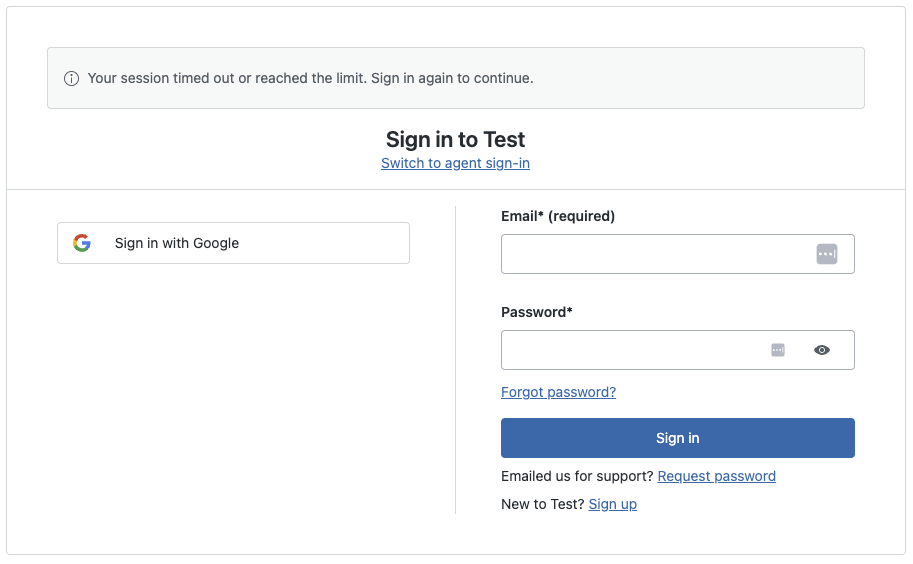
You will be automatically signed out and taken to the sign-in page. You must sign in again to resume your work.
What happens if I'm on a phone call? Or in a messaging conversation?
The session will end at the 12-hour mark, even during active calls or messaging conversations. When a phone call ends, the ticket will be updated with the information from the call, and ongoing messaging conversations will remain open and waiting for the agent to sign back in.
Can I see which of my team members has a long-running session?
No. There is no specific report for session length in Admin Center. Admins can make API requests to GET /api/v2/sessions, which includes information about when the session was created.
Can I sign out all of my team members myself?
Yes. Admins can make API requests to POST /api/v2/users/logout_many with a comma-separated list of up to 100 user IDs at a time.
Will I get a warning before my session expires?
No. There is currently no in-product warning before a session expires.
I already have a short session inactivity timeout. Does this still affect me?
Yes. Even with a short inactivity timeout, the 12-hour maximum ensures that no session stays active for longer, regardless of activity.
Will I still be signed out if I use Single Sign-On (SSO)?
Yes. Even if you sign in through an external provider (IdP, like Okta or Azure), Zendesk enforces the 12-hour maximum within the product. When you reach the limit, your session ends, and you will be redirected to the Zendesk sign-in page to sign in again. You will only be signed out of Zendesk products; your session with your IdP remains active unless you also sign out of that system separately.