A template is a centralized reply that you can link to from multiple generative procedures or dialogues. After you create one or more templates, you can view and manage them from the Templates page in the AI agents workspace.
This article contains the following topics:
Viewing existing templates
You can see all existing templates on the Templates page.
To view existing templates
- In the AI agents workspace, select the AI agent you want to work with.
-
Click
 Content in the sidebar, then select Templates.
If there are no templates yet, you’re prompted to create one. Otherwise, the Templates page opens.
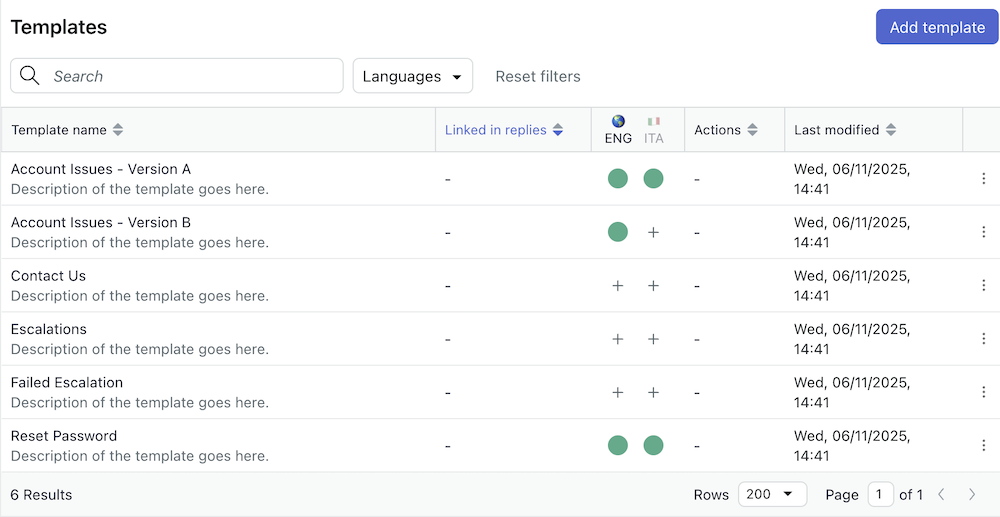
- Template name and description.
- Linked in replies: Replies that link to the template.
- Languages: Status of dialogue for each active language.
- Actions: Number of actions applied within the template’s dialogue.
- Last modified: When the template was last changed.
 ) in each row to access the following actions:
- View information: View and update the template name and description.
- Copy to another AI agent: Share the template across AI agents within your organization.
- Delete: Remove the template, after deleting any links to it from replies.
Copying a reply to a new template
You can copy an existing dialogue and save it as a new template. Some reasons to do this are to create a backup of the dialogue, to make edits to it in draft form, or to save it for later reuse.
To copy a reply to a new template
- In the AI agents workspace, select the AI agent you want to work with.
- Click
Content in the sidebar, then select Use cases.
- Select the use case that contains the reply you want to copy.
- Select the Replies tab.
- Click the edit dialogue icon (
 ) for the reply you want to copy.
The dialogue builder opens.
- Click the options menu icon () in the upper-right corner, then select Copy to a
new Template.
- Enter a template name and optional description, then click Create template from
dialogue.
The dialogue is saved as a template.
Replacing a dialogue with a template
After you create a template reply dialogue, you can swap it into an existing reply in any AI agent you manage. One reason to do this is to edit and test a new dialogue for an active reply, and swap it with the old dialogue when ready.
To replace a dialogue in a reply with a template
- In the AI agents workspace, select the AI agent you want to work with.
- Click
Content in the sidebar, then select Use cases.
- Select the use case that contains the reply you want to use the template for.
- Select the Replies tab.
- Click the edit dialogue icon () for the reply with dialogue you want to
replace.
The dialogue builder opens.
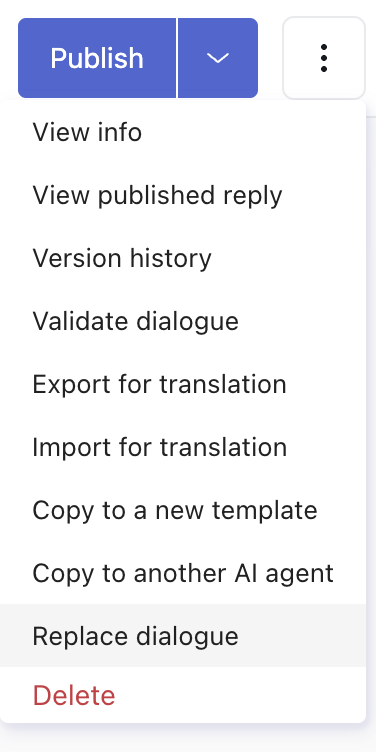
- Click the options menu icon () in the upper-right corner, then select Replace
dialogue.
- Select the template dialogue you want to use.
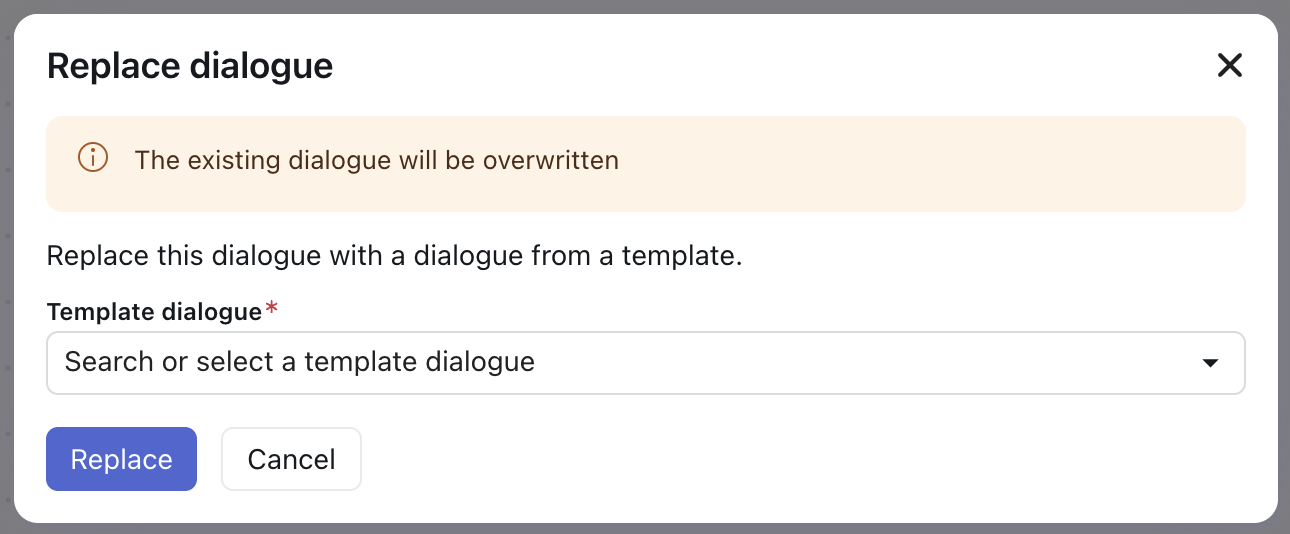
- Click Replace to simultaneously replace the dialogue and save the reply.
Grouping replies under a template
You can group each language reply under one template.
To group replies under a template
- In the reply you want to add to a template, open the dialogue builder.
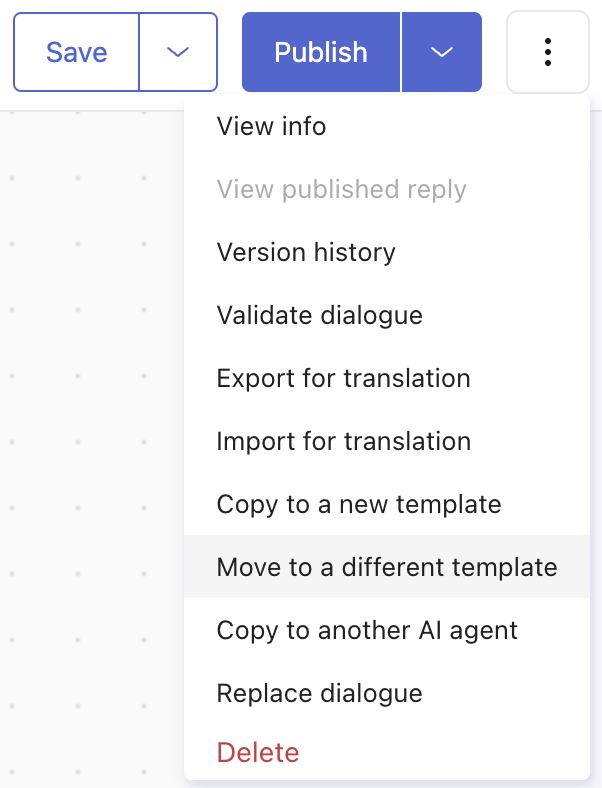
- Click the options menu () in the upper-right corner, then select Move to
a different template.
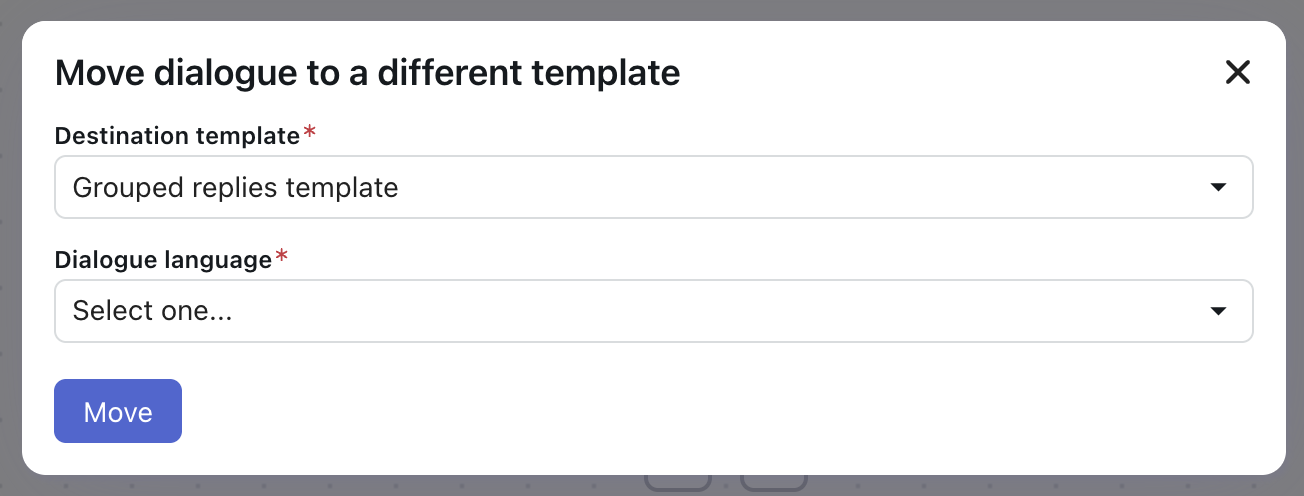
- Select the template where you'd like to move the reply, then select the language to
associate it with.
You can have only one template reply per language.
When you finish, you can delete the template that no longer has a reply associated, if needed.
Changing the language for a template reply
As with other replies, you can change the language for a template reply.
To change a reply language
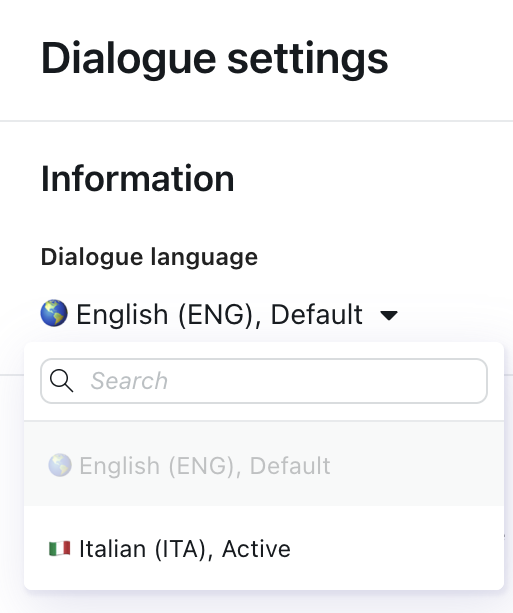
- In the dialogue builder, click the options menu icon
() in the upper-right corner, then select View
info.
The Dialogue settings pane appears.
- Under Dialogue language, select the language you want to use.
- Click Save to save the new language selection.
Deleting replies and templates
You can delete a reply associated with a template or you can delete a full template.
Deleting a reply in a template
You can delete a reply associated with a template. You cannot delete a template reply if another reply links to it.
To delete a template
- In the dialogue builder for the reply you want to
delete, click the options menu icon () in the upper-right corner, then select
Delete.
Deleting a template
You can delete a template if you no longer need it. You cannot delete a template reply if another reply links to it.
To delete a template
- In the AI agents workspace, select the AI agent you want to work with.
- Click
Content in the sidebar, then select Templates.
- Click the options menu icon () beside the template you want to delete, then
select Delete.
- When asked to confirm, click Delete.
Reviewing replies linking to a template
You can review a list of replies linking to a template to understand where a template is being used. Do this from the template details or from the dialogue settings.
- In the AI agents workspace, select the AI agent you want to work with.
- Click
Content in the sidebar, then select Templates.
- Review the Linked in replies column to view the number of times this template
is being used.

- Click the row of the template you want to review.
The Template details page opens with a list of replies that link to the template.
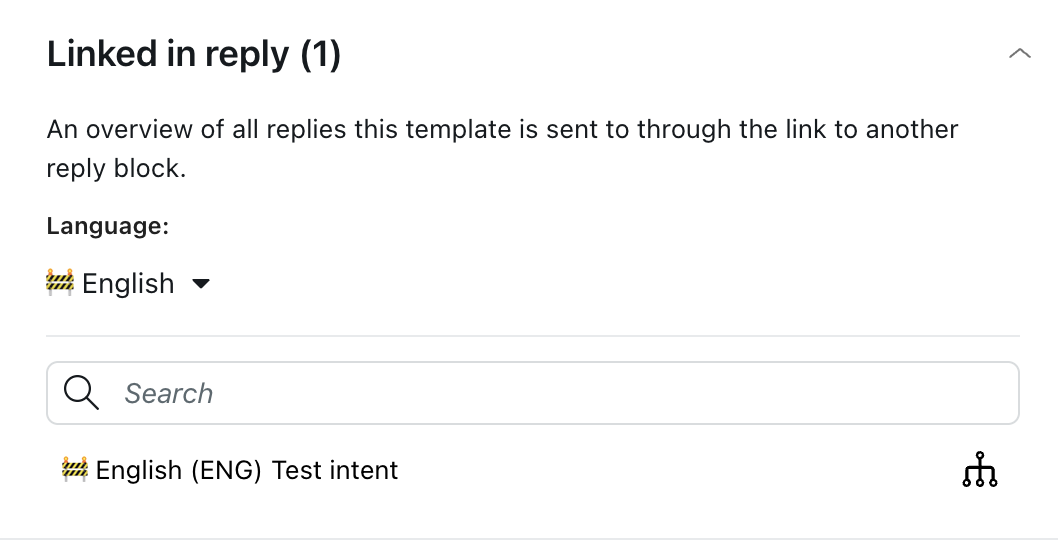
- Click the open dialogue icon () to navigate to the reply.
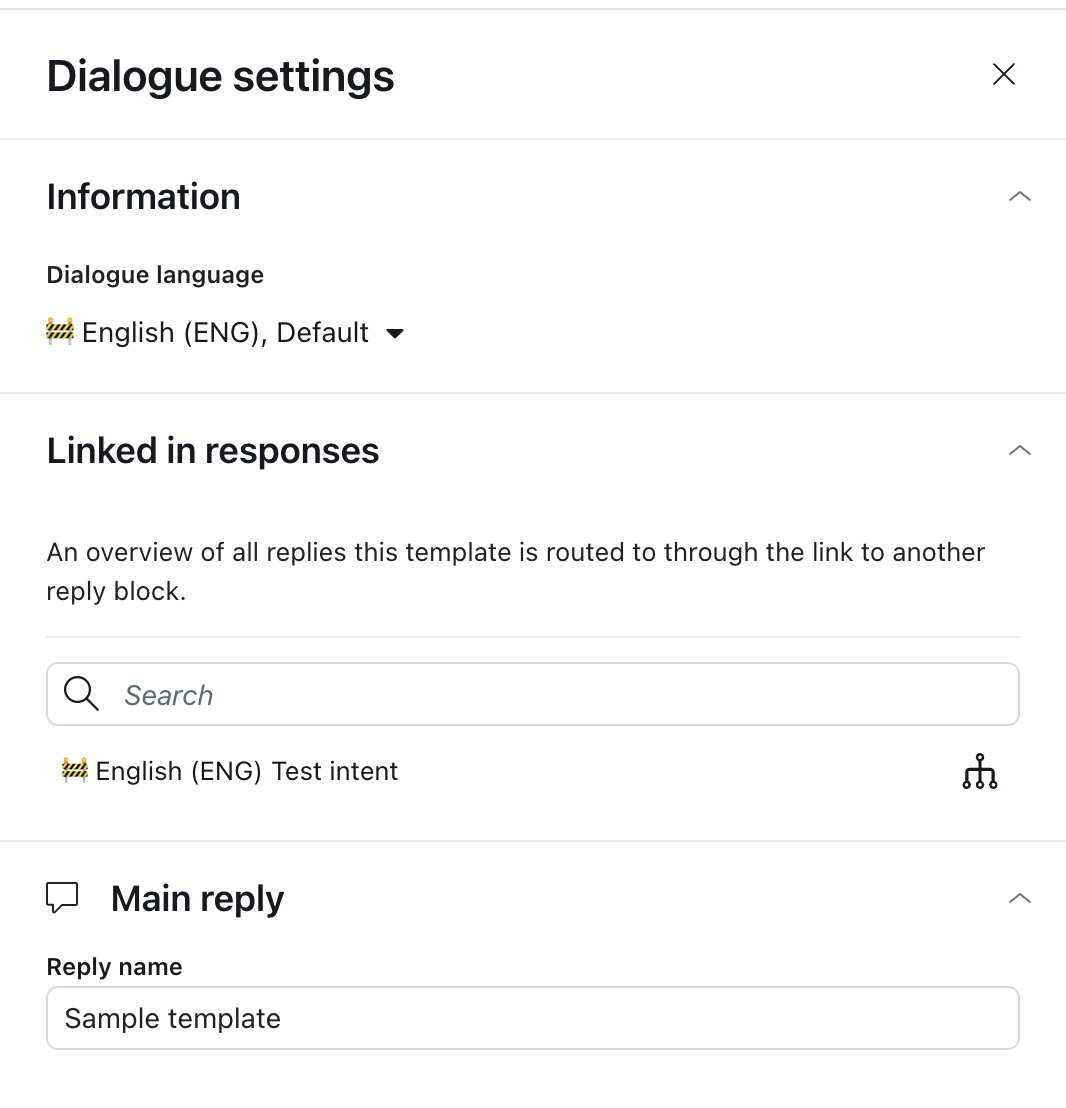
To view where a template is used in dialogue settings
- In a reply, click Edit dialogue to open the dialogue builder.
- Click the options menu icon () in the upper-right corner, then select View
info.
- In the settings pane on the right, under Linked in responses, review the replies this
template is routed to through the link to block.