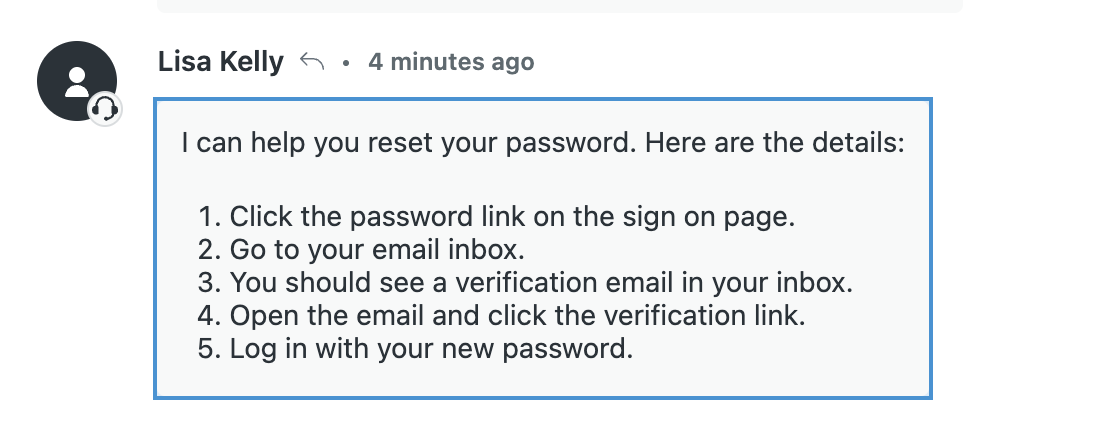
As an agent, you often need to reference a specific update, decision, or customer reply in a long ticket conversation. You can create links to connect directly to specific comments within a ticket and share it with others. Comment links make it easier to share the exact context with teammates, collaborate on complex requests, and reduce the time spent searching through ticket histories.
This article contains the following sections:
Related articles:
About ticket comment links
Using a Copy link option within a ticket, you can copy a direct link to a specific ticket comment and share it with others. When someone clicks the link, the link opens the ticket, navigates to the referenced comment, and highlights it for easy reference.
Typical uses for sharing comment links include:
- References from one ticket to another
- Links shared within the same ticket conversation
- Slack or other internal messaging tools
- Emails
- Documentation tools such as Google Docs
- Internal notes or collaboration workflows
Comment links follow Zendesk’s existing ticket access permissions:
- Users can access a linked comment only if they have permission to access the ticket.
- Sharing a link does not grant additional access to a ticket or its comments.
- If a linked comment has been deleted or is no longer available, Zendesk will handle the link without exposing unavailable content.
The Copy link option is available for comments in:
- Tickets from all channels, except Chat.
- Tickets that aren't archived.
- Tickets created on or after January 1, 2026
Creating and sharing ticket comment links
To share ticket comments links, you can copy the link directly from a ticket comment and paste the link into another document, another ticket, or another location within the same ticket.
To create and share a comment link
- In a ticket, locate the comment you want to share.
- Click the options menu icon (
 ) next to the
comment.
) next to the
comment.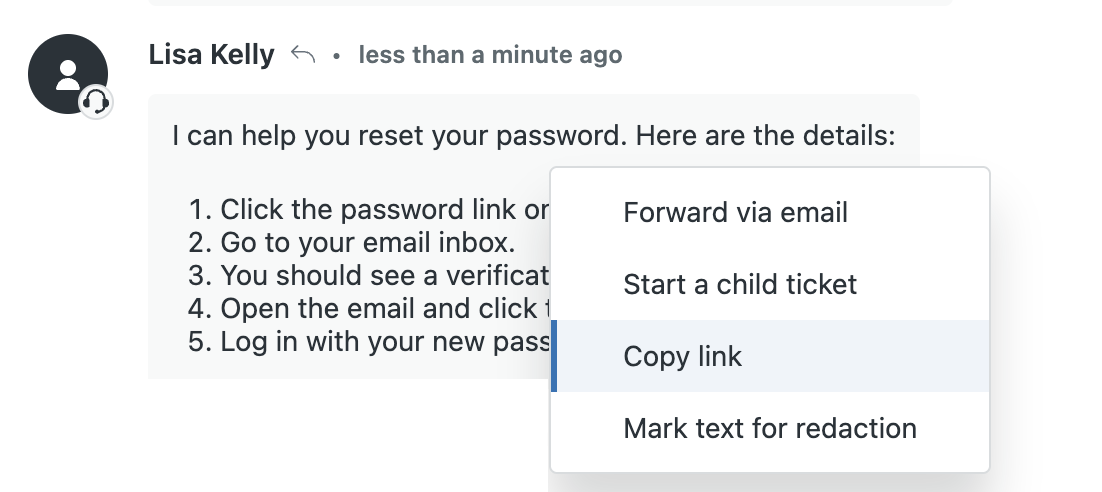
- Select Copy link from the options menu.
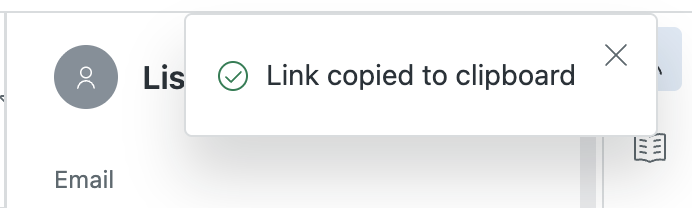
The comment link is copied to your clipboard and you’ll see a confirmation message.
- Paste the link into another location, wherever you
want to include the ticket comment link.
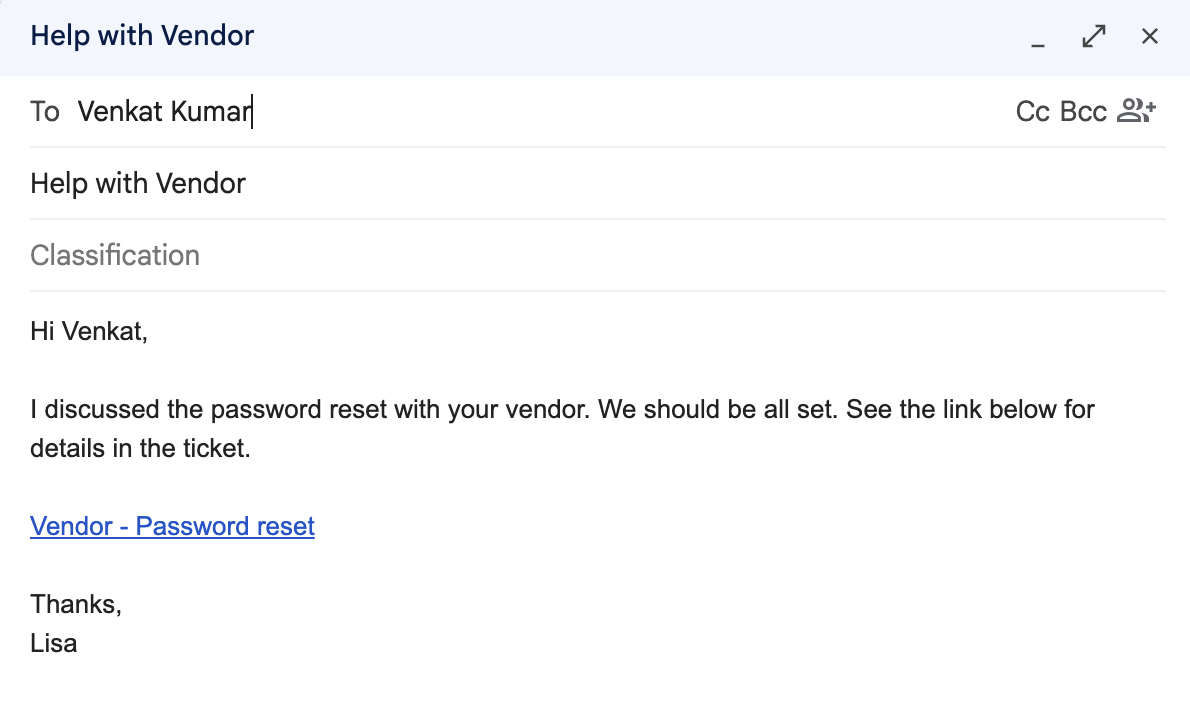
- Click the comment link.
The link opens the associated ticket in Support, scrolls to the referenced comment, and highlights it.