Summary: ◀▼
You can answer incoming browser-based calls from the call console, which creates a ticket and starts recording when you accept. You can also change the ringtone device for incoming calls, like a headset, and adjust the call ringtone and volume in your profile while Away or Offline.
If you're in Zendesk, online, and receive a call, the call console appears in the upper-right corner of the Agent Workspace. In this article, you'll learn how to receive a call and change ringtone settings for incoming browser-based calls.
Accepting a call
When a call is received, the call console appears in the Agent Workspace. You'll also hear a ringtone sound. You can also get notifications on your desktop, see Can I enable browser notifications for incoming voice calls?
To take the call
- In Support, click Accept on the
call console.

If you don't answer within 30 seconds or decline the call, it's placed back in the queue to wait for the next available agent.
Note: On Enterprise plans, your admin might have changed this to a value other than 30 seconds.When you accept the call, the call console begins recording the call and a ticket is created. If an end user has previously called and already has a profile in your Zendesk Support, you will be able to see their name and organization in addition to the information shown in the image above. See Understanding how calls become tickets.
Changing the ringtone device
You can change the device used to play the ringtone for incoming browser-based calls. For example, you might want to play the ringtone on a Bluetooth headset so that that agents can step away from their desks without missing a call.
To change the ringtone device
-
In Support, click the Voice
icon (
 ) in the top bar.
 - In the call console, click the Ringtone speakers icon (
 ). A list of audio
devices connected to your computer are displayed.
). A list of audio
devices connected to your computer are displayed.
With omnichannel routing Without omnichannel routing 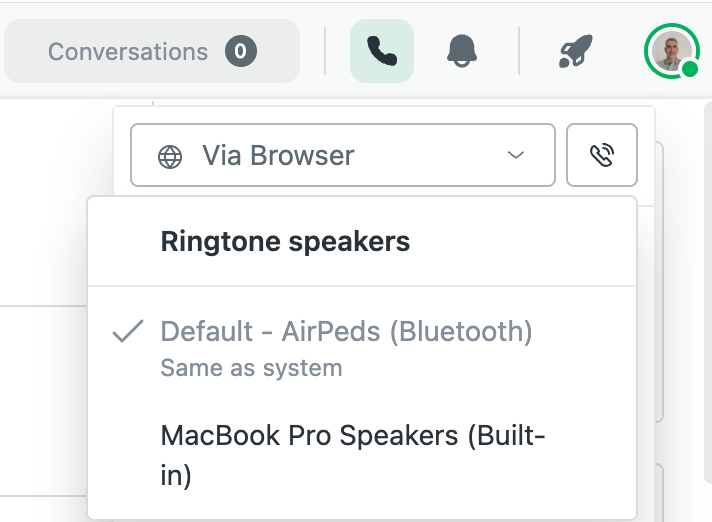
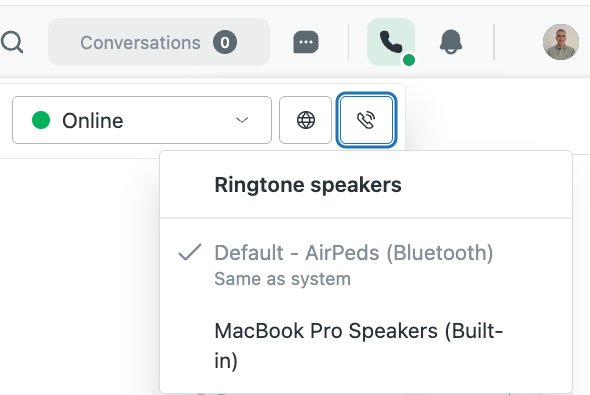
- From the list of devices, select which one will play ringtones for incoming calls.
The ringtone for all calls will now play on the device you selected.
Changing the ringtone
To change your ringtone
- In Support, click your profile photo in the top-right corner, and then select Manage profile.
- Next to Call ringtone, select a ringtone.
Click the play icon to hear the ringtone.
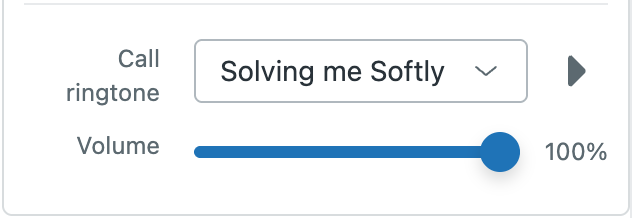
- Set the volume of the ringtone.The ringtone volume can be adjusted but not muted. The volume control affects only the incoming call tone, not the outbound one.Tip: If the ringtone volume is still too low at the maximum setting, increase your system volume.