To help you manage conversations in the Zendesk Agent Workspace, this topic describes some of the interactions that occur when messaging, live chat, and voice conversations are managed from a Support ticket. It also describes how to use the conversation header to view useful information about the ticket. For more information about the workspace, refer to About the Zendesk Agent Workspace.
Related topics
Working with messaging and live chat conversations
The following table describes events and tools for working with a messaging or live chat conversation:
| Event | What it looks like |
|---|---|
|
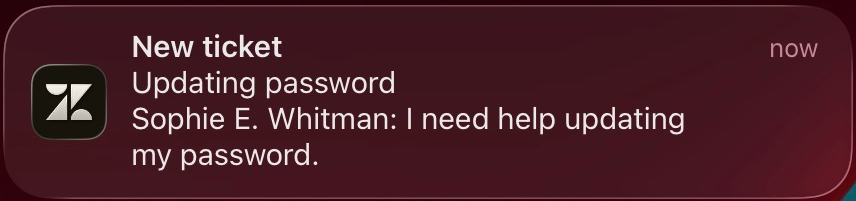
Browser notifications Zendesk recommends turning on browser notifications from your Zendesk site, so you can see conversation notifications when they come in. See your browser documentation for details. |
 |
|
Active conversations tab Appears in the left-most tab for easy visibility while working with tickets. |
 |
|
Accept button Appears on the upper right when a new end user initiates a conversation. This button is not used if automatic conversation acceptance is turned on. |
 |
Conversation highlighting
|

|
|
Conversation tab update A count of unread comments in a conversation is added to the conversation tab. |
 |
|
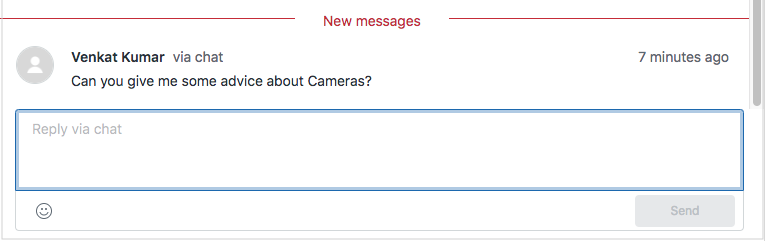
New messages marker A New messages marker appears in the conversation above unread messages to help you quickly locate them. |
 |
|
Ending a conversation If allowed, you or the end user can end a messaging conversation without closing the ticket or updating its status. Once ended, communication through that channel stops, but you can still send ticket updates via email notifications, public replies, and internal notes. |
 |
|
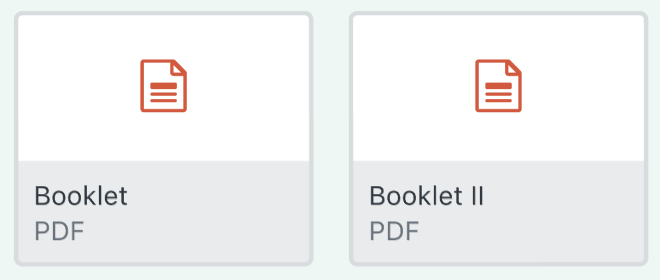
Attachments Both agents and end users can include attachments if the feature is part of the messaging configuration. Attachments are scanned for malware before sending and can also be sent as an email reply after the conversation ends. |
 |

Working with calls in conversations
The following table describes events and tools for working with calls in a conversation:
| Event | What it looks like |
|---|---|
|
Browser notifications Zendesk recommends turning on browser notifications from your Zendesk site, so you can see call notifications when they come in. See your browser documentation for details. |
 |
|
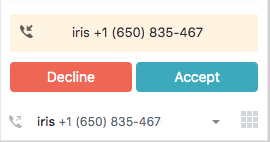
Incoming calls When a new call comes in, the call console opens with Decline and Accept buttons. |
 |
|
In-progress call While the call is in progress, a new ticket is created and an active call bar appears at the top of the ticket. |
 |
|
Call management You can use the status bar to manage in-progress calls |
 Place the call
on-hold. Place the call
on-hold.
|
|
Ending a call without ticket update You can end a call without closing the ticket or updating the ticket status. When you end the call, the ticket is automatically updated with call details, and if configured, a recording of the call. After a call has ended, you can send updates to the ticket as email notifications and you can include public replies, internal notes, send attachments, and so on. |
 |
 Place yourself on
mute.
Place yourself on
mute. Transfer the call to
another agent.
Transfer the call to
another agent. End the
call.
End the
call.Understanding the conversation header
The following table describes useful information you can find in the header at the top of a conversation:
| Description | Example or icon |
|---|---|
|
Default header The header shows your conversation type and status. |
 |
|
Header with Copilot add-on
If you have Copilot , you might also see information in the conversation header (or immediately below the header) showing the ticket intent or summary. |
 |
|
Filter by conversation type Click the icon to filter by conversation type. Choices are All, Public messages, and Internal notes. If a conversation only includes public messages or internal notes, the filter icon doesn't appear. |
 |
|
Events Click the icon to toggle between ticket conversations and events. |
 |
|
SLA target status If an SLA target status appears, it displays information about the Service Level Agreement associated with the ticket. Hover over the rule to show the date by which the ticket must be solved. |
 |
|
Options menu The header may also include an options menu to select additional actions you can take. Available options can vary by channel type. |
 |