You can print a printer-friendly version of any ticket. You can print individual tickets only; there is no bulk printing option. If your Zendesk plan includes side conversations, you can also print side conversations from any channel.
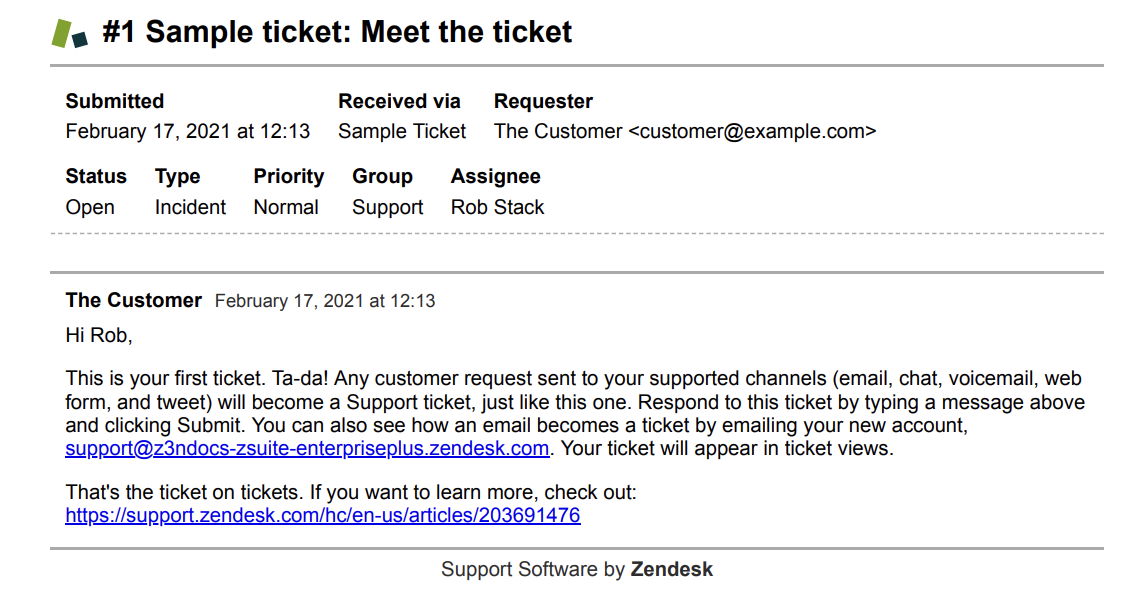
To print a ticket
- Open the ticket that you want to print.
-
Click the Ticket options menu in the upper right, then select
Print
ticket.

A printer-friendly version of the ticket opens.
-
Click Print.
A version of the ticket prints, showing all ticket fields that have values. Fields that do not have values are not printed.
Note: If you've re-ordered ticket fields in Admin Center, see What order are ticket fields displayed on the printer-friendly version of a ticket?.
To print a side conversation (plans that include side conversations only)
-
In a ticket, open the
context panel
and click
the Side conversations (
 )
icon.
)
icon.
- Click a side conversation to open it.
-
Click the options menu in the upper right, then select
Print.

A printer-friendly version of the side conversation opens.

- Click Print.