Verified AI summary ◀▼
You can print individual tickets to create a printer-friendly version for easy reading. While bulk printing isn't available, you can include internal notes, side conversations, and ticket priority in your printout. For lengthy tickets, consider using the Ticket Comments API for efficiency. To print side conversations separately, access them through the context panel and select the print option.
You can create a printer-friendly version of any ticket. You can print individual tickets only – there is no bulk printing option. If your Zendesk plan includes side conversations, you can include them on the printed ticket, or print them separately.
Note that this feature was designed to create printouts of tickets to be read by humans. If you are printing very lengthy tickets, the Ticket Comments API endpoint or Side Conversations API endpoint is a more efficient way to collect and archive those ticket comments. While there is no specific limit on printing tickets using the method described in this article, timeouts may occur when printing tickets with excessive ticket comments, high character count, or with the inclusion of side conversations.
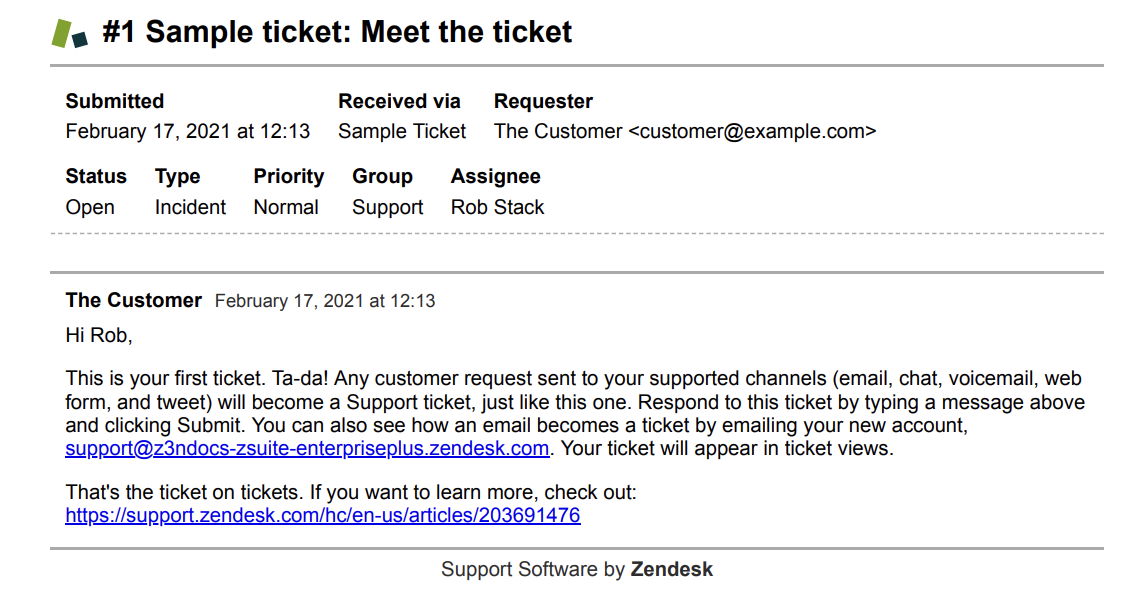
To print a ticket
- Open the ticket that you want to print.
- Click the Ticket options menu in the upper right, then select Print
ticket.

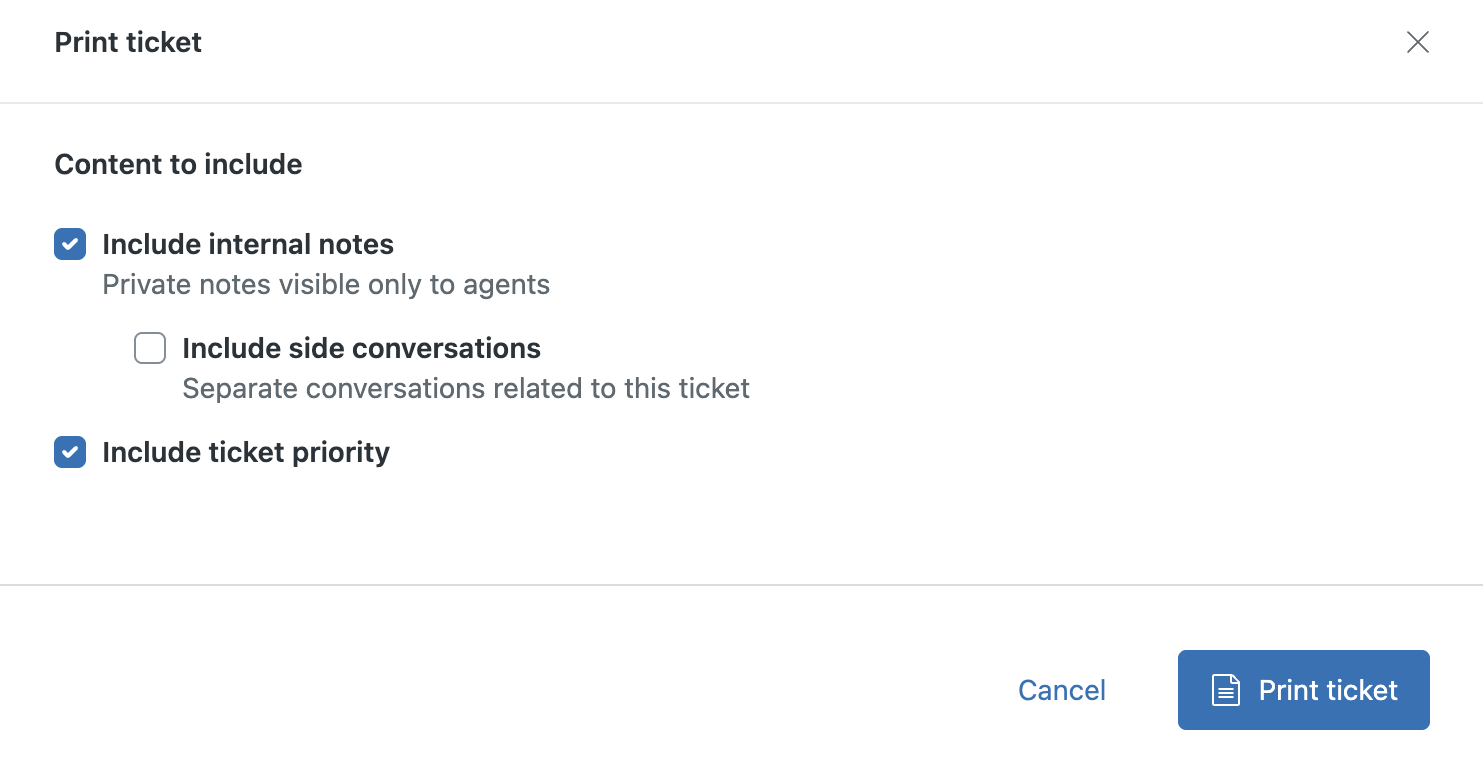
- Select the content you want to include.
-
Include internal notes displays private, agent-only
notes on the printout.
- Include side conversations (Suite Professional and above) displays all related side conversations on the printout.
- Include ticket priority displays the ticket's priority status on the printout.
-
Include internal notes displays private, agent-only
notes on the printout.
- Click Print ticket.
A version of the ticket prints, showing all ticket fields that have values. Fields that do not have values are not printed.
Ticket fields in the print preview might not appear in the same order as they are in the ticket form in Support. The print preview uses the order of ticket fields on the Ticket fields page. If you re-order ticket fields, they won't display them in the new order in the print preview. To change the order of ticket fields on the printer-friendly version of tickets, reorder fields on the Ticket fields page.
- In a ticket, open the context panel and click
the Side conversations (
 ) icon.
 - Click a side conversation to open it.
- Click the options menu in the upper right, then select
Print.

A printer-friendly version of the side conversation opens.

- Click Print.