Summary: ◀▼
Shift trades let agents swap shifts for the same or different days, helping maintain coverage and reduce manager workload. You can enable shift trades, require manager approval, and view pending or closed trade requests by team or agent. Agents can track their trade requests and schedules, ensuring clear communication and efficient shift management within your team.
In Zendesk Workforce management (WFM), shift trades provide an efficient way for agents to trade their shifts and manage their time.
Giving agents the freedom to quickly and efficiently swap shifts ensures adequate coverage and frees up managers' time.
This article contains the following sections:
Turning on shift trades
Shift trades must be activated in Zendesk WFM before agents can request them.
To turn on shift trades
- In Workforce management, click
 Scheduling in the sidebar, then select Shift trades.
 - Click Turn on shift trades.

- A manager's approval is required by default. Click Save.

Understanding shift trades
Agents can request shift trades for the same day or for different days.
For a same-day shift trade, agents swap their shifts one-to-one. Both shifts on that day are exchanged and appear on their schedules as soon as a manager approves the trade. For example, agent A has a shift on the 25th of the month, and agent B has a shift on the same day. Agent A wants to trade their shift on the 25th. Agent B agrees to the trade if agent A works their shift that day. Both agents submit the shift trade, and their manager approves it. The shifts then become official and appear in the agents' schedules.
For a different-day shift trade, as soon as a manager approves the trade, the original shifts are removed because the platform doesn’t assume work is planned for those agents anymore. For example, agent A has a shift on the 25th of the month, and agent B has a shift on the 31st. Agent A wants to trade their shift on the 25th. Agent B agrees to work the shift on the 25th if agent A works their shift on the 31st. The agents submit shift trade requests, and their manager approves them. Now, agent A doesn’t have a shift on the 25th because Agent B is working that day. Agent B doesn’t have a shift on the 31st because agent A is working that day. See Trading shifts with other agents.
Viewing agent's shift trade requests
You can view pending and closed shift trade requests by team or agent. Closed shift trade requests are requests that have already been approved, denied, canceled, or expired.
-
In Workforce management, click
Scheduling in the sidebar, then select Shift trades.
By default, pending shift trade requests are displayed.
- (Optional) Select a team from the left sidebar to view that teams' shift trade requests.
- To view a specific agent's shift trade requests, select the agent from the sidebar. You can also search for agents by name or email.
- To view approved, denied, canceled, and expired shift trade requests for a team or
specific agent, click Closed.
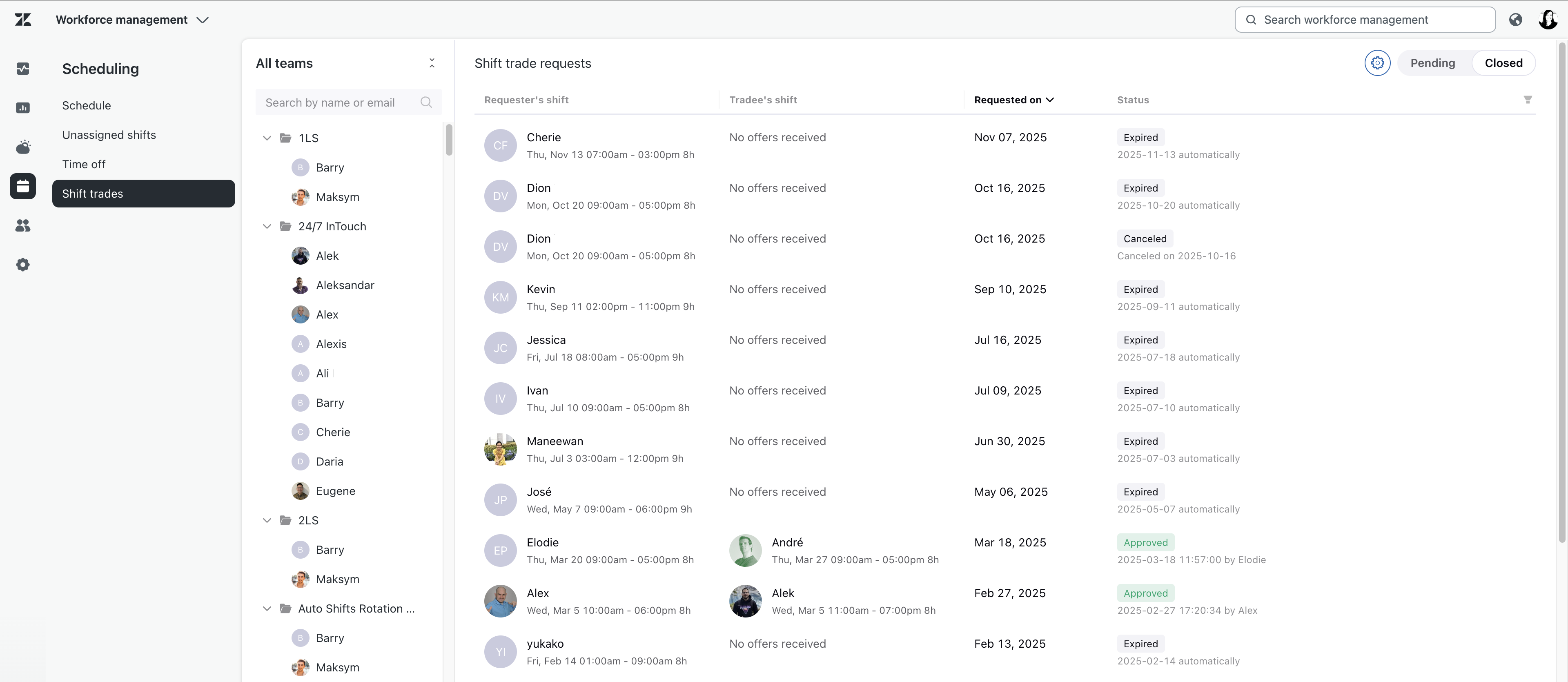
You can see who approved or denied the requests in the Status column.