Summary: ◀▼
Coaching sessions help you identify agents needing support and plan targeted coaching to improve performance. You can structure sessions with templates, pins, and notes, track feedback review, and monitor impact on quality scores. Sessions are private but shareable for collaboration. The overview page shows all sessions, including completed, upcoming, and overdue, helping you manage coaching progress effectively.
Coaching capabilities in Zendesk QA help you identify agents who need support, and plan targeted coaching sessions to enhance their performance. These capabilities also allow you to visualize and understand the impact of your coaching efforts, making feedback more meaningful and sessions more effective.
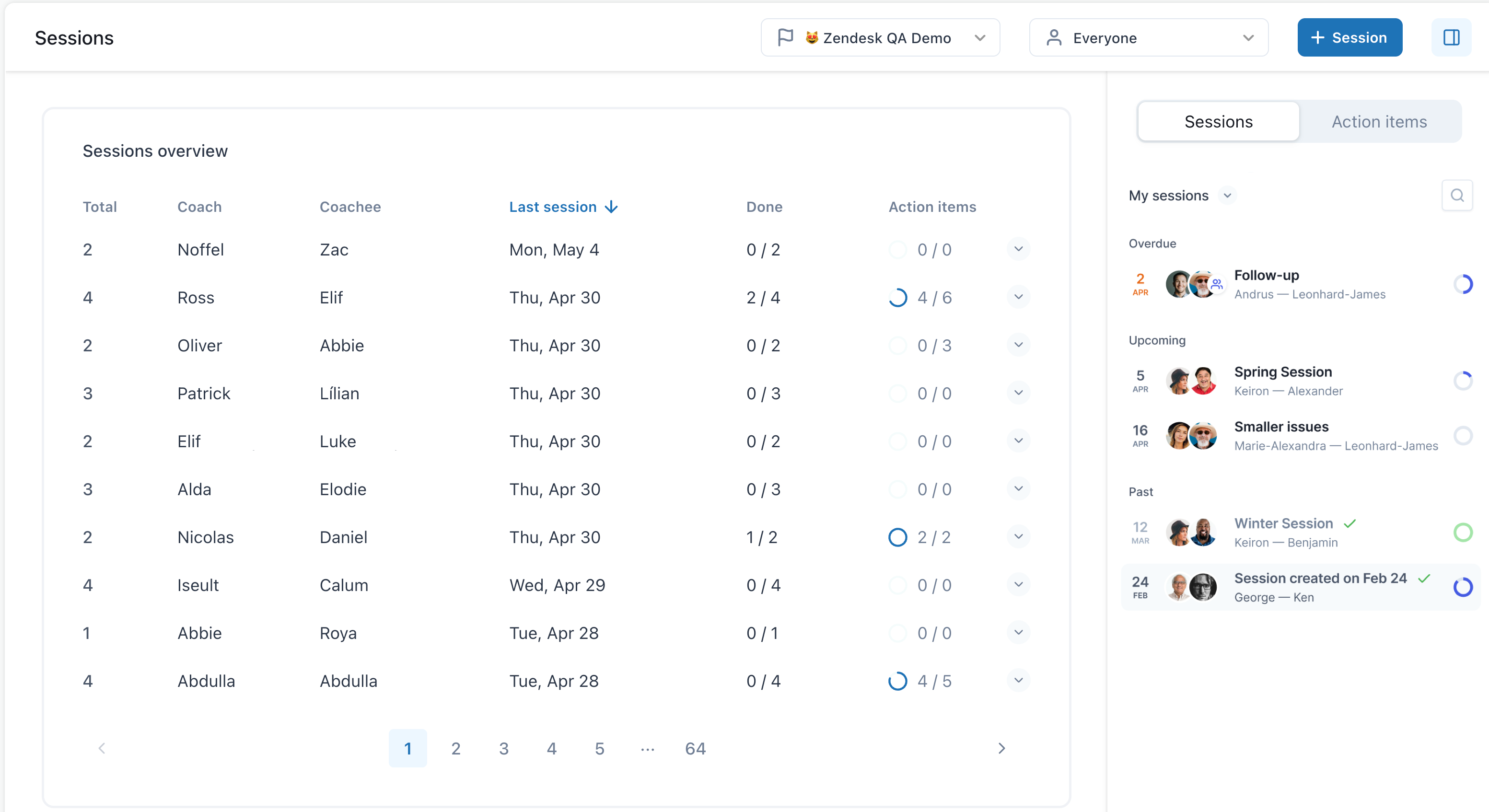
The Sessions page provides an overview of all coaching sessions and performance progress for a selected workspace, user, or multiple users. You can track when coaching sessions occurred and whether agents have reviewed the feedback they received. Additionally, you can see how coaching sessions have impacted your Internal Quality Score (IQS).
You can learn more in this article or by watching this overview video.
This article contains the following topics:
Related articles
Setting up coaching sessions
Prepare and conduct coaching sessions using comment templates and talking points to structure the discussion and provide context for the topics addressed. Pin conversations whenever you identify trends or topics to discuss in your next one-on-one session. During the coaching session, take notes and set action items to ensure accountability and track progress. You can also add personal notes that are visible only to you.
To set up a coaching session
- In Quality assurance, click
 Coaching in the sidebar.
 - Click Sessions.
- Click +Session.
- Select the agent you want to coach.
- By default, you're set as the coach. You can optionally select another team member to coach the agent.
- Enter a Session name.
- Select a Date for the session.
- Click Create session.
After your coaching session is created, you can add the following information before, during, and after the session:
- Talking points and notes. You can also use templates to streamline your reviews. See Creating and using templates for reviews in Zendesk QA.
- Pins: Add pinned items as discussion points from the right-hand side panel. See Using pinned notes to coach agents.
- Personal notes: Add notes that are visible only to you.

You can also view the following information related to the agent's performance on the right panel:
-
Metrics:
- IQS score
- Feedback score
- Score per category
- Quiz results
- Feedback: Feedback comments from reviewers.
- Pins: Pins created under the agent's profile
Sessions are private between you and the agent you're coaching. Both of you have the same view, except for any personal notes you add. You can share the coaching session with other users for collaboration or with other managers using the Share button at the top. This allows them to track the session’s progress as well.
Sessions overview
After the session is complete, a record appears on the Sessions overview page, including the reviews completed, upcoming, and overdue.