After you create configured actions to allow AI agents to perform certain tasks during conversations with customers, you can edit, reorder, or delete those actions as needed.
This article contains the following topics:
Related articles:
Editing a configured action
Because configured actions can be reused at multiple levels, easy management is crucial for keeping your actions up to date. When you update a configured action, those updates are applied to every location where the action is used.
Configured actions can be edited from the Configured actions page, or from any place where configured actions can be added.
To edit a configured action
- In the AI agents workspace, select the AI agent you want to work with.
- Click
 Actions in the sidebar, then select Configured actions.
 - Select the configured action you want to edit.
The Action details pane appears. Under References, note the locations where the configured action is currently used. All of these locations will be affected by any updates you make to the action.
- Click Edit action.
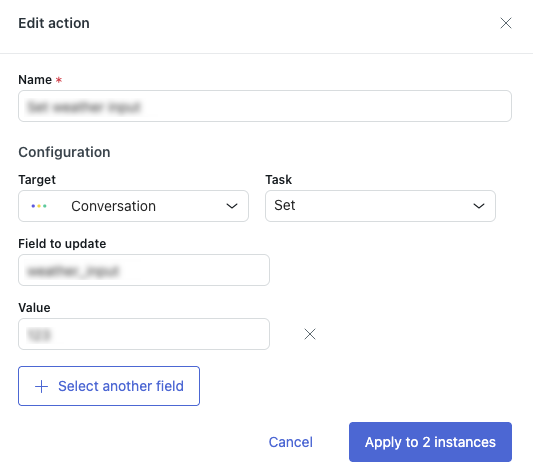
- Update the configured action’s configuration as necessary.
For help filling out the fields, see Creating a configured action.
- Click Apply to # instances.
The number included in the button’s label tells you how many locations will be affected by your changes.
Your changes are applied to the configured action going forward. Any instances of the configured action that were already executed in conversations are not affected.
Reordering configured actions
When you add a configured action at the AI agent, use case, or block level, it's added to the end of the list of actions by default. You can change the order of the actions so they’re performed in the correct order, regardless of the order you added them in.
To reorder a configured action
- Open the configured actions you’ve added at the AI agent, use case, or block level.
- Click the grabber icon (
 ) next to the configured action you
want to reorder, then drag and drop it into another position.
) next to the configured action you
want to reorder, then drag and drop it into another position.
When you reorder configured actions at the:
- AI agent level, your changes are automatically saved.
- Use case level, your changes are automatically saved for AI agents with agentic AI, but must be manually saved for zero-training AI agents.
- Block level, you must manually save your changes.
Deleting a configured action
Deleting a configured action affects all the locations where it’s used. Ensure that you no longer need the configured action anywhere before deleting it.
If a configured action is still needed in some areas but not in others, remove it from the specific locations where it should no longer be triggered instead of deleting it.
To delete a configured action
- In the AI agents workspace, select the AI agent you want to work with.
- Click
Actions in the sidebar, then select Configured actions.
- For the configured action you want to delete, click the options (
 ) menu and select Delete.
The Delete action dialog appears, showing you how many locations the configured action is currently used in.
- Click Delete.