Verified AI summary ◀▼
Configure agent statuses to streamline status updates between systems. You can set up and map agent statuses in both systems. This mapping allows agents to manage their availability more effectively, ensuring their status is consistent across Amazon Connect and Zendesk.
Zendesk and Amazon Connect allow agents to change their status, for example, from available to offline.
For status changes to sync automatically from Zendesk to Connect, you must configure agent statuses in Amazon Connect and Zendesk, then map Zendesk statuses to the corresponding Amazon Connect statuses.
To configure and map agent statuses
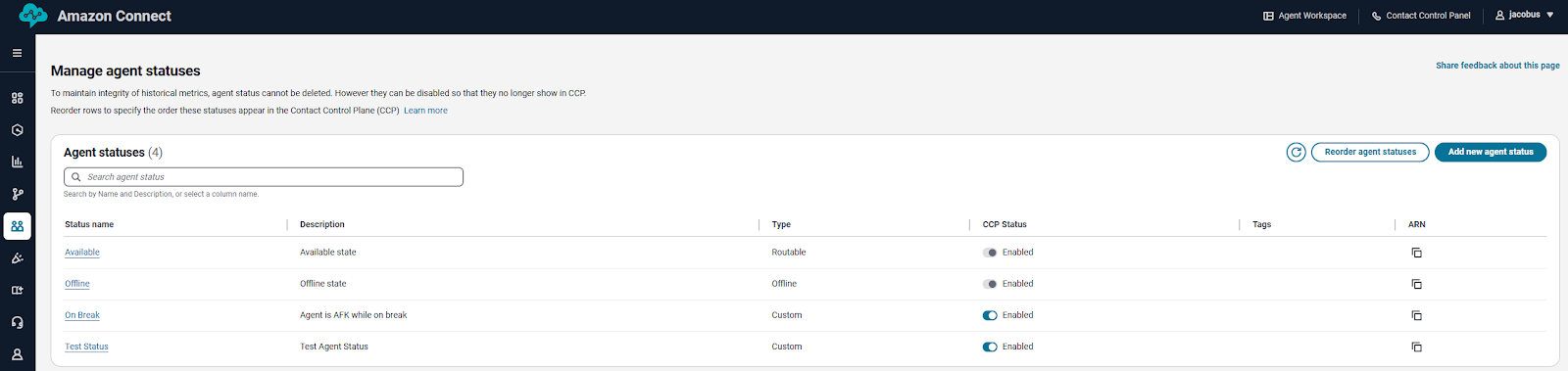
- (Optional) In Amazon Connect, select Users > Agent status > Manage agent statuses.
- (Optional) Set up agent statuses in Amazon Connect.
Amazon Connect comes with two main statuses Available (agent can receive calls) and Offline (agent cannot receive calls). You can add custom statuses, for example Break or Training, but these functionally behave the same as Offline; meaning that agents won’t receive inbound calls while in these statuses.
-
In Zendesk, make sure the voice channel is activated for your account.
-
Ensure no agents have access to Talk. See Activating and deactivating access to product areas.
-
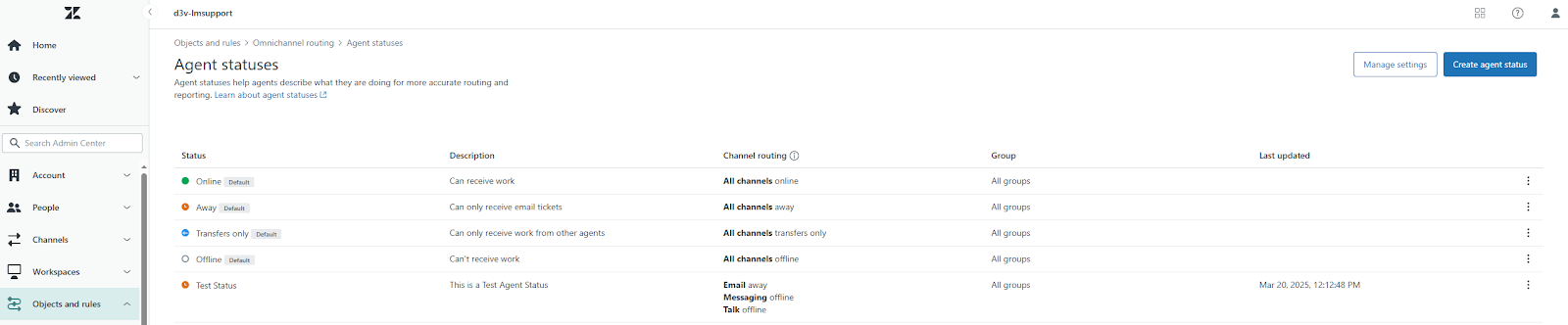
In Admin Center, click
 Objects and rules in the sidebar, then select Omnichannel routing > Agent
statuses.
Objects and rules in the sidebar, then select Omnichannel routing > Agent
statuses.Review your existing agent statuses.
- (Optional) Set up agent statuses. See Creating custom unified agent
statuses.
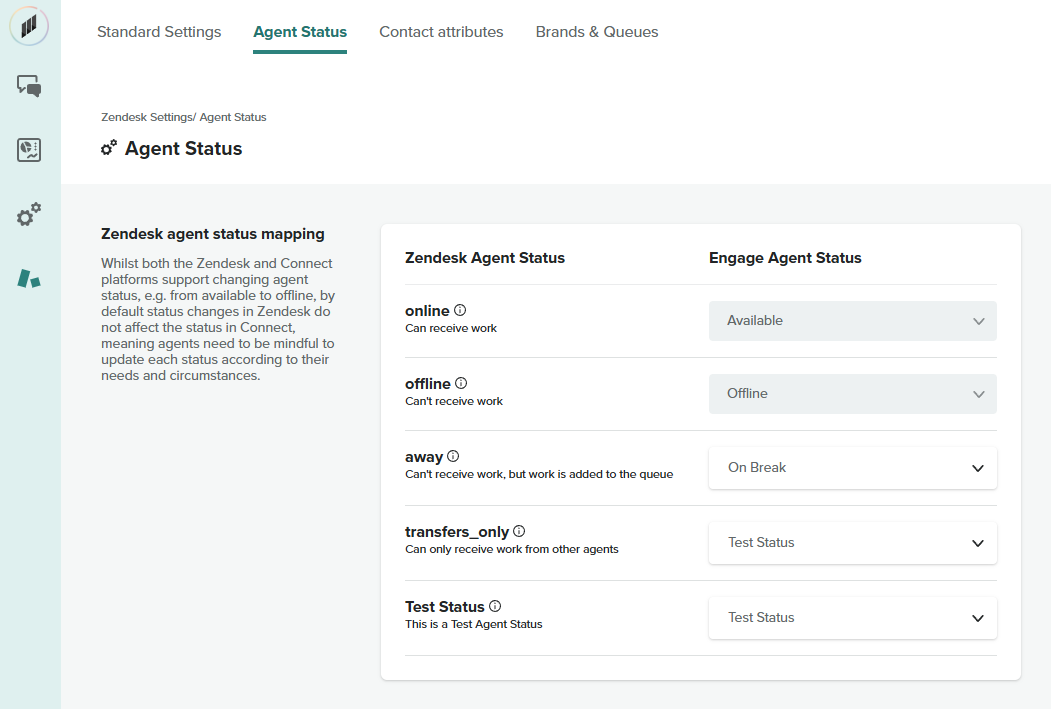
- In the Contact Center app, click Admin settings > Zendesk settings >
Agent Status, then map the Zendesk agent statuses to the Amazon Connect
agent statuses.Important: If you don’t map statuses, changes in Zendesk won’t sync to Amazon Connect.
- Click Save.