Generative search is available by default in standard themes released after March 26, 2025. If your help center uses a customized theme and does not have the {{generative_answers}} helper implemented, you must update your custom theme to add the {{generative_answers}} helper.
Determining eligibility
Eligible accounts can use the theme updater described in this article to automatically update their theme with the generative search helper. Eligibility is determined based on your current theme implementation and other factors.
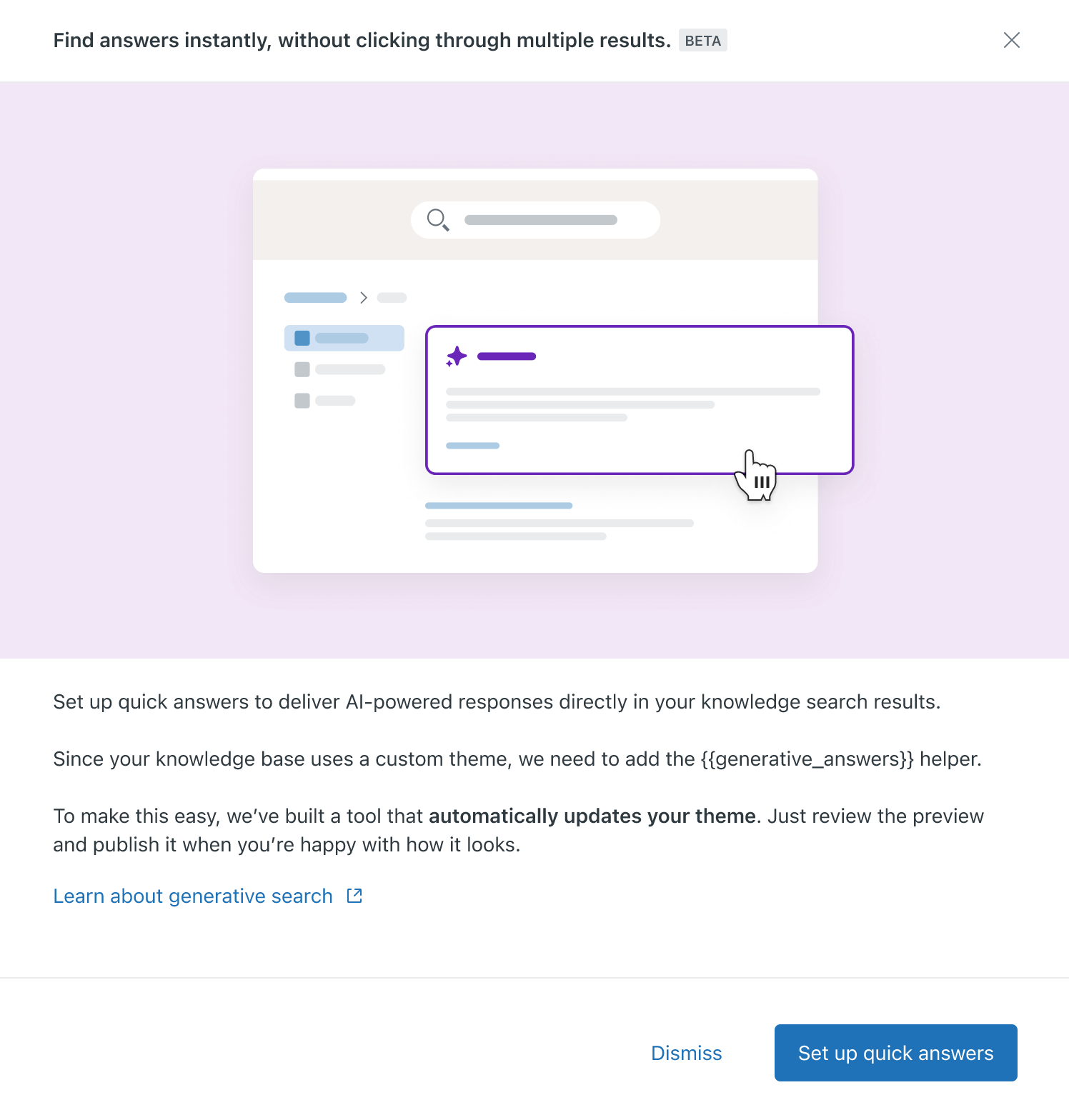
- From the onboarding message that appears in Knowledge admin > Manage
articles > All articles
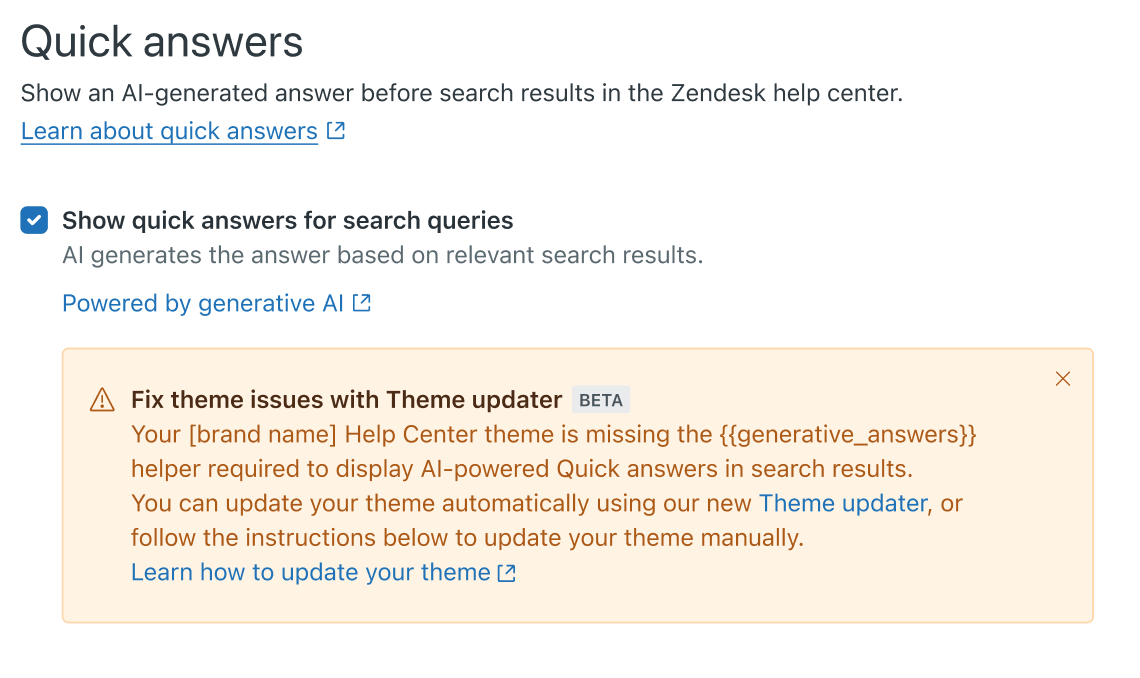
- From the error message that appears in Knowledge admin > Settings >
Search settings > Quick answers (Manage).
If you're not eligible for the theme updater, you can edit your theme to add generative search results to your custom theme.
Updating your help center theme with the {{generative_answers}} helper
You can use the theme updater to insert the {{generative_answers}} helper in the code of your live theme.
After the theme update is complete, it will be automatically published to your help center. If you don't want to use generative search, you can change your search settings to disable the feature in your help center.
- Open the theme updater from the message that appears to eligible users in
one of the following locations:
- In the message that appears in Knowledge admin > Manage articles > All articles, Click Set up quick answers.
- In the message that appears in Knowledge admin > Settings > Search settings > Quick answers (Manage), click Theme updater.
The theme update begins and displays a status message while the update is ongoing.
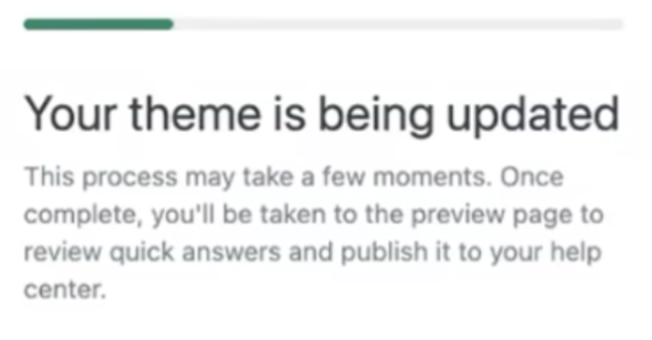
The theme is automatically published and a preview is displayed in the theme preview page.
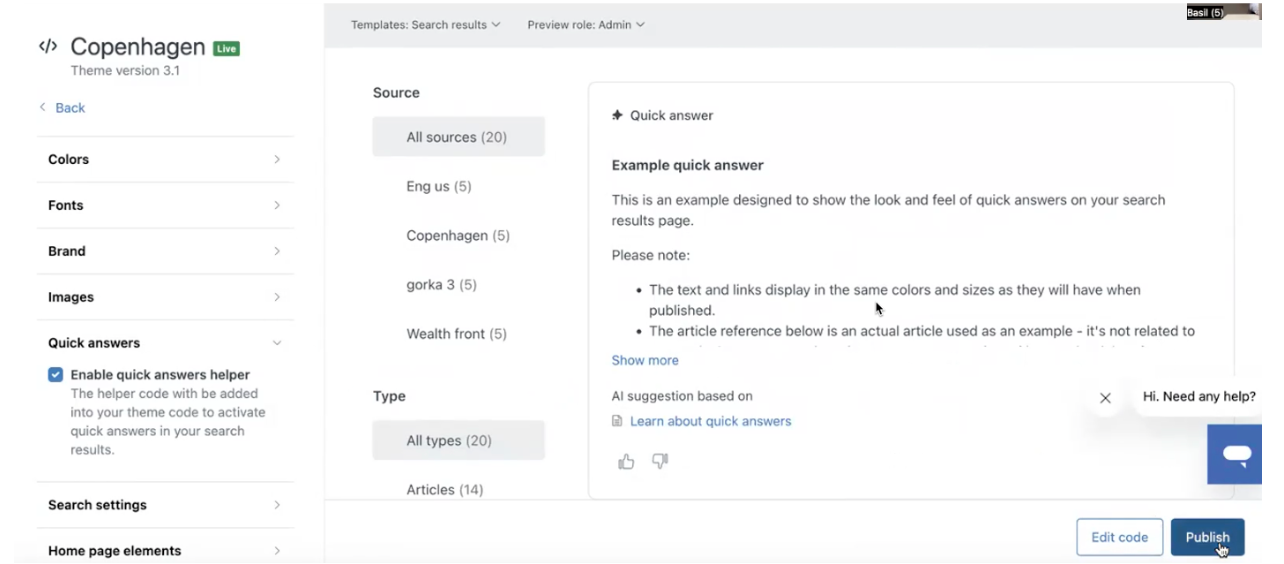
- Review the preview displayed in the theme preview page.
This view shows you what users will see when they perform help center searches with generative search. You can test quick answers with your own queries to see how quick answers will appear to end users before moving on to the next step.
- If you:
- Want to use generative search in your help center as shown, no further action is required.
- Don't want to show generative search results in your help center, you can click the Quick answers settings page link in the onboarding message to go to the search settings page and turn off generative search.