Summary: ◀▼
You can manage help center search settings to control what content appears in search results and how search works. Use search sources, featured articles, quick answers for generative search, crawlers, and search filters to improve search relevance, highlight key articles, and include external content. These settings help admins tune search for users.
Knowledge admins can use the Search settings page to view and manage settings that impact the way in which your help center search functions.
To view and manage search settings
- In Knowledge admin, click the Settings icon
(
 ) in the sidebar, then select Search settings.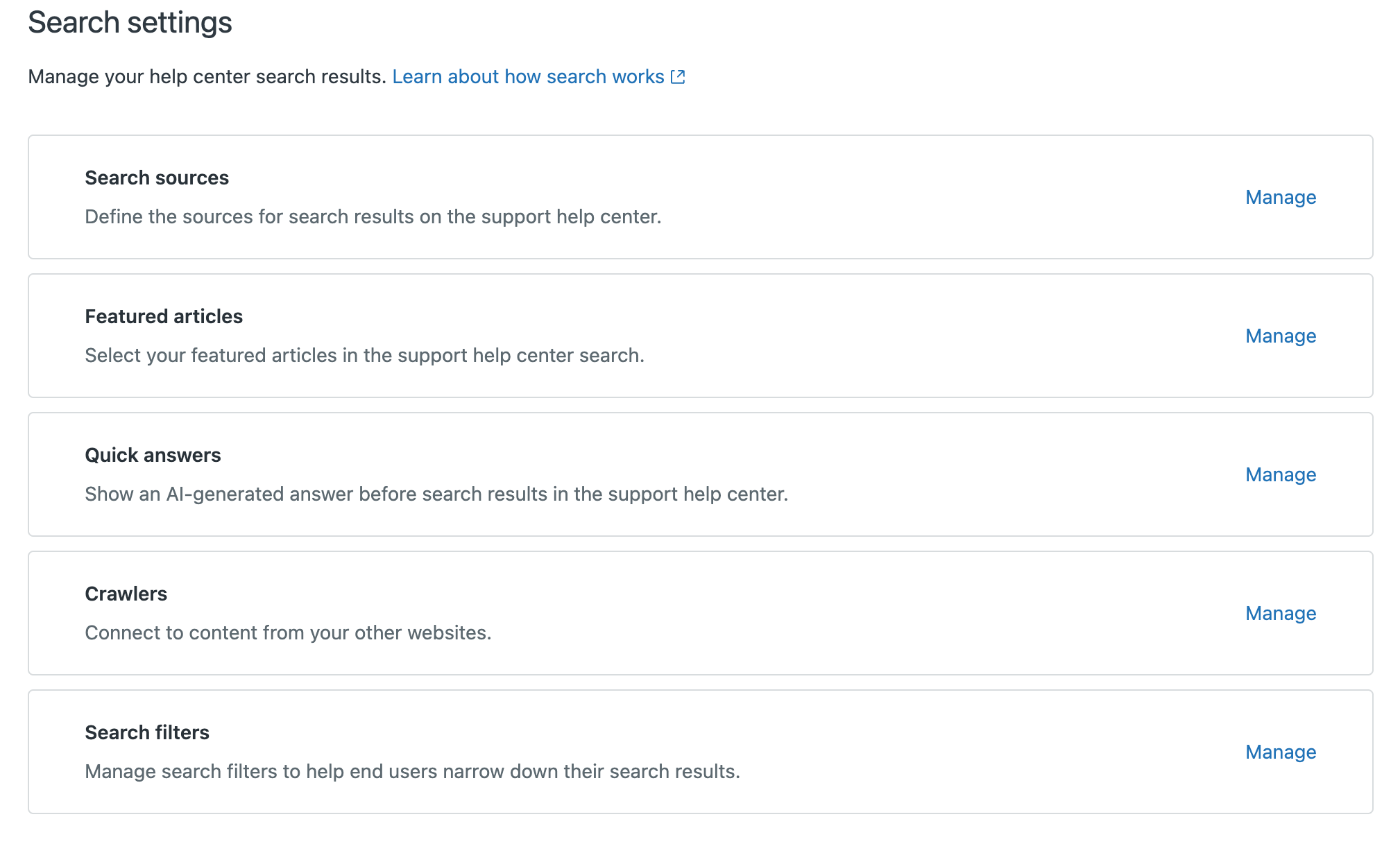
- Click Manage on any search setting to manage that setting:
- Search sources: Define and enable the content sources that you want to include in help center search.
- Featured articles: Specify a list of articles that you want to display to users who are searching in the help center.
-
Quick answers: Turns generative search on or off in your help center. Generative
search is active by default for all plans. To turn this feature off, deselect Show
quick answers for search queries and click Save.

- Crawlers: Set up web crawlers to crawl and index different content within the same domain.
- Search filters: Create sources and types for external content that you want to make available in your help center.
- Use the breadcrumbs to move back up in the hierarchy as needed.
