Verified AI summary ◀▼
Manage support requests directly in Microsoft 365 Copilot. Search help center articles, create, view, and update tickets without switching apps. Use conversational AI to find answers or initiate ticket creation. Track and modify your tickets, adding comments or marking them as solved. This integration streamlines your workflow, keeping everything in one place.
The Zendesk agent for Copilot lets you manage your support requests directly in Microsoft 365. Search help center articles or create, view, and update your tickets without switching applications.
Admins can refer to Setting up the Zendesk agent for Microsoft 365 Copilot for details on setting up the Zendesk agent. For more information on Copilot, see the Microsoft 365 Copilot documentation.
Opening the Zendesk agent
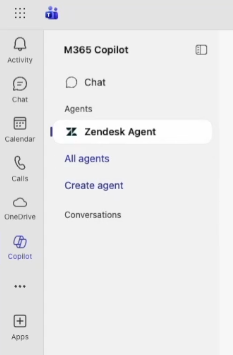
You can find the Zendesk agent in the Microsoft 365 Copilot agents list.
To open the Zendesk agent
- Sign in to your Microsoft 365 account.
- Open Copilot from a Microsoft app such as Teams or Outlook.
- Click Zendesk Agent from the Agents list.
Searching help center articles
If your Zendesk admin has activated help center search for the Zendesk agent, you can search help center articles by typing a phrase or question.
Copilot's AI understands context and intent, allowing for conversational, intuitive interaction. You can use different phrases and commands to find articles, such as "how do I request a software license?" or "time off policy."
To search help center articles
- Open the Zendesk agent.
- In the Copilot chat that appears, type a question or phrase using keywords
related to your inquiry, then press Enter.
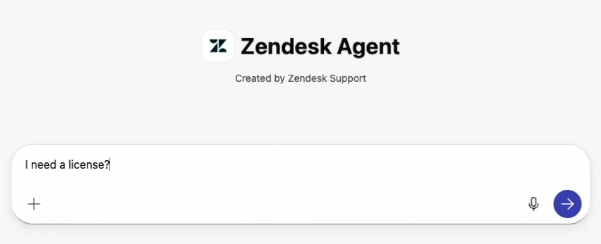
- Review the help center articles recommended by the Zendesk agent.

- If you didn't find an answer, type another question, or create a ticket.
Creating tickets
If your admin has activated ticket creation capabilities for the Zendesk agent, you can create support tickets in Microsoft 365.
To create a ticket
- Open the Zendesk agent.
- In the Copilot chat that appears, type a phrase such as Create a ticket,
then press Enter.
The Create Support Ticket form opens. If you engaged with the Zendesk agent before creating the ticket, the agent prefills the form with details from your conversation.
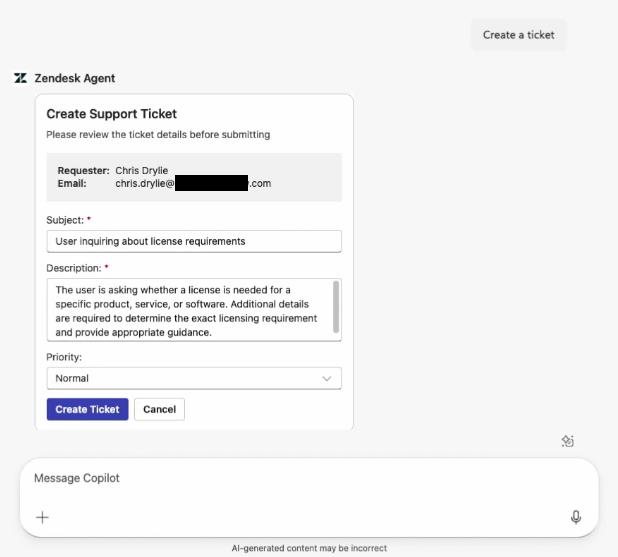
- Update the ticket subject, description, or priority if needed.
- Click Create Ticket.
A success message appears with the ticket information, including the ticket ID.
Viewing and updating your tickets
If your admin has activated features within the Zendesk agent to view and manage your tickets, you can track and update your Support requests in Microsoft 365. You can only view and modify tickets that you have created.
To view and update your tickets
- Open the Zendesk agent.
- In the Copilot chat that appears, type a phrase requesting to see your tickets,
then press Enter.
You can use phrases such as show me my tickets or find ticket ID 57.
The Zendesk agent lists your tickets.
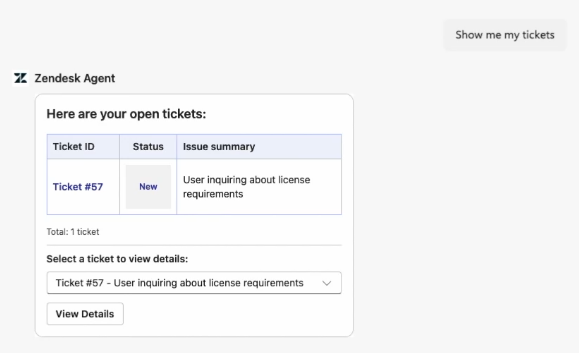
- Click View Details.
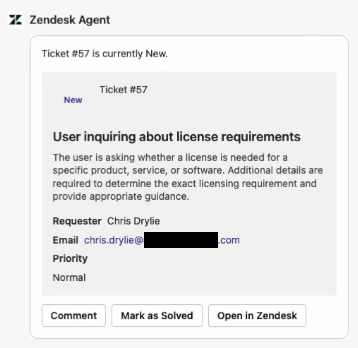
- Click an option to take action on the ticket:
- Comment to add a public comment
- Mark as Solved to solve the ticket
- Open in Zendesk to sign in to Zendesk to view the ticket