Generative procedures are flexible conversation flows that use agentic AI to guide an AI agent's responses and actions during a conversation with a customer. After you create a generative procedure, you can manage it at any time.
This article contains the following topics:
- Editing generative procedures
- Editing the procedure map
- Testing generative procedures
- Viewing and restoring previous versions of generative procedures
- Adding a note to a generative procedure version
Related articles:
Editing generative procedures
You can edit a generative procedure at any time.
To edit a procedure
- In the AI agents workspace, select the AI agent you want to work with.
- Click
 Content in the sidebar, then select Use cases.
 - Click the use case you want to edit the procedure for.
- Under Reply method, make sure the Procedure tab is selected.
- Click Edit procedure.
- Make adjustments to the procedure using the free-text field at the bottom and
click Update procedure.
The timestamp in the upper-right corner is updated to show your username and how long ago you edited the procedure.

- Review the AI-generated procedure map to ensure the logic the AI agent will
follow is appropriate.
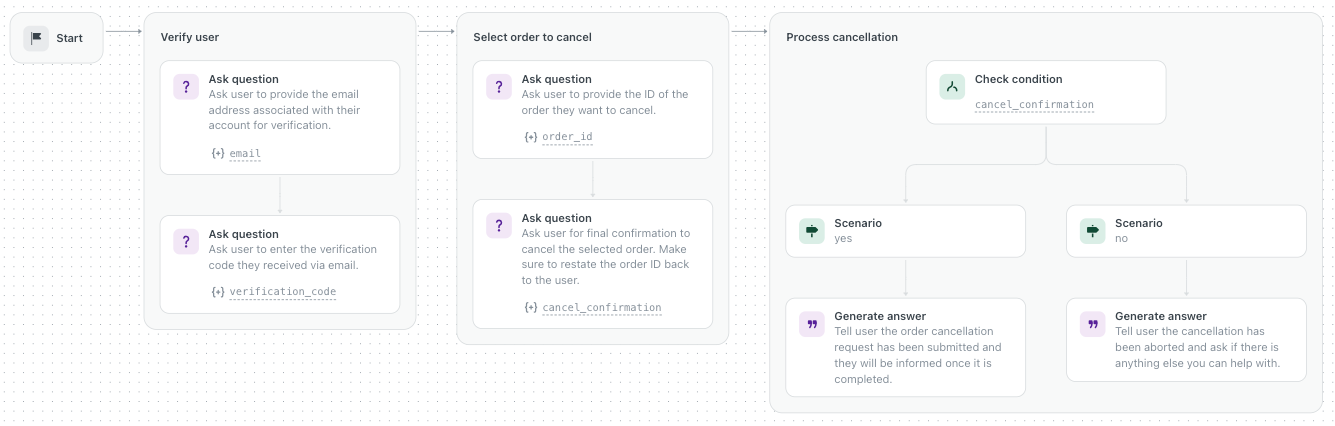
- (Optional) Repeat the previous two steps until you’re satisfied with the procedure map.
- If you want to make your edits live to customers, click Publish
procedure.
If you want to discard your edits, restore a previous version of the procedure.
Editing the procedure map
Every time you create or edit a generative procedure, an AI-generated procedure map is produced. If you need to make targeted updates to the procedure map, you can directly edit it instead of relying on the AI generation.
When directly editing the procedure map, you can select and edit individual procedure blocks. Currently, you cannot add, reorder, or delete procedure blocks.
To directly edit the procedure map
- Open a generative procedure.
- In the top right, click Edit.
- Select the procedure block you want to edit and make your changes.
The table below lists the editing capabilities for each block type.
Edited blocks are shaded in color to indicate that they’ve been updated.Block type What can be edited Generate answer -
Convert to Ask question block
-
Edit message text (Directions)
Ask question -
Convert to Generate answer block
-
Edit question text (Directions)
-
Add or remove parameters
Collect parameter -
Select a different parameter
Check condition -
Select a different parameter
Condition scenario -
Edit scenario logic
Perform action -
Select a different action
Run integration -
Select a different integration or environment
Search for knowledge -
Edit search instructions
-
Select a different search rule
Link to -
Convert to Escalate to block
-
Select a different target
Escalate to -
Convert to Link to block
-
Select a different target
-
- If you need to undo an edit you made, select a shaded block and click Reset.
- Click Save version.
- If you want to make your edits live to customers, click Publish
procedure.
If you want to discard your edits, restore a previous version of the procedure.
Testing generative procedures
After you create or update a generative procedure, you can test it before making it live for your AI agent.
Testing a procedure always tests the most recently made changes. For example, if you draft updates to a live procedure and test it before publishing the updates, the draft is tested, not the published version.
- Open a procedure for editing.
- In the top-right, click Test procedure.

- In the Session parameters dialog, do one of the following:
- To test a conditional branch of the procedure, select a Parameter and enter a Value, then click Test.
- To test the procedure as a whole, click Test without
parameters. Tip: To remember your selection for next time, unselect Ask me every time.

- In the test widget that appears, test the procedure by sending messages to the AI agent.
Viewing and restoring previous versions of generative procedures
A version history is maintained for each procedure. This means you can quickly restore a previous version of a procedure if a newer version includes changes you don’t want to keep.
You can view and restore a specific version of a procedure from the procedure builder update log on the left, or from the version history panel on the right.
To view and restore a procedure from the update log
- Open a procedure for editing.
- In the procedure builder update log on the left, click a version that you
want to view.
The selected version opens in a read-only view. You can use the View previous version and View next version icons (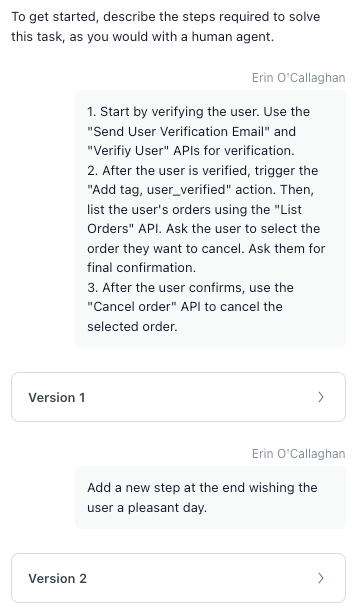

 ) in the upper right to move through different
procedure versions.
) in the upper right to move through different
procedure versions. - In the upper right, click Restore procedure.
Or, to return to the current, editable procedure, click Close.
To view and restore a procedure from the version history panel
- Open a procedure for editing.
- In the upper-right corner, click the options menu (
 ) and select View version history.
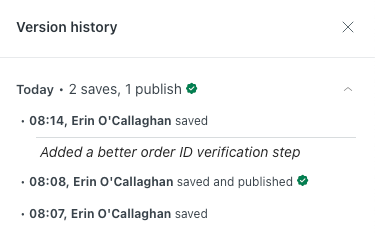
The Version history panel appears. Versions are grouped by day. A green checkmark indicates the currently published version of the procedure.
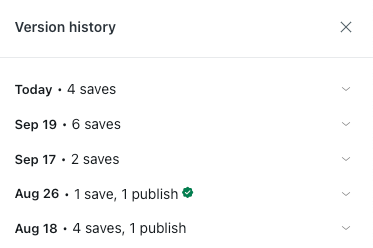
- Click to expand the day that includes the version you want to revert back
to.
Each version shows the timestamp and user who saved or published it. Any notes added for the version are shown as well.
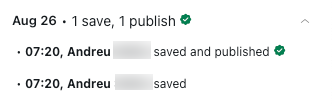
- To view a previous version of the procedure, click its entry in the Version
history panel.That version of the procedure opens in a read-only state.Tip: You can copy a direct link by clicking the options menu for that version and selecting Copy link to version. This is helpful if you need to share a specific version of the procedure with another user.
- To restore the version, click Restore procedure in the upper
right.
Alternatively, click the options menu (
) for the version you want to restore and
select Restore as draft.The version is restored as the current draft, and the live AI agent is not affected.
- To make the restored version live to customers interacting with the AI agent, click Publish procedure.
At any point, you can return to the currently published version of the procedure for comparison.
To return to the currently published version of the procedure
- With the procedure open, click the options menu () and select View published
procedure.
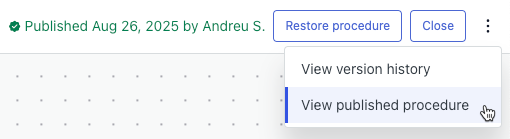
The current version of the procedure appears.
Adding a note to a generative procedure version
Each time you update a generative procedure, it creates a new version in the procedure's version history. For each version, you can add a note to help you remember the changes you made to that version.
To add a note to a generative procedure version
- Open a procedure for editing.
- Make any necessary changes and click Publish procedure.
A notification message appears in the lower-left corner.
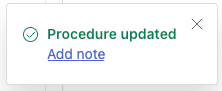
- Click Add note in the notification message.
Alternatively, click the options menu (
) in the upper-right corner and select
View version history. Click the options menu for the version
you just updated and select Add note.The Add note dialog appears.
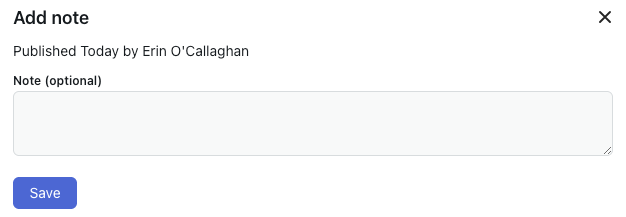
- Enter the text of your note and click Save.
The note is added underneath the version in the Version history panel.
- (Optional) To edit or delete a note, click the options menu and select Edit note or Delete note.