Conversation logs allow you to review all messages that have been exchanged between an AI agent and end users during automated conversations. From here, you can review details for specific messages and whole conversations as part of your ongoing AI agent monitoring and analysis.
This article contains the following topics:
- Viewing the conversation logs for an AI agent
- Filtering the list of conversations
- Reviewing details for a whole conversation
- Reviewing details for a single message
- Reviewing actions taken during conversations
- Reviewing API integration information
Related articles:
Viewing the conversation logs for an AI agent
You can view the conversation logs for an AI agent to see the conversations they’ve had with users and drill deeper into specific responses. Only conversations that include end-user messages appear in the conversation logs.
To view the conversation logs for an AI agent
- In the AI agents workspace, select the AI agent you want to work with.
-
Click
 Conversation logs in the sidebar.
A list of conversations appears for the default time frame (the past 7 days). If you don’t see any conversations, adjust the time frame.
- (For messaging AI agents only) Toggle the Status / Custom
resolutions setting at the bottom to switch between showing either
the conversation status or custom resolution values.
For an explanation of the values, see the table in the next section.
Filtering the list of conversations
In the conversation logs, you can filter the list of conversations by:
Filtering the list of conversations by time frame
You can filter the list of conversations by time frame.
To filter the list of conversations by time frame
- In the AI agents workspace, select the AI agent you want to work with.
- Click
Conversation logs in the sidebar.
- In the upper-right corner, click Time frame.
- Using one of the following methods, select the dates you want to view
conversations for:
- On the right, select one of the predefined time frames: Today, Yesterday, Last 7 days, Last 30 days, This month, Last month
- Select specific start and end dates on the calendar.

Filtering the list of conversations by specific attributes
You can filter the list of conversations by specific attributes such as language, status, labels, and more.
To filter the list of conversations by other filters
- In the AI agents workspace, select the AI agent you want to work with.
- Click
Conversation logs in the sidebar.
- In the upper-left corner, click Add filter.
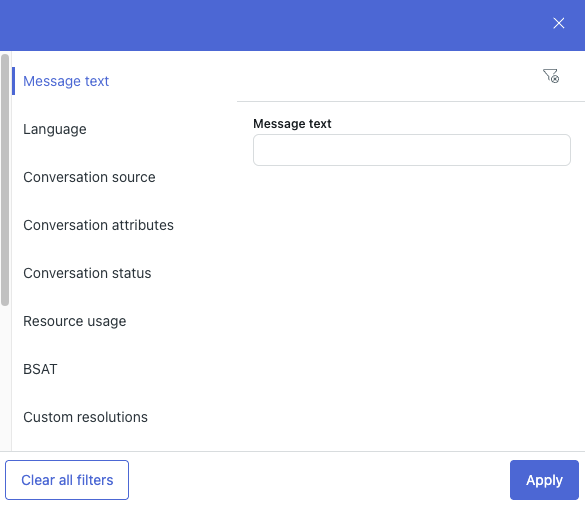
- Select and configure one or more of the following filters:
Filter Configuration details Message text In the Message text field, enter a specific word or phrase you want to search for within the conversations. Language Select the languages you want to see conversations for. Conversation source Select one or more of the following options: - Live conversations: Conversations between AI agents and end users that are currently ongoing.
- AI agent: Conversations between the AI agent and end users.
- Test widget: Conversations created through the test widget.
- Imported: Conversations imported from a different system.
Conversation attributes Select one or more of the following options:
-
Conversations with messages not understood: Conversations with at least one message that was not understood below the threshold.
-
Actions applied: Conversations with applied actions.
-
Conversations with interrupted dialogues: Conversations where customers interrupted the conversation (for example, by triggering another use case or loops).
-
Conversations with drop-offs: Conversations where users left before completing a dialogue.
-
Hide in-progress sessions: Hide conversations with sessions still within their duration threshold.
Conversation status Select one or more of the following statuses:
-
Automated resolutions: Conversations in which the AI agent responded and no escalation was attempted. You can further filter by:
-
Verified resolution: Conversations that are considered verified resolutions by Zendesk's large language model (LLM).
-
Not-verified resolution: Conversations that are not considered verified resolutions by Zendesk's LLM.
-
-
Assisted escalation: Conversations consisting of an attempt to escalate to a human agent via messaging or email. You can further filter by the following escalation types:
-
To an agent
-
Via email
-
Failure
-
-
Unassisted: Conversations in which no use case or knowledge answer has been provided.
Resource usage Select whether any of the following resource types were Used or Not used to generate the AI agent’s answer:
-
Dialogue
-
Generative reply through a dialogue
-
Procedure
-
Knowledge answer
BSAT Select one or more of the last BSAT rating responses, or select Not now.
Custom resolutions Select one or more of the following custom resolution states:
- Resolved: A meaningful custom resolution was provided, and there are no further questions.
- Informed: Instructions or guidance was provided.
- Escalated to agent: The conversation was successfully transferred to a human agent.
- Escalated via email: The conversation was successfully converted into an email ticket for the support team.
- Unresolved: The AI agent didn’t answer or resolve the issue.
- Escalation failed: The conversation wasn’t escalated successfully because no agent was available, or there was a technical error.
- Undefined: No custom resolution is associated with the conversation.
Labels Select whether you want to see conversations with Any of the selected labels, All of the selected labels, or None of the selected labels, then select specific labels. See Using labels to tag conversation content for AI agents. Use cases Select whether you want to see conversations with any, all, or none of the selected use cases, then select specific use cases. This filter applies only to use cases that were detected during a conversation, not use cases that were linked to from other replies.
Segments Select whether you want to see conversations with any, all, or none of the selected segments, then select specific segments. Suggestions Select Include knowledge suggestions to show use case suggestions that have been categorized as “Knowledge,” which means the customer’s question could be answered by a topic in your help center.
Select Include declined suggestions to show use case suggestions that have been declined.
Duration Select an operator and a number of seconds to determine the duration of the conversations you want to see. Platform conversation ID In the Platform conversation ID field, enter an ID from your CRM to see a specific conversation. This is useful when comparing logs between your CRM and your AI agent. - Click Apply.
Reviewing details for a whole conversation
You can review the details for a conversation to get more information about the overall interaction between the user and the AI agent.
To review details for a whole conversation
- In the AI agents workspace, select the AI agent you want to work with.
- Click
Conversation logs in the sidebar.
- Click the conversation you want to view.
The conversation appears on the right half of the page, and includes any messages sent as well as any actions or events that were applied.
- In the upper-right corner, click Details.
- Review the following details in the Conversation overview pane:
- Date and time: The date and time the conversation took place.
- Duration: How long the conversation lasted.
- Test conversation: Whether the conversation was a test (as determined by whether it was created using the Test AI agent, Test dialogue, or Test branch options).
- Labels: Which labels were added to the conversation. You can add additional labels by clicking Add.
- Platform conversation ID: A unique identifier for the conversation in the CRM your AI agent is integrated with. This is used for finding the same conversation in your CRM.
-
Status: The final status of the conversation. Possible values
include:
- Unassisted: The conversation triggered only small talk or system replies, with the exception of a successful Generative replies / uGPT reply. The AI agent performed no automation except for AI agent-level actions that are triggered for all conversations.
- Assisted escalation: The conversation was escalated to a human agent.
- Automated resolution: The conversation included at least one identified use case (other than a system reply) and a response was provided, or else a sufficient knowledge answer was provided by agentic reasoning or the Generative replies / uGPT reply.
- Resolution tier: Which resolution tier the conversation falls into.
- Click any of the following sections to expand them and view more details:
-
Conversation resolution: Shows the following information:
- Status: The final status of the conversation.
- Verified resolutions: Whether the conversation falls into the Verified resolution tier, including an AI-generated explanation of why.
- Calculated on: The date and time the automated resolution decision was made.
-
Resources used: Which resources the AI agent used to
respond to the customer during the conversation. Possible
values include:
- Knowledge replies: AI-generated answers based on connected knowledge sources.
- Dialogues: Responses or actions executed as part of a dialogue.
- Procedures: Responses or actions executed as part of a generative procedure.
- Resolution tier: Which resolution tier the conversation falls into.
- Segment matches: Shows which segments applied to the conversation. You can click a segment name to be taken directly to its configuration to view or edit it.
- Session parameters: Shows the configured actions and events that occurred throughout the conversation, the active language set, and the last detected language.
-
Conversation resolution: Shows the following information:
Reviewing details for a single message
You can review the details for a single message within a conversation to get more information about why the message was generated (in the case of an AI agent message) or how the AI agent interpreted the message (in the case of a user message).
To review details for a single message
- In the AI agents workspace, select the AI agent you want to work with.
- Click
Conversation logs in the sidebar.
- Click the conversation you want to view.
The conversation appears on the right half of the page, and includes any messages sent as well as any actions that were applied.
- Hover over the message you want to see more information about and click the
View details icon (
 ) that appears.
The icon appears to the left of AI agent messages and to the right of user messages.

- Review the message details that appear in the pane on the right.
- For user messages, the pane is called Message overview and
shows the following information:
- Message: The exact text of the user’s message.
-
Presumed use case: (Appears only for zero-training and
agentic AI
agents.) The use case that best
fits the conversation. An AI-generated explanation describes
why the use case was selected.

- For AI agent messages associated with a dialogue, the pane is
called Reply overview and shows the following details:
-
Details
- Used reply: Dialogue the message came from.
- Reply type: Type of reply.
- Intent: Use case the dialogue is associated with.
-
Edit reply
-
Edit dialogue: Opens the dialogue
builder for the dialogue that the message
came from.

-
Edit dialogue: Opens the dialogue
builder for the dialogue that the message
came from.
-
Details
- For AI agent messages associated with a generative procedure, the
pane is called AI agent message overview and shows the
following details:
-
Details
- Use case: Which use case the generative procedure is associated with.
- Plan: The AI agent’s reasoning in determining how to resolve the user’s issue.
- Procedure step: Click to view the specific step within a generative procedure that produced the message.
- Response before customization: The response text that the AI agent generated before the AI agent persona or any instructions were applied.
- Active instructions: Any instructions you’ve created that are currently active. These instructions affect the AI agent’s ultimate response to the user.
-
Personalization
- AI agent name: Name of the AI agent.
- Company name: Name of your company.
- Tone: Tone of voice you selected for the AI agent.
-
Answer length: Answer
length you selected for the AI
agent.

-
Details
- For user messages, the pane is called Message overview and
shows the following information:
Reviewing actions taken during conversations
To review actions in conversations logs
- In the AI agents workspace, select the AI agent you want to work with.
- Click
Conversation logs in the sidebar.
- Select a conversation.
In the conversation pane that appears, any actions executed during the conversation appear in gray boxes.
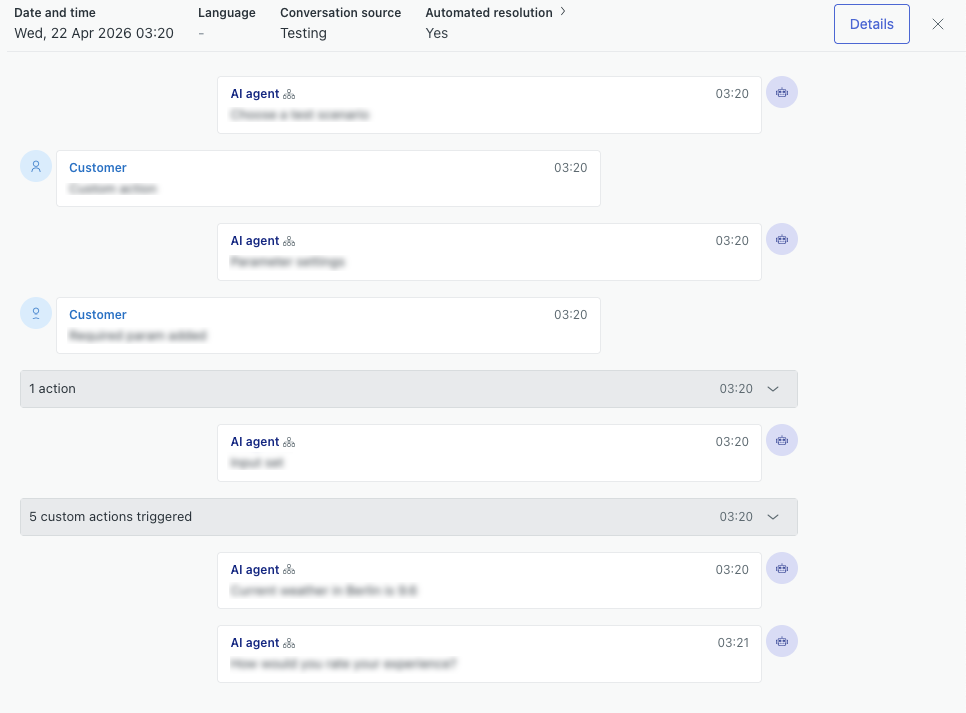
- Select a gray action box to see which specific actions were executed.

- Click the action name to open a panel with the action's details.
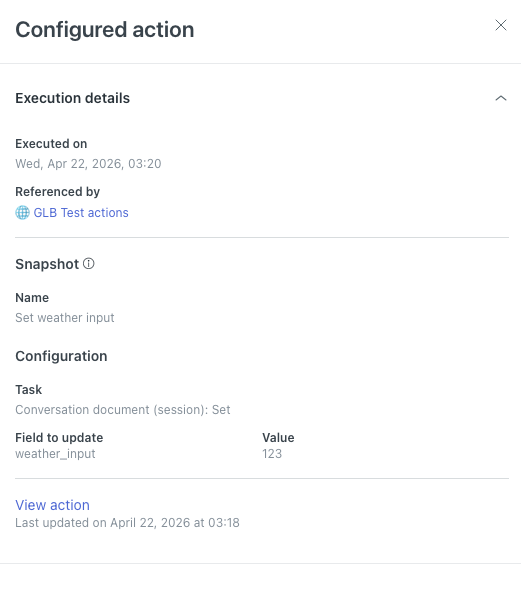
The top section of the panel shows when the action was executed and which dialogue or generative procedure triggered it. For configured actions only, the action could also have been triggered at the AI agent level or the use case level.
The middle section shows the action's name, configuration details, and (for custom actions and action flows) whether the Success or Fallback scenario was triggered.
The last section includes a link to open the action's configuration page.
- (Optional) Click View action, View custom action, or View
action flow to open the action's configuration page.
Custom actions and action flows open in Admin Center. See Editing a custom action or Editing and managing action flows.
Configured actions open an Action details pane.
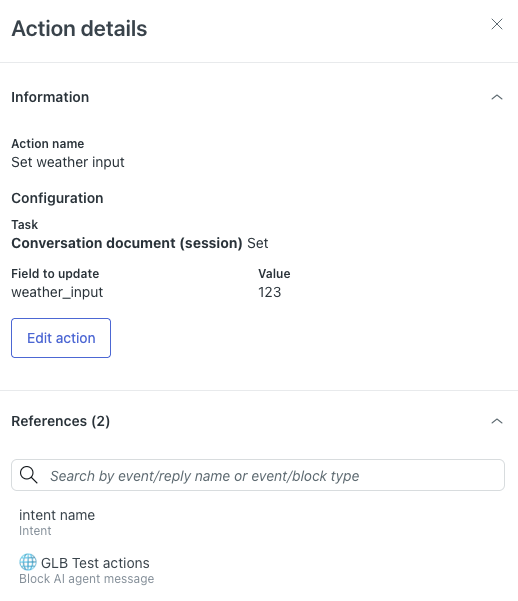
From this pane, you can:
- Click Edit action to edit the configured action.
- Select any of the entries under References to open the action at the AI agent level, use case level, or block level.
Reviewing API integration information
You can review information about API requests that take place during conversations between your AI agent and customers. This information includes when the calls were made and details of the calls, including request and session parameters, the response, any errors, and more. This information can be especially useful for troubleshooting.
To review API request information
- In the AI agents workspace, select the AI agent you want to work with.
- Click
Conversation logs in the sidebar.
- Click the conversation you want to view.
Look for entries in the conversation labeled Integration triggered or Integration parameter requested.
- Click an integration entry to see the specific API request or
requests.

- Click an API request to open the Integration details panel.
Here, you can review the following details about the API request: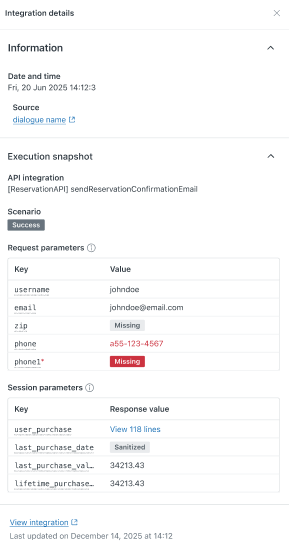
- Date and time: The timestamp of when the API request was triggered during the conversation.
- Source: The name of the dialogue that triggered the API request. You can click the name to open the dialogue in the dialogue builder.
- API integration: The name of the integration.
- Scenario: Which scenario (success, failure, fallback, or custom) was triggered as part of the API integration block in the dialogue.
- Request parameters: Any request parameters (inputs) that were configured for the API request. Errors due to missing required values or data type mismatches are highlighted in red.
- Session parameters: Any session parameters (outputs) that were configured for the API request.
- API error: (Appears only if an error occurred.) Details about the error.
- (Optional) Click View integration to open the integration in the integration builder.