In Contact Center, business units allow you to control contact center availability, emergency closures, and public holidays. They allow you to group queues together and apply closure rules consistently across departments and individual queues without modifying individual contact flows.
Admins can access the business unit settings in the Zendesk for Contact Center admin interface. If you can't access the settings, then contact Zendesk Customer Support to request the activation of the Business Unit solution on your CloudFormation stack.
This article contains the following topics:
Understanding business units
A business unit represents a logical department or area of your contact center and groups one or more Amazon Connect queues under a single operational profile.
With business units admins can:
- Apply emergency closures at the business unit level (affects all associated queues) or at an individual queue level within the unit.
- Define public holidays per business unit to manage non-standard operating days.
Creating business units
Create a business unit to group related queues under a shared operational profile. Business unit settings are evaluated at runtime within Amazon Connect contact flows.
- In Contact Center, click Admin Settings.
- Click the settings icon (
 ) in the
sidebar.
) in the
sidebar. - Click the Business Units tab at the top.
- Click Add new business unit.
- Enter a unique name that identifies the business unit.
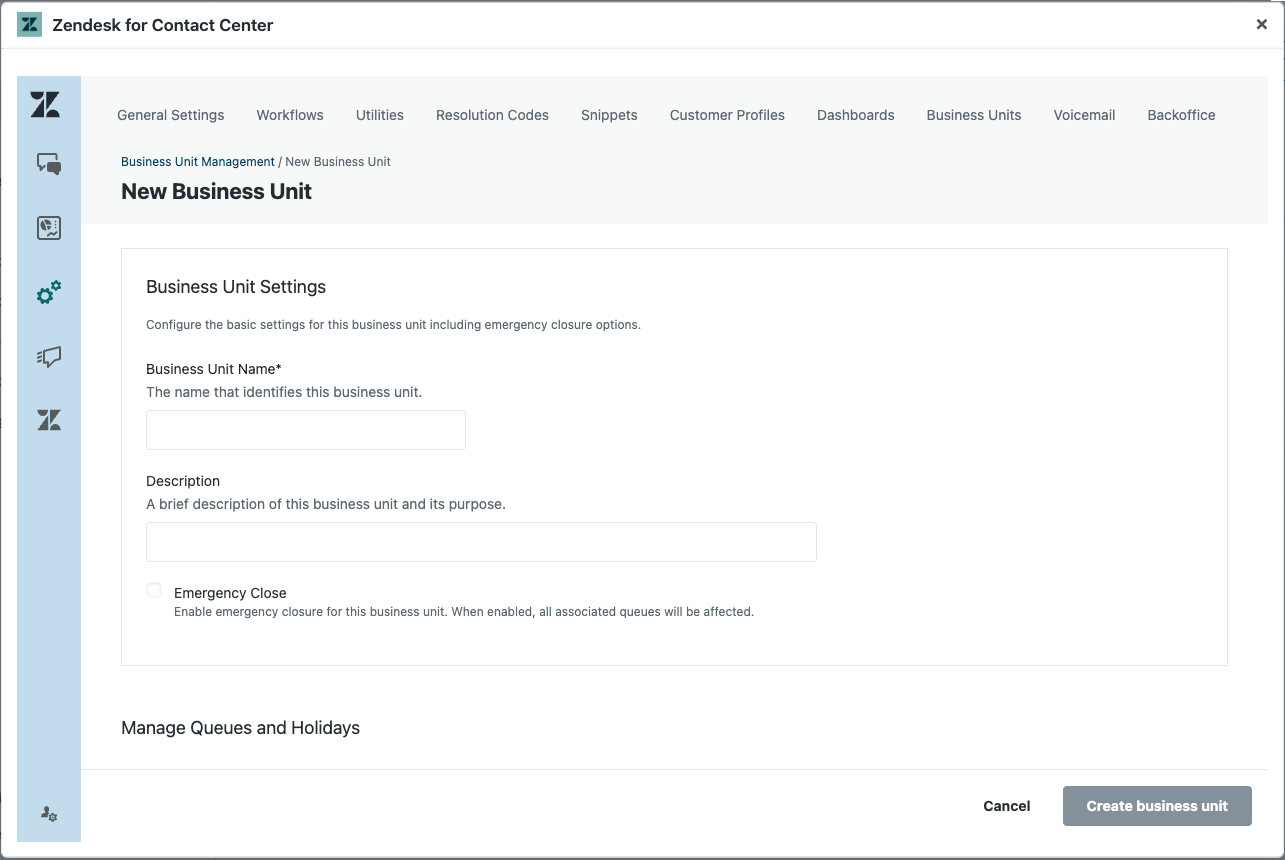
- (Optional) Enter a description to clarify the unit’s scope and purpose.
- (Optional) Configure business unit–level emergency closure settings:
- Emergency close: Activate to stop call handling for all queues in the unit.
- Close message: Add a message to play to callers when the unit is closed.
- Select Create business unit.
Adding queues to business units
Add one or more Amazon Connect queues to a business unit so the unit’s emergency closure and public holiday settings apply to those queues. Each queue can be associated with only one business unit.
- In Contact Center, click Admin Settings.
- Click the settings icon () in the
sidebar.
- Click the Business Units tab at the top.
- Click the name of the business unit you want to update.
- Under Manage Queues and Holidays, click Add queue.
- Select a queue to assign to the business unit.
You can assign a queue to only one business unit. To change a queue's business unit, you must first unassign the queue from the original unit.
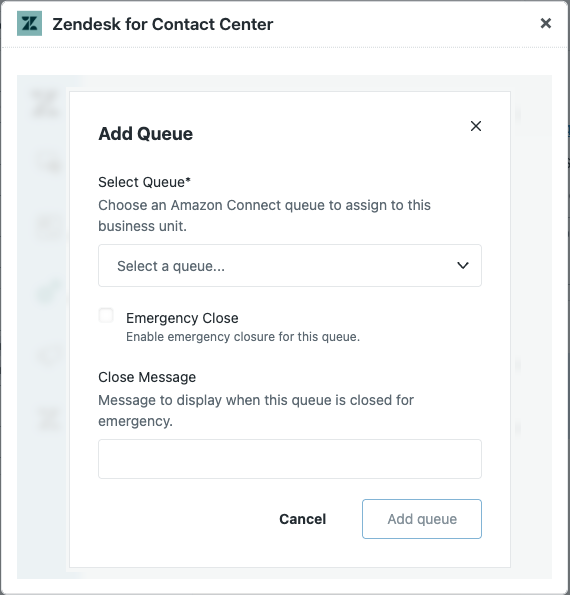
- (Optional) Set queue–level emergency closure:
- Emergency close: Activate to stop call handling for this queue.
- Close message: Add a message to play to callers when this queue is closed.
- Cick Add queue
Adding public holidays
Configure public holidays to manage non-standard operating days for each business unit. Public holidays are evaluated at runtime and can be combined with hours of operation logic in contact flows.
- In Contact Center, click Admin Settings.
- Click the settings icon () in the
sidebar.
- Click the Business Units tab at the top.
- Click the name of the business unit you want to update.
- Under Manage Queues and Holidays, click Add holiday.
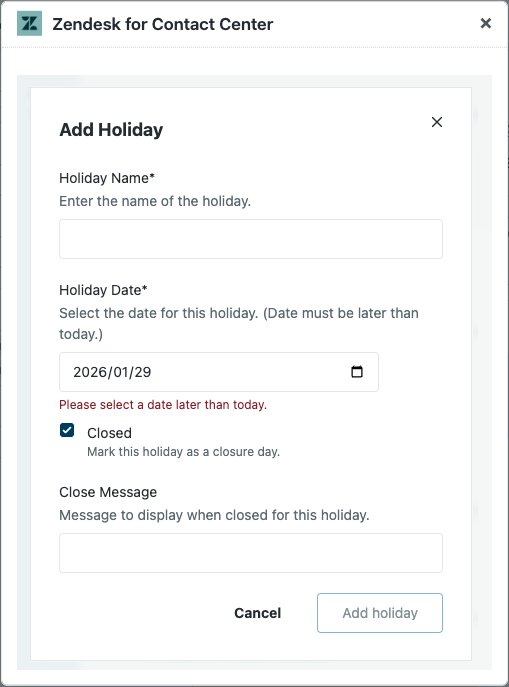
- Enter the holiday details:
- Holiday Name: A short, descriptive name.
- Holiday Date: The calendar date for the holiday.
- Closed: Activate to close the business unit for the full day.
- Close message: The message played to callers when the unit is closed for this holiday.
- Click Add holiday.